Collector Jobs
The Collector jobs button opens a drawer that lists collection jobs and their tasks across all networks in the organization. Use it to watch active jobs, review recently finished ones, drill into per-source progress, and cancel a job that is queued or running.
Opening the drawer
The Collector jobs button sits in the application toolbar in the top-right corner, near the notifications icon.
-
When no jobs are active, it shows a list icon labeled Collector jobs.

-
While jobs are running, it becomes a pill showing a spinner and the count, for example 4 jobs in progress.

Click the button to open the Collector jobs drawer.
The button is visible to users with the Network Operator role or higher. It does not appear in Software Central deployments.
Active and history tabs
The drawer has two tabs, each with a count:
- Active — jobs that are queued or in progress.
- History — jobs that have finished, including completed, failed, timed-out, and canceled jobs.
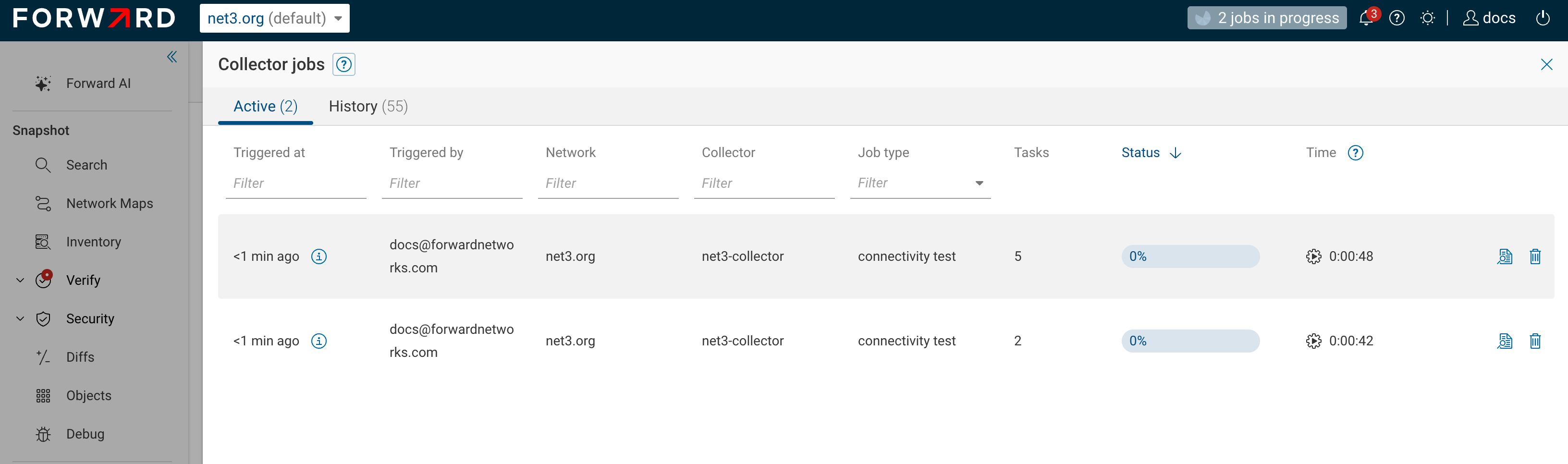
Jobs are not always run in the order they were queued. Prioritization depends on the characteristics of each job.
Job table columns
The columns shown depend on the tab and on whether the organization uses multiple collectors per network.
| Column | Tab | Description |
|---|---|---|
| Triggered at | Both | When the job was queued. Hover to see the exact timestamp. |
| Triggered by | Both | The user who started the job. |
| Network | Both | The network the job runs against. |
| Collector | Both | The collector running the job. Labeled Collectors when a network uses more than one. |
| Job type | Both | The kind of job (see Job types). Filterable. |
| Tasks | Both | The number of tasks (sources) the job covers. |
| Status | Both | A progress bar for running jobs, or the final status for finished jobs. |
| Time | Active | Run time for a job in progress, or elapsed wait time for a queued job. |
| Queue time | History | How long the job waited in the queue before starting. |
| Run time | History | How long the job took to run. |
The History tab replaces the Time column with separate Queue time and Run time columns:
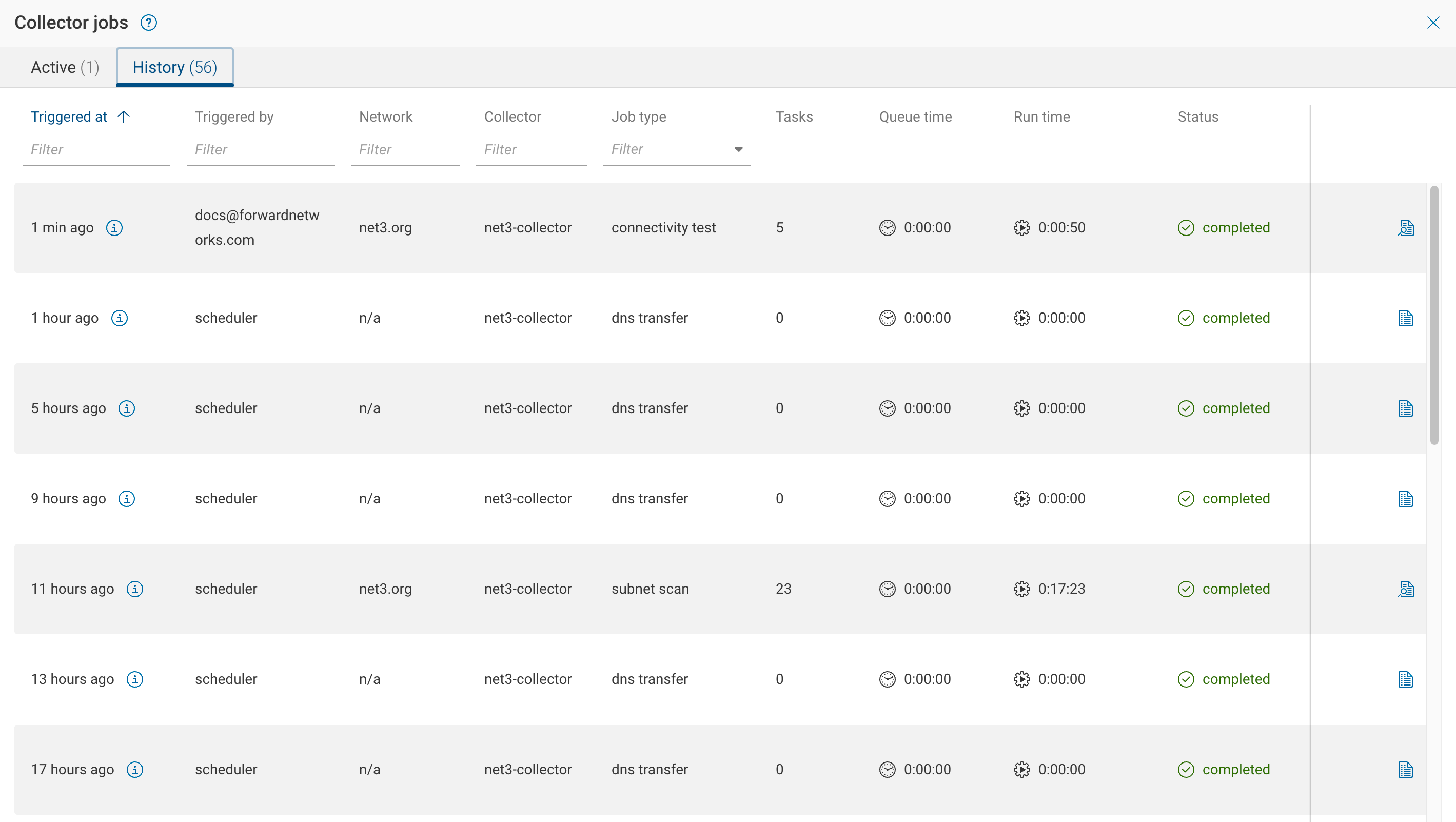
Status values are queued, in progress, completed, failed, timed out, and canceled.
For a canceled job, click the Cancel details icon in the Status column to see who canceled it, when, and the reason given.
If a running job's collector is offline, a warning icon appears next to it: Collector is offline. No progress can be made until it's back online.
Job actions
Each row offers actions, subject to permissions:
| Action | When available | Result |
|---|---|---|
| Job progress | A running or finished job that has tasks | Opens the Job progress drawer. |
| View log | A running or finished job with no subtasks | Opens the collection log in a new browser tab. |
| Cancel job | A queued or running job | Opens the cancel dialog. |
Job progress
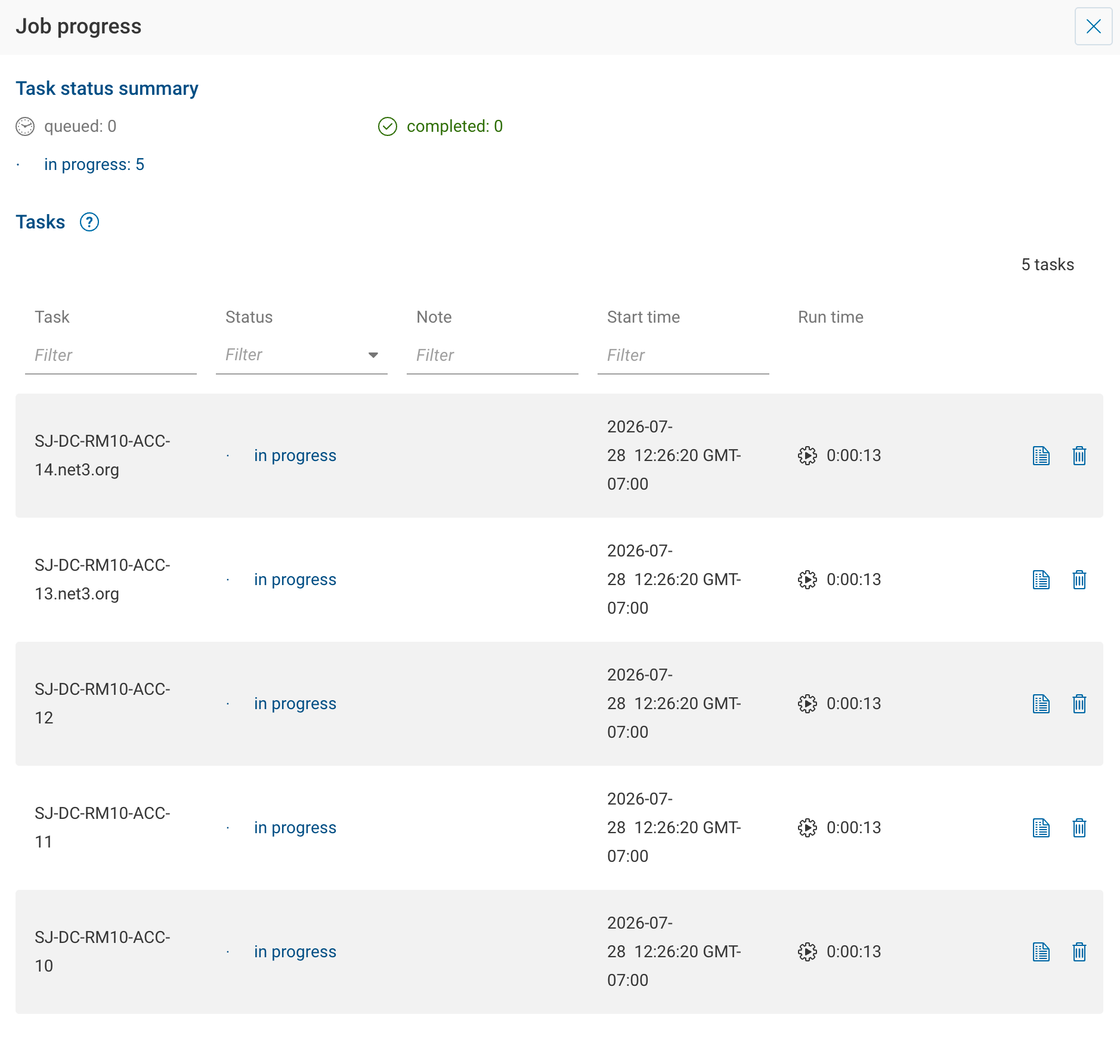
For a job with tasks, the Job progress action opens a drawer titled Job progress (or Job details once the job has finished).
Once the job finishes, the same drawer is titled Job details and shows each task's final status and run time:
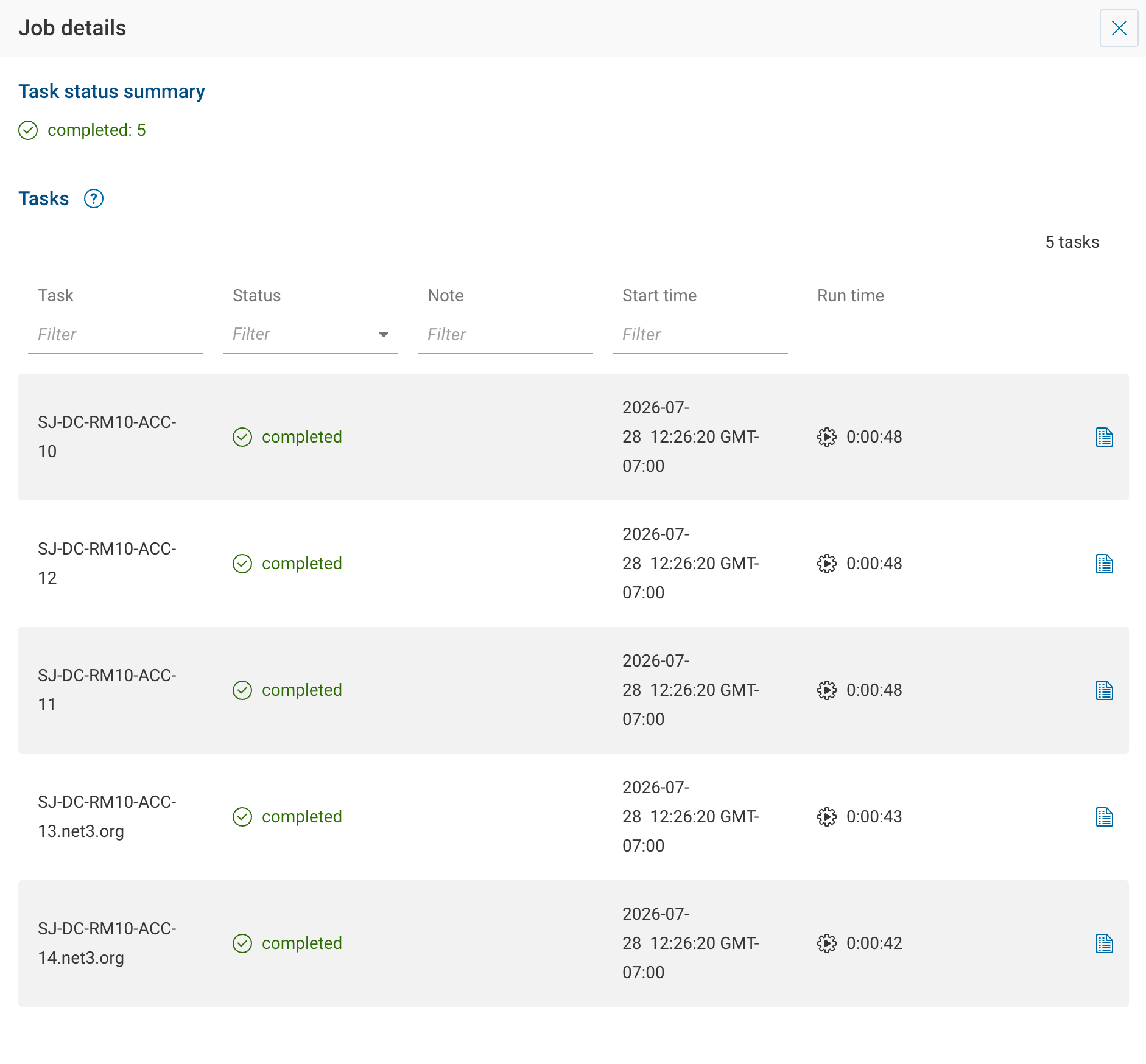
The drawer shows:
- A Task status summary with counts for queued, in-progress, completed, canceled, failed, and timed-out tasks.
- A Tasks table listing each task. Queued tasks are excluded, and at most 1,000 tasks are shown.
The task table has these columns:
| Column | Description |
|---|---|
| Task | The task description, usually the source being collected. |
| Status | The task's current status. Filterable. |
| Collector | The collector running the task (shown only with multiple collectors per network). |
| Note | Any note recorded for the task, such as a cancellation reason. |
| Current operation | The step in progress (network-collection jobs only). |
| Start time | When the task started, or not started if it has not begun. |
| Run time | How long the task has been running or took to run. |
You can view the log for an individual task, or cancel a task that is queued or running.
Canceling a job
Selecting Cancel job opens a confirmation dialog titled Cancel this job?.
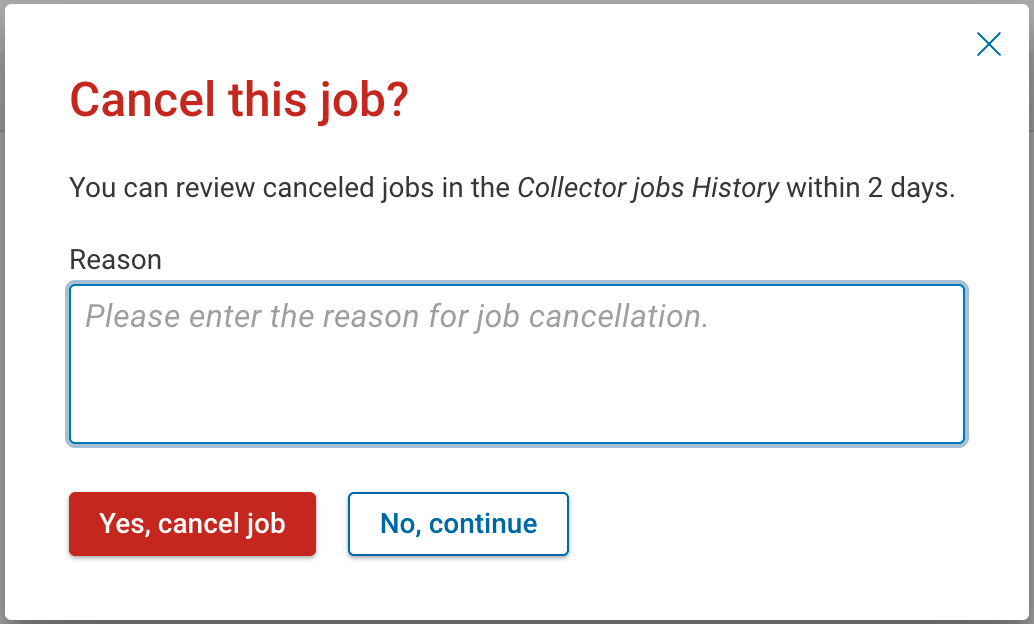
- Enter a Reason for the cancellation, then confirm with Yes, cancel job.
- For a running network-collection job, you can instead choose Skip remaining sources to stop the pending sources while keeping the sources already collected, or Abort all to cancel everything.
Canceled jobs remain visible in the History tab for two days.
Permissions
| Capability | Who can do it |
|---|---|
| View the Collector jobs drawer | Network Operator and above. |
| View job details, logs, or cancel | Org Admins, Network Admins of the job's network, or the user who started the job. |
A user without the required permission sees a tooltip explaining that they can contact the job owner or an admin.
Job types
The Job type column can hold any of the following values:
| Job type | Description |
|---|---|
| collection | A network snapshot collection. |
| connectivity test | A device connectivity test. |
| device discovery | Discovery of devices for a network. |
| host discovery | Meraki host discovery, part of Cisco Meraki setup. |
| subnet scan | An end-host subnet scan. |
| collector upgrade | A collector upgrade. |
| collector extension | Installing or removing a collector extension. |
| end host scanner test | A test of the end-host scanner. |
| http endpoint test | A test of an HTTP endpoint. |
| dns connectivity | A DNS connectivity check for a DNS zone transfer. |
| dns transfer | A DNS zone transfer. |
| apply certificates | Applying trusted certificates to a collector. |
See also
- Collection Progress — monitoring a single collection in progress.
- Collector Management — managing the collectors themselves.
- Get collector tasks — the REST API behind this drawer.