Presentation Mode
Overview
Presentation mode is helpful when viewing dashboards on large screens or from a distance, such as in a Network Operations Center. This mode offers a full-screen mode, an in-app zoom that scales dashboard content, and an auto-scroll option that cycles through the dashboard automatically.
These features are available on all Forward-maintained and custom dashboards except the System dashboard, and can be configured independently for each dashboard.
Full-screen Mode
Use the Full screen control in the top-right corner of the dashboard toolbar to enter and exit full-screen mode.
In full-screen mode:
- The dashboard control bar remains pinned to the top, allowing you to switch between dashboards without leaving full-screen mode. Along with the dashboard control bar, the Forward logo, Snapshot dropdown and Time-range dropdown (to view historical trends) also remain visible at the top in full-screen mode.
- See Details icons that navigate the user to other pages (Inventory, Topology, Search, Vulnerabilities, etc.) are hidden.
- See Details icon for individual panels that link to another dashboard remains available.
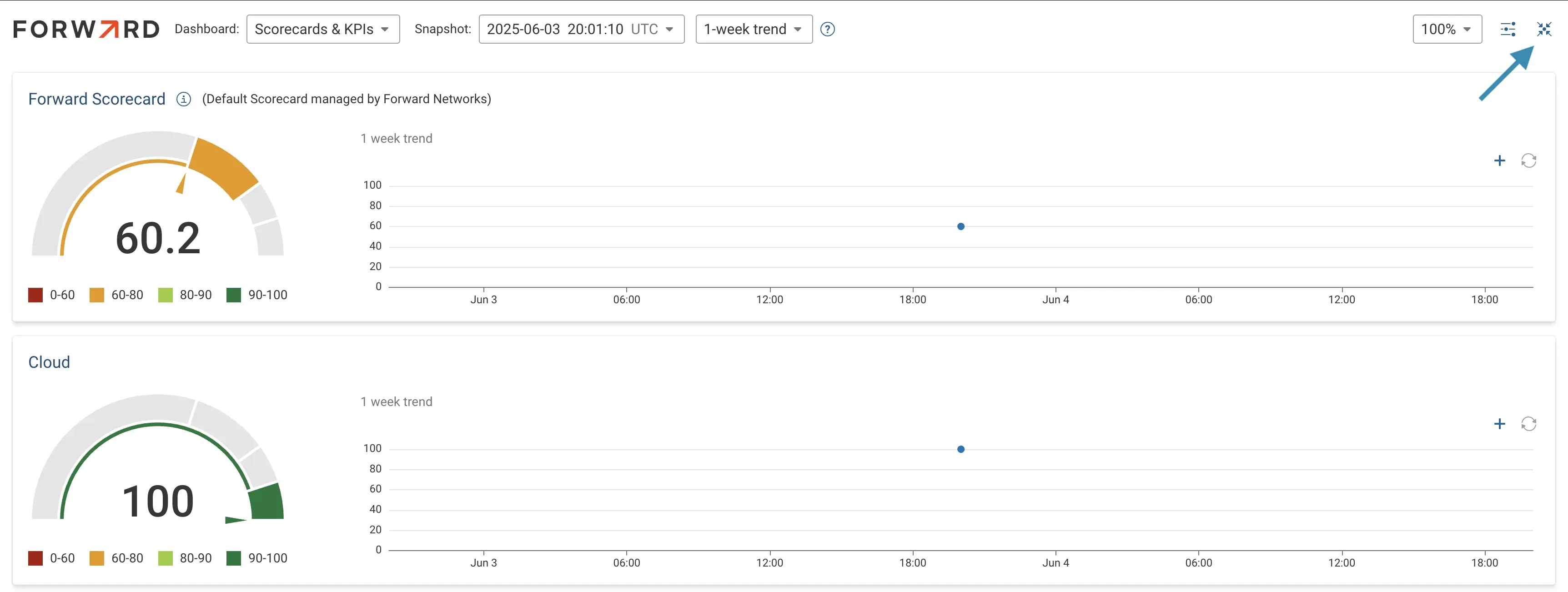
Because full-screen mode isn't supported for the System dashboard, the drop-down menu for switching between different dashboards in full-screen mode omits the System dashboard option. Exit the full-screen mode to view the System dashboard.
Adjusting the Zoom Level
The zoom control in the dashboard toolbar allows the user to scale all the dashboard content for legibility when viewed from a distance or for the best viewing experience based on the display screen.
Zoom level can be configured in one of the two ways:
- Preset values: Select a percentage from the drop-down list of common zoom levels.
- Custom value: Type any whole number into the input. The minimum allowed value is 25%.
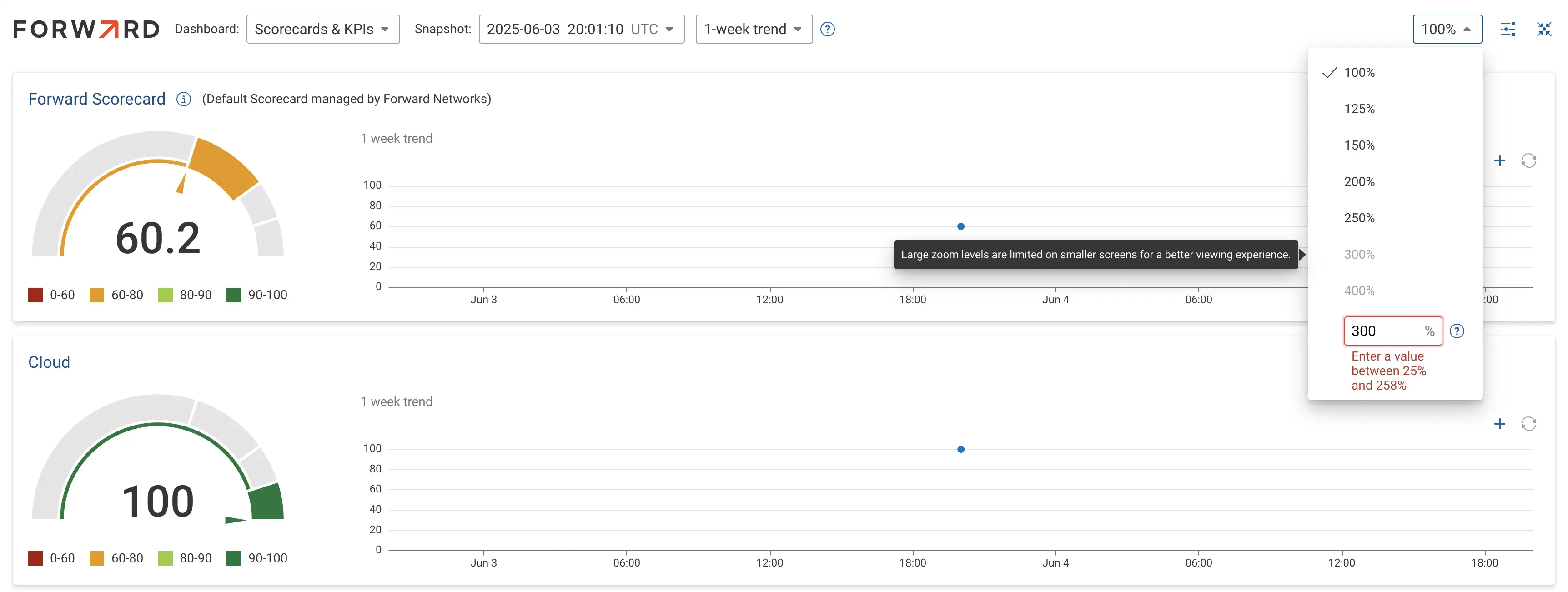
The maximum zoom level is calculated dynamically based on the available container size, so a higher maximum is typically allowed in full-screen mode than in the windowed view. Certain larger zoom values are unavailable on smaller screens to preserve a good viewing experience. If a user enters a custom value above the current allowed maximum, a note displays the allowed range for the current display.
When a panel is wider than the visible area at the chosen zoom level, the panel displays a horizontal scrollbar. The dashboard page as a whole never scrolls horizontally.
Auto-scroll
The auto-scroll feature cycles through a dashboard automatically, allowing a display to show all panels on a single dashboard without an operator at the keyboard. It is configured to pause briefly at each edge before continuing, ensuring readability of the edge content.
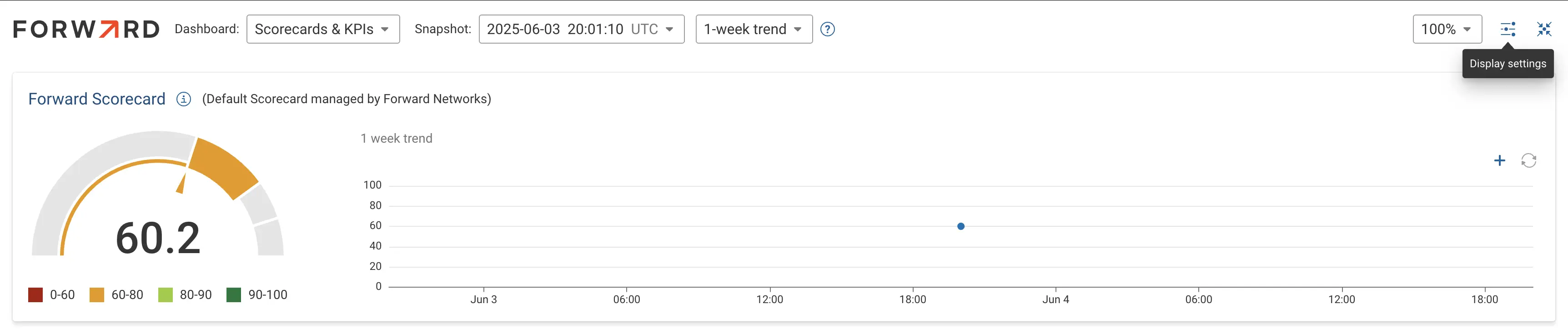
Auto-scroll settings are configured per dashboard from the Display settings menu in the dashboard toolbar, which is available only in the full-screen mode.
To configure Auto-scroll:
- Enter the full-screen mode and the Display settings button will appear in the toolbar at the top right.
- Open the Display settings menu on the dashboard you want to configure.
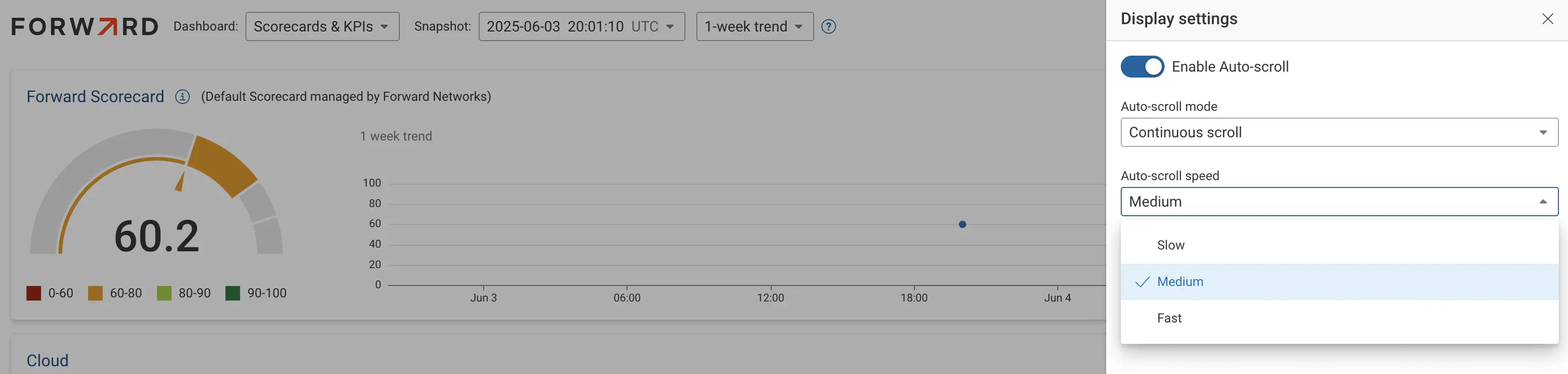
- Toggle Enable Auto-scroll.
- Choose a scroll mode: Page by page or Continuous scroll.
- For Page by page, choose the Auto-scroll interval in seconds from the allowed range of 1 to 30.

- For Continuous scroll, pick a Auto-scroll speed from Slow, Medium or Fast.
- Click Save at the bottom of this window.
Display settings are saved per dashboard. When you re-open the dashboard in full-screen mode, auto-scroll resumes automatically using the saved settings.
Manual scrolling is disabled while any type of auto-scroll is running.
Page by Page
In Page by page mode the dashboard advances one screen at a time after the configured interval. Each step aligns on a panel boundary, so a panel is never cut off across two pages.
If a panel contains content that overflows horizontally, the panel scrolls horizontally first, and then the dashboard advances vertically.
Continuous Scroll
In Continuous scroll mode the dashboard scrolls smoothly from top to bottom and then loops back to the top.
Pausing and Resuming
A pause control and the current page indicator (in Page by page mode) are shown at the bottom of the screen whenever auto-scroll is active. The pause control is available to all users, allowing anyone viewing the display to stop the scroll, investigate a panel and then resume it.

To permanently stop auto-scroll, an authorized user must disable it in Display settings; otherwise it will resume the next time the dashboard opens in full-screen mode.
Permissions
While any user can enter the full-screen mode and play or pause it, only a Network/Org Admin can configure the auto-scroll feature for dashboards.