Using Forward AI
Opening Forward AI
Forward AI is the default landing page, so it opens after you sign in. You can also click Forward AI in the left navigation at any time. The page opens in the currently selected network and uses the latest processed snapshot.
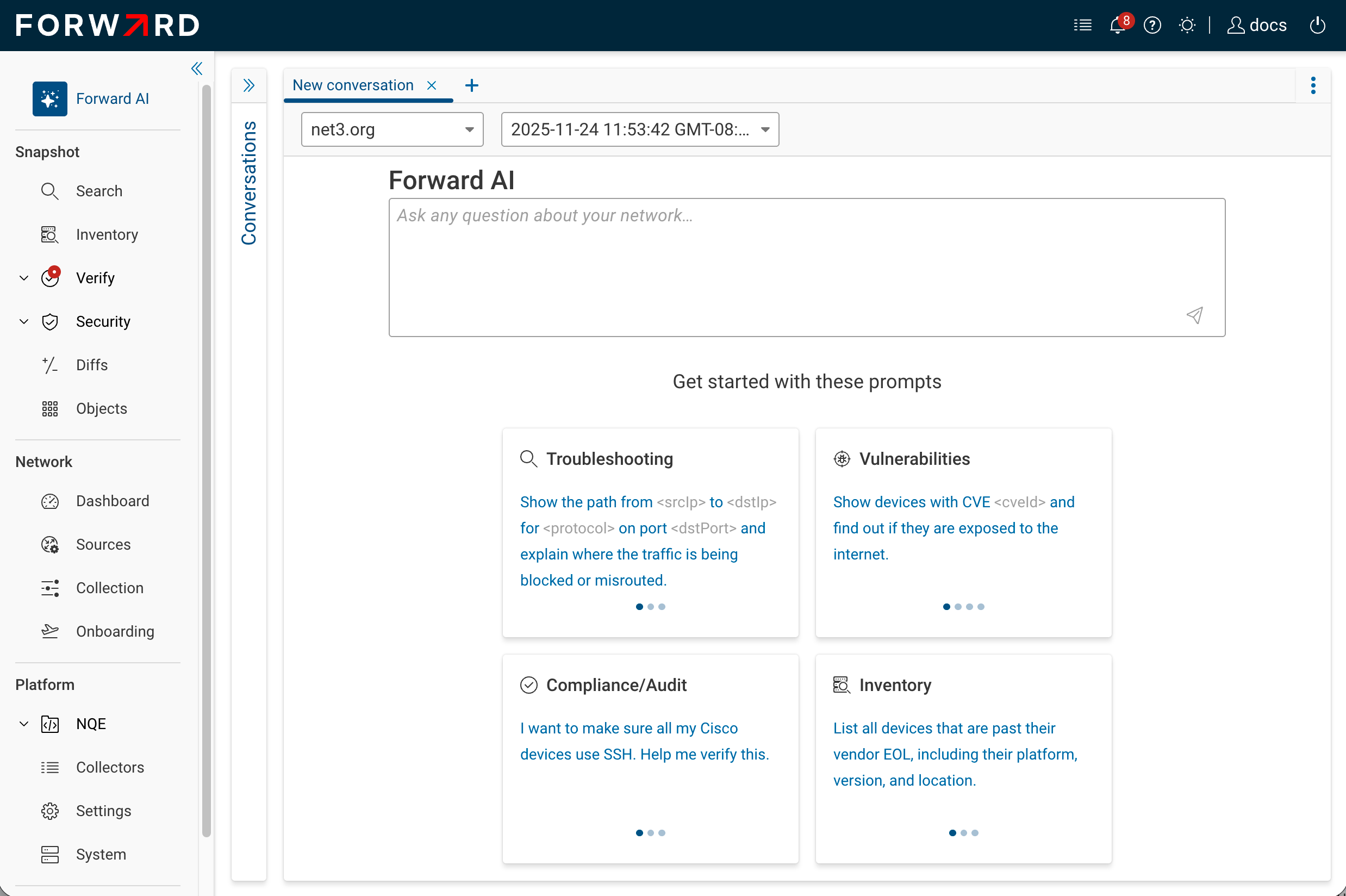
Page layout
The Forward AI page is split into three areas:
| Area | What it shows |
|---|---|
| Conversations panel (left) | Your past conversations on the current network, sorted most-recent first. Click a conversation to reopen it; open its ⋯ menu to rename or delete it. |
| Transcript (center) | The current conversation: your prompts, the agent's replies, and the prompt input at the bottom. |
| Plan & tools panel (right) | The agent's plan for the active prompt and the tool calls it executed, with their results. |
NQE results and other multi-row tool outputs render as sortable tables in the Plan & Tools panel so you can page through them without leaving the conversation.
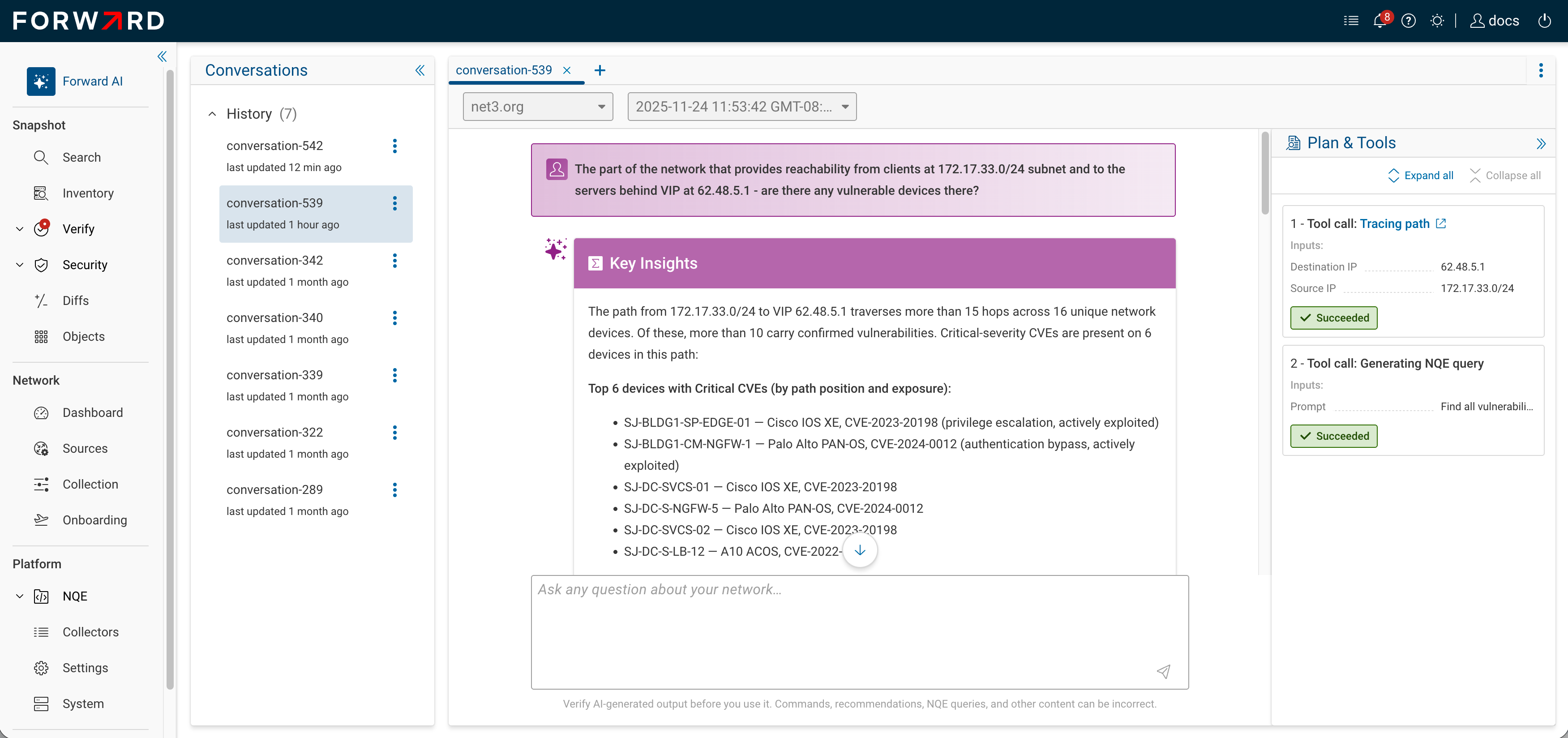
Starting a conversation
A new conversation displays Get started with these prompts — example prompts grouped under:
- Troubleshooting — path tracing, reachability checks, blocked-traffic diagnosis.
- Vulnerabilities — CVE exposure, vulnerable paths, prioritization.
- Compliance / Audit — config consistency, unused rules, direct internet exposure.
- Inventory — EOL devices, BGP session audits, host discovery.
Click an example to drop it into the prompt input; replace the <placeholder> values with real ones from your network,
then press Send. To skip the suggestions, type your own prompt and press Send.
What happens after you send a prompt
- The conversation status changes to Processing.
- The agent classifies the prompt. If it's out of scope, the conversation ends with an explanation. See Limits and scope.
- For complex prompts that need three or more distinct actions, the agent emits a plan in the right-hand panel — a short list of broad steps. Simpler prompts skip planning.
- The agent runs one tool at a time. Each call appears in the panel as the agent decides to run it, with its inputs, status, and result.
- The agent posts the final answer in the transcript: a summary and key insights.
- The conversation status changes to Done.
You cannot send another message in the same conversation while it's still Processing, and you can only have one Processing conversation across all your chats. Wait for the current one to finish, or switch to a different conversation.
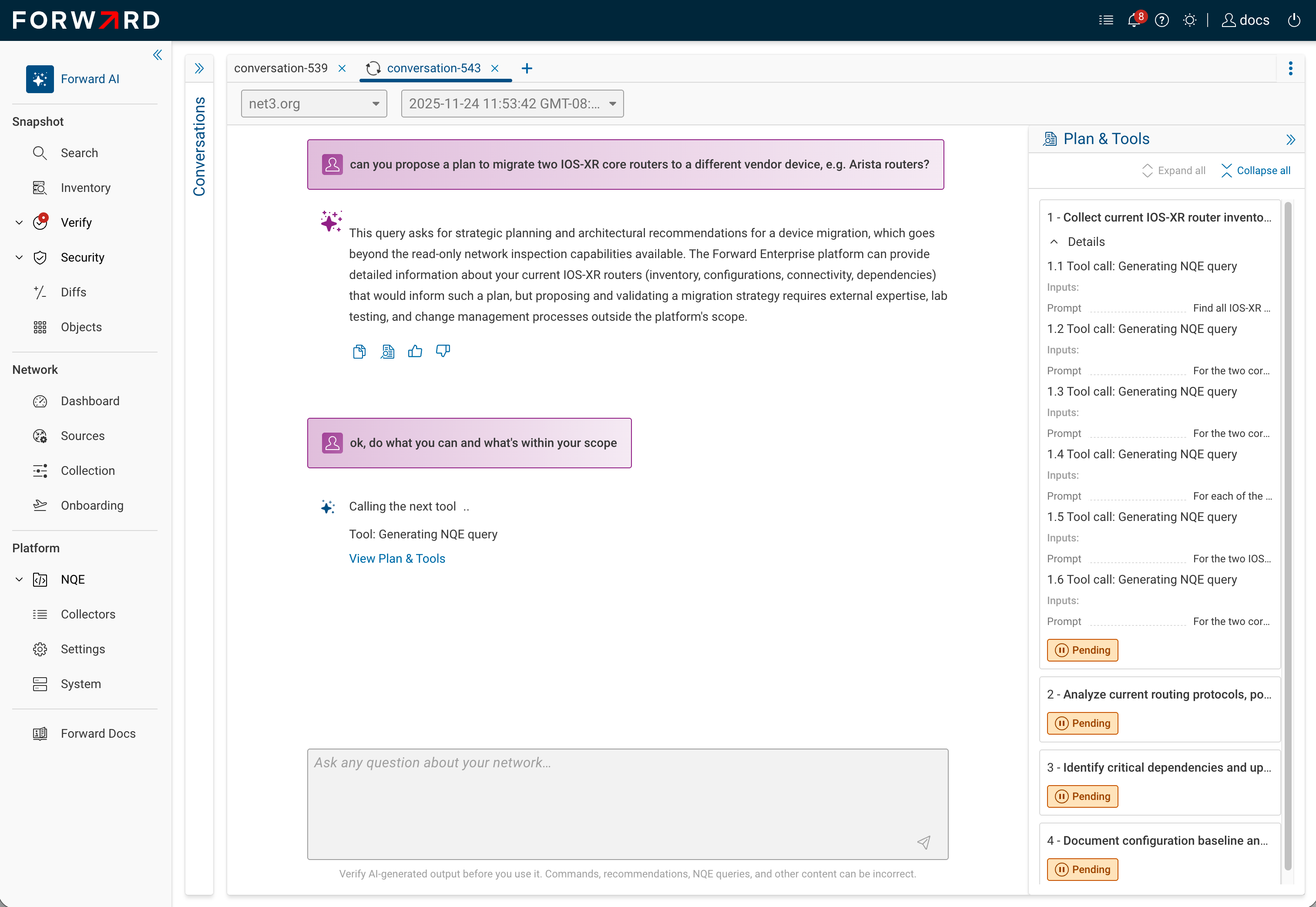
Inspecting evidence
Every tool the agent runs appears in the Plan & Tools panel, where you can open its inputs, status, and result. Select a tool to see the evidence behind an answer:
- Path search — the reply summarizes the path in the transcript; the Tracing path tool carries an Open in Search page link that opens the native Search application with the source, destination, protocol, and ports pre-filled. Use it to drill into the path or change parameters.
- NQE results render as a sortable table. The NQE tool fetches at most 100 rows per query; if your question requires more, ask the agent to refine it or open the underlying query in NQE.
- Device, interface, VLAN, VRF, host, and cloud-object lookups show structured fields, each with an Open in Search page link to the matching object.
- CVE references in vulnerability replies are clickable and carry severity.
Vulnerability tables and successful NQE queries also render inline in the transcript, alongside the summary and key insights. Other tool results — including path search — stay in the Plan & Tools panel.
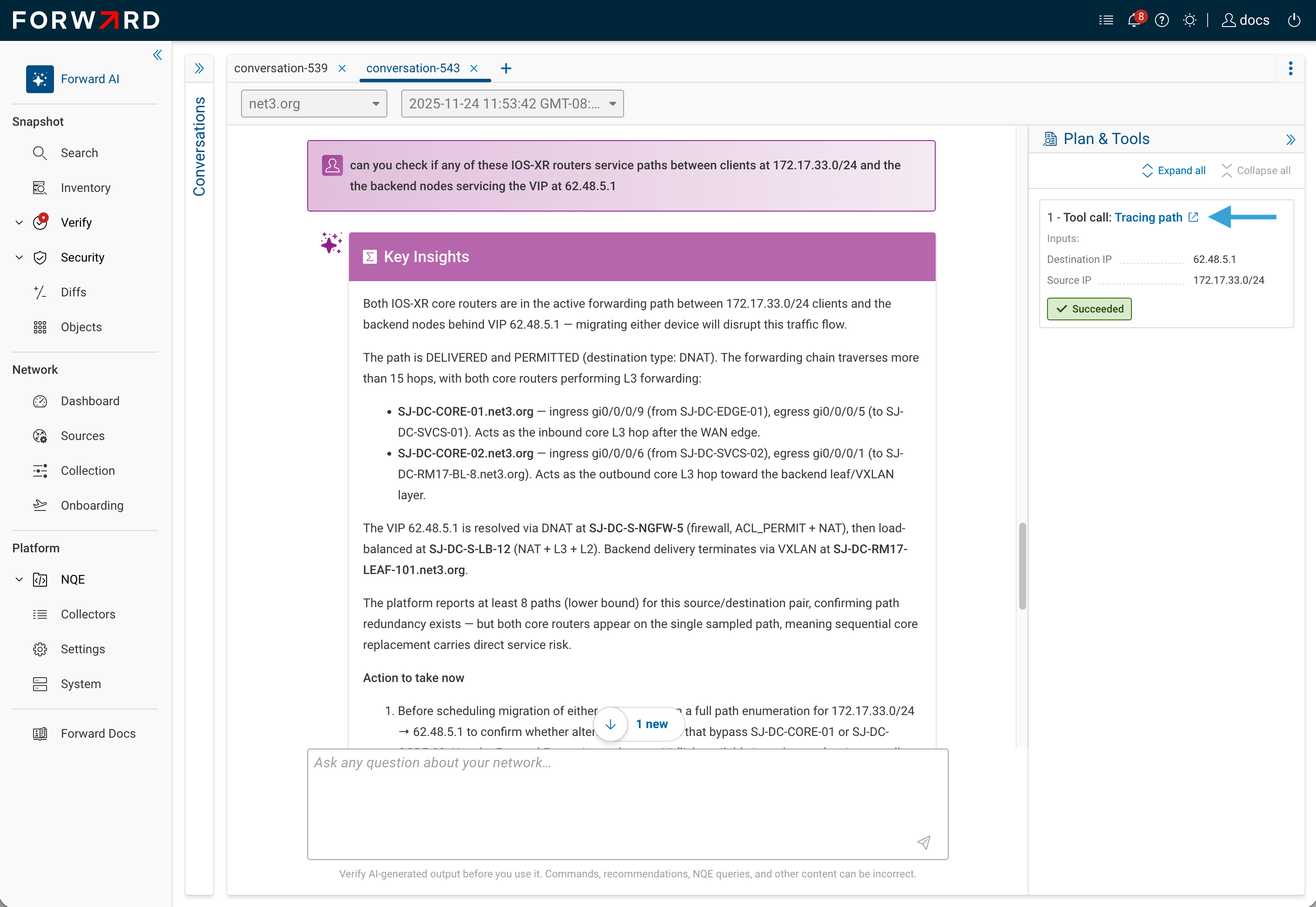
Following up
After a reply finishes, type your next prompt to continue. The conversation keeps the full prior context, so you can reference earlier results ("for the device you mentioned in the last answer, list its interfaces") without restating them.
Renaming and deleting conversations
In the conversations panel, open a conversation's ⋯ menu for Rename and Delete:
- Rename sets a new title. Empty titles are rejected.
- Delete removes the conversation and all its messages. There is no undo.
You can only rename or delete conversations you own.
Sending feedback
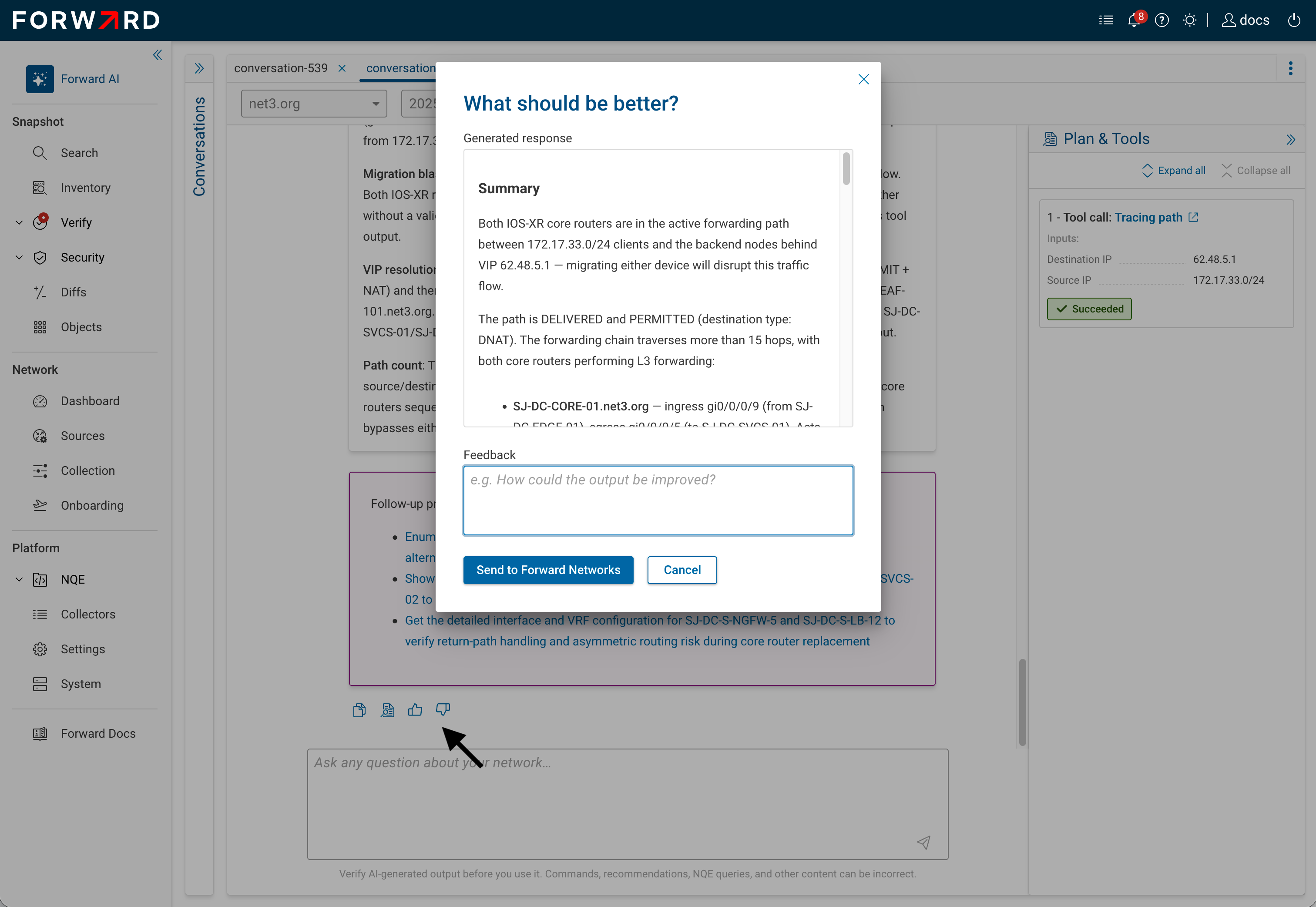
Each assistant reply has thumbs-up and thumbs-down icons. Clicking either opens a dialog with up to 1000 characters of free-text comment.
Feedback is used by the Forward AI team to improve the agent. It is not visible to other users or to your org admin.
Where to go next
- Capabilities — the full set of question categories Forward AI can handle.
- Limits and scope — out-of-scope replies, per-message limits, and snapshot scoping.