Forcepoint
Forcepoint SMC Collection Setup
1. Enable SMC API Access
In the Forcepoint SMC UI, enable API access and create an API key: Follow these steps to enable the API on the Management Server and allow other applications to connect to it.
In Forcepoint SMC UI perform the following:
- In the Management Client, select Home.
- Browse to Others > Management Server.
- Right-click the Management Server, then select Properties.
- Click the SMC API tab, then select Enable.
- (Optional) In the Host Name field, enter the name that the SMC API service uses.
Note: API requests are served only if the API request is made to this host name. To allow API requests to any host name, leave this field blank.- Make sure that the listening port is set to the default of 8082 on the Management Server.
- If the Management Server has several IP addresses and you want to restrict access to one, enter the IP address in the Listen Only on Address field.
- If you want to use encrypted connections, click Select, then select the TLS Credentials element and the Cryptography Suite Set element.
- Click OK.
2. Add SMC API key as Forward Credential
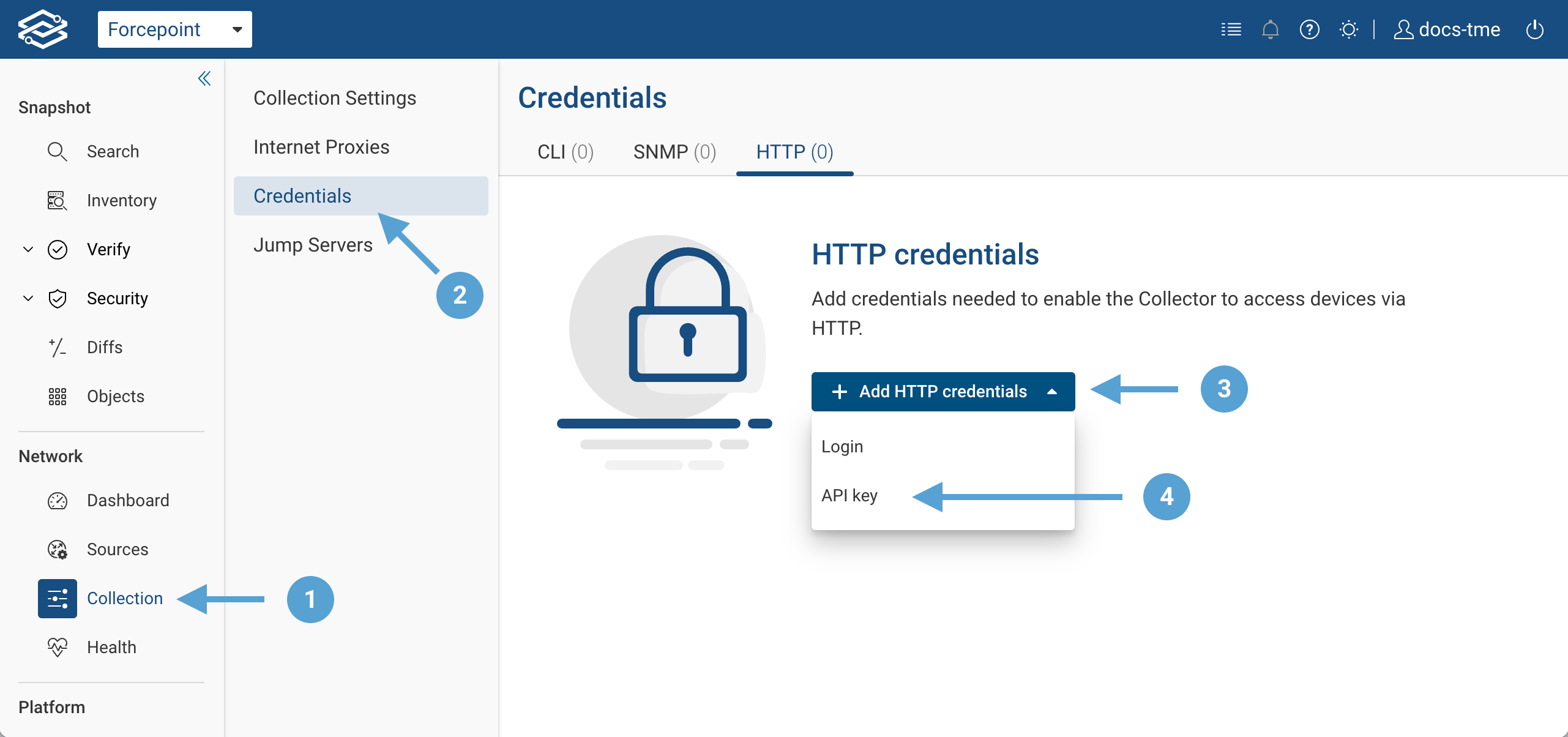
From the navigation panel, select Collection → Credentials → HTTP Credentials → API key:
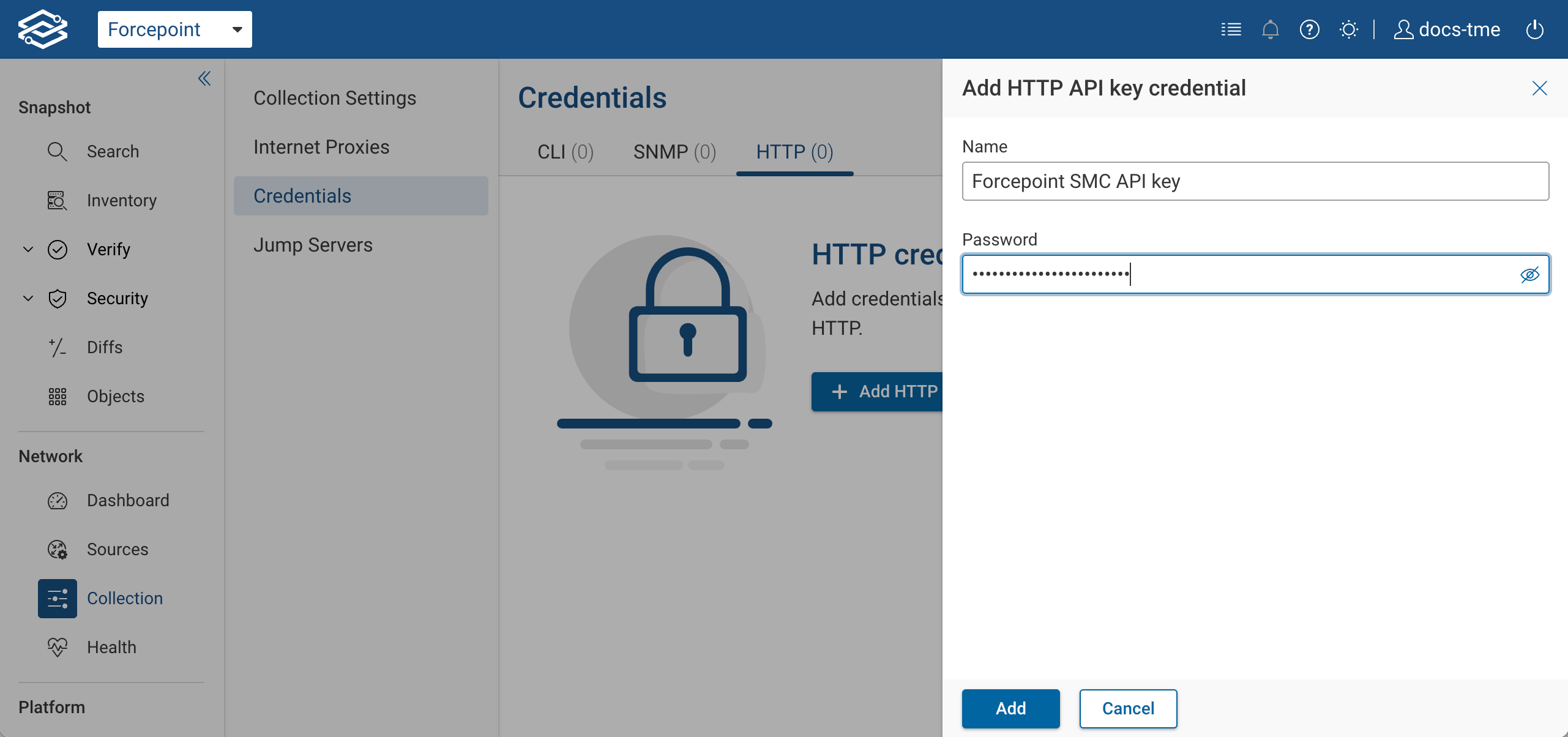
Provide a name for this credential and add the API key in the Password field:
3. Add SMC to Forward device sources
Next, add SMC device manually as a Classic device, as described in this section of Collector Configuration page. Make sure to correctly specify port.
4. Configure SMC collection options
Once the SMC device is added, several collection options need to be manually configured. Currently Forward does not support device type discovery of API-based sources, so the device type needs to be manually set. From the Sources page, select the pencil icon for the Forcepoint SMC that was added in previous step:
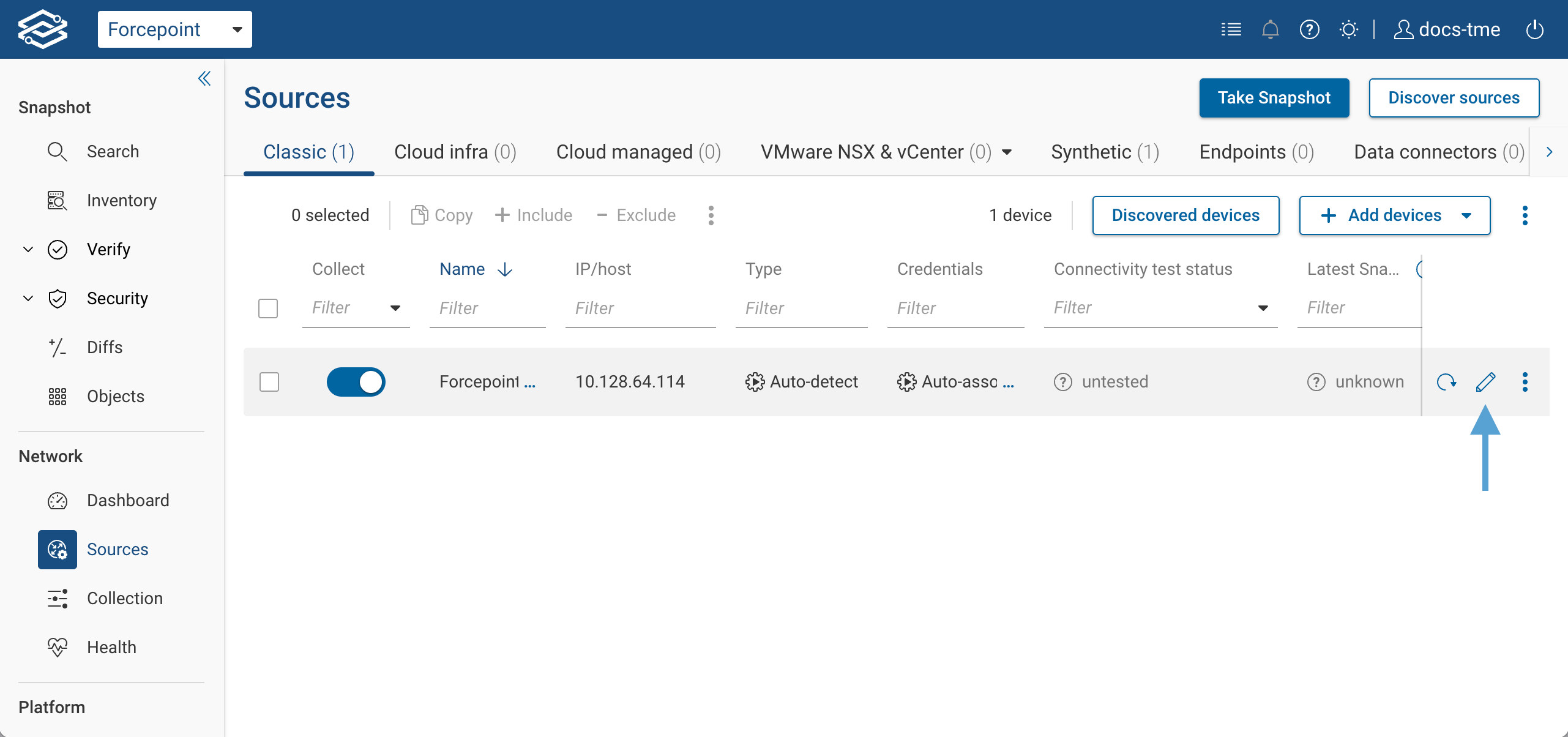
In the Type dropdown, select Forcepoint Manager and in API key credentials dropdown, select the key created in step 2:
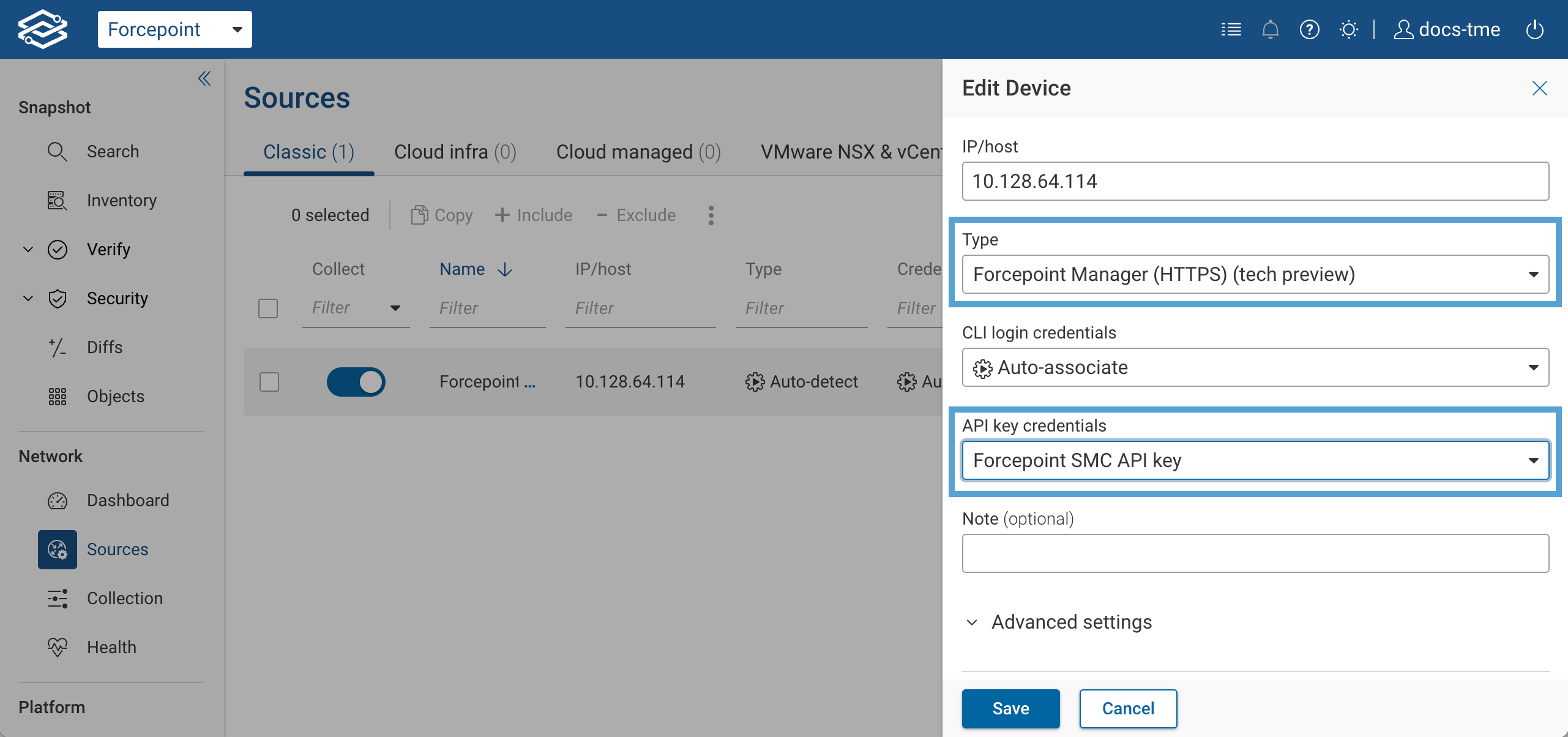
Click the Save button.
Forcepoint NGFW Engine Collection Setup
In addition to the Forcepoint SMC, Forward also collects from each Engine using SSH.
1. Add login credentials for Forcepoint nodes
Forward collector uses regular CLI credentials to collect information from Forcepoint NFGW Engines. Add credentials as described on Device Credentials page.
2. Add Forcepoint Engines to Forward device sources
Add the Forcepoint NGFW Engine manually as a Classic device, as described in this section of Collector Configuration page. Make sure to correctly specify port. Note the device type and credential do not need to be set manually for the Engines – these will be discovered automatically by the Forward collector during the next connectivity test.
When done, click Quit to return to the main Sources page.
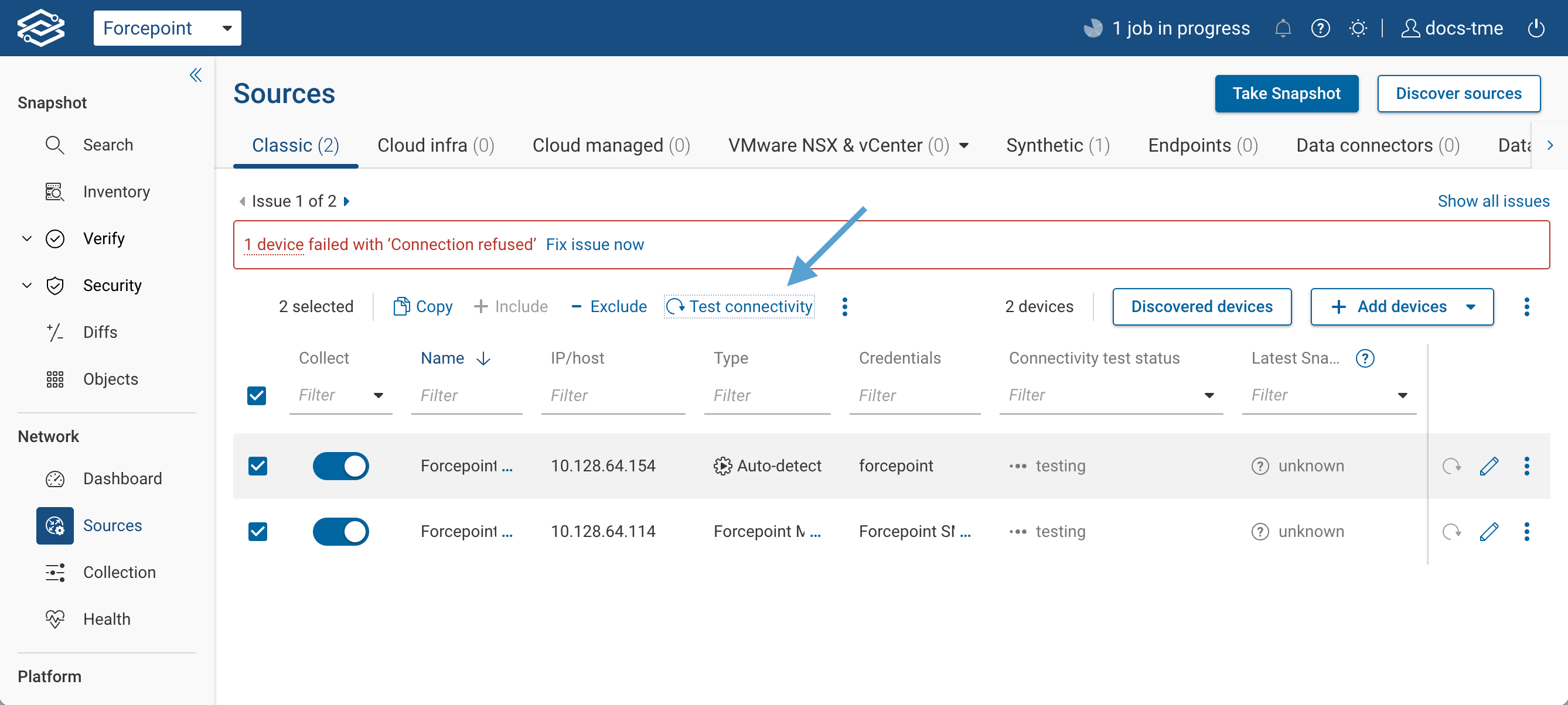
3. Run a connectivity test
Select the Forcepoint SMC and Engines, and click the Test connectivity button.