Data Files
Data files let you bring external information—such as site names, asset tags, compliance parameters, or other metadata—into Forward so it can be used in NQE queries, Inventory views, and verification checks. They can include policy definitions, software standards, per-device details, or any other structured dataset your queries rely on.
Data files are defined and stored at an org-level. CSV, JSON, and text formats are supported.
Once uploaded, the data is immediately viewable in NQE.
Data files can also be captured in network snapshots. This can be configured by network operators on a per-network basis.
Access and Permissions
Who can do what:
- Org Admins / Network Admins: Can upload data files.
- Network Operators and above: Can enable or disable collection of data files into the snapshots of a network to which they have access.
Managing Data Files
Data files are uploaded at the organization level from NQE → Data Files, and then individually enabled or disabled per network from Sources → Data Files.
Where to Add (Upload) Data Files
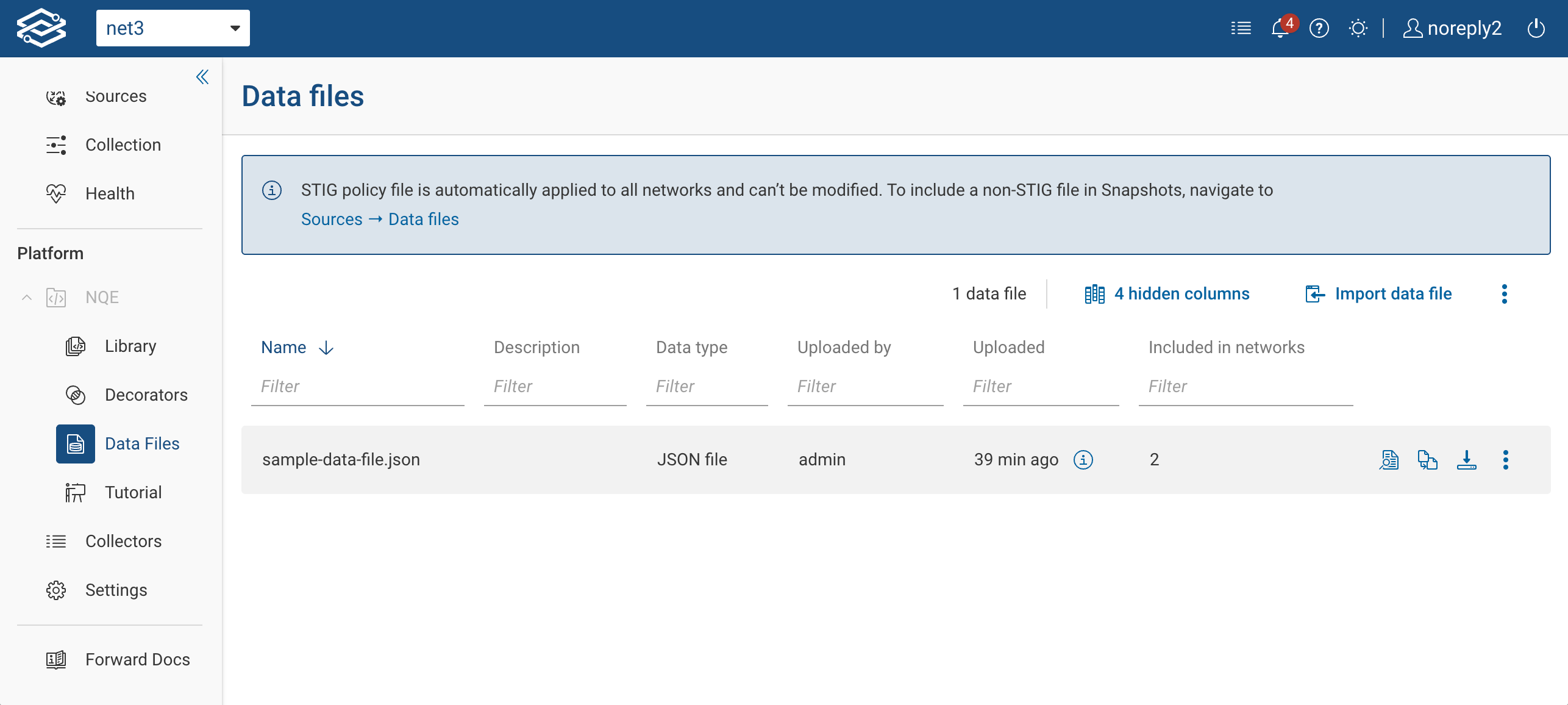
To upload a new data file, go to: NQE → Data Files
This is the only location where the full import wizard is always available. Use this path whenever you need to:
- upload a new CSV/JSON/TXT file
- replace or update an existing file
- review schema, filename, or NQE name
Steps to upload:
- Go to NQE → Data Files.
- Click Import data file.
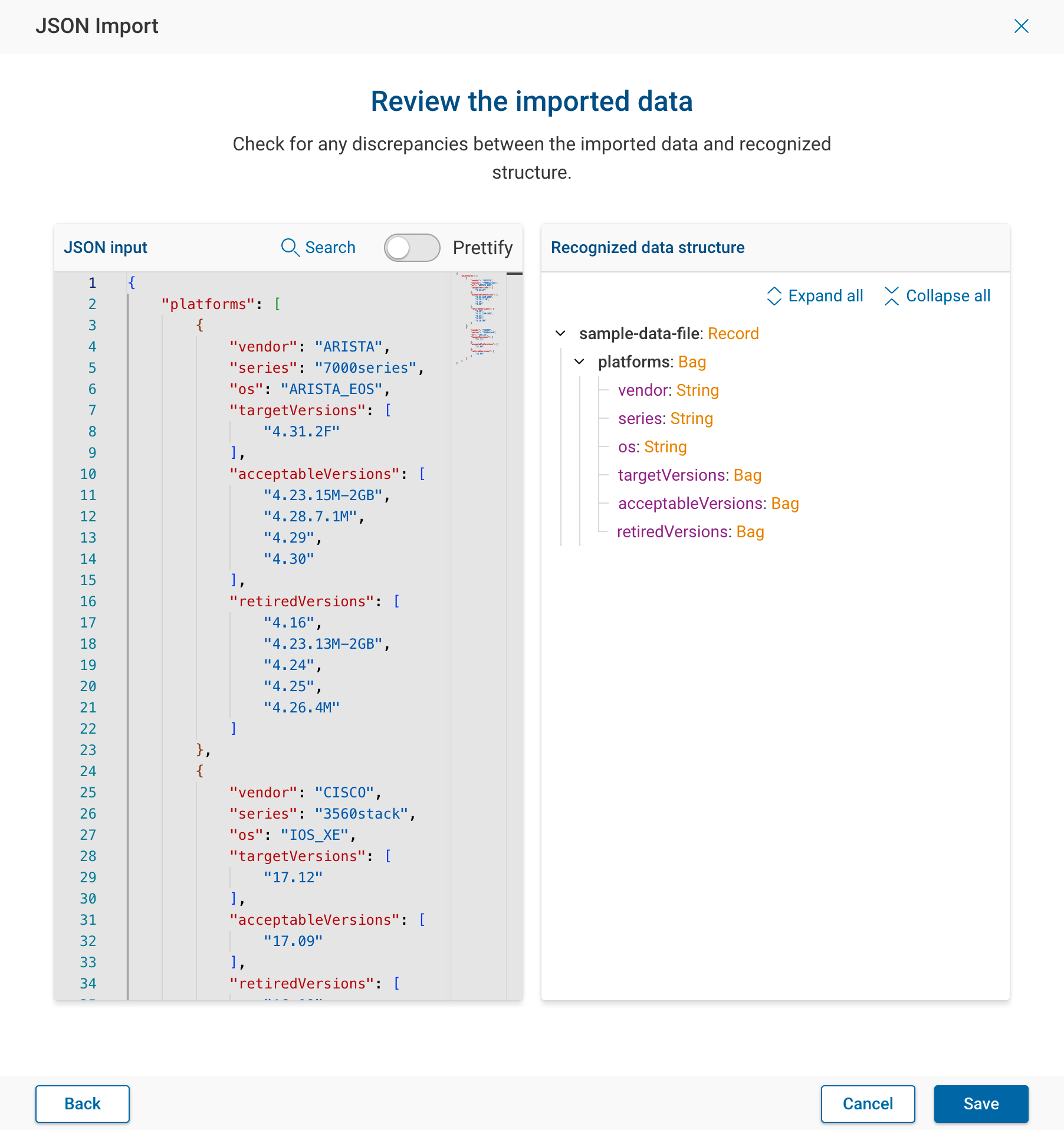
- Select your file and review the preview.
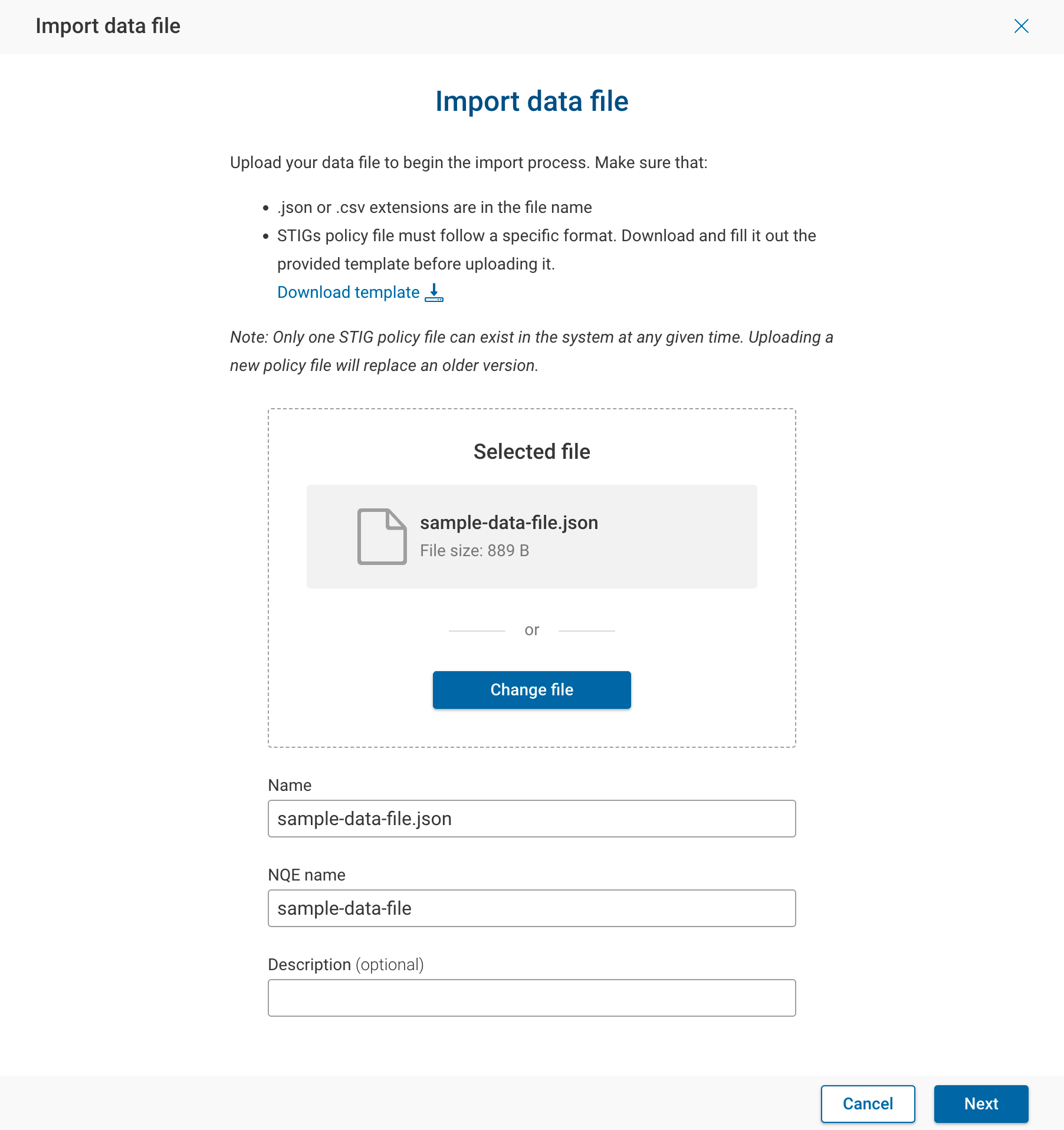
- Save to complete the upload.
After upload, the file becomes available to all networks in the organization via NQE → Data Files
Enabling or Disabling Data Files per Network
From Sources → Data Files, you manage data files at the network level.
Here you can:
- enable or disable data files for that network
- review which files are active within the selected network
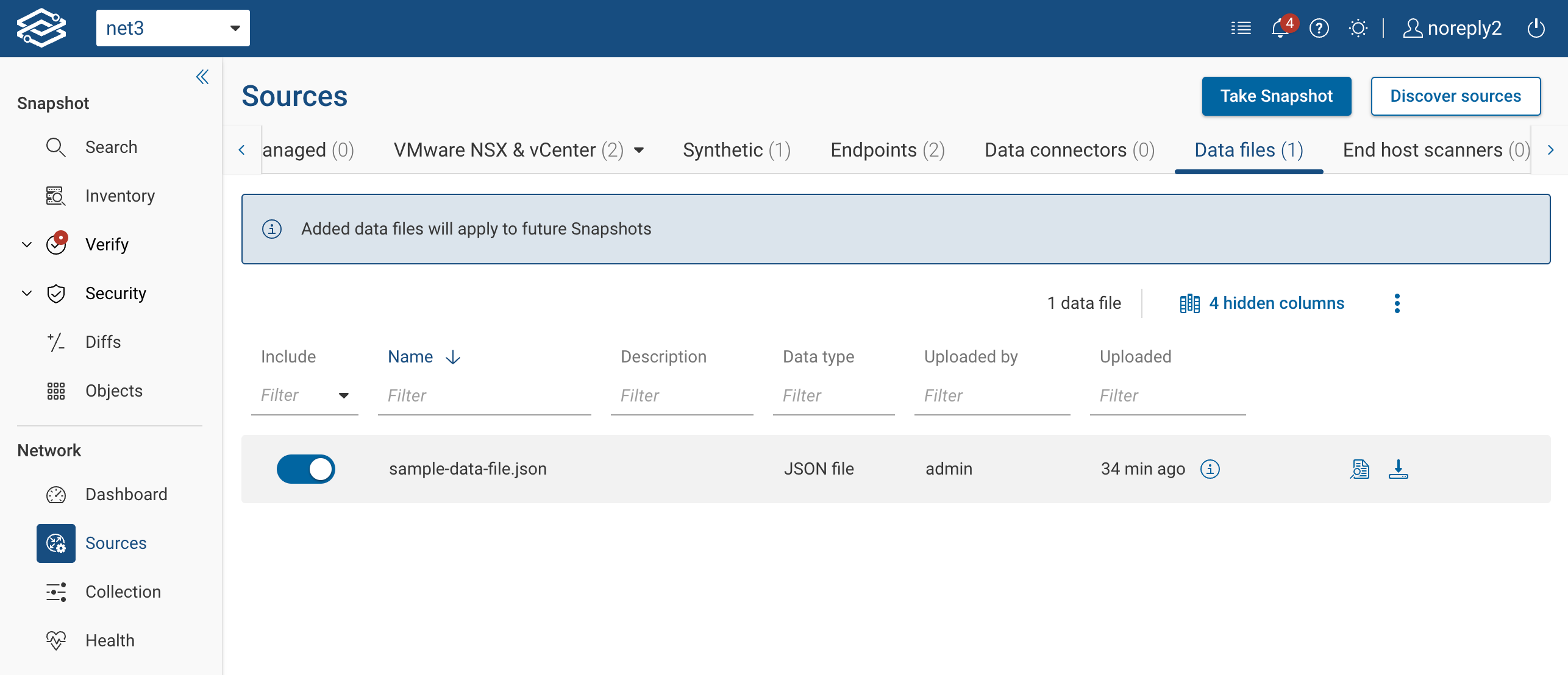
This is not the place to regularly add or maintain files.
The Import button appears here only when no data files exist at all in the organization.
Once at least one file exists, this page becomes enable/disable–only.
Impact on Queries
Once a data file is uploaded at the organization level and enabled for a network, it is incorporated into all future snapshots and becomes available immediately for use in:
- the NQE data model
- NQE Library queries
- Inventory and Verify views that reference data files
Changing a file’s name, NQE name, or schema may break existing queries.
Update any queries that reference the file after making changes.
If a data file is later disabled, it remains present in previously collected snapshots but will not be included in future snapshots unless re-enabled.
Replacing Data Files
To update an existing data file, click Replace File, upload the new version using the same file and NQE names, and confirm the change. If the file’s structure differs from the original, the system will warn you before proceeding.
Updating a data file does not modify the contents of any previously collected snapshots. The new version is applied only to future snapshots and to any views that support previewing results with the latest data files.
Running Queries With the Latest Data Files in NQE Library
When a query depends on a data file, the result viewer includes a selector allowing you to run it using:
- Snapshot (the authoritative model), or
- Snapshot with Latest Data Files (a preview overlay incorporating the newest uploaded file)
This enables immediate validation of data file contents without waiting for the next snapshot.

Behavior notes:
- The selector only appears for queries that reference data files.
- If no data files used by the query have changed since the snapshot, the Latest Data Files option does not appear.
- Running with latest data files does not modify the underlying snapshot.
Using Latest Data Files in Inventory+
Inventory+ also supports the “latest data files” preview for queries that depend on them. See the Inventory+ for more information.
Using Latest Data Files in Verify
Verification pages (including STIG checks) support a read-only preview that applies the latest data files on top of the snapshot.
Key points:
- Verification status always reflects the snapshot.
- The latest-data-files mode is only a preview of how results would look in the next snapshot.
- The toggle appears only for checks that depend on data files.
Data Files for STIG Security Policies
Parameterized STIG checks use operator-supplied policy files, uploaded through the Data Files interface.
To begin:
- Go to Data Files → Import data file.
- Select Download Template to obtain the expected CSV structure.
- Fill in the device, interface, or rule parameters.
- Upload the completed file.
After upload, you can Preview STIG results immediately using “snapshot with latest data files.”
Limitations
- The published NQE API returns only snapshot-based results; it does not expose the latest-data-files preview.
- Diffs app does not compare snapshot vs snapshot-with-latest-data-files.
- Snapshot data remains authoritative; latest-data-files mode is a preview overlay only.