Decorators
NQE Decorators enable the use of NQE Queries to enhance Forward applications by incorporating additional contextual data.
Forward supports NQE Decorators for Devices, Hosts, Interfaces, and Paths.
Add a Decorator
To add a Decorator, navigate to NQE > Decorators and click Add a Decorator
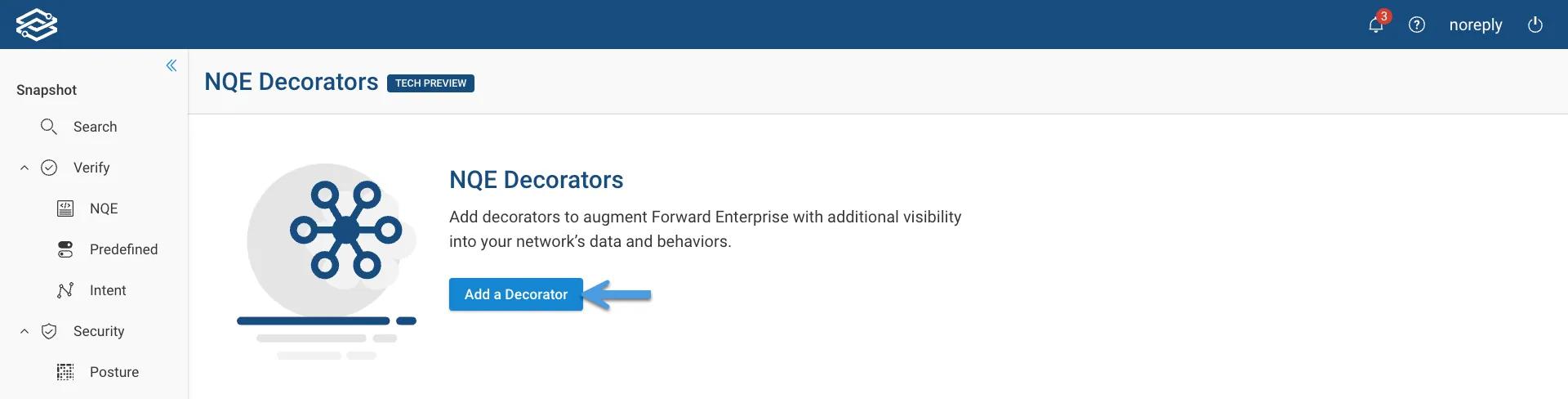
The drawer for adding an NQE Decorator is very similar for devices, hosts, interfaces, and paths. The following describes the flow for devices.
-
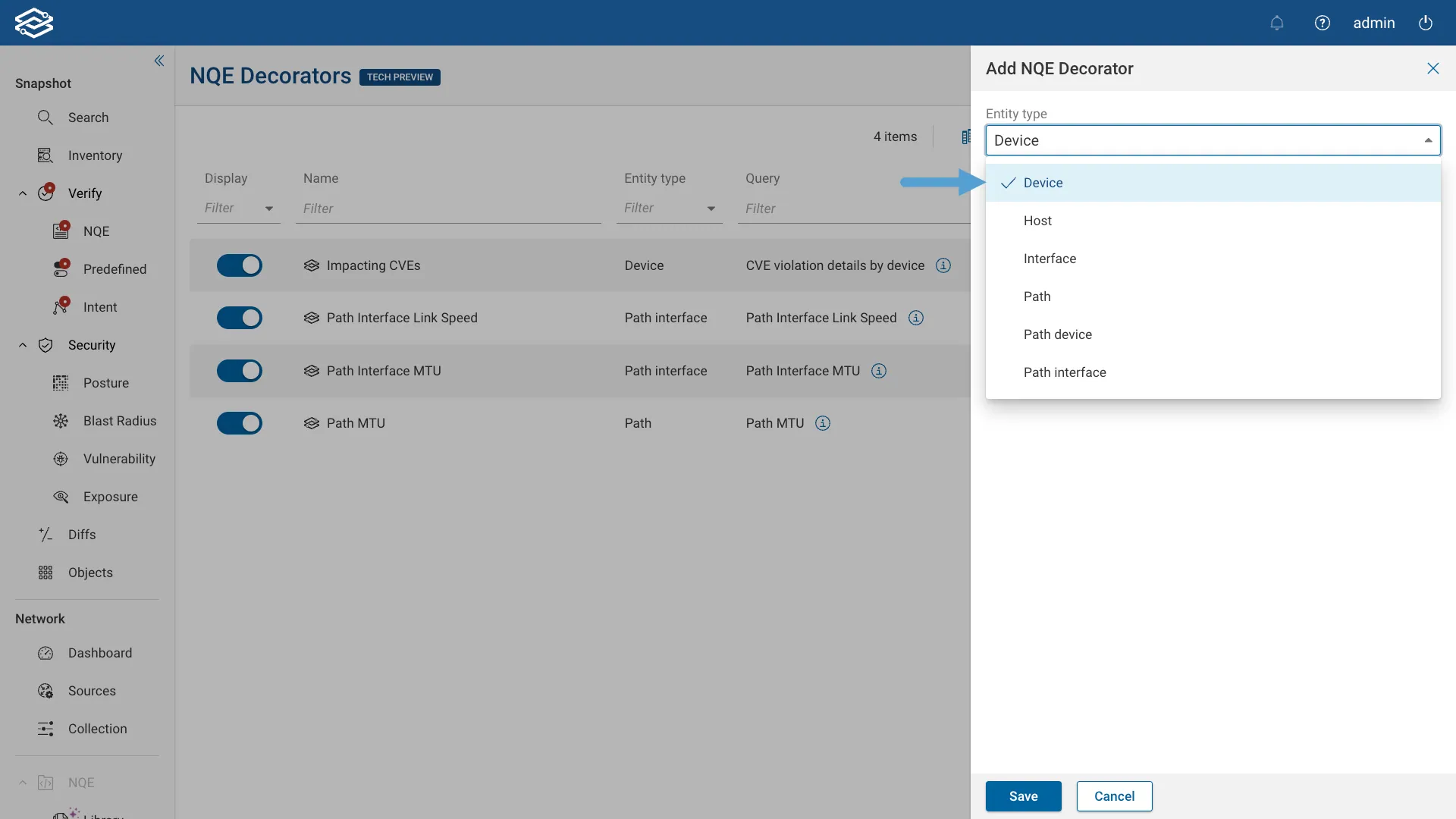
Select Device from the Entity type drop-down menu
-
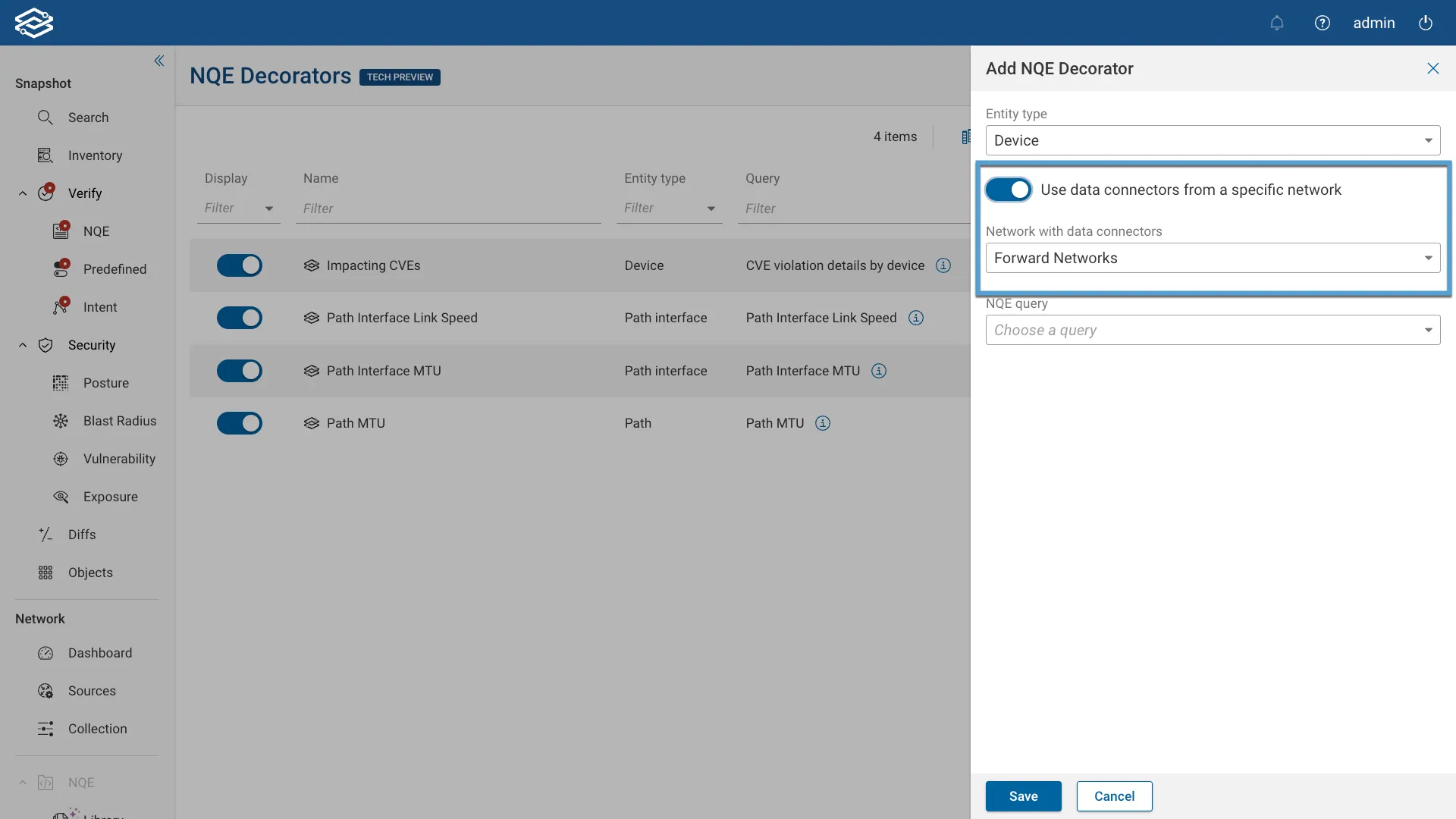
Use data connectors from a specific network: If the NQE Decorator relies on an NQE query that retrieves data from a data connector, enable this option and choose the Network with the data connectors from the provided drop-down menu.
-
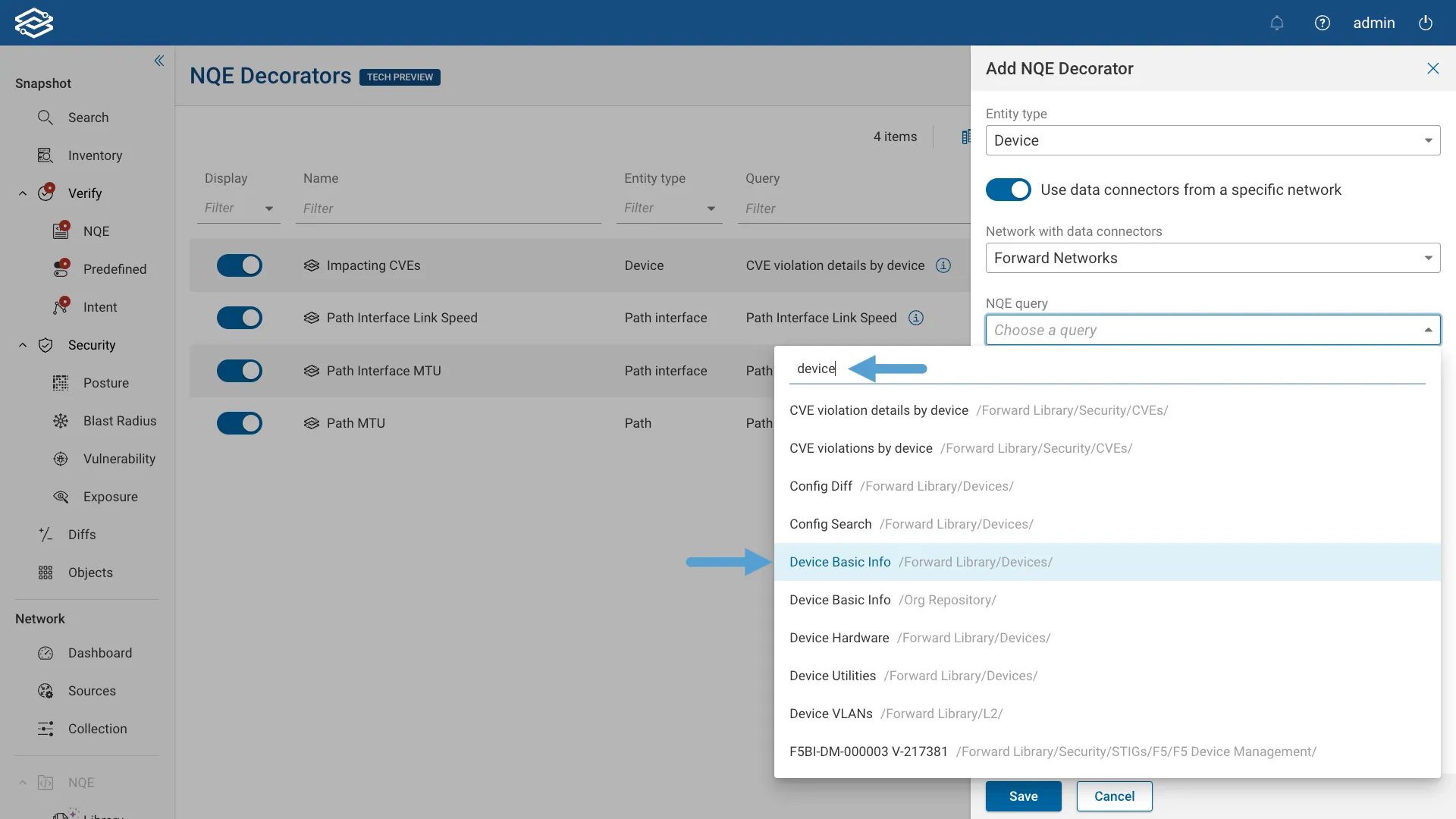
NQE query: choose an NQE query from the drop-down menu. Start typing the NQE query name to quickly find it among the full list of queries.
-
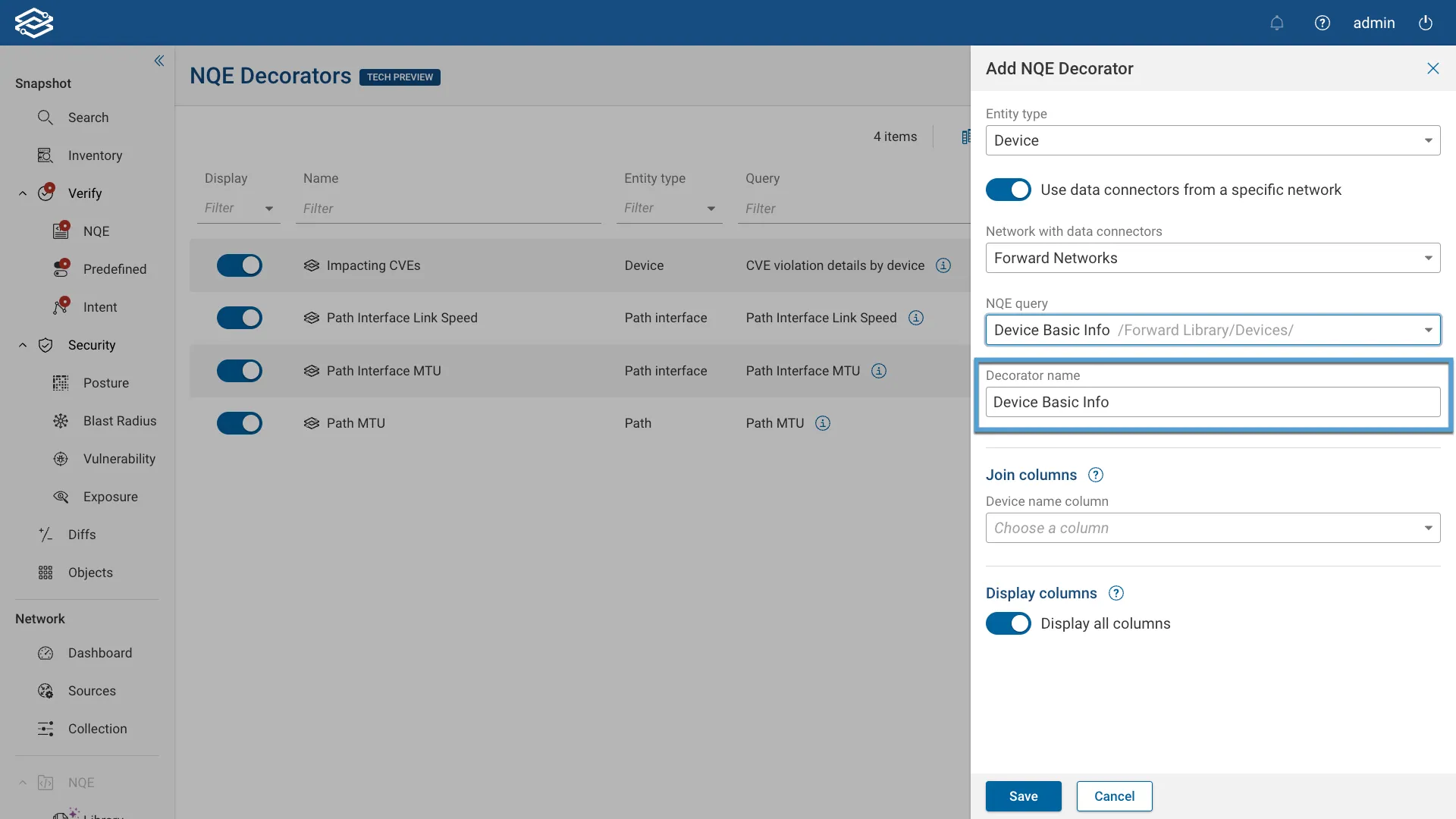
The Decorator name field is pre-filled with the NQE query name, but it can be customized.
-
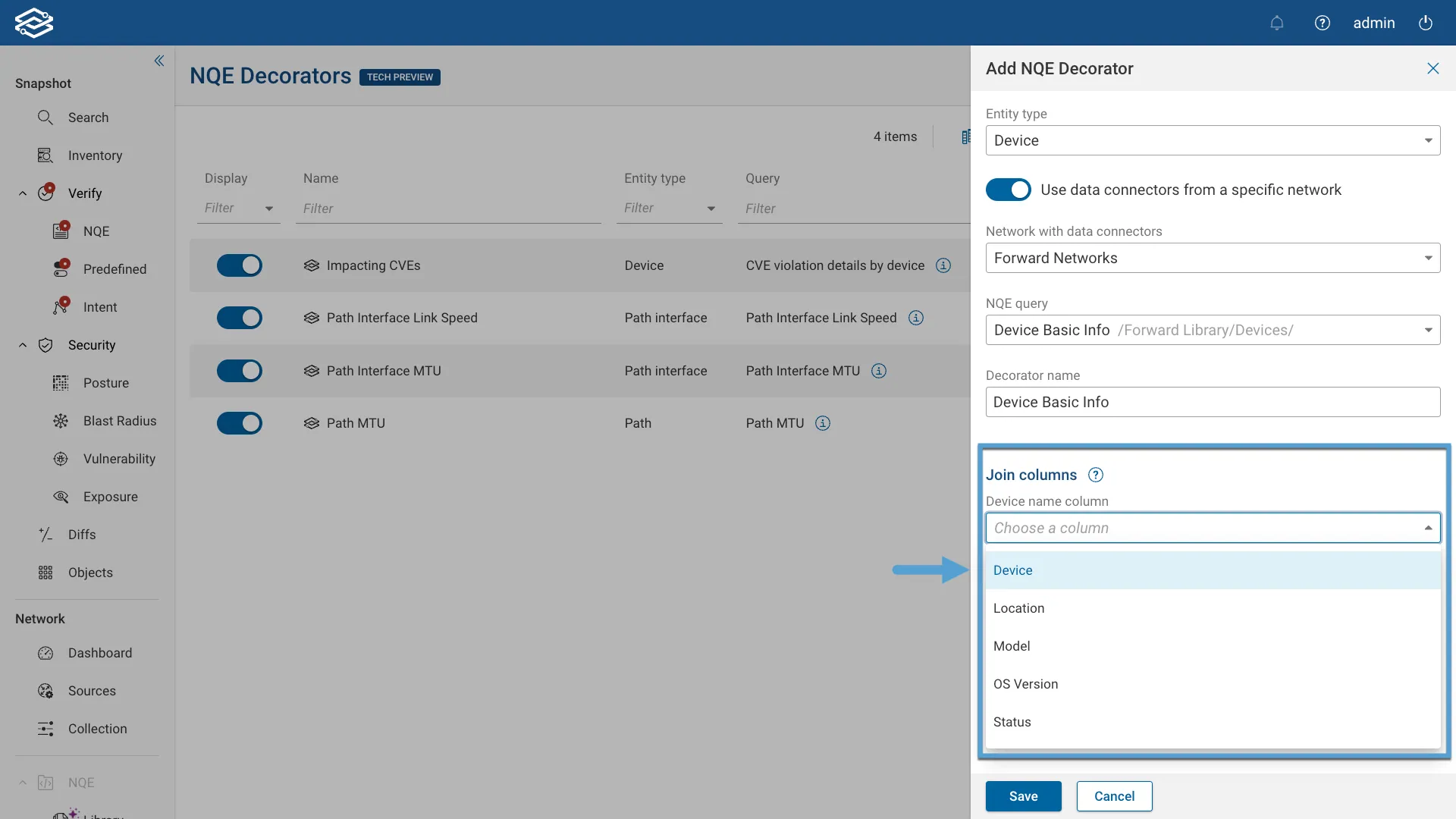
Join Columns: The columns from the NQE query results to use to filter the results before joining/combining them with an individual entity. For example, you must choose the column that contains device names to decorate devices. For each device being decorated, the chosen column will be used to filter the results to those that match the device.
-
Display all columns: Keep this selected to display all columns from the query's results when displaying this Decorator's data. Turn this off to choose specific columns to display instead.
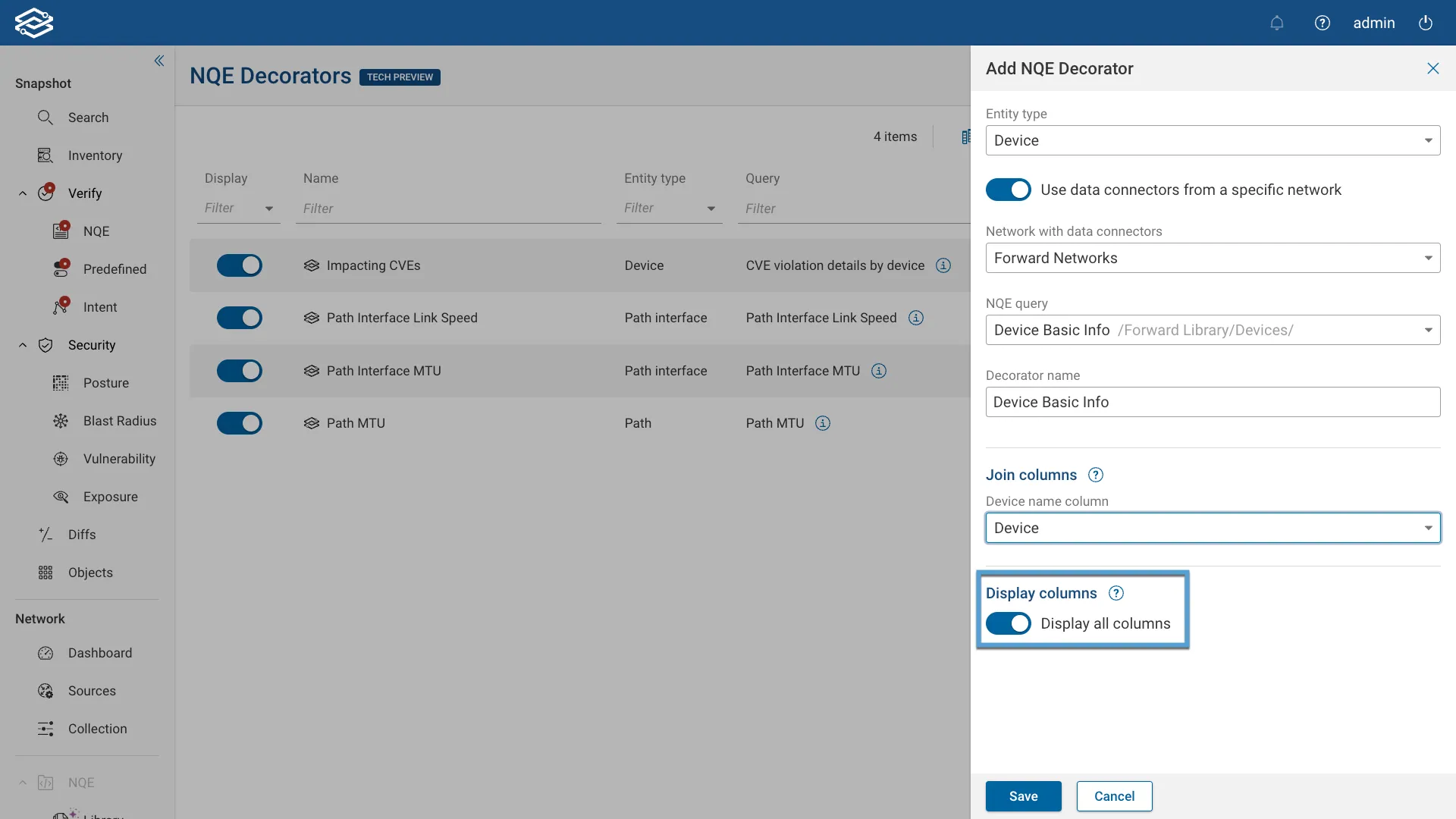
Then, click on Save.
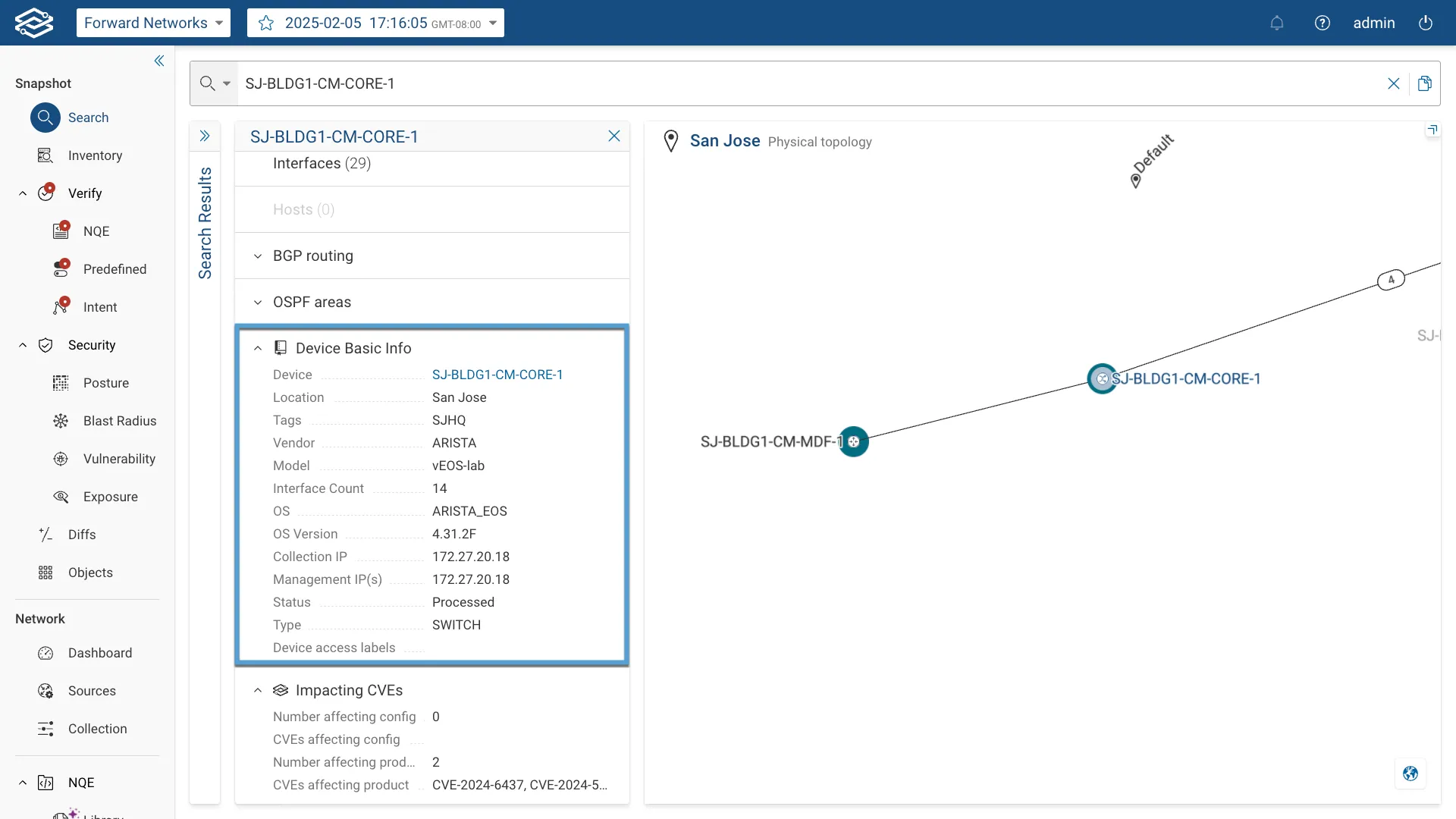
The following screenshot shows a device card with an example NQE Decorator.
Write a Decorator Query
Device, Host, and Interface Decorators
A Device, Host, or Interface Decorator query is an ordinary NQE query — it takes no parameters and runs once. Forward then joins its result rows to individual entities by matching the values in one or more Join Columns you select when creating the Decorator. The rows whose Join Column values match a given entity are attached to that entity.
Because the join is by column value, the query only has to include the columns needed to identify the entity, alongside whatever columns you want to display. Each Join Column must have the NQE type expected for its role (below); otherwise the Decorator is reported as invalid.
Device Decorators
A Device Decorator query needs one Join Column: a String column holding device names. Each row is attached to the
device whose name matches that column's value.
For example, this query can be used to decorator each device with its OS and version, using deviceName as the Join
Column:
foreach device in network.devices
select {
  deviceName: device.name,
  os: device.platform.os,
  osVersion: device.platform.osVersion
};
Interface Decorators
An Interface Decorator query needs two Join Columns, both of type String: a device name column and an interface
name column. The pair identifies a single interface, so each row is attached to the interface with that (device name,
interface name).
For example, this query reports each interface's MTU and status, using deviceName and interfaceName as the Join
Columns:
foreach device in network.devices
foreach iface in device.interfaces
select {
  deviceName: device.name,
  interfaceName: iface.name,
  mtu: iface.mtu,
  adminStatus: iface.adminStatus,
  operStatus: iface.operStatus
};
Host Decorators
Host Decorators are the most complex of the three, because a host has no single natural identifier. A query may supply up to four Join Columns, of which one is required and the rest are optional:
- an IP address column of type
IpAddress(required) - a host name column of type
String(optional) - a device name column of type
String(optional) - a MAC address column of type
MacAddress(optional)
Matching starts from the required IP address column, which can resolve to several hosts (for example, an address that falls within a subnet can match every host in that subnet). Each optional column you supply then narrows the match by intersection: a row is attached only to hosts that also match its host name, device name, and/or MAC address values. An optional-column value that resolves to no host does not narrow the match for that row, so partially populated rows still join on the columns that do resolve.
For example, this query emits one row per host IP address and supplies all four Join Columns. A host's addresses are
IpSubnet values, so address extracts the IpAddress needed for the required column:
foreach device in network.devices
foreach host in device.hosts
foreach subnet in host.addresses
select {
  ipAddress: address(subnet),
  hostName: host.name,
  deviceName: device.name,
  macAddress: host.macAddress,
  hostType: host.hostType
};
Here ipAddress is the required Join Column and hostName, deviceName, and macAddress are the optional ones that
narrow the match; hostType is displayed on the matched hosts.
Path and Path Interface Decorator queries
Path and Path Interface Decorators differ from Device, Host, and Interface Decorators: instead of running a
query once and joining its results against entities by matching column values, Forward runs the query once per path
in Path Analysis, passing that path in as a parameter. The query therefore takes a single parameter of type
Path, and must be marked with @query:
@query
getInfo(path: Path) =
  ...
The Path value gives the query access to the ordered list of hops along the path (path.hops), and each Hop exposes
fields such as index, deviceName, ingressIfaceName, egressIfaceName, nextDeviceName, and nextIfaceName. See
the Path and
Hop data-model pages for the full field list.
In every returned row, an optional boolean column named violation marks that row as a violation, which highlights the
corresponding path or hop in red in Path Analysis.
Path Decorators
A Path Decorator query returns rows that describe the path as a whole. There are no Join Columns to choose — every row the query returns is attached to the path. Each field of the returned record becomes a displayed column.
For example, the /Interfaces/Path MTU query in the NQE Forward Library reports the smallest and largest interface MTU
along the path and flags a violation when they differ:
@query
getPathMtuInfo(path: Path) =
  foreach mtus in [ifaceMtus(path)]
  let minMtu = min(mtus)
  let maxMtu = max(mtus)
  select { "Min MTU": minMtu, "Max MTU": maxMtu, violation: minMtu != maxMtu };
Path Interface Decorators
A Path Interface Decorator query returns rows that describe individual interfaces along the path. Each row must identify which path interface it applies to using two columns, which you select as Join Columns when creating the Decorator:
- a hop index column of type
Integer— the zero-based index of the hop (hop.index) - a direction column of type
Direction— eitherDirection.INGRESSorDirection.EGRESS
Together, the hop index and direction identify one interface on one hop, so a single physical link can carry a separate result for its egress side and its ingress side.
For example, the /Interfaces/Path Interface MTU query in the NQE Forward Library emits one row for the egress side and
one for the ingress side of each hop, flagging a violation when the two ends of a link have mismatched MTUs:
@query
getPathMtuInfo(path: Path) =
  foreach hop in path.hops
  let currentMtu = getMtu(hop.deviceName, hop.egressIfaceName)
  where isPresent(currentMtu) && isPresent(hop.nextDeviceName)
  let nextMtu = getMtu(hop.nextDeviceName, hop.nextIfaceName)
  where isPresent(nextMtu)
  let egressRecord = { hopIndex: hop.index,
                       direction: Direction.EGRESS,
                       MTU: currentMtu,
                       "Neighbor MTU": nextMtu,
                       violation: nextMtu != currentMtu
                     }
  let ingressRecord = { hopIndex: hop.index + 1,
                        direction: Direction.INGRESS,
                        MTU: nextMtu,
                        "Neighbor MTU": currentMtu,
                        violation: nextMtu != currentMtu
                      }
  foreach record in [egressRecord, ingressRecord]
  select record;
Here hopIndex and direction are the Join Columns, and MTU, Neighbor MTU, and violation are displayed for each
path interface.
Display/Edit/Delete a Decorator
Decorators can be turned off/on by using the Display toggle in the table.
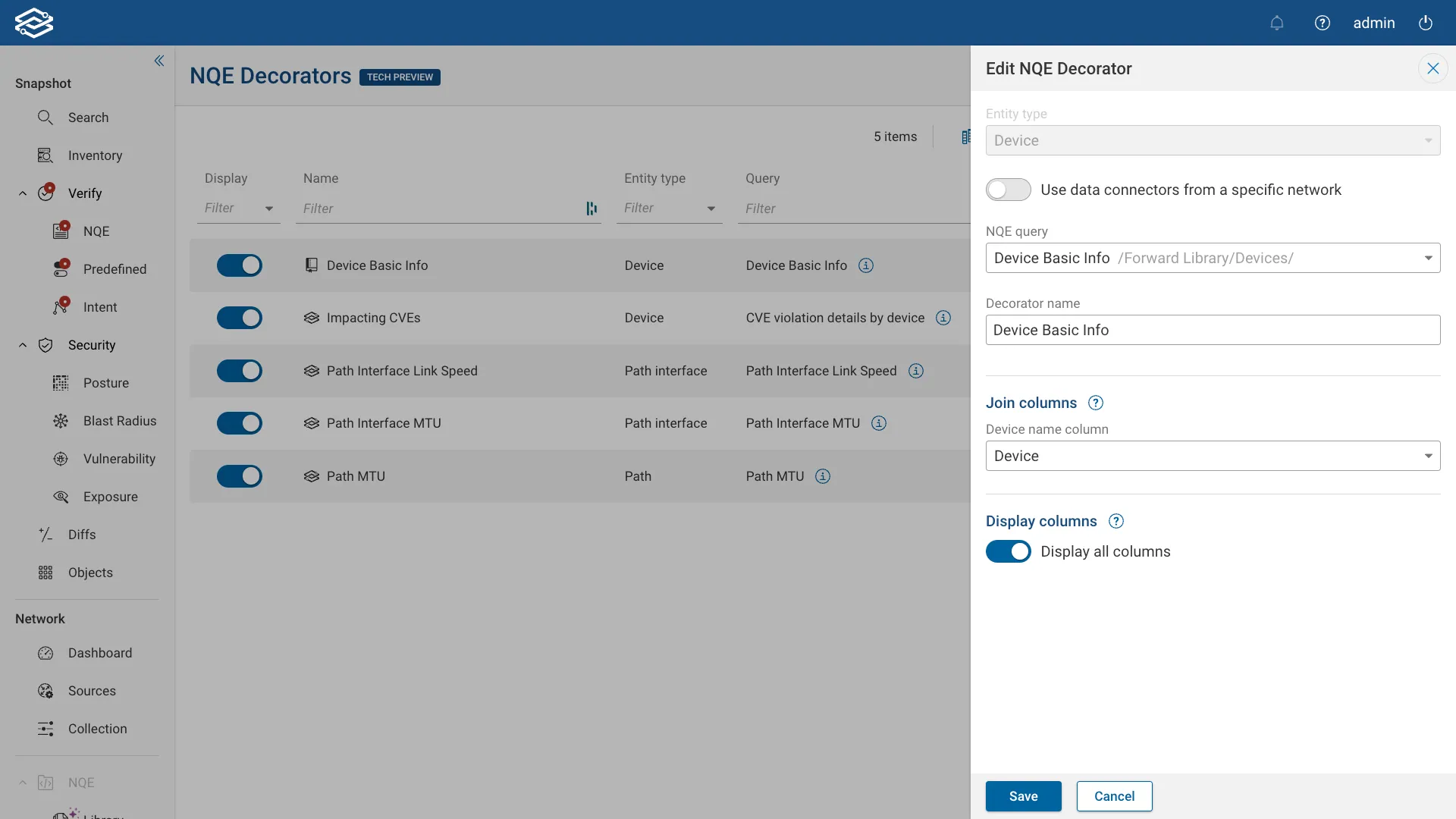
To edit an NQE Decorator, click on the edit icon on the right side of the Decorator's row in the table, change any Decorator detail, and click on Save.
Once a Decorator is created, it is not possible to change the Entity type associated with it.
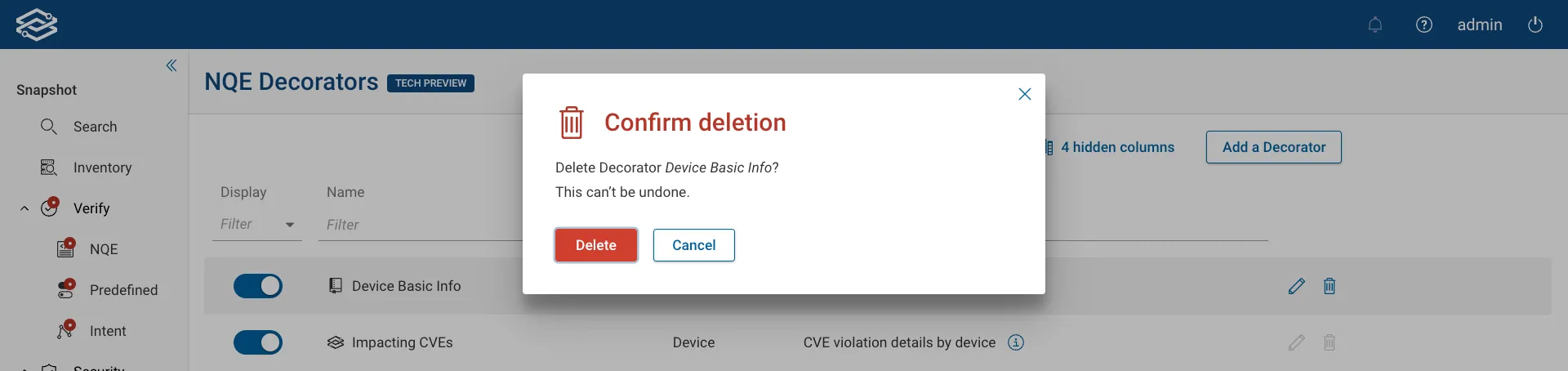
To delete an NQE Decorator, click on the bin icon on the right side of the Decorator's row in the table, and confirm its deletion.