Missing Devices and Connections
When there are two L3 devices in the inventory but the underlying L2 device connecting them is missing, gaps appear in the topology and the Forward app cannot collect from these missing L2 devices. These gaps make path search and other features inaccurate.
The Missing devices and Missing connections tabs help you close these gaps. These tabs list devices, links, and L2 VPN segments that are likely missing, and allow you to add them to the network snapshot.
Overview
Forward app uses several methods to infer the missing devices and links in the topology:
- Missing devices: Devices discovered indirectly (via LLDP, CDP, iBGP neighbors, OSPF neighbors) that are not yet in the list of sources to collect from, and are also not in the network snapshot.
- Inferred links: When two interfaces share strong MAC or ARP overlap, Forward infers a link between them.
- Inferred L2 VPNs: When two LAN segments are reachable through ARP, Forward infers an L2 VPN that connects the L3 interfaces.
Missing devices and Missing connections are both part of Snapshot health. Go to Onboarding under the Network menu on the left and select Snapshot health to navigate to either of these tabs.
Missing devices
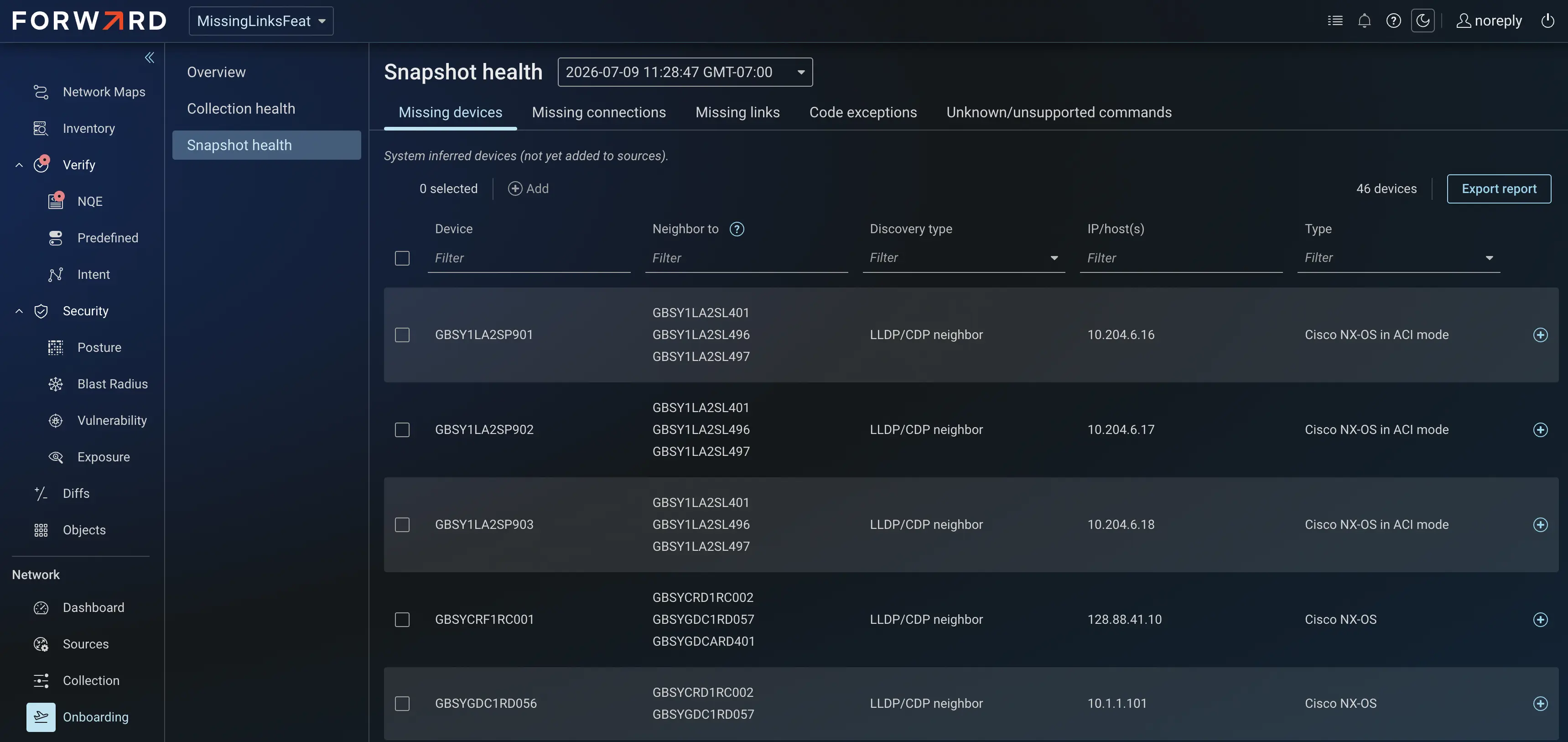
Missing devices allows you to add indirectly discovered but uncollected devices to Sources. To add a device to sources,
- Select the Missing devices tab. Each row shows a missing device and the collected device it neighbors to.
- To add a single device, click the + icon in the rightmost column that says, Add to Sources. To add several at once, check the box on the left and click +Add at the top to add them together.
- The Add Device widget opens on the right. Review or fill in the device details. Some fields, such as the IP/host are filled in for you.
- Once reviewed, select Add. The device is now added to Sources as a classic device.
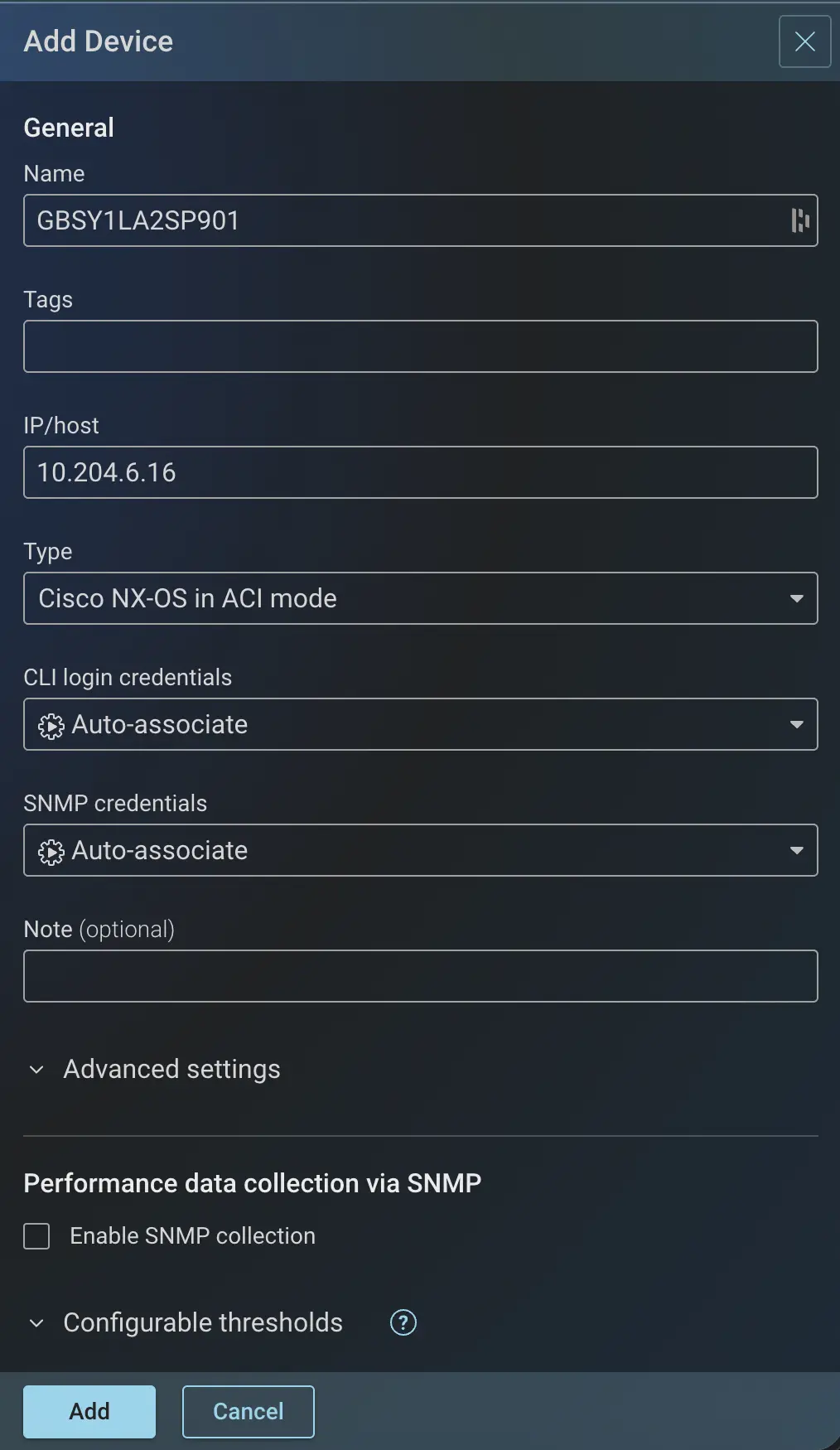
Each device added this way is tagged with an automatic note, Added through missing devices, so you can distinguish it from devices added manually. Once a device is added, its row disappears from the Missing devices tab.
Missing connections
Missing connections tab lists the gaps the Forward app has found and the fix it suggests for each one, whether that is a missing device, a missing link, or an L2 VPN segment. The Connection fixes column shows which fix applies to each row.
This tab allows you to review each suggestion and apply it to the snapshot. Forward app proposes one of three fixes for each gap:
- Add missing device: A neighbor reported through LLDP or CDP that is not yet in the snapshot.
- Add missing link: A link between two device interfaces that exists in the network but not in the model.
- Add L2 VPN segment: An inferred L2 VPN that connects L3 interfaces that have no L2 device between them.
The missing link and L2 VPN segment fixes are mutually exclusive. Forward app first looks for a missing link. If that does not apply, it looks for an L2 VPN segment to connect the two L3 interfaces.
Applying suggested changes on this page is a two-step process. First stage the fixes you want and then commit them for the changes to take effect. See Commit fixes and reprocess the snapshot for the steps to follow.
Once a device, a link or an L2 segment is staged and committed, it will be removed from the list, on this page.
A proposed link or L2 segment appears only in the Missing connections tab. It does not appear in the topology until you commit the fix and reprocess the snapshot.
Add missing devices
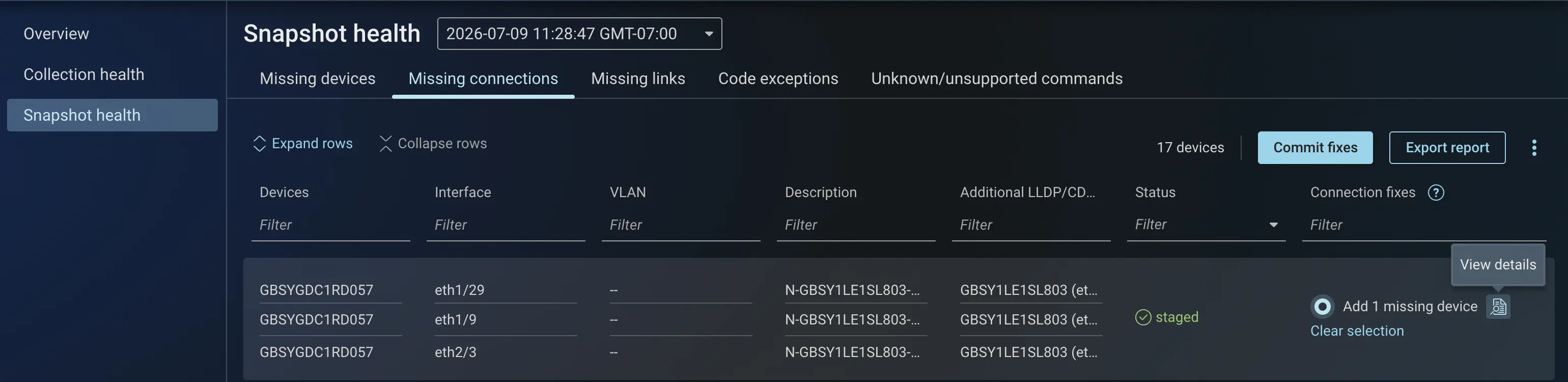
A missing device in this list is reported as a neighbor to another device but is not present in the snapshot. The Forward app discovers this device via LLDP or CDP.
- Look for the rows where the Connection fixes column shows Add missing device.
- Select Add missing device option for the discovered device to add it to the snapshot. Or click on View details for more information.
- The status of the row will change to staged and once committed the device will be updated in the snapshot.
Add missing links
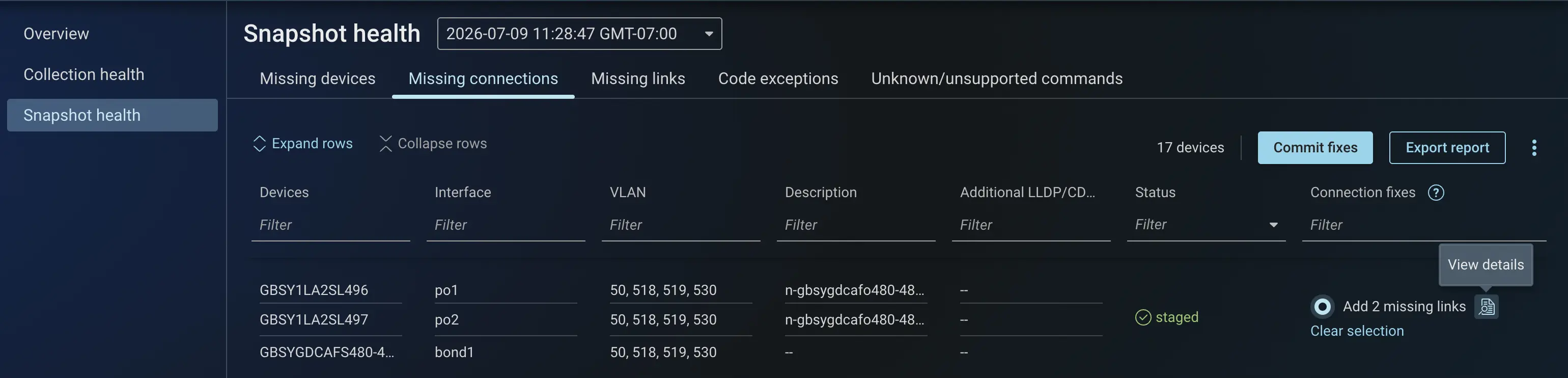
A missing link is a link between two device interfaces that exists in the network but not in the model. Forward app infers it when two interfaces share a strong MAC or ARP overlap.
- Look for the rows where the Connection fixes column shows Add missing link.
- Select Add missing link option for the inferred links to be added between the listed devices and interfaces. Or click on View details for more information.
- The status of the row will change to staged and once committed the link will be updated in the snapshot.
Add missing L2 VPN segments
A missing L2 VPN segment connects L3 interfaces that have no L2 device between them. Forward app infers this when two LAN segments are reachable via ARP.
- Look for the rows where the Connection fixes column shows Add L2 segment.
- Select Add L2 segment option for the inferred L2 segment to be added between the listed devices and interfaces. Or click on View details for more information.
- The status of the row will change to staged and once committed the L2 segment will be updated in the snapshot.
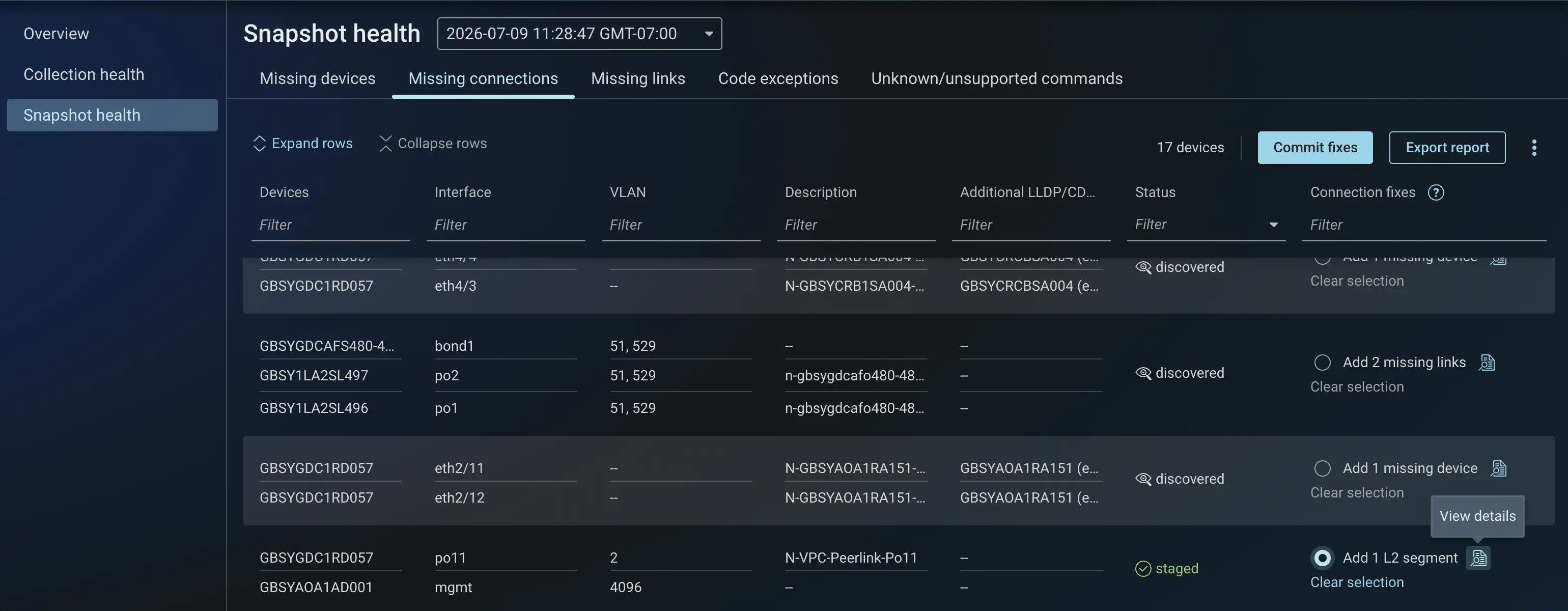
Staged fixes are stored only in the browser's memory. If you navigate away from the tab, you are prompted to either save or discard the changes. If you discard the changes and return, nothing will be staged.
Commit fixes and reprocess the snapshot
Staging holds your fixes in the browser. To apply them to the snapshot, commit the staged fixes and reprocess the snapshot. These steps apply to all changes under the Missing connections tab.
- Select Commit fixes on the top right.
- The Commit fixes drawer will open. Review the summary of staged changes in the sub-tabs.
- Devices to add
- Links to add
- L2 segments to add
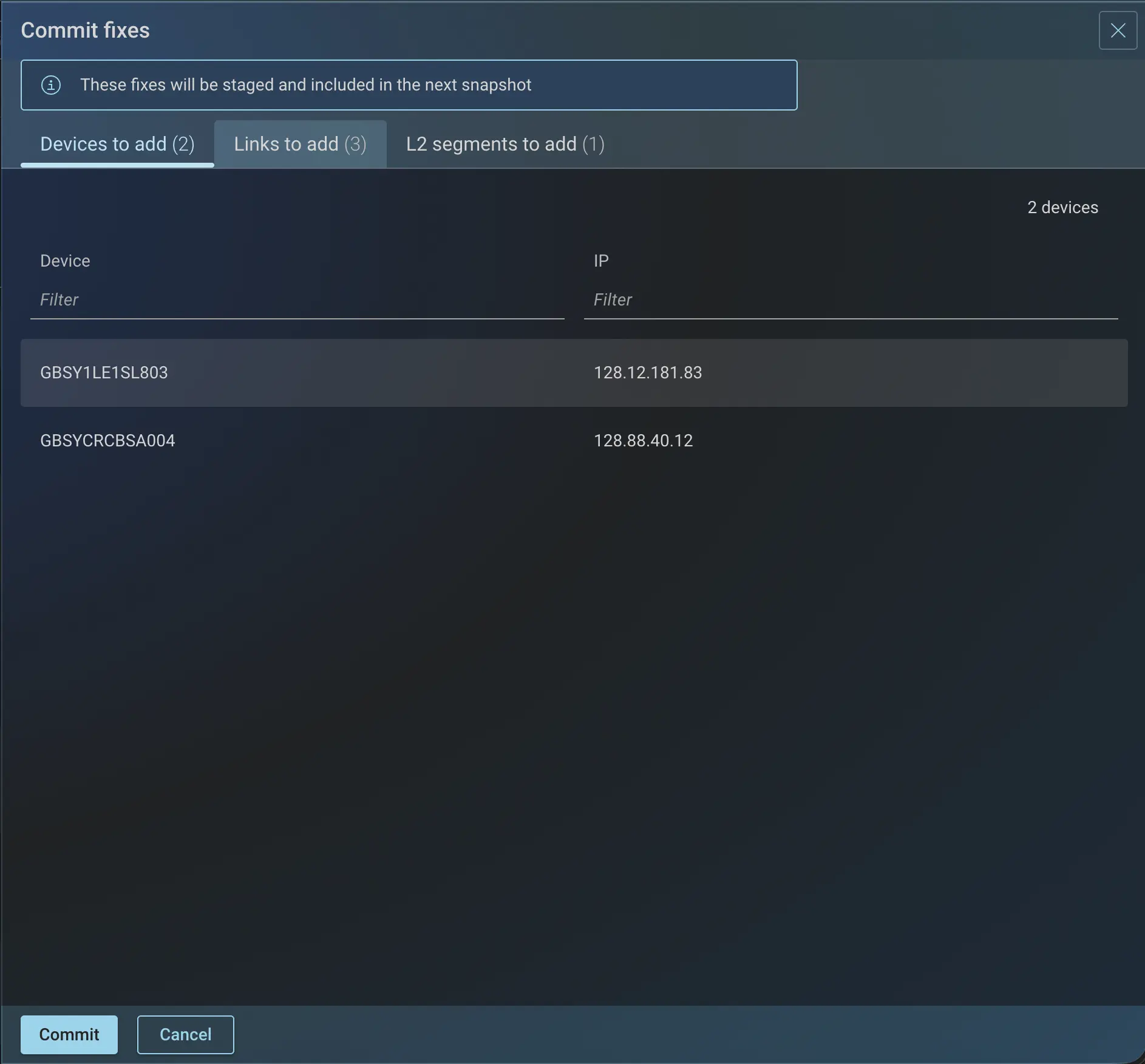
- Click on Commit to confirm the changes.
Once committed, each of these suggested fixes disappears from the Missing connections tab. The Forward app prompts you to reprocess the snapshot as the topology has changed and the new fixes are applied to the same snapshot.
After reprocessing the snapshot, you can verify the changes in the topology. For example, a committed missing link will appear between the two devices, or a committed L2 VPN segment appears under Synthetic devices as an L2 VPN.
Fixes are stored as overrides. They persist across future snapshots, just as user-added links and synthetic devices do. If a later topology change invalidates a fix, you must correct it manually.
API access
The list of missing devices and links under Missing devices and Missing connections can be retrieved using the Forward Enterprise REST API.