Routing
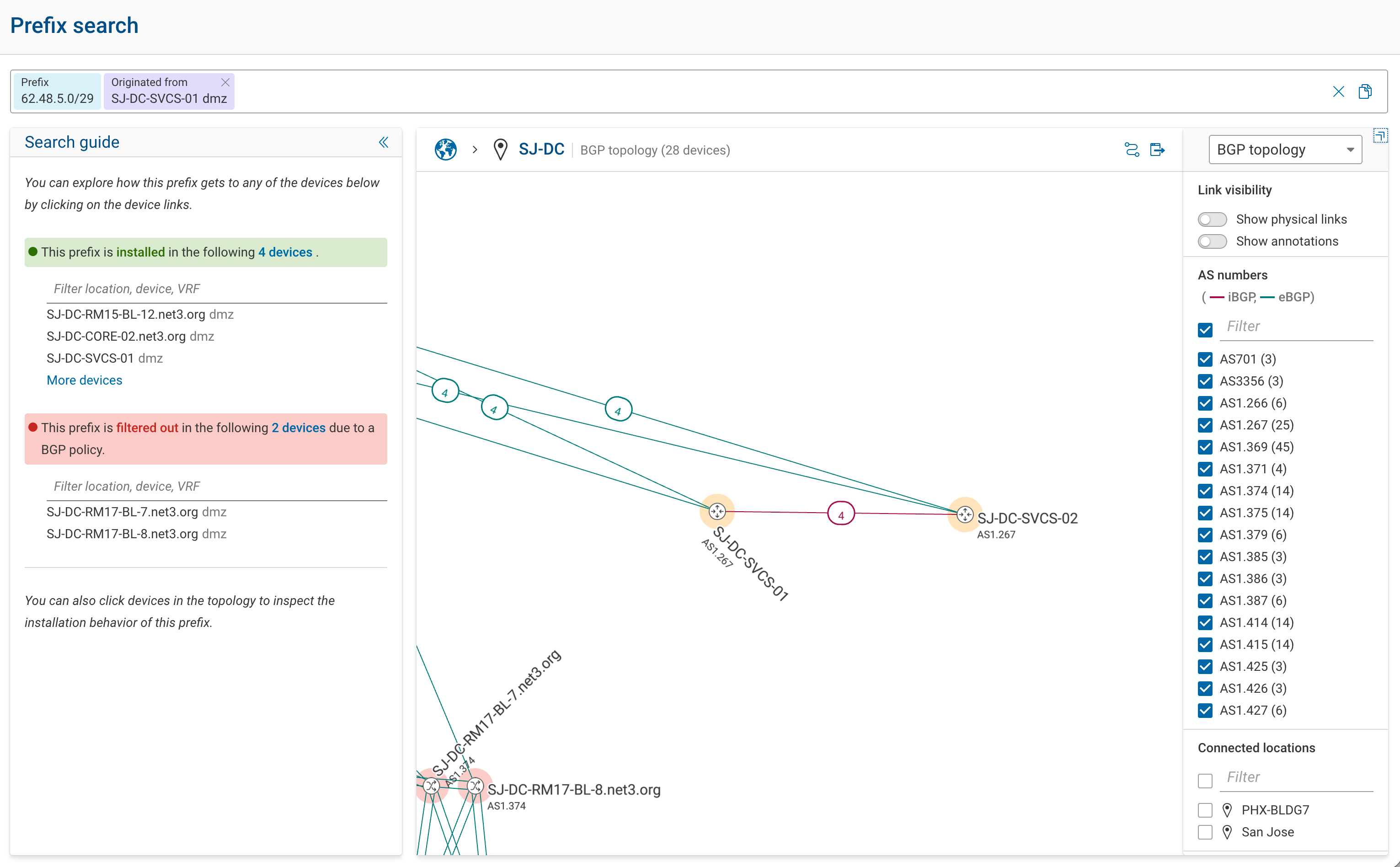
The Routing application shows how a prefix propagates through the control plane, one prefix at a time. It covers BGP, OSPF, and static, connected, and local routes, including routes that a device redistributes from one protocol into another. Search for a prefix, see which devices install it and which filter it out, then trace its path from an origin to one of those devices and inspect the node attributes, route attributes, and policies along the way.
The Routing application works on any snapshot, collected or predicted, and does not need a Forward Predict analysis. Run the same search on a base snapshot and on a snapshot predicted by Forward Predict to compare how a prefix propagates before and after a change.
Open Routing from the Snapshot section of the left navigation. It opens the Prefix search page.
Access
The Routing entry appears in the left navigation when both of these hold:
- Predict is enabled for the organization. It is on by default.
- The user has the Net Admin role on the network, or the Admin role in the organization.
If the organization's license does not include Predict, the Routing entry is disabled. Hovering it shows "Your organization's license doesn't include this feature."
Protocol Modeling
Searches in the Routing application use a model of how routes propagate across the protocols in the snapshot. If the snapshot has no model yet, the first search starts modeling. While modeling runs, the page shows Preparing routing data… with a progress bar. The bar shows that modeling is running, not how much of it is done. Modeling time depends on the size and complexity of the snapshot. When modeling completes, the page runs the search and shows the results.
Supported Protocols
| Protocol | Label shown | Supported devices |
|---|---|---|
| BGP | BGP | All devices with a modeled BGP configuration. |
| OSPF (OSPFv2 and OSPFv3) | OSPF | Arista EOS, Cisco IOS, Cisco IOS-XE, Cisco IOS-XR, Cisco NX-OS, Cisco NX-OS ACI, Juniper Junos, and Juniper SRX. |
| Static and connected routes | Static or Connected | Arista EOS, Cisco ASA, Cisco IOS, Cisco IOS-XE, Cisco IOS-XR, Cisco Meraki MX, Cisco NX-OS, Cisco NX-OS ACI, Fortinet FortiOS, Juniper Junos, Juniper SRX, and Palo Alto Networks PAN-OS. |
| Local routes | Local | Juniper Junos and Juniper SRX. |
On Juniper Junos and Juniper SRX, a loopback interface whose address has a mask shorter than /32 gives two routes: a
connected route for the subnet and a local route for the address itself. For example, lo0 with address
100.100.100.1/24 gives a connected route for 100.100.100.0/24 and a local route for 100.100.100.1/32. On the other
platforms in the table, the same configuration gives only the connected route for 100.100.100.0/24.
Coverage notes:
- A route redistributed from one supported protocol into another appears in both. Its trace continues across the redistributing device. For example, a static route redistributed into OSPF and then into BGP shows its full path from the static route to the BGP destination.
- On Cisco NX-OS ACI, the Routing application models OSPF on the fabric's external connections. Routes that originate from the ACI fabric appear in the results.
- The Routing application traces a prefix only through the protocols listed in the table. See Routing Scope for the BGP address families, the redistribution the Routing application follows, and the protocols it does not model.
- A BGP prefix learned from a peer outside the snapshot appears only if the advertisement the device received is in the snapshot: either collected (see BGP Collection, off by default) or injected as part of a Forward Predict change.
A search that matches nothing shows an empty page, not an error.
Tracing a Prefix
- Enter a prefix in the search bar.
- In the Search guide, click Set as destination on a device where the prefix is installed or filtered out.
- Click Set as origin on one of the possible origins. The Route Propagation panel shows the path from the origin to the destination.
- Select a hop to see its node attributes, route attributes, and policies.
Steps 2 and 3 can run in either order: once one end is set, the action on the other list reads Trace route. A device in the topology can also start a trace (see Topology).
Searching for a Prefix
The search bar is token-based, with type-ahead suggestions:
| Token | Purpose |
|---|---|
| Prefix | The prefix to inspect, such as 203.0.113.0/24. |
| @Device | The destination: a device, VRF, and protocol where the prefix is installed or filtered out. |
| Outcome@device | The prefix's outcome on the @Device device. It is filled in from the selected device. |
| Originated from | The origin: a device, VRF, and protocol where the prefix enters the control plane. |
After a prefix is entered, add the other tokens from the clause menu at the end of the bar: @device … with outcome …
adds @Device and Outcome@device, and Originated from … adds Originated from. Each suggestion shows the
device, its VRF, and the protocol. @Device suggestions also show an outcome icon.
A device that runs more than one protocol for the prefix has one suggestion per protocol. Select the protocol to trace.
Search notes:
- The search bar suggests and accepts IPv4 prefixes and addresses.
- The search matches the exact prefix, not the longest matching prefix. An address without a mask matches only a /32 route for that address.
- The Copy query button copies the search as text. Paste the text into the search bar to run the search again. To share the page, share its URL.
- Changing the prefix can leave a selected device or origin that no longer applies. The page flags the selection and shows no trace until a new device or origin is selected.
Outcomes
The outcome describes how the route resolved on a device. The Routing application computes it for every device the prefix reaches.
| Outcome | Meaning |
|---|---|
Installed | The route is installed in the device's routing table: as the best path, as an equal-cost path, or on the device where the route originates. |
Filtered out | The route stops on the device, dropped by a policy or suppressed by an aggregate. |
Not preferred | The device received the route but did not install it: it selected a different best path, or the route's next hop is unreachable. |
A device that receives the prefix more than once can show more than one outcome. Only Installed and Filtered out
devices can be selected as a destination; Not preferred devices are shown in the topology and its tooltips.
Search Guide
The Search guide panel lists, for the entered prefix:
- the devices where the prefix is installed;
- the devices where it is filtered out;
- the possible origins of the prefix.
Each row shows the device, its VRF (omitted for the default VRF), and the protocol, such as "via OSPF" or "via BGP".
Each list shows three rows at a time, with a filter box and a More devices link. The filter box matches the
location, device, VRF, or protocol. A list is hidden once its selection is made.
When both a destination and an origin are set, the Search guide replaces the lists with a hop-by-hop summary of the path. The summary names the origin's import policy and the export policy each hop uses to advertise the prefix.
Tracing Propagation
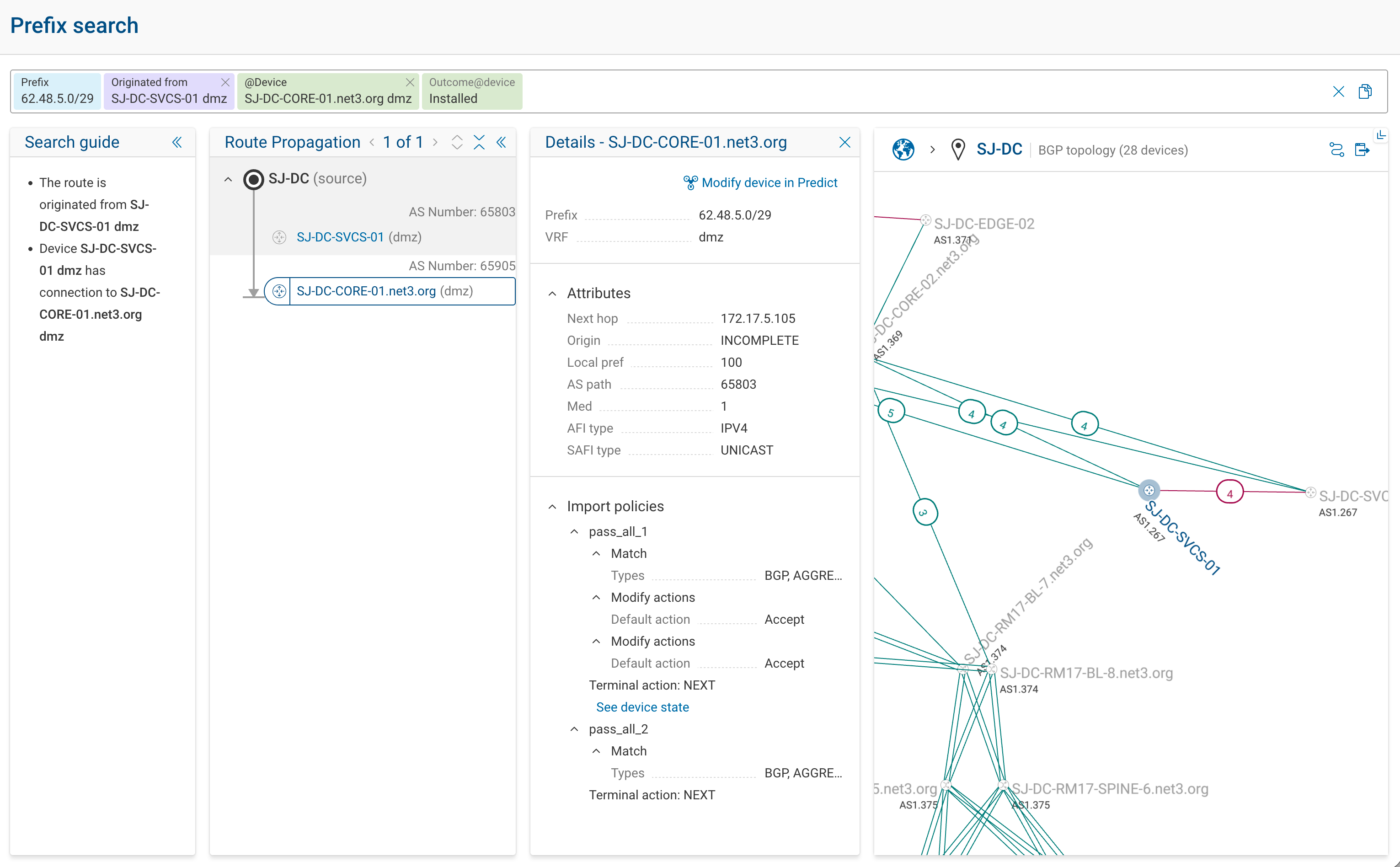
The Route Propagation panel shows the path from the origin to the destination. Hops are grouped by location, marked
as source, transit, or destination. Each hop shows the device and its VRF (omitted for the default VRF).
The path is divided into routing domains. A routing domain is a run of hops that use the same protocol and the same boundary. Each domain starts with a protocol tag and, where the protocol has one, a boundary label:
| Protocol | Boundary label |
|---|---|
| BGP | AS Number, such as AS Number: 65001 |
| OSPF | Area, such as Area: 0 |
| Static, Connected, Local | None. Only the protocol tag is shown. |
The OSPF area is shown as a decimal number. For example, area 0.0.0.1 is shown as Area: 1.
A device that passes the route from one protocol to another, from one VRF to another, or from one OSPF area to another is shown as a single hop. The next routing domain starts below that hop. A path can cross VRFs on a device that leaks routes between them, such as through VRF route import and export.
When the prefix reaches the destination over more than one path, the panel shows each path with an "X of Y" counter; step through them with the previous and next buttons. Expand all and Collapse all open and close the location groups.
Route Details
Select a hop to open its Details panel. The panel shows these sections:
- Route: the Prefix and VRF.
- Node attributes: details about the device's routing process, for BGP and OSPF hops.
- Route attributes: details about the route at this hop.
- Policy groups: the policies that act on the route at this hop.
When a hop passes the route between protocols, VRFs, or OSPF areas, the panel shows one tab per step, in path order, labeled with the step's protocol tag, such as Connected, OSPF, and BGP. Select a tab to see the details for that step. When two tabs have the same protocol, the tab label adds the VRF or the boundary, such as OSPF (Area: 1).
Node Attributes and Route Attributes
The Node attributes and Route attributes sections depend on the hop's protocol.
| Protocol | Node attributes | Route attributes |
|---|---|---|
| BGP | Router ID and Local AS, plus Cluster ID on a route reflector. | Origin, Local pref, Weight, AIGP metric, Preference, Next hop discard, AFI type, and SAFI type. When set: Next hop, AS path, Med, Communities, Large communities, and Ext communities. Originator ID and Clusters appear on route-reflected routes. |
| OSPF | Router ID, Version, Router type, Area, and Area type. When set: Process ID, Ingress interface, and Ingress cost. | Route type, Cost, LSA type, Originator ID, Cost to ASBR, and Allow translation. When set: Next hop, Forwarding address, External metric type, Path type to ASBR, and Tag. |
| Static, Connected, Local | None. | Route type (Static, Connected, or Local) and Interface address, plus Next hop, Next hop VRF, Outgoing interface, Admin distance, Tag, and Metric when set. |
Policies
Policy groups list the policies that act on the route at the hop, grouped by type, such as Import policies, Export policies, Aggregate policies, and Redistribution policies. Only groups with a policy are shown.
Each policy stage shows its Match conditions, its Modify actions, and its Terminal action. A default rule is marked (default rule) and shows no match conditions or modify actions.
The See device state button on a policy stage opens the device's configuration in a read-only Configuration drawer, with the rule's lines highlighted.
Policy groups are shown for BGP hops only. OSPF, static, connected, and local hops show the route and its attributes, without policies. On a device that redistributes a route into BGP, select the BGP tab to see the redistribution policy.
Modifying a Device
The Modify device in Predict button in the Details panel opens the device in Forward Predict, in a new window, to model a change to it. The button appears for users who can edit Forward Predict changes. On a collected snapshot, it appears only if the snapshot can be the base of a Forward Predict change.
| Snapshot | What the button does |
|---|---|
| Collected | Creates a new change based on the snapshot and opens the device in it. |
| Predicted | Offers Modify device in current change (change name), to edit the device in the change that produced the snapshot, or Create a new change from the same base. |
After running the prediction, search the same prefix on the predicted snapshot to check that it propagates as intended.
Topology
The topology opens on the physical view of the network. Use the view selector to switch to another topology view. Devices are shaded by the prefix's outcome on them (installed, filtered out, or not preferred), and the selected path is highlighted.
Click a device to open its tooltip. For each VRF, the tooltip lists:
- the advertisements the device received for the prefix, with their next hop, outcome, protocol, and origin. The search icon (Trace from origin) on an advertisement traces that advertisement.
- the more specific routes installed on the device, under More specific installed routes, with a filter box. Click a route to search that route instead.
The tooltip also shows the Modify device in Predict button.