Rapid7 InsightVM
Prerequisite
To add a Rapid7 InsightVM instance to the Forward Platform, make sure to have the following prerequisites:
- Add a Rapid7 InsightVM report: Forward collects pre-computed host vulnerabilities data via the Rapid7 InsightVM report API to speed up the collection process. Configure the Rapid7 InsightVM report as described in Add a Rapid7 InsightVM report
- URL: The address of the Rapid7 InsightVM instance
- Credential: An HTTP login credential (username and password) with the necessary permissions to retrieve vulnerability analysis from the Rapid7 InsightVM instance using REST APIs. You select this credential when adding the scanner, and can create one inline.
- Connectivity: Confirm that the Forward Collector can reach the Rapid7 InsightVM instance URL.
Add a Rapid7 InsightVM report
Forward uses a custom Rapid7 InsightVM SQL-type report to pull only the data needed for the analysis.
The report is collected using the following Rapid7 InsightVM endpoints from the report API.
- GET /api/3/reports - list available reports
- GET /api/3/reports/{reportId}/history/latest/output - to get the latest report results
To add a new Rapid7 InsightVM Report, log in to the InsightVM instance, navigate to the Report page and press create a report.
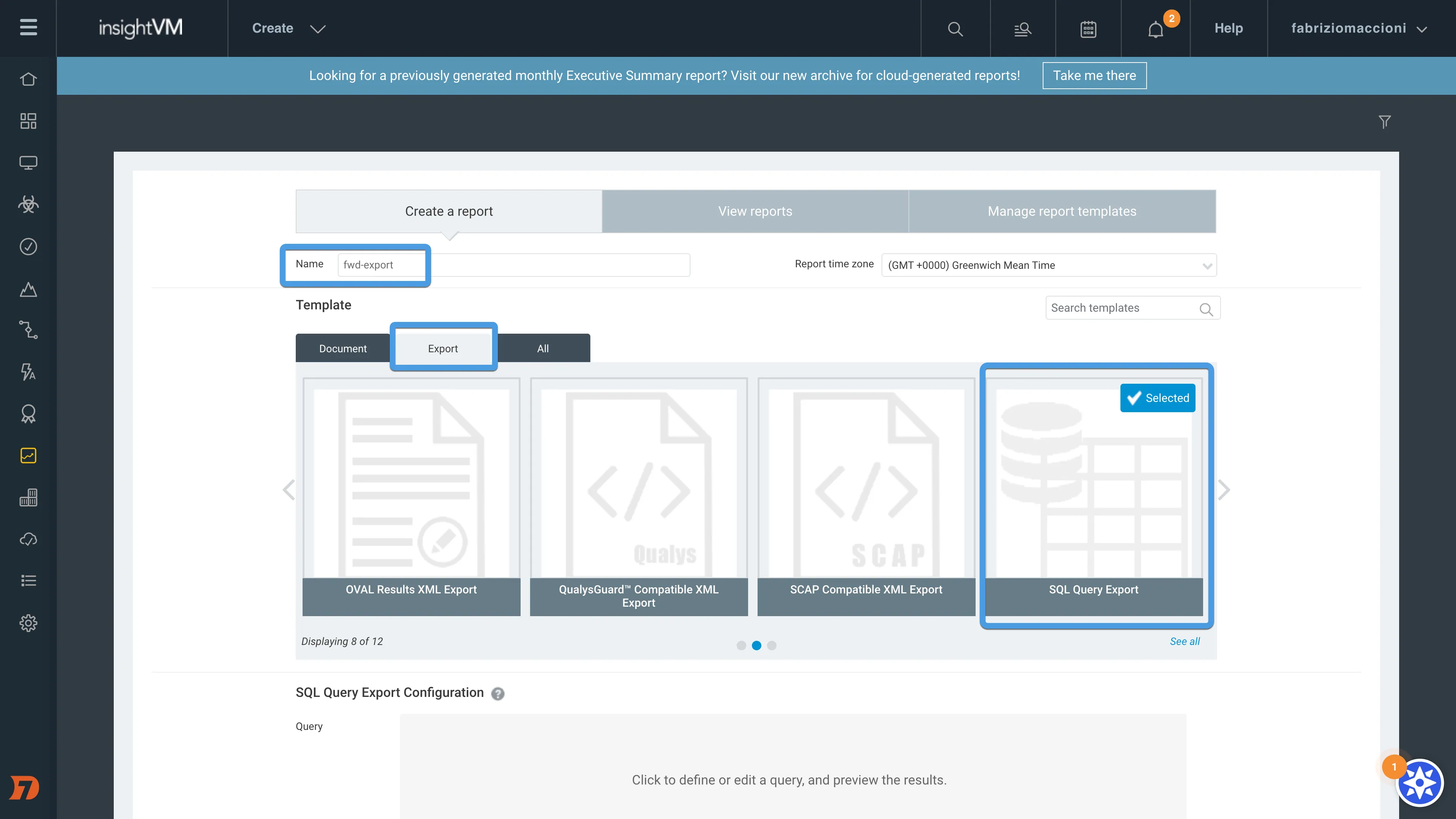
Provide a report Name (e.g. fwd-export), and select the SQL Query Export Configuration template from the Export list.
Then click on Click to define or edit a query, and preview the results in the SQL Query Export Configuration section.
Copy the following Query and paste it in Define a SQL Query
WITH vs AS (
  SELECT distinct favi.asset_id, ds.name
  FROM fact_asset_vulnerability_instance AS favi
    INNER JOIN dim_service ds ON ds.service_id = favi.service_id
  WHERE favi.service_id >= 0
),
vsagg AS (
  SELECT vs.asset_id, array_to_string(array_agg(vs.name), '|') AS vulnerable_services
  FROM vs
  GROUP BY vs.asset_id
)
SELECT da.asset_id, da.ip_address, da.host_name, da.mac_address,
  fa.scan_finished, fa.moderate_vulnerabilities, fa.severe_vulnerabilities, fa.critical_vulnerabilities, fa.riskscore,
  vsagg.vulnerable_services
FROM dim_asset AS da
  INNER JOIN fact_asset fa ON fa.asset_id = da.asset_id
  LEFT JOIN vsagg ON vsagg.asset_id = da.asset_id
WHERE fa.scan_finished >= (CURRENT_DATE - interval '30 day')
Click on Validate to make sure the syntax is correct.
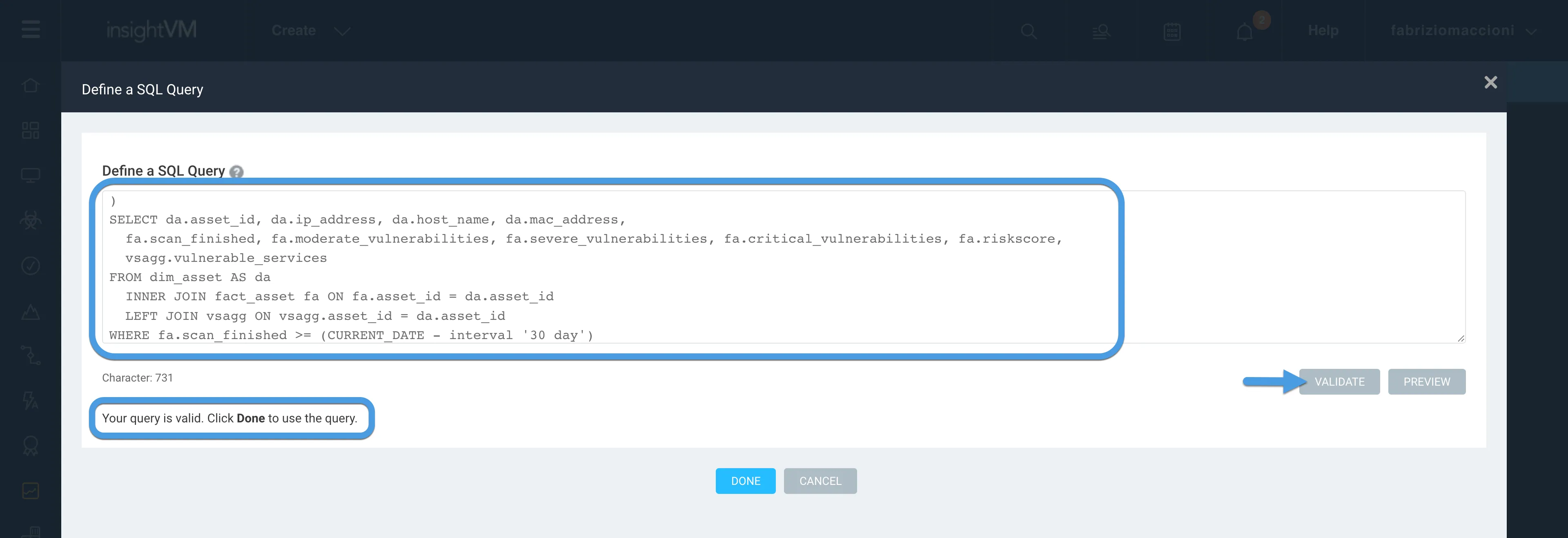
Fix any issue until the syntax validation is successful.
After that, see a sample report by clicking on Preview:
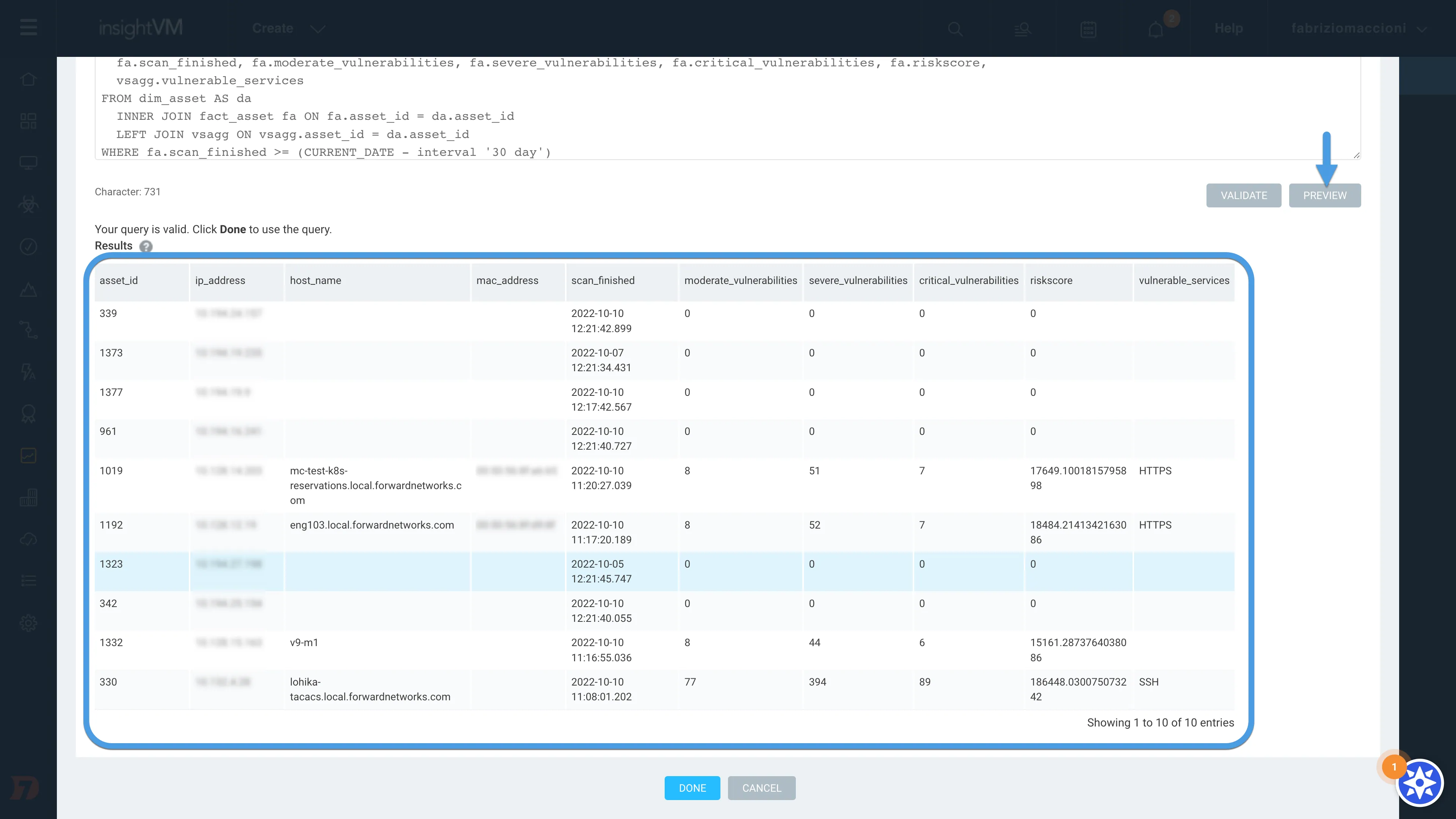
If everything looks ok, click on Done to exit the query editor and return to the new report page.
Define how frequently the report should run from the options in the drop-down menu:
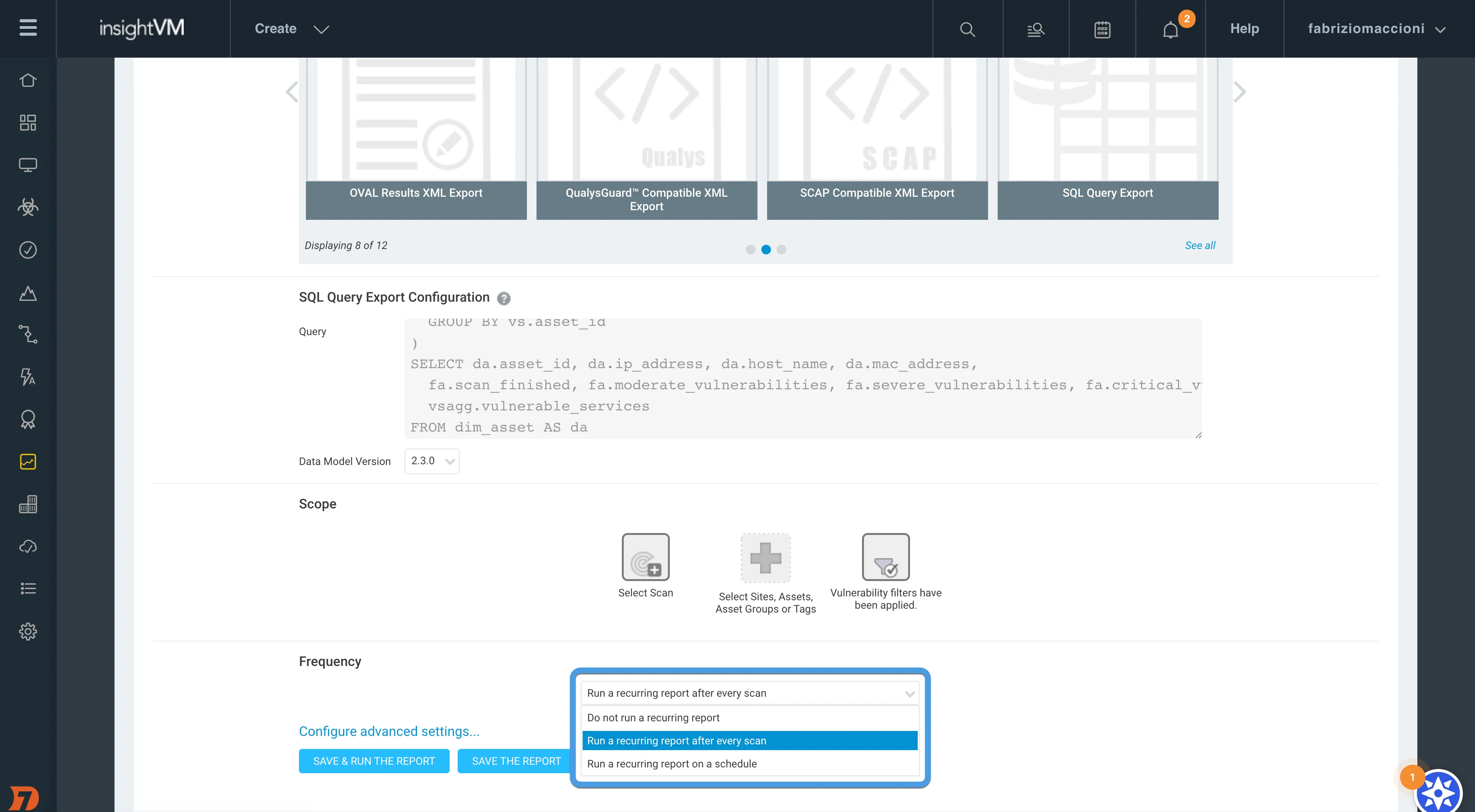
Forward does not control the frequency of report generation. Whenever Forward collects snapshot data, the latest available report will be collected.
Access to the Rapid7 InsightVM report depends on the role of the user that created the report and the role of the user accessing the report.
For more information on Rapid7 InsightVM Report permissions, please visit the Managing users and authentication documentation page.
To grant access to a new user, click on Configure advanced settings... --> Access --> Add Users, select the users from the list, and click on Done.
Finally, select either the SAVE & RUN THE REPORT or the SAVE THE REPORT option.
Now add the Rapid7 InsightVM to Forward Enterprise as described in the next section.
Add a Rapid7 InsightVM instance
One or more Rapid7 InsightVM instances can be added as end host scanners to analyze the exposure of the network.
If no vulnerability scanner has been added to Forward yet, the Security > Exposure page provides an Add a vulnerability scanner link that redirects to the Sources > End host scanners page.
On the End host scanners tab, click on Add an end host scanner and select Rapid7 InsightVM from the Type drop-down menu:
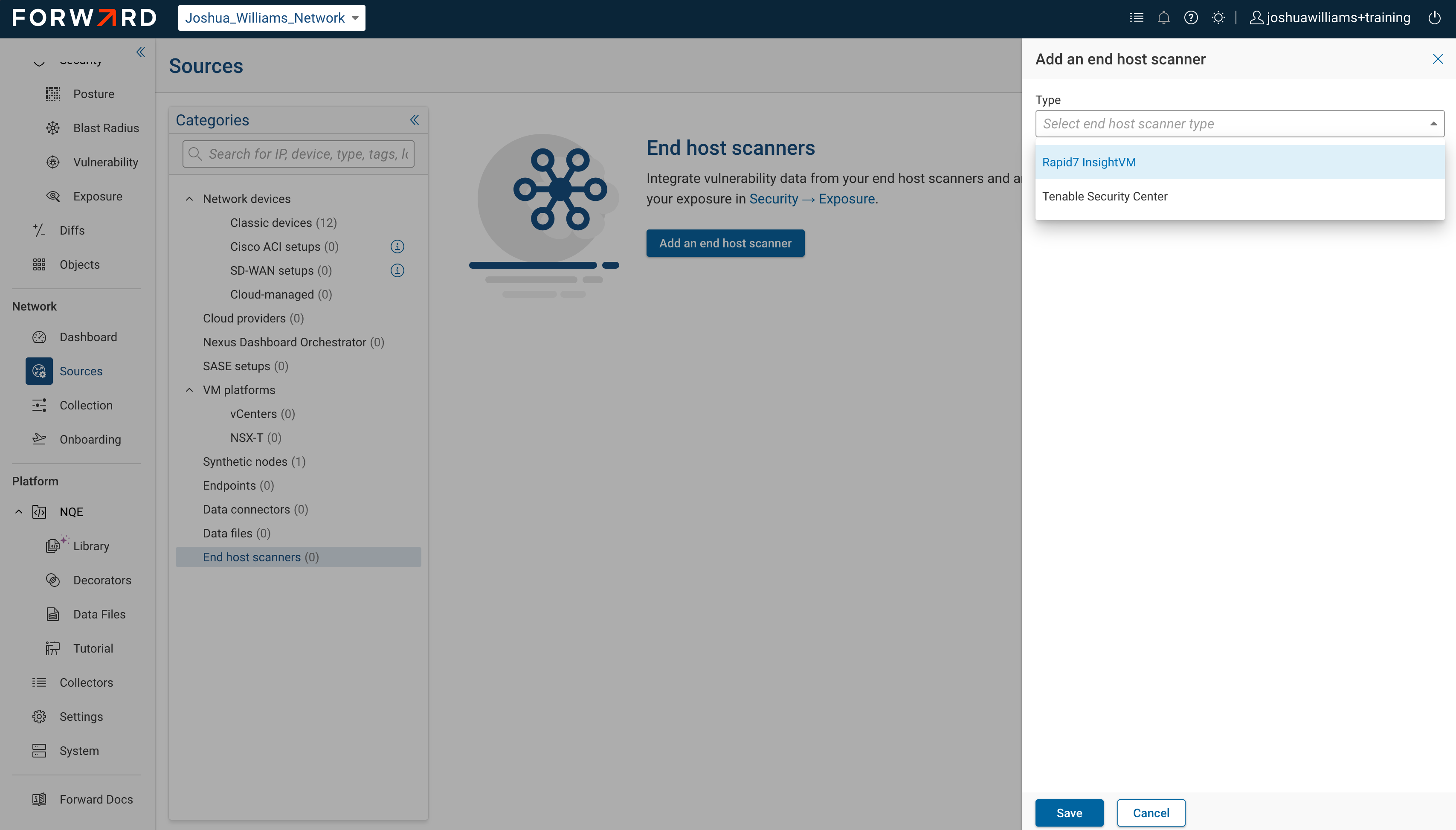
Provide a source Name, the Rapid7 InsightVM instance URL, and optionally enable Disable SSL validation (not recommended!).
Select a credential from the Rapid7 InsightVM credential drop-down menu. To create one without leaving the dialog, click Add HTTP login credentials, enter a Name, Username, and Password for the Rapid7 InsightVM instance, and save it; the new credential is then selected automatically.
Then, click on Connect to verify the connectivity with the Rapid7 InsightVM instance.
Once connected, select the previously added report (e.g. fwd-export) from the Reports drop-down menu, and click on Save.
The Rapid7 InsightVM instance will be shown on the End host scanners tab with a collection status of never collected.
Rapid7 collection
Forward Enterprise will collect the latest report data from the vulnerability scanner every time it collects from the network infrastructure.
The Collect toggle button allows to enable/disable the collection from a Rapid7 InsightVM instance. If multiple instances are enabled, Forward will collect from all of them and merge the results.
To edit the end host scanner, click on the edit icon on the right side of the source, edit any fields, and click on Save.
Changing the URL, the selected credential, or the Disable SSL validation setting requires you to Connect again to the Rapid7 InsightVM instance before saving the end host scanner.
Delete a Rapid7 InsightVM end host scanner
To delete the end host scanner, click on the bin icon on the right side of the source, and confirm the deletion.