Tenable Vulnerability Management
Forward imports asset and vulnerability data from Tenable Vulnerability Management (Tenable VM, formerly Tenable.io) and uses it in Exposure Analysis.
Tenable VM is set up differently from the Rapid7 InsightVM and Tenable Security Center scanners:
| Aspect | Tenable VM | Rapid7 InsightVM and Tenable Security Center |
|---|---|---|
| Where you add it | Once per organization, in Settings > System > Integrations, by an Org Admin | Per network, on the network's Sources page |
| Who connects to it | A Collector that you select for the scanner | The network's Collector |
| When data is retrieved | On the scanner's own retrieval schedule | During each network collection |
| How a network uses it | The Org Admin makes the scanner available to networks, and each network turns on Include | The scanner belongs to one network |
Prerequisites
| Requirement | Details |
|---|---|
| License | Your organization's license includes Security. Without it, the Add button on the Vulnerability Scanners row is disabled. |
| Role | Org Admin, to add and manage the scanner. Network Admin, to include the scanner in a network. |
| Collector | A Collector in your organization that is connected, supported by your Forward version, and able to reach https://cloud.tenable.com (or https://fedcloud.tenable.com for GovCloud) directly. The connection to Tenable VM doesn't use a proxy server. |
| Tenable API keys | An access key and a secret key for a Tenable VM user that can export assets and vulnerabilities. See Generate API Keys in the Tenable documentation. |
Add Tenable Vulnerability Management
- Navigate to Settings > System > Integrations and look for Vulnerability Scanners.
- Click Add. If the organization already has a scanner, click Manage scanners, then Add vulnerability scanner.
- In Select type, select Tenable Vulnerability Management.
- Fill in the fields described in Scanner fields.
- Click Test connection and wait for Successfully connected to Tenable VM.
- Set the retrieval schedule.
- Click Add.
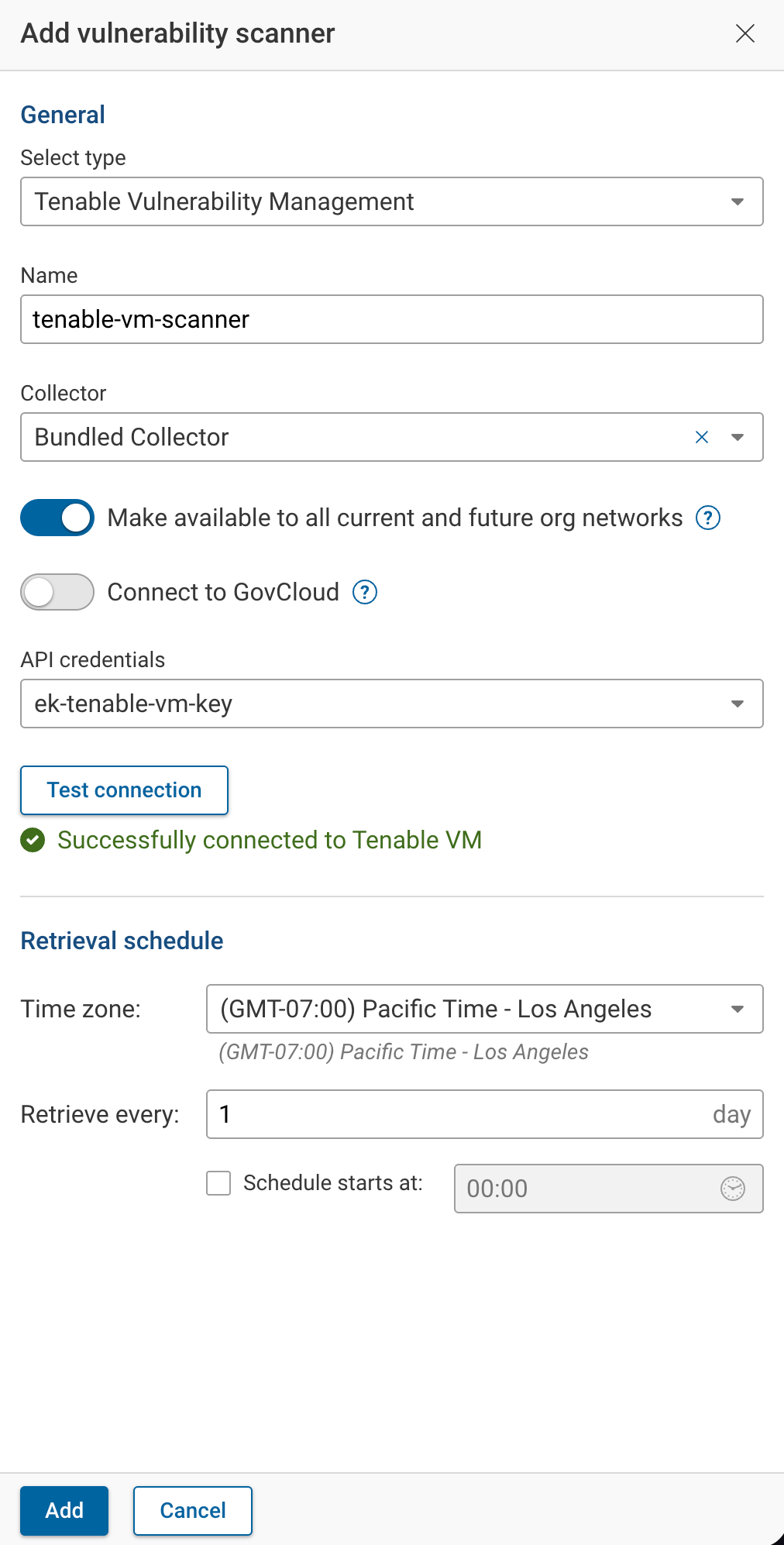
The Add button stays disabled until every required field is set and the connection test passes. Hover over the button to see what is missing.
After you add the scanner, include it in each network that should use its data. See Include the scanner in a network.
Scanner fields
| Field | Description |
|---|---|
| Name | Required. Use only letters, digits, underscores, dashes, and dots; spaces aren't allowed. The name must be unique among the organization's vulnerability scanners and end host scanners, ignoring case. |
| Collector | Required. Any Collector in the organization. It connects to Tenable VM for the connection test and for every retrieval. |
| Make available to all current and future org networks | On by default: every network in the organization, including networks created later, can include the scanner. Turn it off to choose networks in Select networks for the scanner to access; select at least one. |
| Connect to GovCloud | Off by default. Turn it on if your Tenable VM instance is hosted on FedRAMP Moderate AWS GovCloud. Forward then connects to https://fedcloud.tenable.com instead of https://cloud.tenable.com. |
| API credentials | Required. Select existing credentials, or click Add new to create them. In the Add new API credentials drawer, enter a Name, the API access key, and the API secret key from Tenable VM. Forward selects the new credentials automatically. |
The Test connection button runs the test through the selected Collector. It is disabled until Name, API credentials, and Collector are set. A failed test shows the error returned by Tenable VM or the Collector.
Changing Collector, Connect to GovCloud, or API credentials clears the test result, and you need to test again. Changing the name, network availability, or schedule doesn't.
Retrieval schedule
Forward retrieves data from Tenable VM on the scanner's schedule, independent of network collection.
| Field | Description |
|---|---|
| Time zone | Defaults to Organization's preferred time zone, the Time zone org preference. The line below the field shows the zone in effect. |
| Retrieve every | Required. The number of days between retrievals, as a positive whole number. Defaults to 1. |
| Schedule starts at | Optional. Select the checkbox and enter the time of day (hour and minute) at which retrievals start. If cleared, retrievals start at midnight in the selected time zone. |
The first retrieval runs at the next start time after you add the scanner, not immediately. Until then, the scanner's Last retrieved value is unknown. Each later retrieval runs the set number of days after the previous one, at the start time.
Retrieved data
Each retrieval requests the assets and findings that changed in Tenable VM since the last successful retrieval, going back at most 30 days. Forward stores the results and updates them on each retrieval:
- Open and reopened findings are kept; fixed findings are removed.
- Findings with the Info severity, and findings without a CVSS score, are skipped.
- When Tenable VM reports a change to an asset, Forward removes that asset's findings not seen in the last 30 days.
- Assets deleted or terminated in Tenable VM are removed.
Manage scanners
Click Manage scanners on the Vulnerability Scanners row to open the Manage vulnerability scanner integrations drawer.
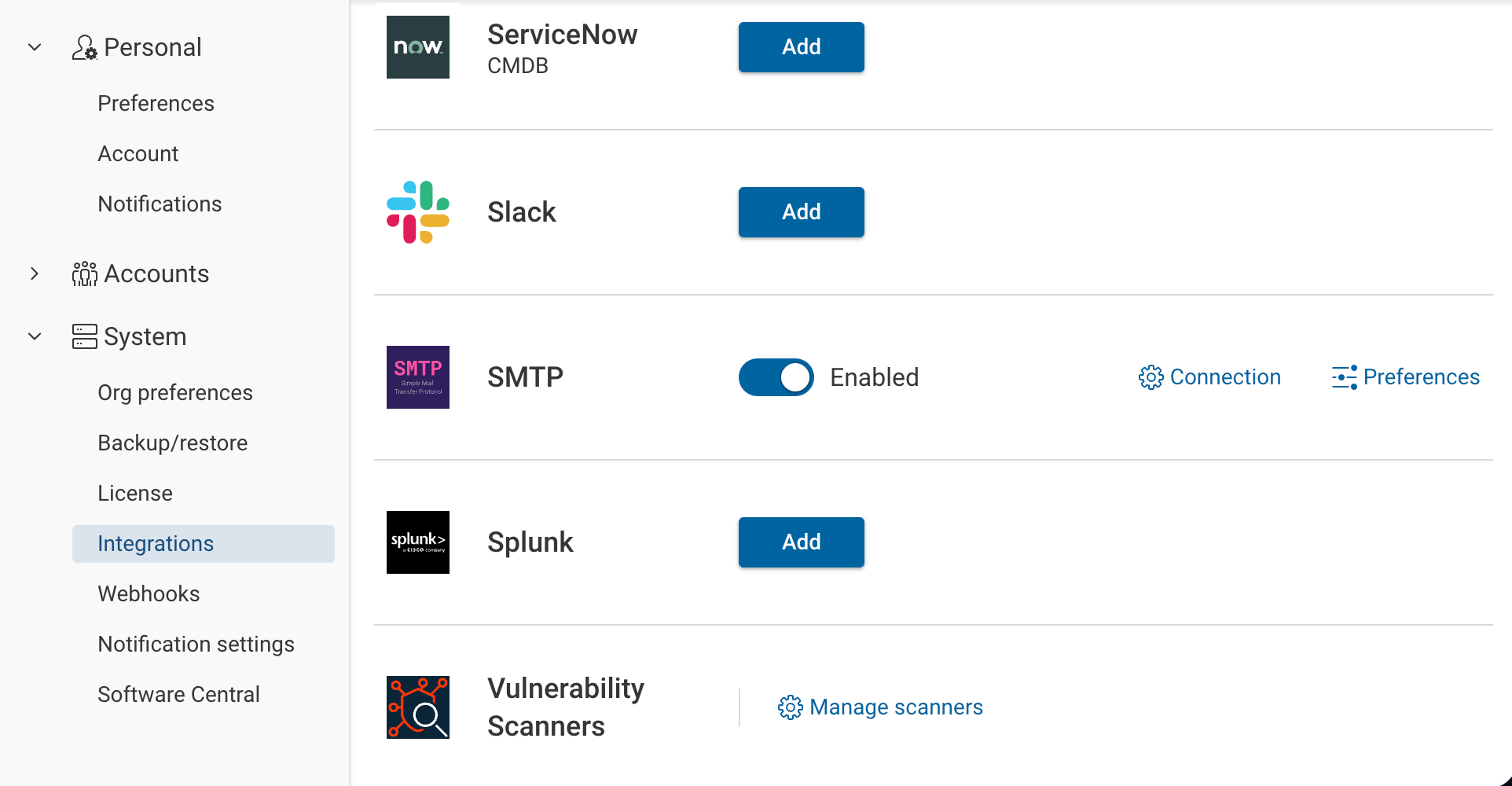
The table lists every vulnerability scanner integration in the organization:
| Column | Description |
|---|---|
| Collect | Turns scheduled retrievals on or off. While it is off, new snapshots of networks that include the scanner still receive the data from the last retrieval. |
| Name | The integration name. |
| Type | Tenable VM. |
| Collector | The Collector that connects to Tenable VM. |
| Collection status | The result of the last retrieval: collected, failed, or not collected before the first retrieval. A failed status shows the error. |
| Last retrieved | When the last successful retrieval started. |
| Last edited | When the scanner was last changed. Hover over the info icon for the exact time. |
| Last edited by | The user who last changed the scanner. |
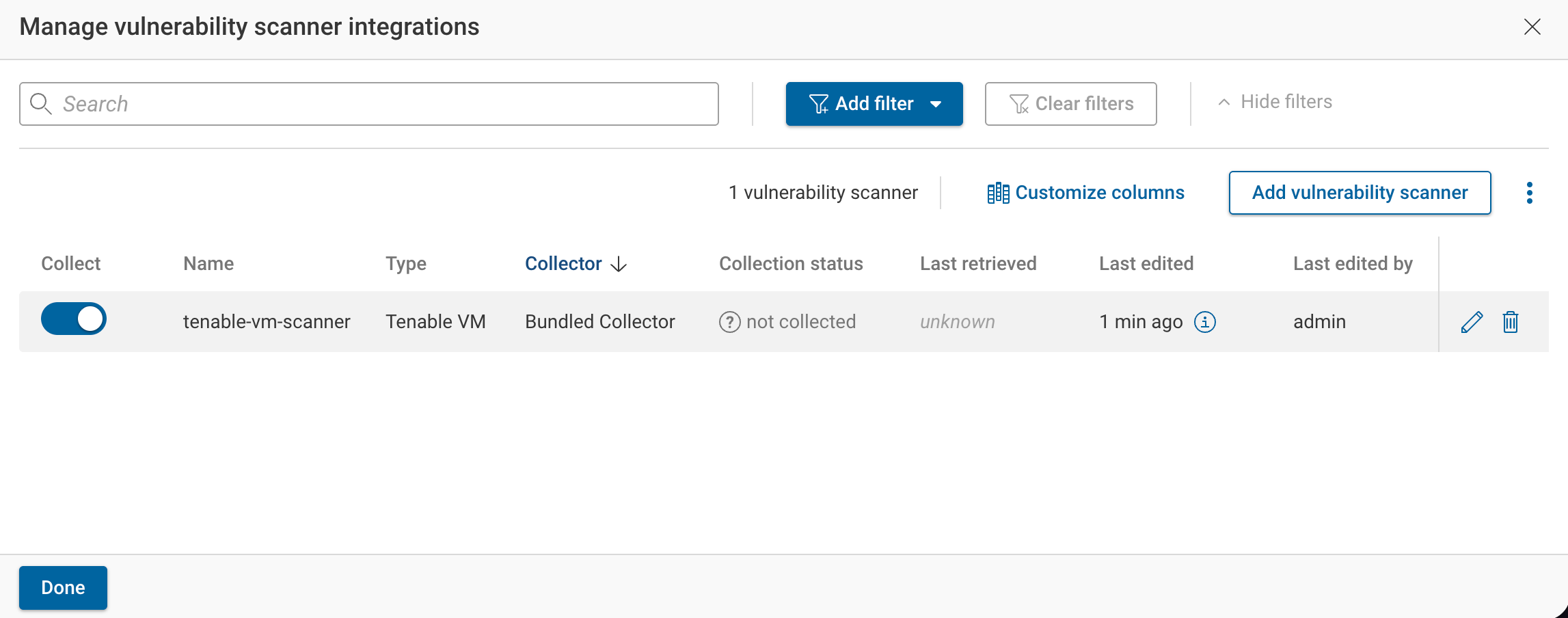
Use the row actions to:
- Edit the scanner. The type can't be changed. If you change Collector, Connect to GovCloud, or API credentials, test the connection again before you save.
- Delete the scanner. Networks that use the scanner stop receiving its data, and it is removed from their Sources page. Snapshots that already contain its data keep that data.
To use new API keys, edit the scanner, click Add new in API credentials, and enter the new keys.
Include the scanner in a network
A Tenable VM scanner appears on the Sources page of every network it is available to, with Include turned off. Turn on Include in each network that should use its data.
- Navigate to Sources for the network and select Vulnerability scanners.
- Find the Tenable VM scanner and turn on Include.
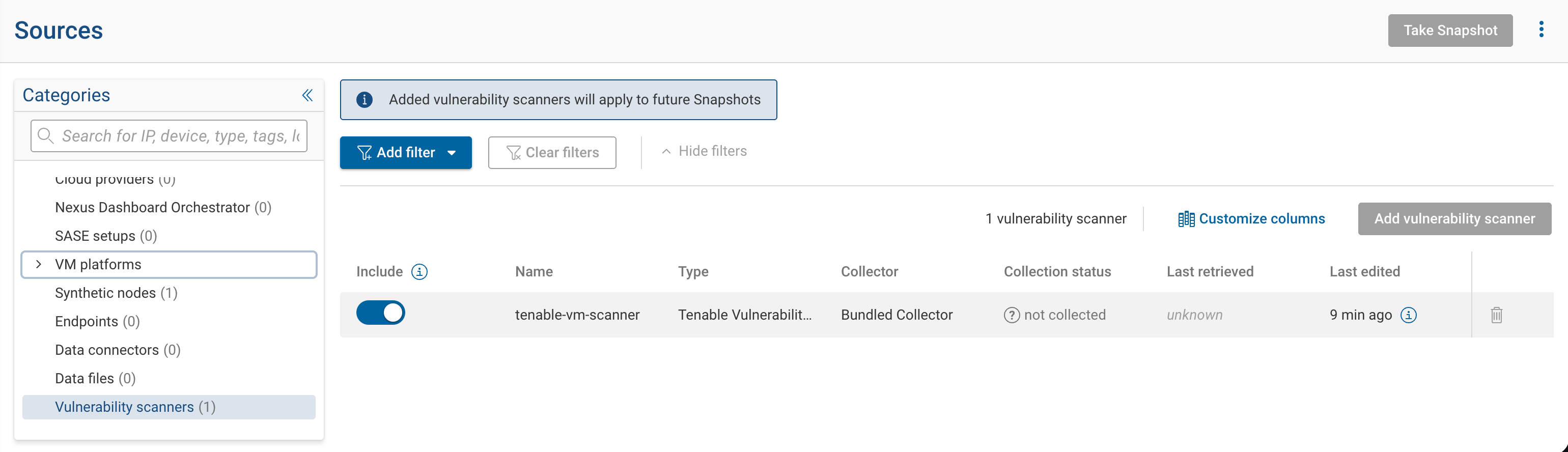
Changing Include requires the Network Admin role. The change applies to the next snapshot:
- A snapshot created while Include is on contains the scanner's latest retrieved data. Creating a snapshot doesn't start a retrieval from Tenable VM.
- Turning Include off doesn't remove the data from existing snapshots.
The Vulnerability scanners table shows the same Collector, Collection status, Last retrieved, Last edited, and Last edited by values as the Manage drawer. Rows with Include turned off are dimmed.
Restrictions on the Sources page
| Restriction | Details |
|---|---|
| A Tenable VM scanner can't be edited or deleted from a network | The Delete action is disabled. To stop using the data in one network, turn off Include. To change or delete the scanner, an Org Admin uses Manage scanners. |
| Rapid7 InsightVM and Tenable Security Center scanners can't be added | While any Tenable VM scanner is listed for the network, Add vulnerability scanner is disabled, whether or not Include is on. Existing Rapid7 InsightVM and Tenable Security Center scanners stay listed and can be edited or deleted. |
| Only one scanner type can be included | A network can include several scanners of the same type, but not two types at once. Turning on Include for a Tenable VM scanner fails with Scanner '<name>' of another type is already enabled for this network if a scanner of a different type is included. Turn off Include for that scanner first. |
View the results
Tenable VM data appears on the Security > Exposure page once a snapshot that includes it is processed. The page works as described in Exposure Analysis, with these differences:
- The Overview section counts the vulnerable hosts found by Tenable Vulnerability Management.
- The Vulnerable services column lists the vulnerable services that Tenable VM found on the host.
- The Risk score column shows a score that Forward computes from the host's findings, not a score from Tenable VM. See Risk score and severity.
- The Low column is available for Tenable VM. It is hidden by default; add it from the hidden columns.
- The numbers in a row link to the asset page in Tenable VM.
Tenable VM findings also appear in the Vulnerabilities section of the host panel on the Search page and of the host drawer on the Blast Radius page. The section shows Critical, Severe, Moderate, and Low counts and a See details link to the asset page in Tenable VM.
Risk score and severity
Forward computes the risk score of a host from the CVSS base score of each of its findings. Forward uses CVSS v4 if Tenable VM reports it, otherwise v3, otherwise v2. For each finding, Forward divides the CVSS score by 10 and squares the result; the risk score is the sum over all findings. The page shows the score with one decimal.
Forward assigns each finding a severity from its CVSS score:
| CVSS score | Severity |
|---|---|
| 9.0–10.0 | Critical |
| 7.0–8.9 | Severe |
| 4.0–6.9 | Moderate |
| 0.1–3.9 | Low |
Host matching
Forward incorporates asset data from Tenable VM only when the asset matches an inferred host in the Forward model. Assets that match no host aren't shown. Forward matches assets in this order:
- An asset with a cloud instance ID (AWS EC2 instance ID, Azure VM ID, or GCP instance ID) matches by that ID only.
- Otherwise, by MAC address.
- Otherwise, by IPv4 address. Tenable VM IPv6 addresses aren't used for matching.
If several assets match one host by MAC or IPv4 address, Forward uses the asset whose hostname matches the host name, then the asset with the highest risk score.