Vulnerability Analysis
Overview
Network device operating systems can be vulnerable to security flaws. Publicly disclosed vulnerabilities are assigned a CVE (Common Vulnerabilities and Exposures) ID number and a severity level based on their impact. CVEs help IT professionals prioritize and address these vulnerabilities to secure systems and networks.
Networking vendors often fix security vulnerabilities by issuing new OS versions. Therefore, network operators need to evaluate their devices' operating systems regularly. However, the number of vulnerabilities and affected devices can be overwhelming, making it difficult to determine which devices should be updated first.
OS Vulnerability Analysis
To simplify this process, Forward Enterprise provides a network device vulnerability analysis tool. This tool automatically compares CVE information from the vendors and the NIST National Vulnerability Database (NVD) with the OS versions running on your devices, producing a list of possibly affected devices and related vulnerabilities.
CVE Database Updates: The CVE database on Forward SaaS is updated daily. On-premises deployments receive the CVE database with each release but can also update it independently. For more information, see Update CVE database.
Enhanced Vulnerability Analysis
Some vulnerabilities impact devices only if specific configurations are present, specific features are enabled, or the device is deployed in a certain way.
Some vendors, like Cisco, provide detailed descriptions of some CVEs, including required configurations that are vulnerable. This information is available at vendor-specific sites; for example, the Cisco Security Advisories can be found here.
Forward Enterprise's Enhanced Vulnerability Analysis incorporates these descriptions and automatically checks them against device configurations. This helps determine a device's actual vulnerability status, aiding in prioritizing remediation efforts.
Even with enhanced analysis, we always recommend checking the details of the CVE before deciding the next appropriate actions.
The specific list of operating system (OS) versions that include enhanced analysis is available in the Feature Matrix section of the documentation. Forward Enterprise will continue to expand the number of CVEs and vendors in future releases of the Forward vulnerability database.
The following NQE query can be used to retrieve the complete list of device vendors and OSes with enhanced analysis support:
foreach cveDatabase in [network.cveDatabase]
foreach cve in cveDatabase.cves
foreach vendorInfo in cve.vendorInfos
foreach criteria in vendorInfo.criteria
foreach osCriteria in criteria.osCriteria
where isPresent(osCriteria.dependsOnConfig)
select distinct {
  Vendor: vendorInfo.vendor,
  OS: osCriteria.os
}
order by Vendor asc, OS asc
Navigating the Vulnerability Analysis Page
To access the Vulnerability Analysis page, navigate to Security → Vulnerability from the left navigation menu.
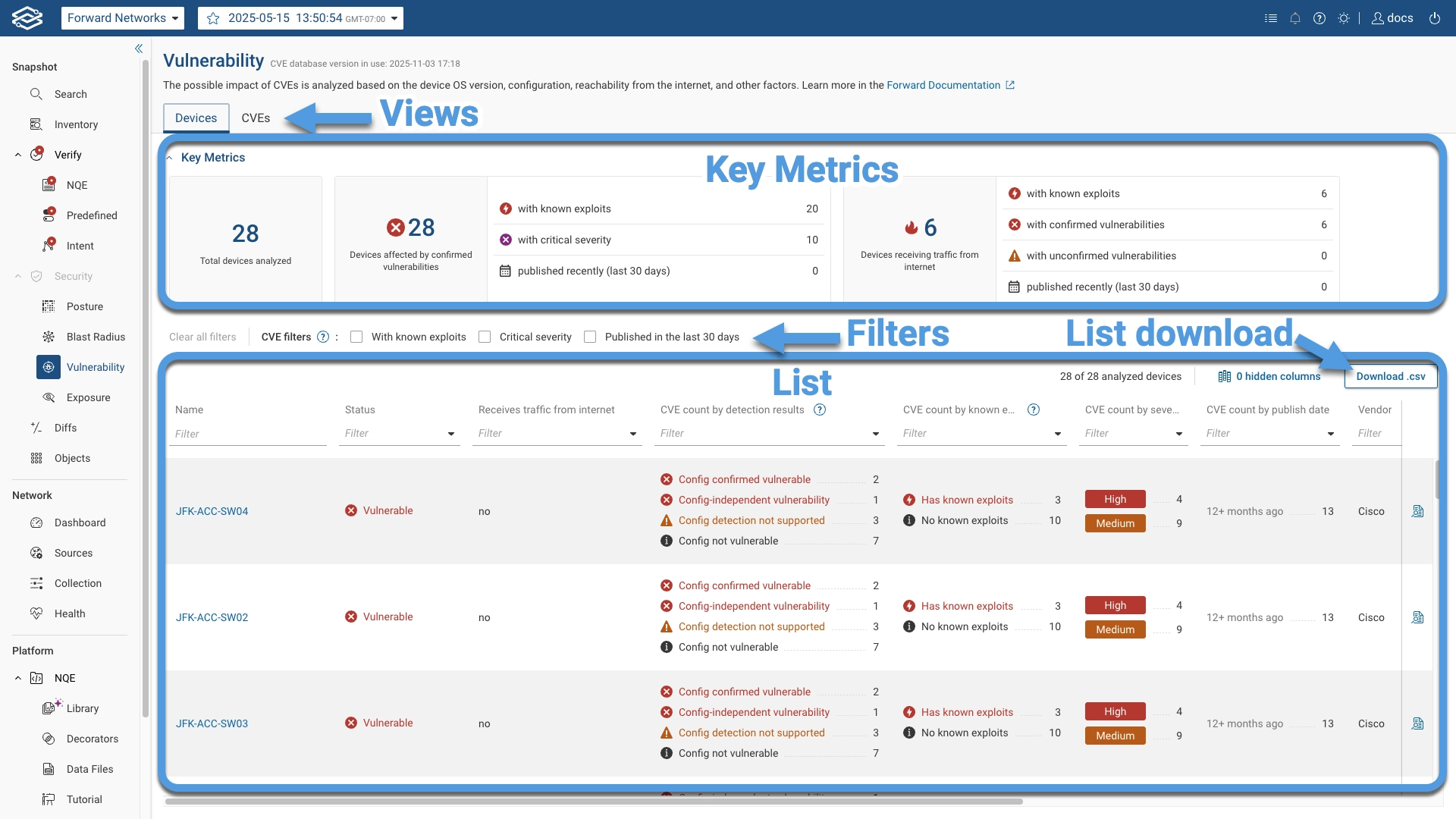
Each tab within the Vulnerability Analysis page presents key vulnerability metrics, along with two detailed views for CVE-specific information: Devices and CVEs.
The information in both tabs is broken down in different sections as highlighted in the following picture:
Devices Tab
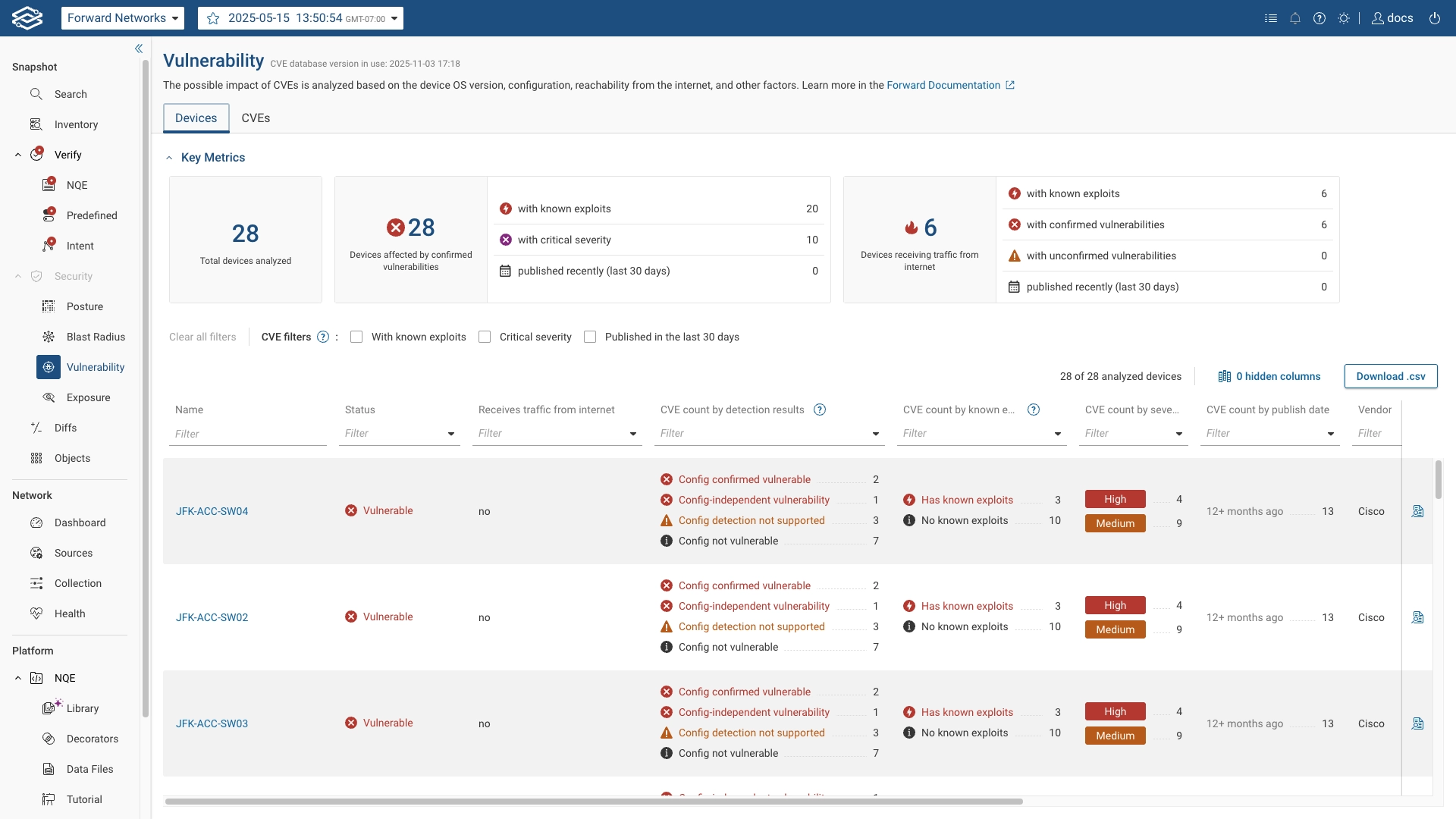
The Devices tab is the default view when navigating the page. This tab applies a device-centric filter to the vulnerabilities list, focusing on summarizing CVE detection results for each impacted device.
Key metrics are displayed at the top while a filterable list of devices is displyed at the bottom.
Key Metrics
Key metrics displays numerical counts for device-related vulnerability data:
- Total devices analyzed: Total number of devices where the current OS version is affected by at least one CVE included in the analysis.
- Devices affected by confirmed vulnerabilities: Number of devices confirmed as vulnerable, with counts broken down
by:
- Devices with known exploits
- Devices affected by CVEs with critical severity
- Devices affected by CVEs published recently (last 30 days)
- Devices receiving traffic from internet: Number of devices receiving traffic from internet. Counts are broken down
by:
- Devices with known exploits
- Devices with confirmed vulnerabilities
- Devices with unconfirmed vulnerabilities
- Devices affected by CVEs published recently (last 30 days)
The values above will be hidden if the Internet node is not configured.
Internet-exposure information relies on advanced reachability analysis for the selected Snapshot, which by default is computed on demand. When it has not been computed, the Devices receiving traffic from internet metric is replaced by a Run advanced reachability analysis button; selecting it starts the computation. The Receives traffic from internet column reads unknown for each device until the computation finishes, and the matching device filter is disabled. The rest of the Vulnerability Analysis page does not wait on it.
Clicking any metric applies a corresponding filter to the displayed results.
Checkbox CVE filters
Checkbox filters select a subset of CVE findings before grouping them by device in the table below. Available checkbox filters include:
- CVEs with known exploits
- CVEs with critical severity
- CVEs published in the last 30 days
Device List
Each row in the list of devices includes the following details:
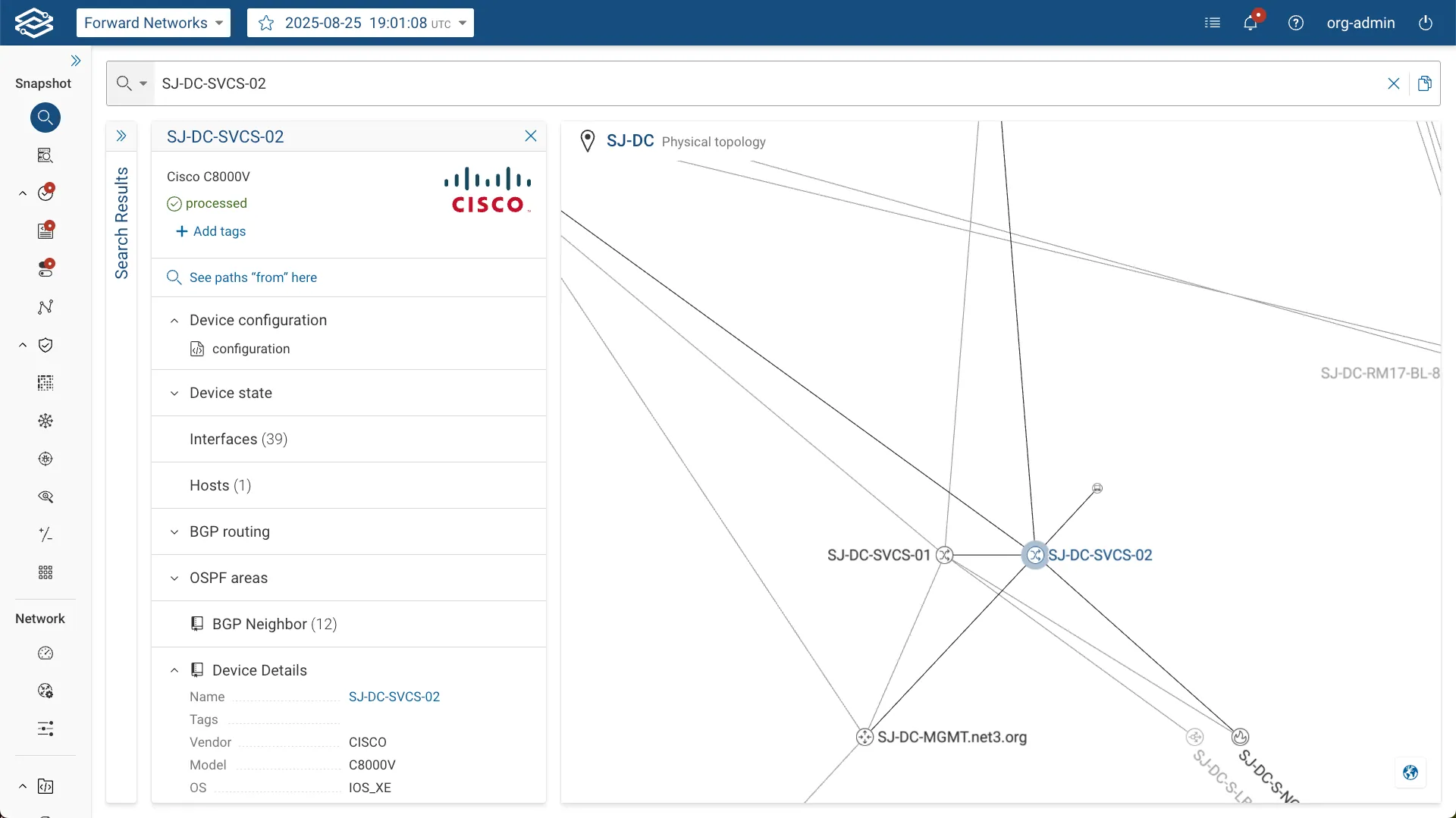
- Name: The name of the device. Clicking the device name opens a new browser tab in Search, displaying
additional details about the device for further investigation.
- Status: Displays a summary of the device status based on the currently applied filters:
Vulnerable,Potentially vulnerable,Config not vulnerable. - Receives traffic from internet: Indicates whether the device receives traffic from the Internet, which can impact its vulnerability risk.
- CVE count by detection results: Describes how the CVE was identified on the device. See Detection Results for details on result categories.
- CVE count by known exploits: Shows how many detected CVEs on the device have documented exploits. Filter options include Has known exploits and No known exploits.
- CVE count by severity: Lists the count of severities of the detected CVEs from
CriticaltoLow. - CVE count by publish date: Lists the counts of cves within each age bucket (past 30 days, 1 month to 12 months, older than 1 year).
- Vendor: The vendor of the device.
- OS: The operating system of the device.
- OS Version: The specific OS versions on the device.
- Tags: Tags associated with the impacted devices for easier identification and filtering.
- Location: Assigned location of the device.
Each column includes a table filter. Applying table filters will select all device rows where the filter value is present.
Clicking the See details icon opens a drawer with additional information about the selected device.
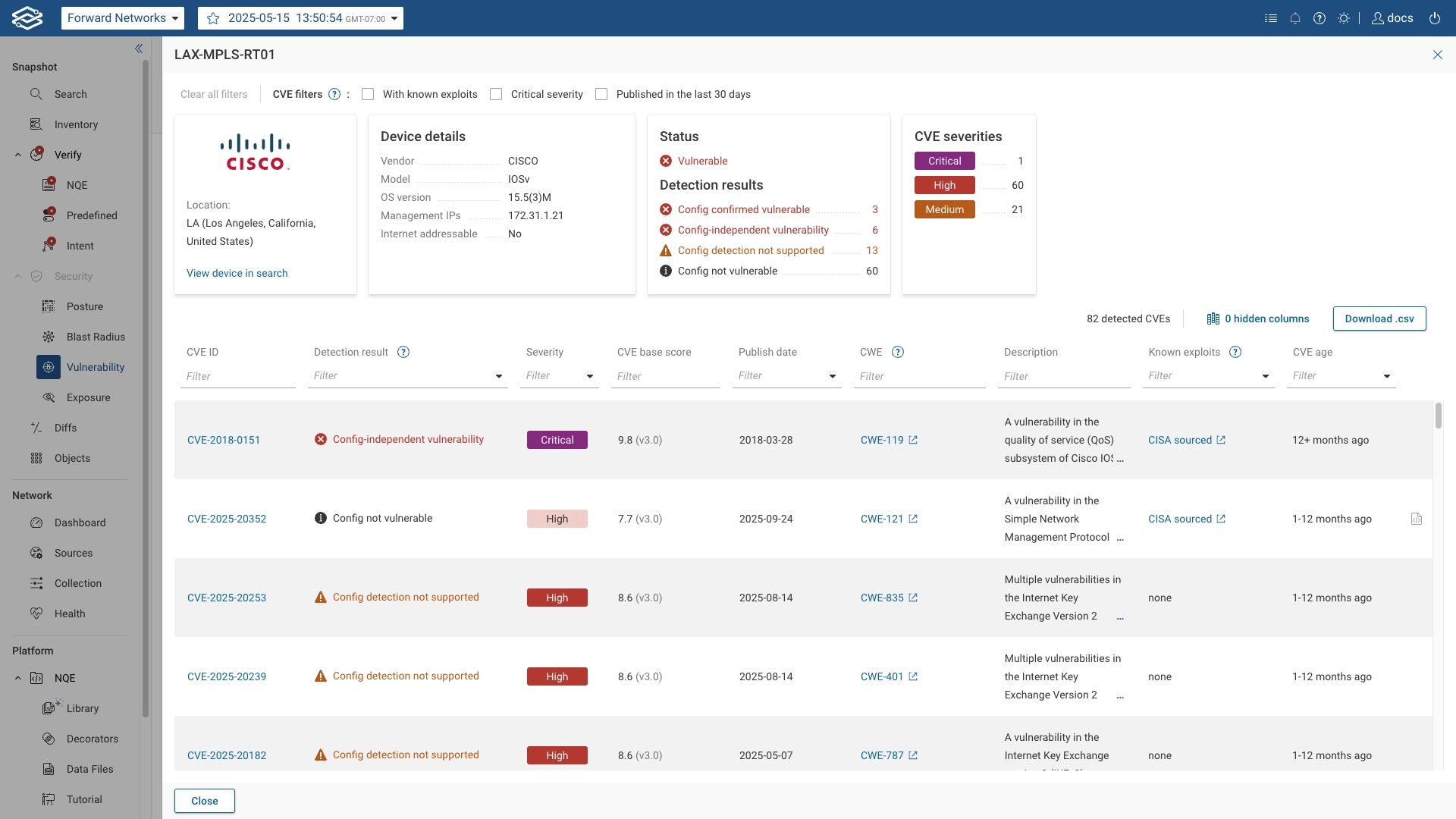
The drawer displays:
- Device details: Displays device-specific information.
- Status: Displays the number of detection results for configs confirmed vulnerable and configs confirmed not vulnerable.
- CVE severities: Displays the count of CVE severities detected on the device, broken into categories: Critical, High, Medium.
The drawer also provides a table of CVEs affecting the device, with the following details for each CVE:
- CVE ID: The unique identifier for each CVE. Clicking this opens detailed CVE information.
- Detection result: Describes how the CVE was identified on the device. See Detection Results for details on result categories.
- Severity: The severity rating of the CVE.
- CVE base score: The CVSS base score of the CVE.
- Published date: The date when the CVE was officially published.
- CWE: Associated CWE identifiers, hyperlinked to the MITRE CWE database.
- Description: A brief description of the CVE and its impact.
- Known Exploits: Shows if the CVE has a published exploit. Entries display the source (CISA or vendor). CISA entries link directly to the CISA Known Exploited Vulnerabilities Catalog.
- CVE age: Displays the age of the CVE.
CVEs Tab
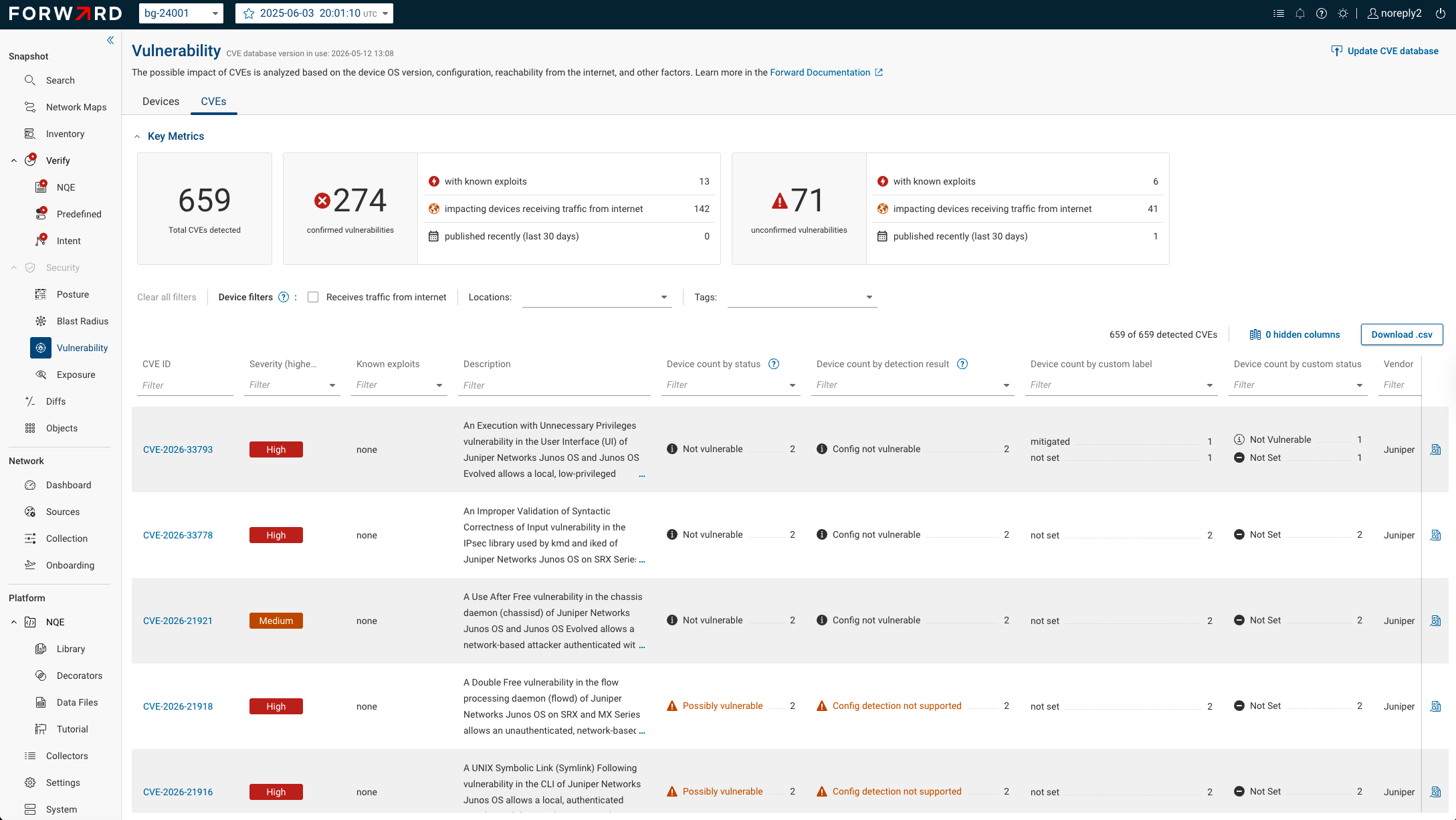
Selecting the CVEs tab applies a CVE-centric filter to the vulnerabilities list.
Key metrics are displayed at the top while a filterable list of CVEs is displyed at the bottom.
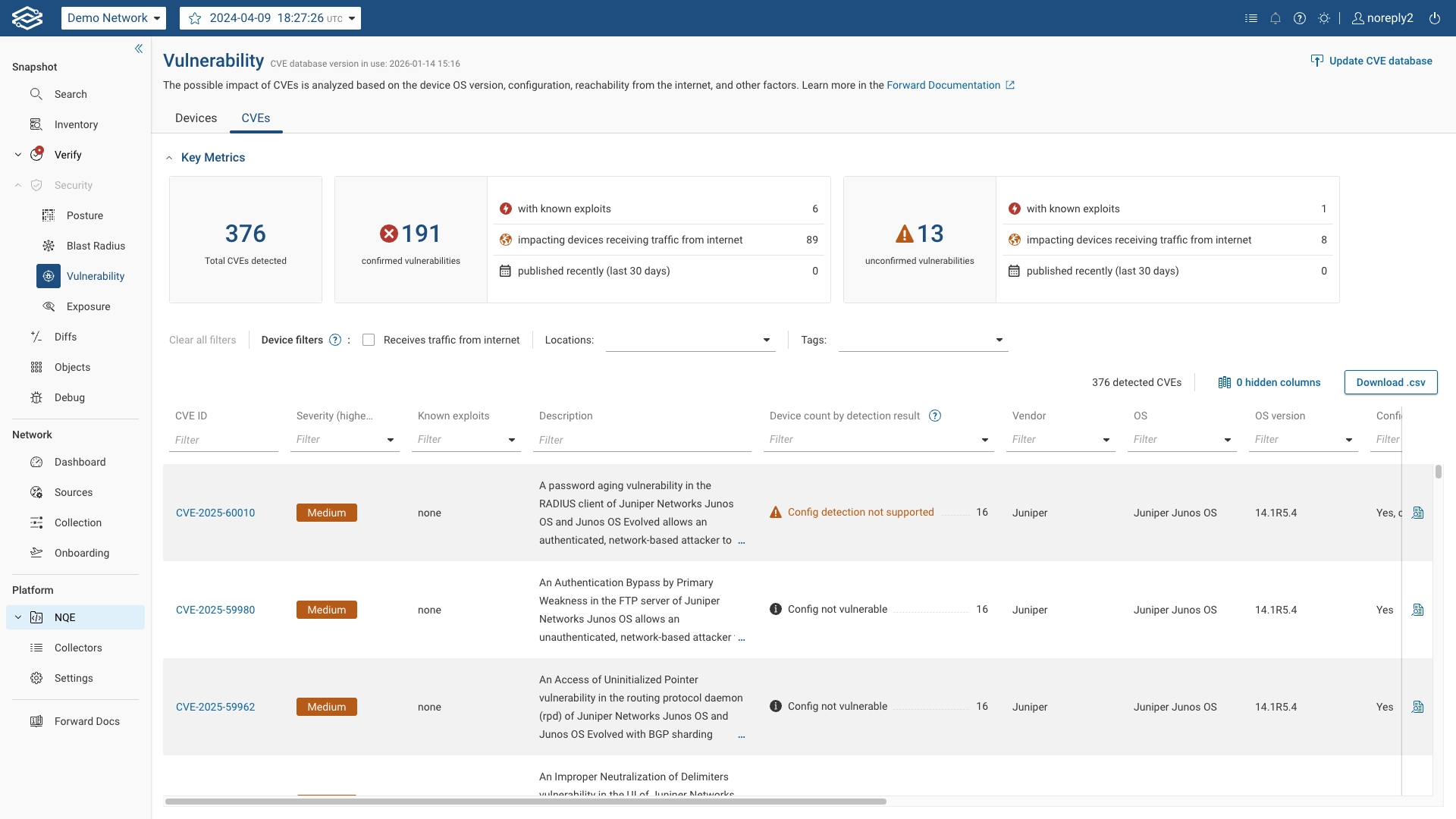
Key Metrics
Key metrics display numerical counts for CVE-related data:
- Total CVEs detected: Overall number of CVEs affecting at least one device in the network.
- confirmed vulnerabilities: Number of CVEs confirmed to impact devices, with counts broken down by:
- with known exploits
- affecting devices receiving traffic from internet
- recently published (last 30 days)
- unconfirmed vulnerabilities: Number of CVEs that may impact devices, but where Enhanced Analysis beyond OS version matching was not performed, with counts broken down by the same categories as the confirmed vulnerabilities.
Clicking any metric applies a corresponding filter to the displayed results.
Checkbox Device filters
Checkbox filters select a subset of device vulnerability findings before grouping them by CVE in the table below. Available checkbox filters include:
- (devices that) Receive traffic from the internet
- (device) Locations
- (device) Tags
CVE List
The CVEs list includes:
- CVE ID: The unique identifier for each CVE. Clicking this opens detailed CVE information.
- Severity (highest): The severity rating of the CVE, indicating how critical the vulnerability is.
- Known exploits: Shows if a CVE has a published exploit. Entries display the source (CISA or vendor). CISA entries link directly to the CISA Known Exploited Vulnerabilities Catalog.
- Description: A brief description of the CVE and its impact.
- Device count by detection result: Describes how the CVE affects devices in the network with corresponding Detection Results counts. See Detection Results for details on result categories.
- Vendor: The vendors of the devices affected by the CVE.
- OS: The operating systems affected by the CVE.
- OS version: The operating system versions affected by the CVE.
- Config dependent: True if the CVE depends on a specific device configuration, unknown if enhanced analysis was not performed on the CVE.
- Devices impacted: The number of devices with each of the OSes affected by the CVE.
- CVE Base score: CVE CVSS based score for that OS.
- Published date: The date when the CVE was officially published.
- Tags on impacted devices: Tags associated with the impacted devices for easier identification and filtering.
- Locations of impacted devices: The assigned location of the impacted devices.
- CWE: Common Weakness Enumeration number and link for this CVE
Each column includes a table filter. Applying table filters will select all CVE rows where the filter value is present.
Clicking the View details icon opens a drawer with additional information about the selected CVE. The drawer will display a separate tab for each affected Operating system. In each tab the drawer displays:
- Severity: The severity rating of the CVE.
- CWE classification: Associated CWE identifiers, hyperlinked to the MITRE CWE database.
- CVE base score: The CVSS base score of the CVE.
- Published date: The date when the CVE was officially published.
- Description: A brief description of the CVE and its impact.
- Config dependent: Indicates whether enhanced analysis is supported and CVE is configuration-based.
- Vendor / OS: The vendor and affected operating systems.
- Vendor advisory: A link to the vendor’s published advisory, if available.
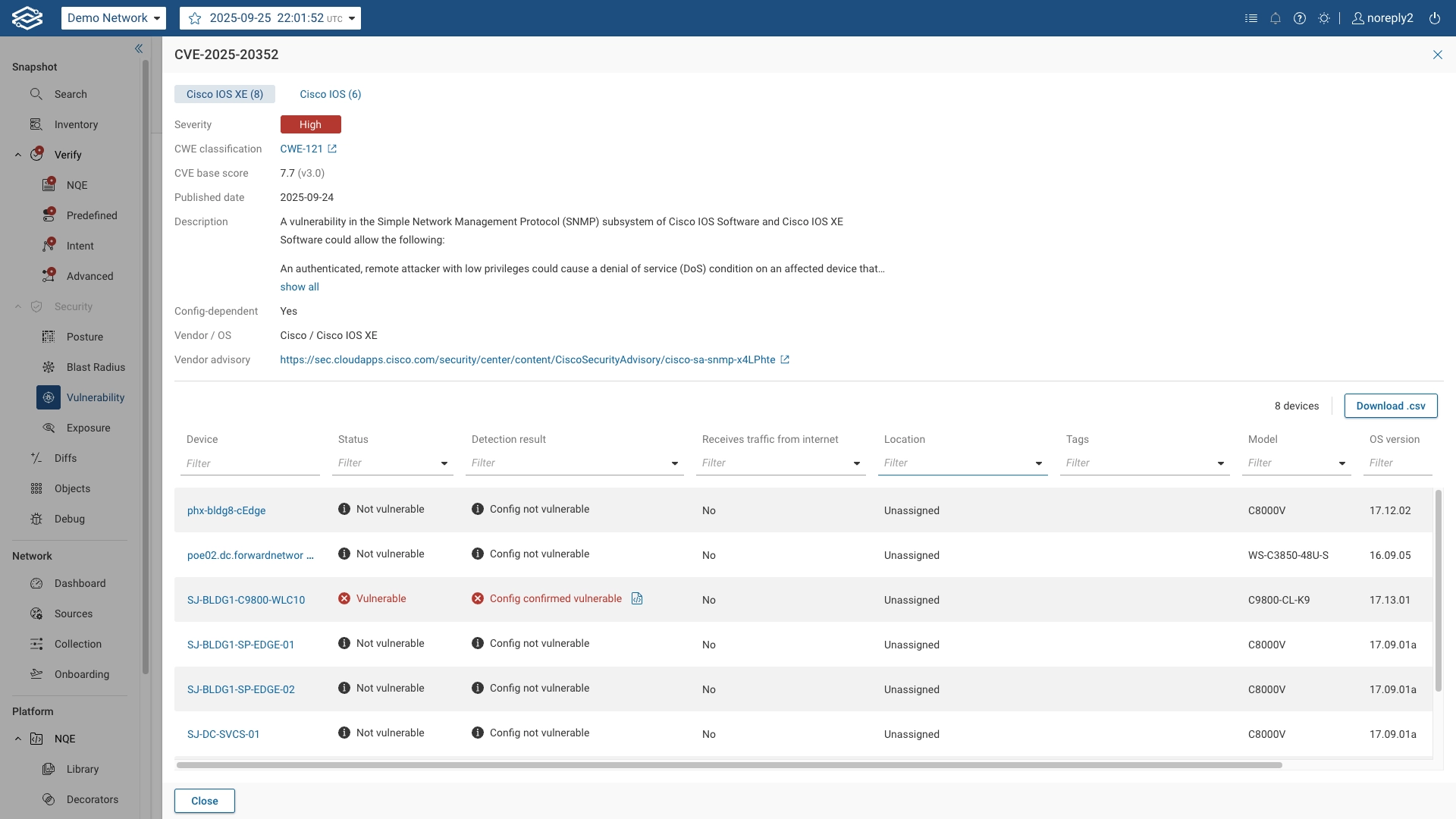
The drawer also provides a table of impacted devices, with the following details for each device:
- Device: The name of the impacted device. Clicking this will provide more detailed information about the device.
- Status: classifies the finding as Vulnerable, Possibly Vulnerable, or Not Vulnerable.
- Detection Result: Describes how the CVE was detected on the device. Configuration icon on the right of the Detection Result opens a drawer highlighting the lines in the device configuration that make this vulnerability exploitable. For CVEs that affect multiple versions of OSes, there are multiple lines (one per OS) for the following columns: Vendor, OS, OS version, Devices impacted, Tags, and Locations. The information in each lines corresponds to the affected devices configured with that Operating System.
- Receives traffic from Internet: Indicates whether the device receives traffic from the Internet.
- Locations: The assigned location of the impacted devices.
- Tags: Device tags.
- Model: The model of the impacted device.
- OS version: The operating system version running on the impacted device.
- Management IPs: The management IP addresses of the impacted device.
Data Filtering
Clicking on any of the Key Metrics applies the corresponding filter to the Device or CVE list table.
The same behavior applies when filtering by Locations or Tags in the CVEs view.
You can add additional filters directly in the list tables using the filters available for each column.
When applying both Key Metrics and column-based filters, it is recommended to apply the Key Metrics filter first. This is because Key Metrics filtering reduces the underlying data set, while column-based filtering only refines how that data is viewed.
You can remove all filters by clicking Clear all filters in the filter section.
Detection Results
The detection result indicates how a device's vulnerability status was determined. Results fall into one of five categories:
| Result | Description | Recommended actions |
|---|---|---|
 Vulnerable: Configuration-independent vulnerability (Platform) Vulnerable: Configuration-independent vulnerability (Platform) | The operating system version itself is affected, regardless of configuration. | Apply a patch or up/downgrade to a non-vulnerable OS version. |
| Vulnerable: Config confirmed vulnerable (Platform and configuration) | The OS version is affected, and the device configuration confirms that the CVE is exploitable. | Apply a patch, up/downgrade to a non-vulnerable OS version, or modify the section of the device configuration affecting this CVE. |
 Potentially Vulnerable: Config detection not supported (Platform) Potentially Vulnerable: Config detection not supported (Platform) | The OS version is affected, but configuration-based detection is not yet supported for this CVE. | If possible, apply a patch; analyze the device configuration manually to see if a configuration work-around is possible. |
| Potentially Vulnerable: Unable to confirm configuration (Platform) | The OS version is affected, but Forward could not confirm whether the configuration makes the device vulnerable. | Recheck this device after the next snapshot. If the error persists, report a bug to Forward and apply a patch if possible. |
 Not Vulnerable: Config confirmed not vulnerable (Platform and configuration) Not Vulnerable: Config confirmed not vulnerable (Platform and configuration) | A CVE is reported against this OS version, but the configuration required for the device to be vulnerable is not present. In this case, the OS may contain the vulnerability, but the device’s configuration prevents exploitation. Devices that are not vulnerable at the platform level do not appear in the Vulnerability Analysis application. | Plan to upgrade the device OS during a regular maintenance window. |
In the UI, results are color-coded by severity:
- Vulnerable (red)
- Potentially Vulnerable (orange)
- Not Vulnerable (black)
CVE Search
To search for a CVE, enter the CVE ID in the vulnerabilities table. The search can result in:
- At least one device is affected by the vulnerability.
- CVE-ID does not affect any device supported by Forward Enterprise
- The CVE ID is not present in the Forward CVE database (it may be outdated, irrelevant to supported vendors, or outside the date range included).
Custom Vulnerability Labels
Forward Enterprise's automated detection results describe whether each device is affected at the OS or configuration
level. Custom Vulnerability Labels let you layer your own, organization-specific annotations on top of those results
— for example, marking a set of devices as Mitigated, Accepted risk, or Pending review — and optionally recording
your own vulnerability verdict alongside the platform's.
Use cases include:
- Capturing CVEs that have been mitigated through compensating controls and countermeasures.
- Implementing detection logic for the OSes that are not yet supported by the Forward platform.
- Tracking remediation status (
In progress,Patch scheduled,Owner: NetEng) directly on the CVE. - Recording a documented exception when a device is vulnerable in theory but not in practice (for example, the affected feature is disabled by external policy).
Custom labels are scoped per CVE + Operating System combination and are written into a per-network configuration, so the same CVE can carry different labels on different OSes (or on different networks).
Editing custom vulnerability labels requires a Network Administrator or an Org Administrator role. Users with Network Operator and Read Only roles can still see custom labels and statuses applied by others but cannot create or modify them. Contact your org administrator to request access.
Adding a Custom Label
- Navigate to Security → Vulnerability and select the CVEs tab.
- Click on the CVE you want to annotate.
- Locate the Custom Label column in the impacted devices table and click the pencil icon in the column header. The Column Definition editor opens.
- Define one or more cases. Each case is a set of conditions paired with the values to apply when those conditions match.
- As you edit conditions and values, the impacted devices table updates in realtime to preview which devices each case will match. Adjust the case until the preview reflects the devices you intend to label.
- Click Save.
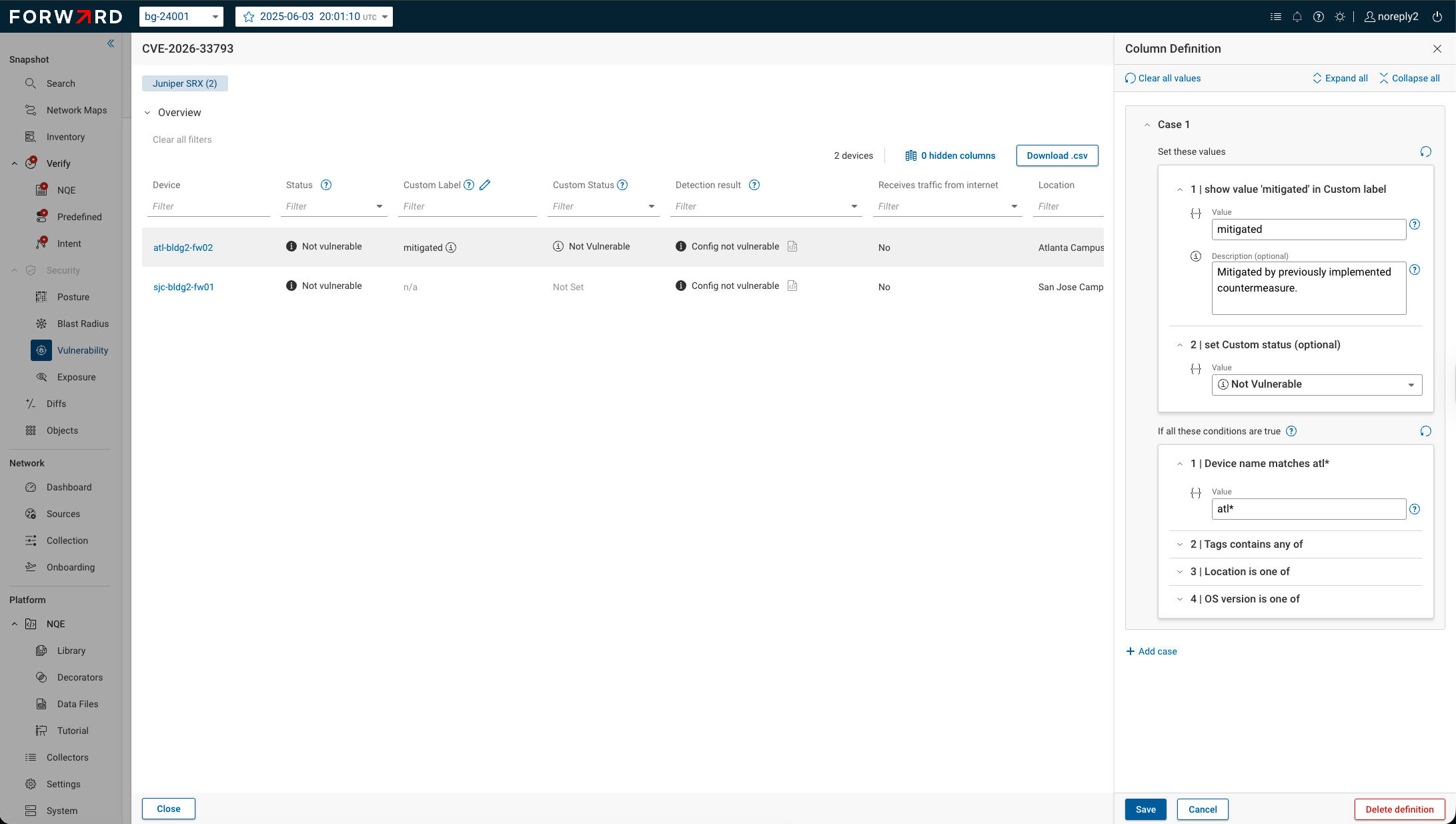
To remove all custom labeling for a CVE/OS, open the Column Definition editor and click Delete definition.
Case Conditions
A case matches a device when all of its configured conditions are satisfied (logical AND). Leave a condition empty to ignore that field. The supported conditions are:
| Condition | Matches when… |
|---|---|
| Device name matches | The device name matches the supplied glob pattern. Use * to match any sequence of characters, ? to match a single character, and ranges such as [A-Z]. Plain text matches literally. |
| Tags contains any of | The device has at least one of the selected tags. |
| Location is one of | The device is assigned to one of the selected locations. |
| OS version is one of | The device runs one of the selected OS versions. |
Case Values
When a case matches, Forward Enterprise applies the following values to each affected device:
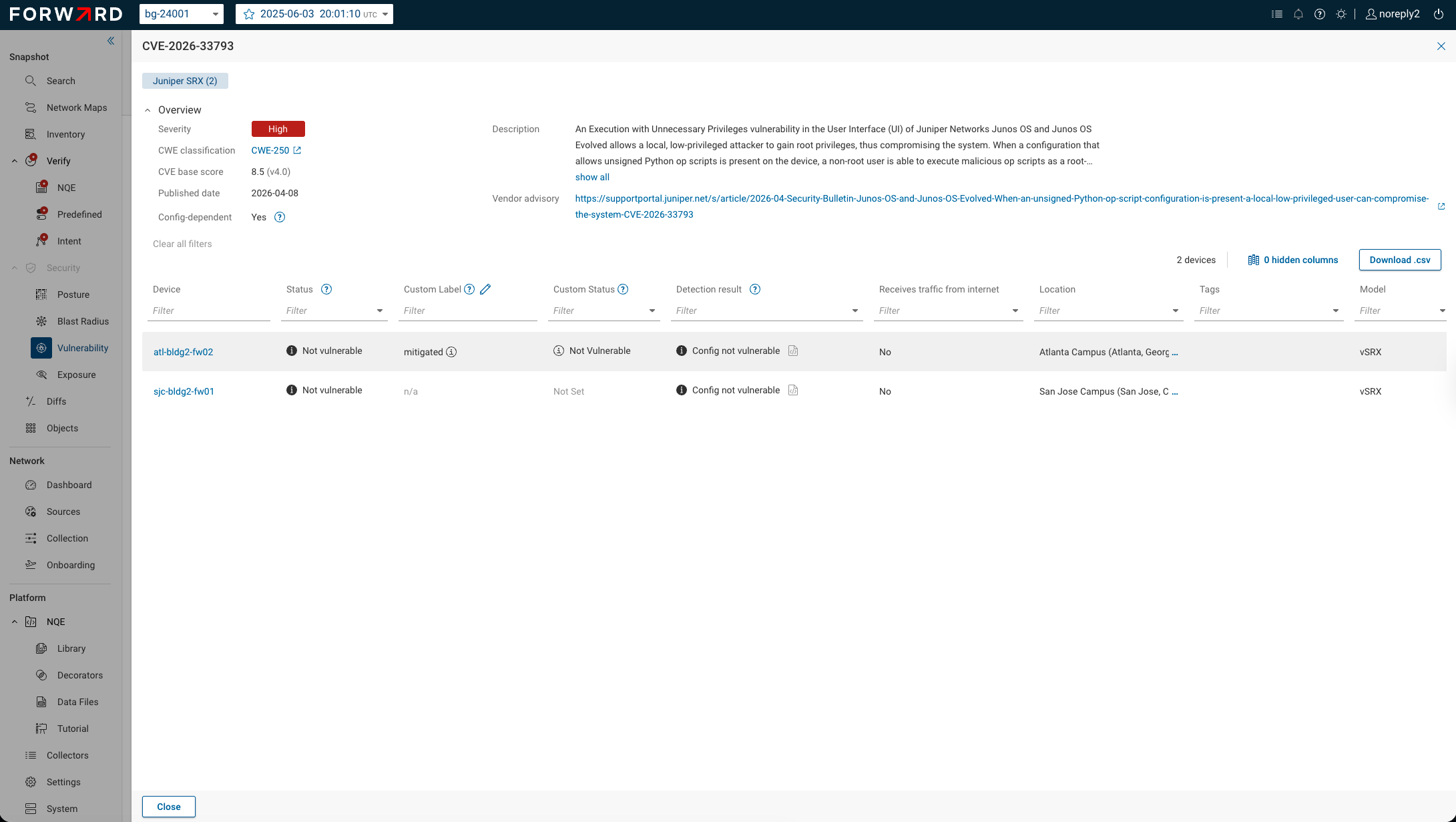
- Custom label (required) — The text shown in the Custom Label column. Use a short, scannable label such as
MitigatedorAccepted risk. - Custom status (optional) — Your own vulnerability verdict for the matched devices: Vulnerable, Not vulnerable, or Not set. Surfaced in a Custom Status column that appears whenever any device on the CVE has a status other than Not set.
- Comment (optional) — Free-form context that explains why the label applies. Surfaced via an info icon next to the custom label.
The Custom Status column is hidden in the CVE's device table until at least one value other than "Not Set" is present. Similarly, the "Count by Custom Status" column is hidden in both CVEs and Devices tabs until at least one Custom Status value is other than "Not Set".
Custom status takes precedence in classifying each detection result. If the Custom Status is set to Vulnerable or Not vulnerable, the overall finding status will reflect that. If the Custom Status is Not set, the Forward system Detection Result determines the finding's vulnerability status. The resulting cumulative vulnerability status drives key metrics in both Devices and CVEs tabs as well as dashboards.
Multiple Cases and Precedence
You can define up to four cases per CVE/OS. Cases are evaluated top to bottom and the first matching case wins — a finding is never labeled by more than one case at a time. Use multiple cases to express OR-style logic by adding a second case with the same values, or to express overrides by placing a more specific case above a more general one.
For example, to label one set of routers affected by a CVE as Accepted risk and a broader fleet as Pending review:
| Case | Conditions | Custom label |
|---|---|---|
| Case 1 | Device name matches EDGE-* | Accepted risk |
| Case 2 | Tags contains any of core, distribution | Pending review |
A device named EDGE-12 that is also tagged core receives Accepted risk because Case 1 matches first.
Filtering and Export
Beyond the CVE findings view, Custom Label and Custom Status are reflected in Count by custom label and
Count by custom status columns in both Devices and CVEs tabs. You can sort and filter these columns as well as
include them in CSV exports. This makes it easy to produce reports such as "all devices with findings labeled
Mitigated".
CVE Database Update
On Forward SaaS, the CVE database is updated daily. For self-hosted deployments, the CVE database is updated with each Forward Enterprise release, and it can also be updated using the methods described below.
The list of CVEs considered by Forward may exclude hardware vulnerabilities or CVEs that were not created or updated after January 1, 2014.
Scheduled
Starting with release 26.2, you can schedule automatic hourly updates of the CVE database. This ensures that newly published vulnerabilities that pose a high risk to the enterprise are included in the vulnerability analysis.
To enable scheduled updates, navigate to Settings > System > Software Central, and enable the Enable hourly updates toggle. If a newer version is detected, the system automatically downloads and installs it.
Scheduled updates require that the Forward Cluster has network access to Forward Software Central. Use Test Connection to verify connectivity and authentication settings. If necessary, configure a proxy, including options to validate certificates and set proxy authentication.
The Update now option checks for the latest version of the vulnerability database and installs it immediately, without waiting for the next scheduled hourly update.
You can see the latest CVE database version in use at the bottom of the page.
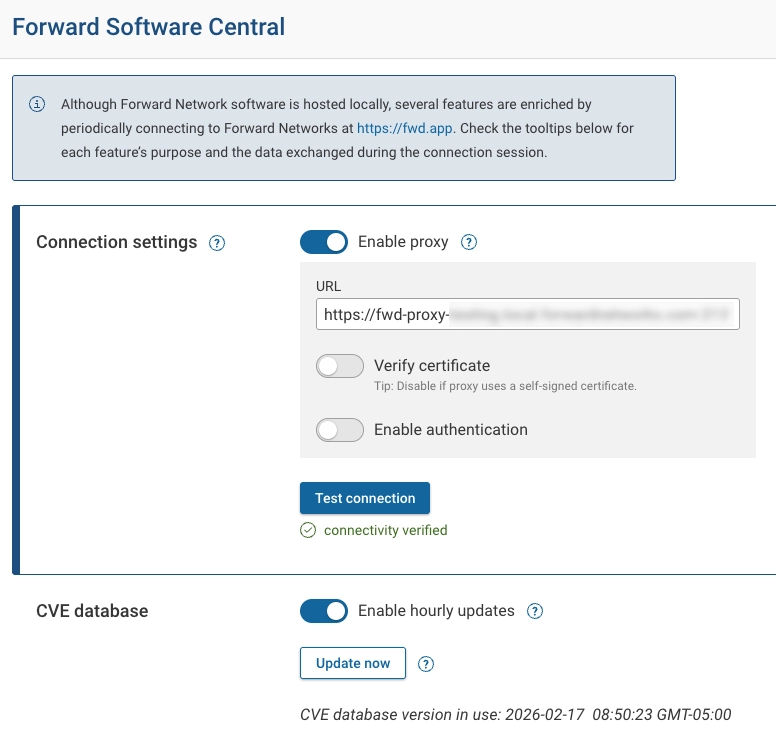
Test Connection verifies Deployment ID and the active license ID as well to ensure the request is valid.
Manual
Although scheduled updates are the recommended approach, you can manually update the CVE database:
- Download the latest CVE database from the CVE Update page.
- Navigate to Security > Vulnerability from the left navigation menu.
- Click Update CVE database (top right corner) to upload the CVE database. Optionally, enter the Checksum to verify the file's integrity.
- Click Update.
REST APIs
- Download the CVE Database: Any user with Org Admin privileges can download the latest CVE database from
Forward Software Central using the Forward REST APIs via
GET /api/cve-index. It returns the CVE database as a gzipped binary (.bin.gz) file. - Update the CVE Database: A user with Org Admin privileges can update the CVE database using the Forward REST
APIs via
PUT /api/cve-index.
For detailed instructions, see the REST API docs.