DNS Zone Transfer
DNS Resolution in Forward Networks
Adding persistent DNS resolution to the Forward Networks platform enriches existing user experiences and unlocks new use cases. By integrating DNS data, customers can search, interpret, and correlate network information more effectively.
Benefits of DNS Resolution
Enabling DNS resolution within the Forward Networks application provides several key advantages:
- Hostname/FQDN-based search: Find paths to servers and devices using hostnames or fully qualified domain names (FQDNs), instead of only IP addresses.
- Higher-level semantics: DNS resolution adds meaning to results beyond raw IPs — FQDNs often reveal information about location, ownership, role, or function of infrastructure elements.
- Disambiguation of IP overlaps: Reduce confusion in environments with overlapping internal IP ranges.
- CMDB correlation: Compare devices discovered by Forward Networks with entries in your Configuration Management Database (CMDB).
- Ownership visibility: Identify resource owners by mapping resources to their corresponding subdomains.
DNS Zone Transfers
Forward Networks collector becomes a secondary read-only DNS controller in the customer’s DNS environment. Forward
Networks uses AXFR (Full Zone Transfer) to synchronize DNS information.
A zone transfer copies all DNS records from a primary DNS server to ensure a complete, up-to-date view.
Configuration Guide
Only organization administrators can configure DNS resolution.
Note: Zone transfers run automatically every 4 hours, independent of snapshot collection schedules.
Steps
-
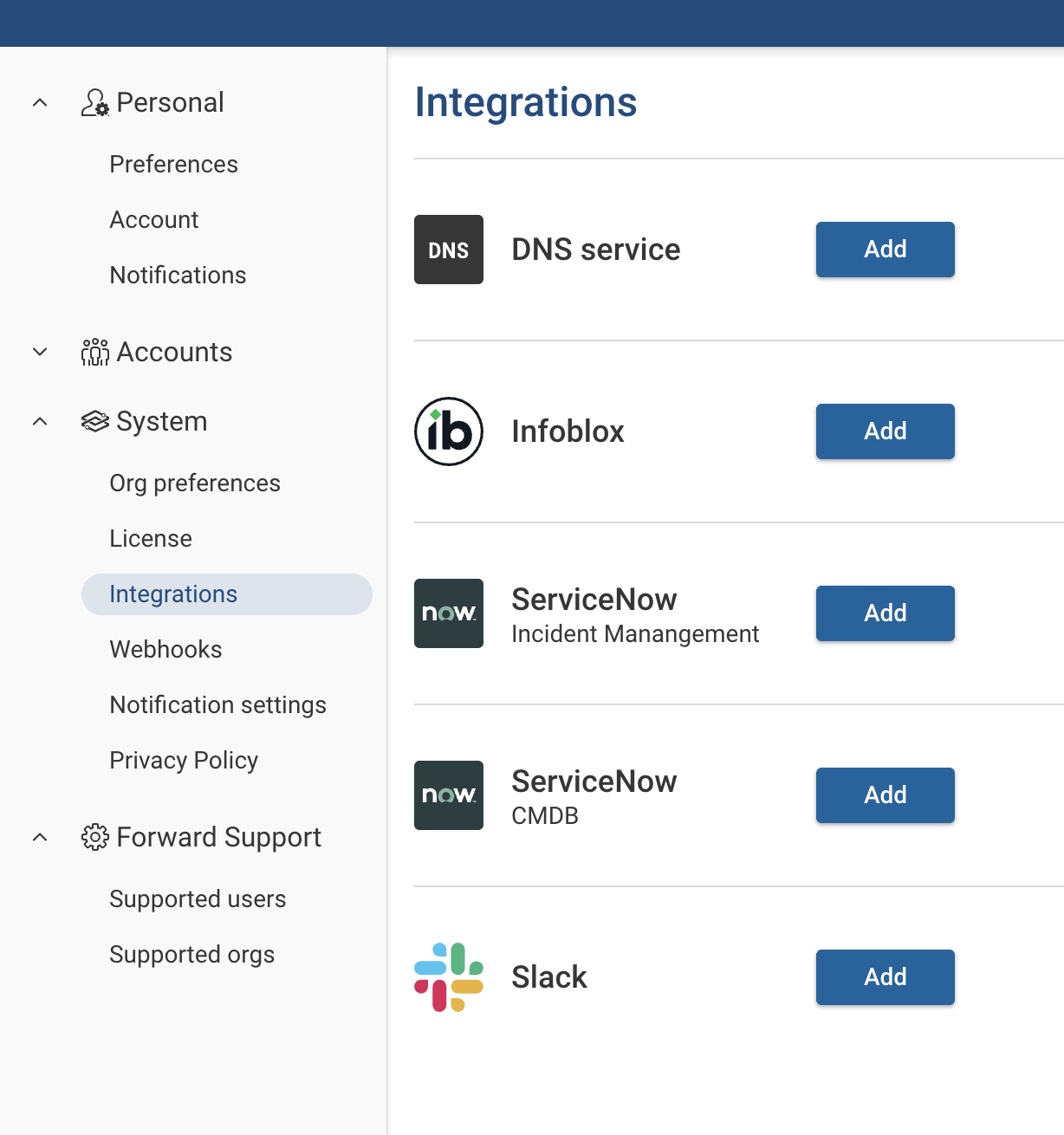
Go to Settings → Systems → Integrations → DNS service
-
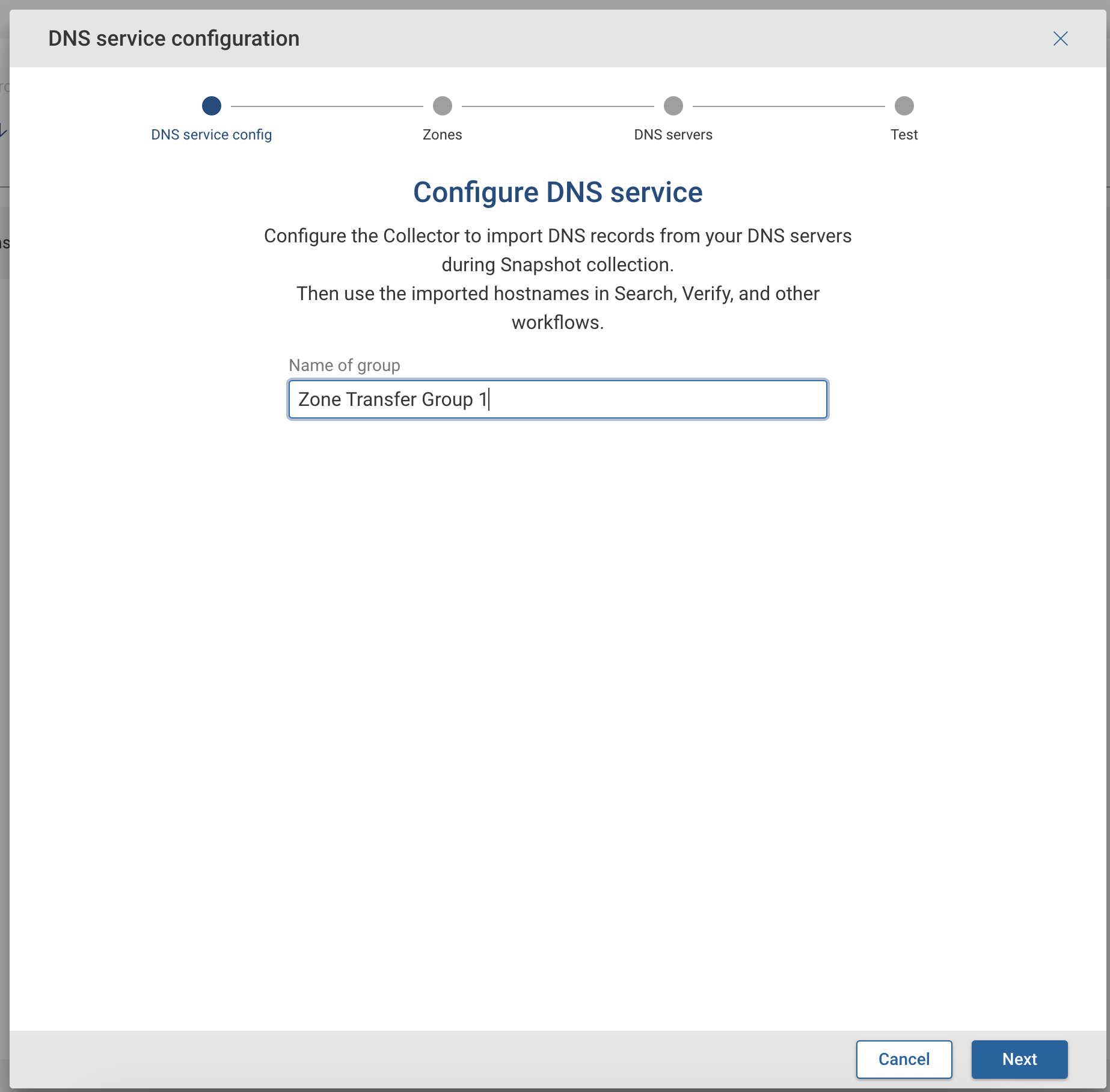
Click Add, then select Add DNS Group
-
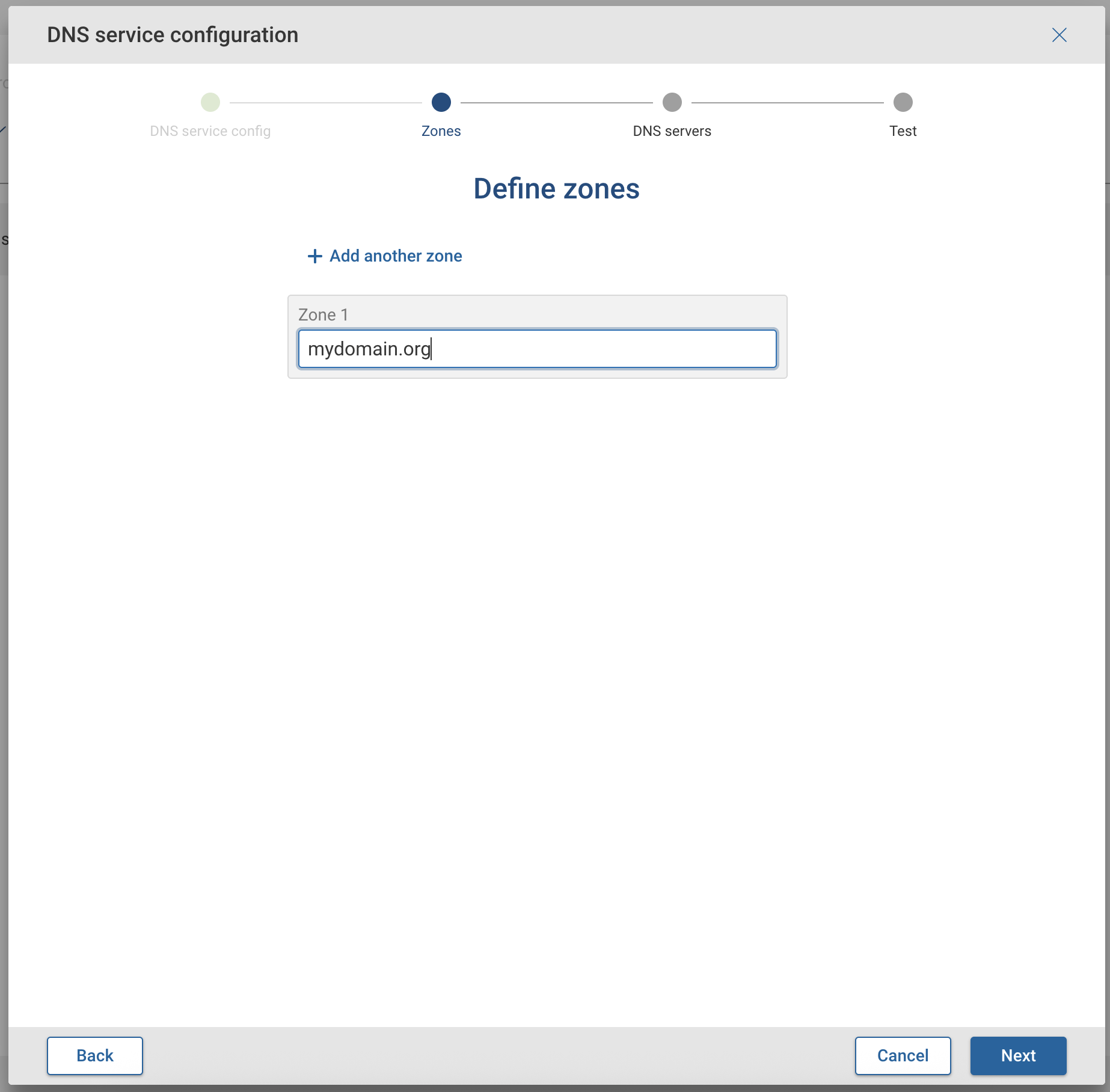
Define one or more DNS zones to be transferred
-
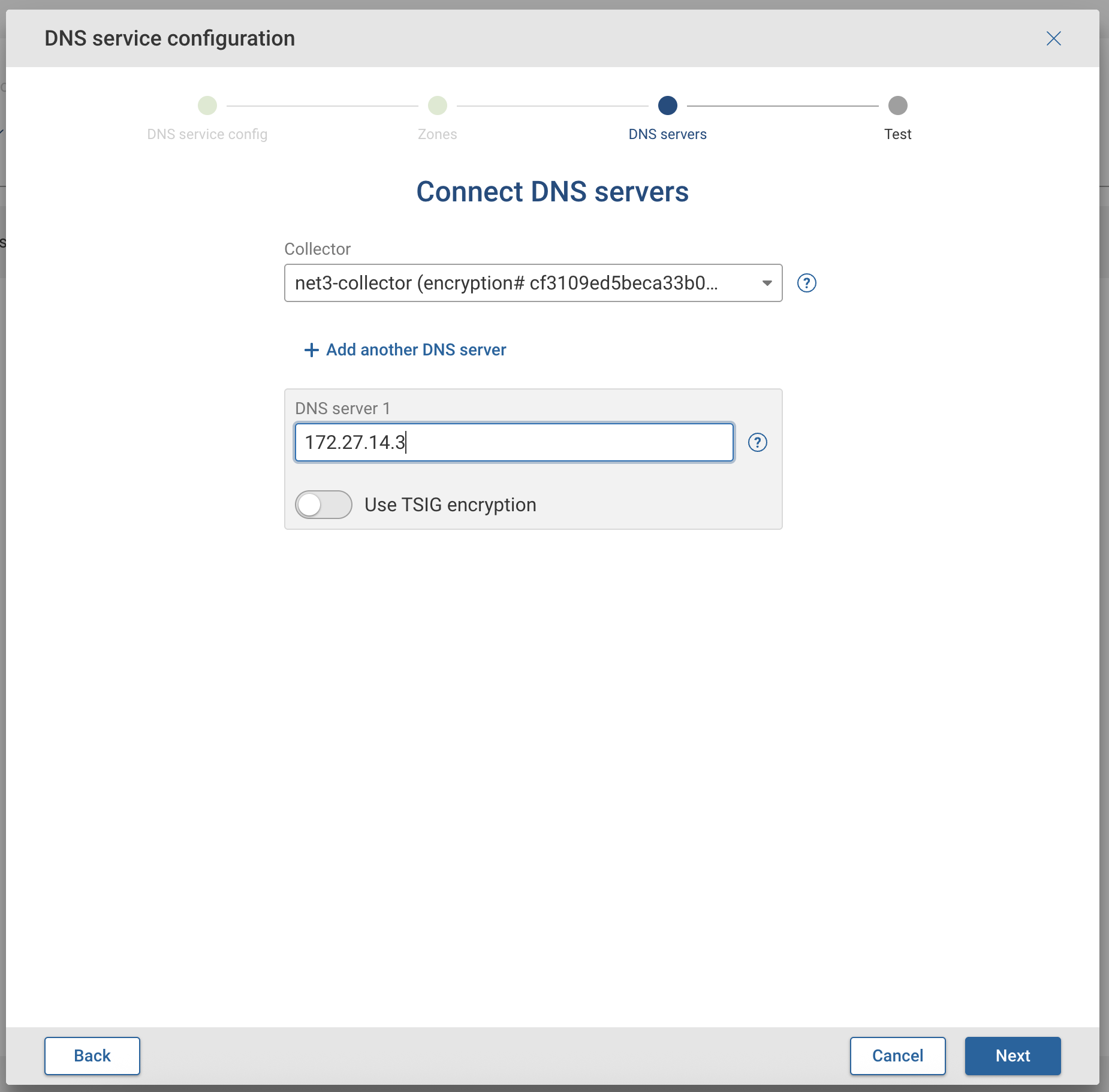
Add one or more DNS servers
-
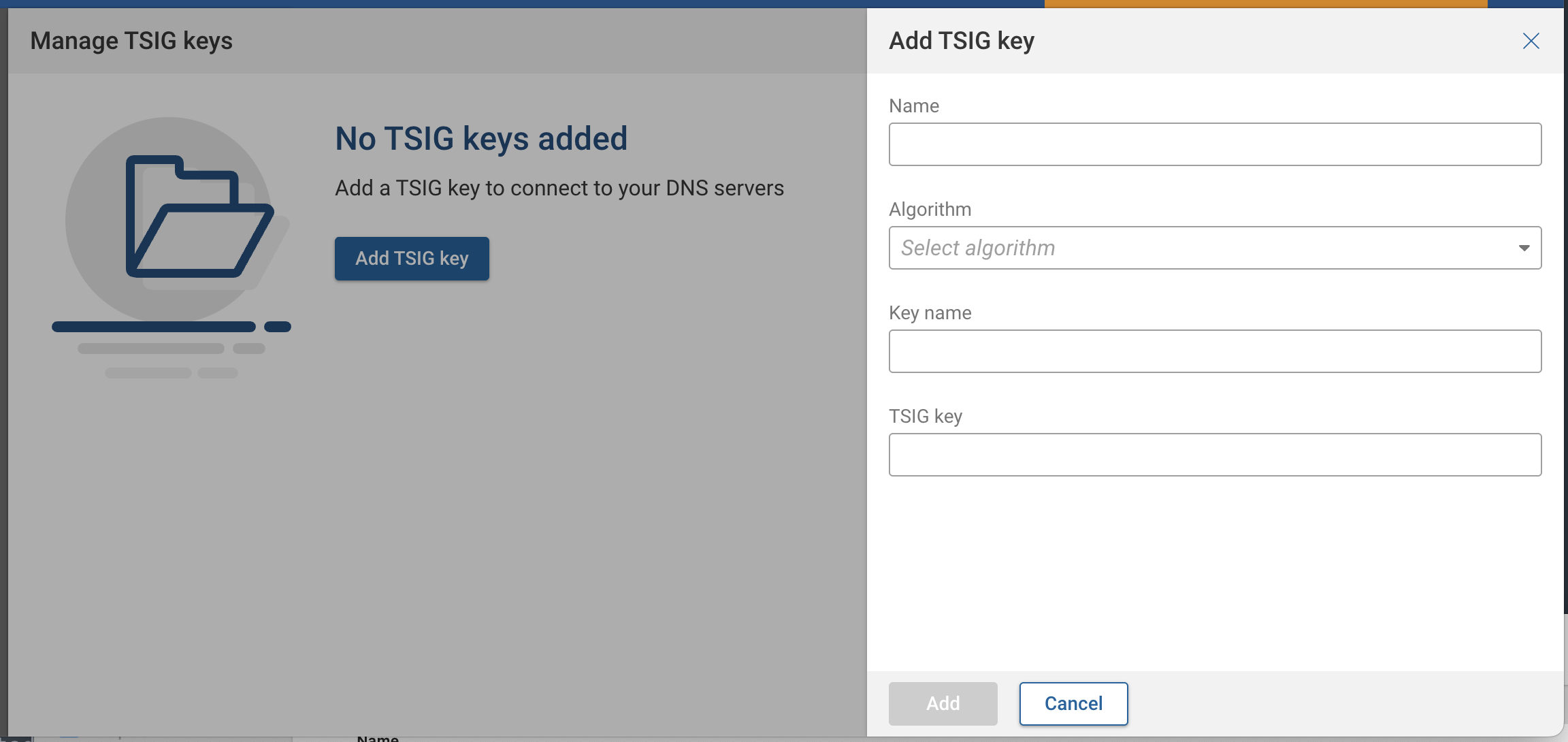
(Optional) Enable TSIG encryption and add keys
-
Multiple TSIG keys are supported
-
Keys are managed from the Edit Group menu (see screenshot below)
-
-
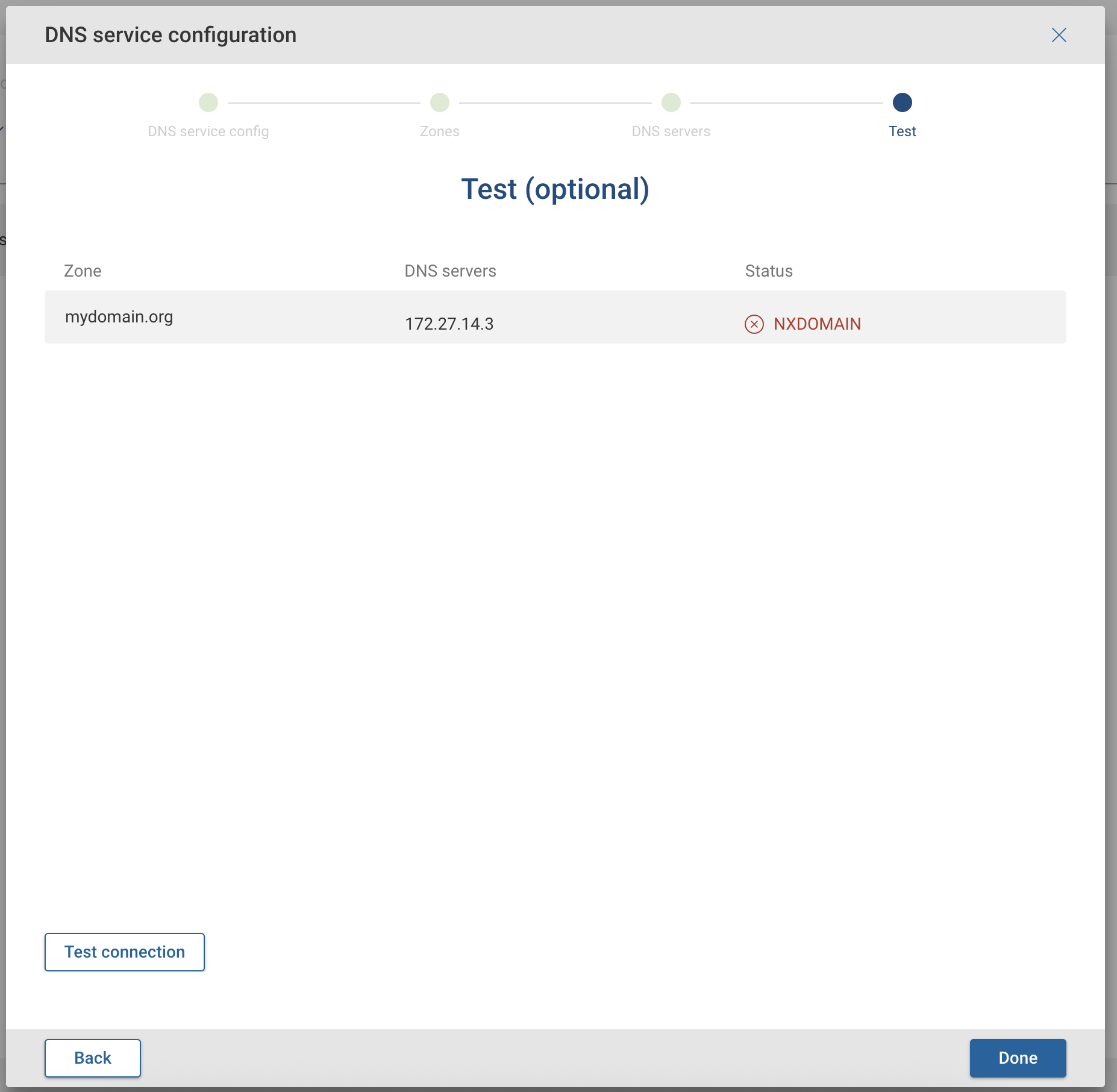
(Optional) Click Test connection to verify connectivity
-
Click Save
Key points
- Multiple groups can be created, each with their own zones and servers
- All configuration options can be edited later as needed
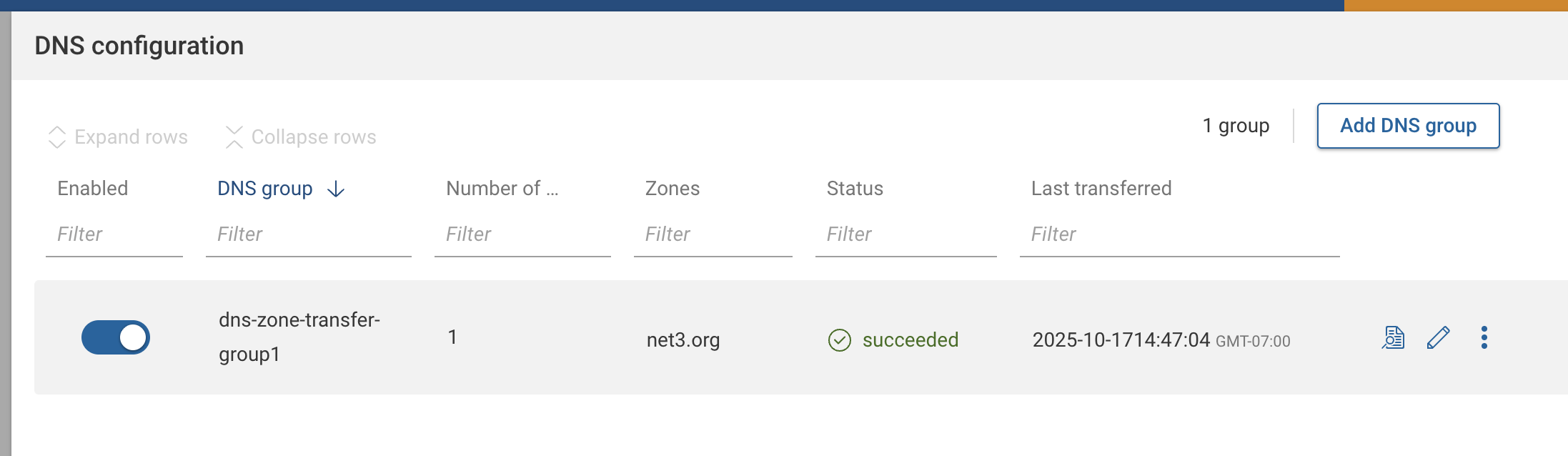
- For each group, you can see the configured zones, servers, status, and last transfer time
- Moving a group to a different collector invalidates TSIG keys
Manual API Trigger
Org administrators can manually trigger a zone transfer by submitting a POST call with an empty payload to the following API endpoint:
"https://<server_IP>/api/integrations/dns/groups/<group_name>?action=transfer&zone=<zone_name>"
<group_name>must match the group defined earlier.<zone_name>must be one of the zones defined within that group.- Manual triggers operate per-zone, providing fine-grained control and reducing load on DNS infrastructure.
Error Codes During Setup
When testing connectivity to DNS servers, error codes may be returned. Common codes include:
- FORMERR – Format error
- SERVFAIL – Server failure
- NXDOMAIN – The name does not exist
- NOTIMP / NOTIMPL – Operation not implemented
- REFUSED – Request refused by the server
- YXDOMAIN – Name exists
- YXRRSET – RRset exists
- NXRRSET – RRset does not exist
- NOTAUTH – Request not authorized
- NOTZONE – Zone specified is not valid
- BADVERS – Unsupported EDNS level
- BADSIG – Invalid signature (TSIG/TKEY)
- BADKEY – Invalid key (TSIG/TKEY)
- BADTIME – Time out of range (TSIG/TKEY)
- BADMODE, BADNAME, BADALG, BADTRUNC, BADCOOKIE – Extended error codes for TKEY/EDNS scenarios
Supported Features
The following Forward Networks features can leverage DNS resolution data:
- Path Search
- Verify Intent Checks
- Network Query Engine (NQE)