Predict Tickets
Create a ServiceNow change request from a Predict analysis on the Run Predict analysis step (see Reviewing Results). Forward Predict fills in the ticket from the analysis, attaches an image of the report, and lists the ticket in the analysis Overview. A read-only drawer shows each ticket's current details from ServiceNow.
Requirements
| Requirement | Details |
|---|---|
| A ServiceNow connection | The ServiceNow Incident Management connection, enabled. See ServiceNow Connection. |
| Access to the analysis | Any user who can open the analysis can create a ticket. See Troubleshooting → I don't see Predict. |
ServiceNow Connection
Forward Predict creates tickets through the ServiceNow Incident Management connection, the same connection the Verify application uses for ServiceNow incidents. Add it under Settings > System > Integrations, on the ServiceNow card with the Incident Management subtitle. See Add ServiceNow Integration.
- Every ticket is created by the ServiceNow account in this connection, whichever Forward user clicks Create. The Forward username appears only in Work notes.
- The account needs permission in ServiceNow to create change requests and to add attachments to them.
- The connection's toggle on the Integrations page must be on.
- The ServiceNow card with the CMDB subtitle is a separate connection. Forward Predict does not use it.
When the ServiceNow Incident Management connection is missing or its toggle is off, the Create a ServiceNow ticket item behaves as follows:
| User | Effect |
|---|---|
| A user who can manage org settings (Org Admin) | Clicking the item opens Settings > System > Integrations. |
| Any other user | The item is grayed out. Hovering over it shows "ServiceNow Incident is not configured for your organization. Please contact your org admin." |
Creating a Ticket
- On the Run Predict analysis step, click Export report > Create a ServiceNow ticket. Forward Predict captures the report image, then opens the Create ServiceNow ticket drawer. The Export report button is disabled while the image is captured.
- Fill in the Ticket details fields.
- Click Create.
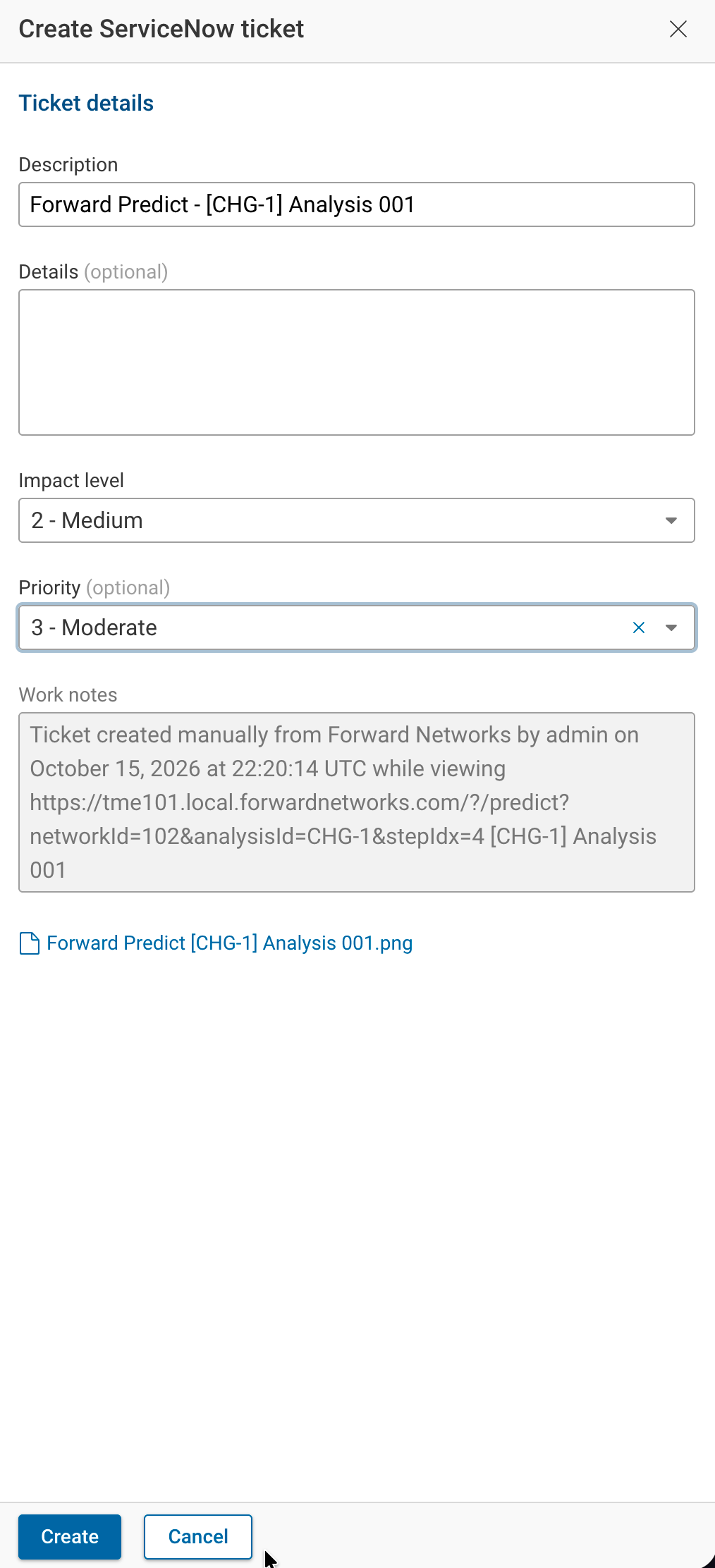
When Priority is empty, ServiceNow applies the instance's default priority. Forward sets only the fields in the drawer: the change type, state, assignment group, and schedule come from the ServiceNow instance's defaults.
Work Notes
Forward Predict fills in Work notes when the drawer opens, in this format:
Ticket created manually from Forward Networks by <username> on <Month D, YYYY> at <HH:MM:SS> UTC while viewing <page URL> [<analysis ID>] <analysis name>
The page URL is the address of the Run Predict analysis step. The analysis ID is the analysisId value in that URL.
Report Image
A link below Work notes shows the attachment's file name, Forward Predict [<analysis ID>] <analysis name>.png.
Click it to open the image in a new browser tab or download it, depending on the browser. A downloaded copy has a random
file name, not the attachment's name.
Forward Predict cleans up the file name before it attaches the image, so the name in ServiceNow can differ from the link:
- Each character other than a letter, a digit, a space, or one of
_-[]()becomes_. An analysis namedBGP v2.1givesForward Predict [<analysis ID>] BGP v2_1.png. - A name longer than 100 characters is shortened to at most 100 by cutting characters from the end of the analysis name.
The name still ends in
.png.
The image contains every section of the report, with collapsed sections and config editors shown in full. The Export report button and the section navigation are left out. Capturing the image does not change the sections on the page.
When the image is larger than 25 MB, or Forward Predict cannot capture it, the drawer shows no link, and Forward Predict creates the ticket without an attachment.
Results
The drawer closes after Create whether or not the ticket was created. A message reports the outcome:
| Outcome | Message | Closes |
|---|---|---|
| Ticket created with the report image | "ServiceNow ticket <number> created successfully." | Automatically, after 4 s. |
| Ticket created, report image not captured or over 25 MB | "<number> created, but the report could not be generated." | When you close it. |
| Ticket created, report image upload to ServiceNow failed | "<number> created, but the report could not be attached." | When you close it. |
| Ticket not created | "Failed to create ServiceNow ticket." | When you close it. |
After either "created, but" message, the ticket exists in ServiceNow without the attachment.
After a failure, click Create a ServiceNow ticket again. The drawer does not keep the values entered in the failed attempt.
Click the ticket number in a message to open the ticket's details. See Viewing a Ticket.
Viewing a Ticket
The Overview section of the Run Predict analysis step lists the analysis's tickets in a ServiceNow ticket row (ServiceNow tickets for more than one), separated by commas. The row appears only when the analysis has at least one ticket. Every user who can open the analysis sees it.
Click a ticket number to open the read-only ServiceNow ticket: <number> drawer. Forward Predict reads the details from ServiceNow each time the drawer opens, including changes made in ServiceNow.
| Row | Shows |
|---|---|
| Incident number | The ticket number. Click it to open the change request in ServiceNow in a new browser tab. |
| Description | The ServiceNow short description. |
| Details | The ServiceNow description. |
| Impact | The ServiceNow impact. |
| Priority | The ServiceNow priority. |
| Attachments | Every file attached to the change request, including files added in ServiceNow. Click a name to download it. |
A row with no value shows -. When the details cannot be loaded, the drawer shows "Couldn't load the ServiceNow ticket. Try again later."
Usage Notes
- Forward does not update or close a change request after creating it. Update and close it in ServiceNow.
- Deleting an analysis removes its ticket list from Forward. The change requests remain in ServiceNow.
- Deleting the ServiceNow connection keeps each analysis's ticket list, but the ticket drawer cannot load details until a connection to the same ServiceNow instance is added again.