Org Preferences
Navigate to Settings --> System --> Org Preferences to configure settings for all user accounts in your organization.
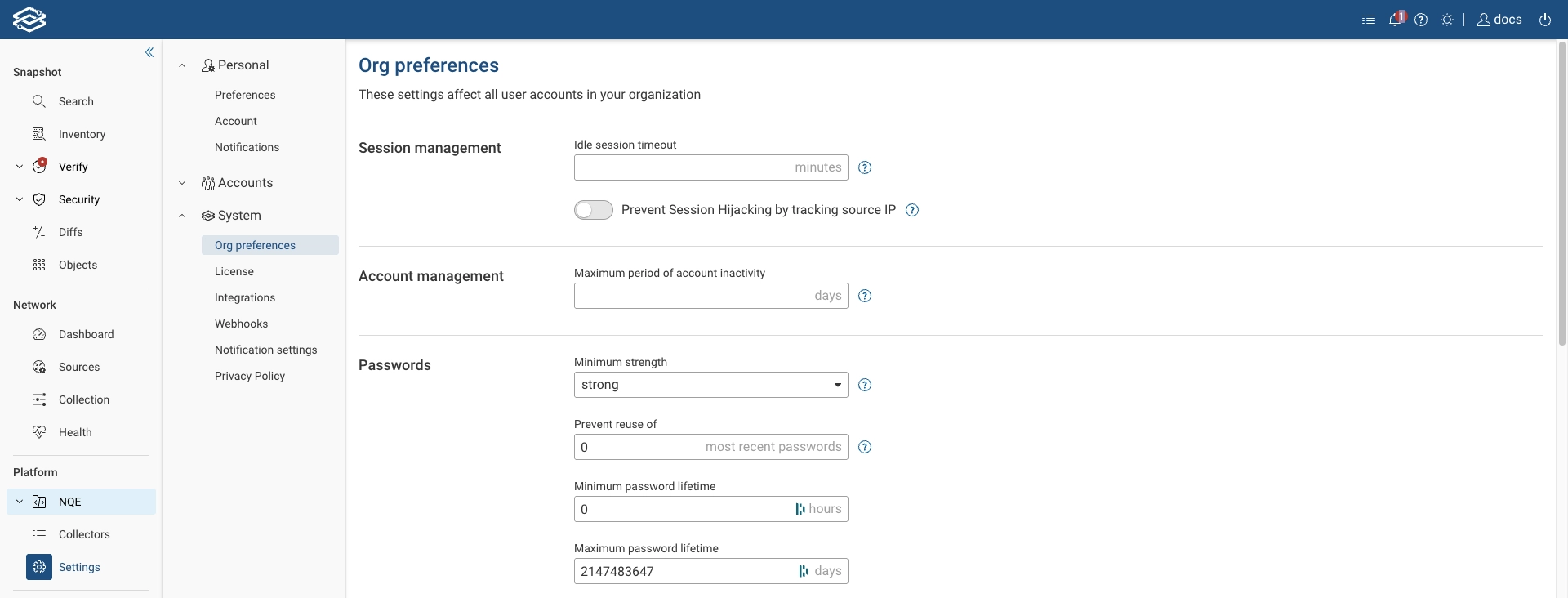
Some settings are available in Self-hosted deployments only and others are available for both Self-hosted and SaaS deployments.
Self-hosted Settings
Application

The base URL for any links to the Forward application included in emails or API responses.
TLS certificate

By default, the server uses a TLS certificate provided by Forward Networks. Upload your own trusted certificate to eliminate browser security warnings.
The server will be restarted after the certificate is uploaded, and may be unavailable for up to 5 minutes.
IP access restrictions

Restrict login and API token access to the platform to a defined list of IP addresses or CIDR ranges.
Only Org Admins can configure this setting from the Settings > Org Preferences page. When configured, users must access the platform from an allowed IP address to log in or use API tokens—depending on the options selected.
To configure IP-based restrictions:
- Select Add Allowed IPs.
- Enter one or more IP addresses or CIDR ranges.
- Both IPv4 and IPv6 formats are supported.
- Each IP or range must be entered on a separate line.
- (Optional) Enable one or both of the following options:
- Only apply to Org Admins: Restricts login access for Org Admins only.
- Only apply to API token access: Restricts API token usage to requests originating from the listed IPs. If neither option is selected, restrictions apply to all users for both UI login and API token access.
- Select Add to apply the configuration.
Ensure your current IP address is included in the list before saving. If your IP is not listed, you will be locked out of the platform.
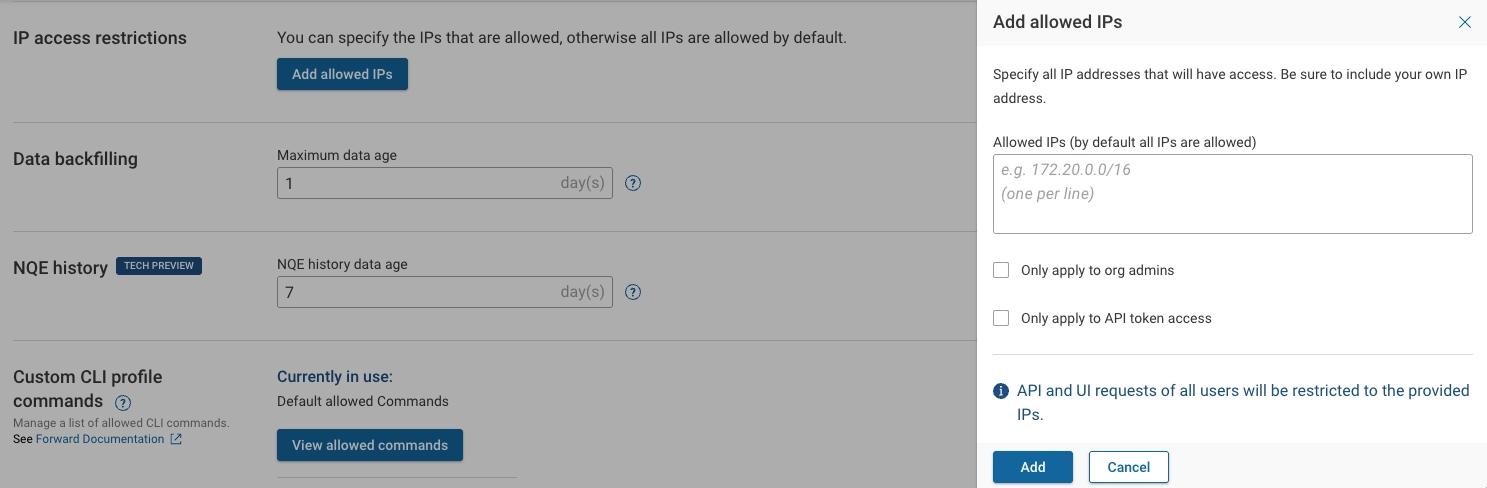
Changes take effect immediately for all applicable users or token-based requests. Any active sessions originating from IP addresses not on the allowed list are terminated. This setting provides an additional layer of security for organizations that require network-based access control.
Experimental features
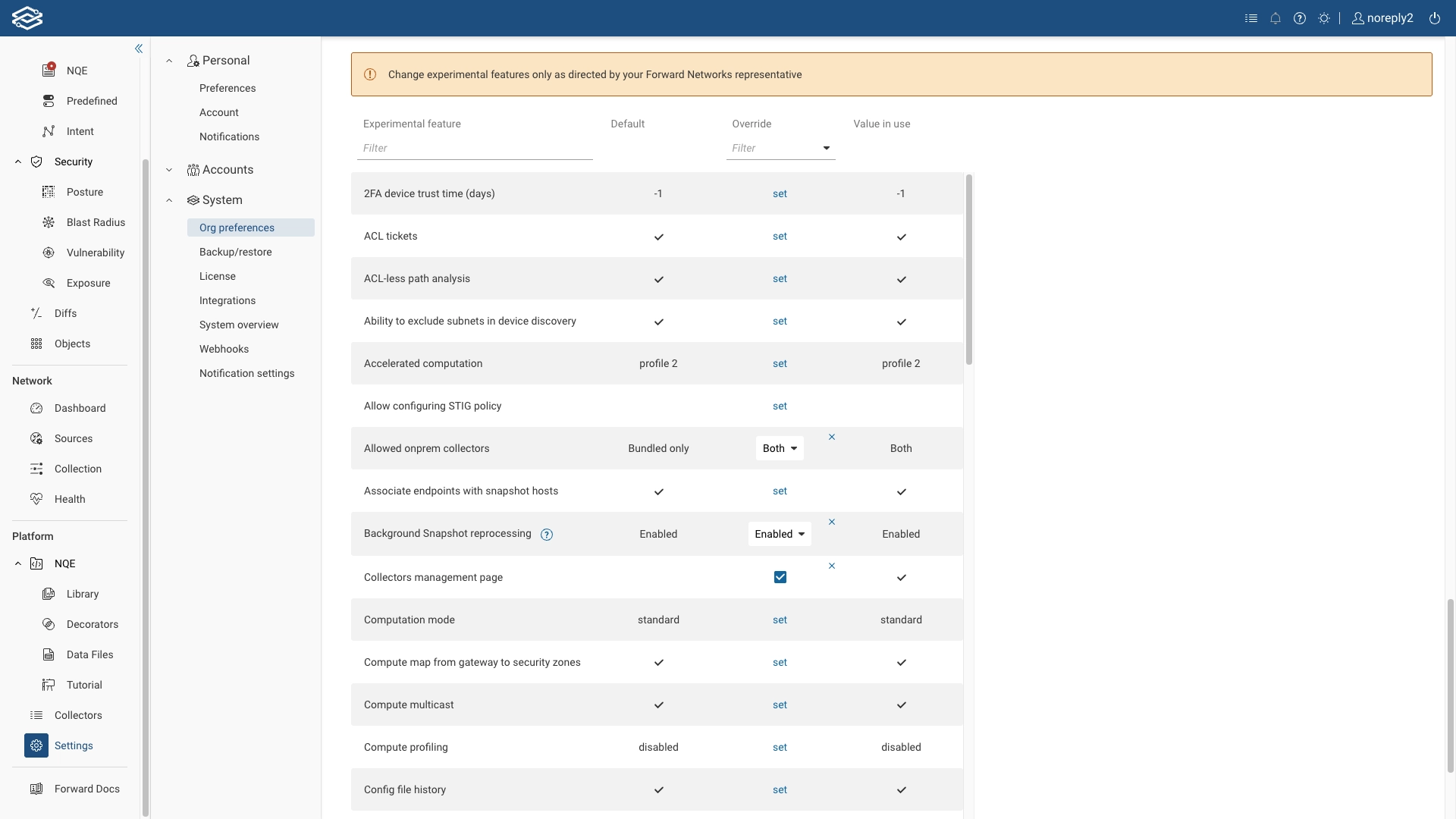
Experimental features are early-access capabilities that are still under active development and evaluation. They are made available to users for testing, feedback, and validation before being finalized for general availability.
These features may be incomplete, subject to change, or removed in future releases based on user feedback and technical considerations. While they are generally safe to use, they may not have full documentation, test coverage, or enterprise-level support.
Change experimental features only as directed by your Forward representative
Self-hosted and SaaS Settings
Session management

The Idle session timeout setting determines how many minutes a user can remain inactive before being required to log in again.
The Prevent session hijacking by tracking source IP setting ensures that if two requests for the same session originate from different IP addresses, the session is automatically terminated to protect against hijacking attempts.
Account management

The Maximum period of account inactivity setting specifies the number of days a user account can remain inactive before it is automatically disabled.
Passwords
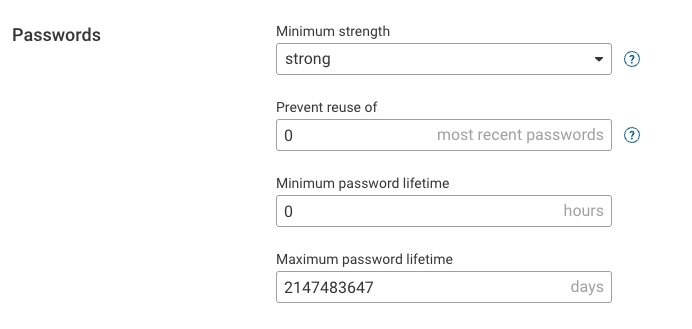
- Minimum strength: Password strength levels are defined by the approximate number of attempts an attacker would
need to guess the password:
- Fair: 1 million or more guesses
- Good: 100 million or more guesses
- Strong: 10 billion or more guesses
- Prevent reuse of: If set to a value greater than zero, users cannot reuse this number of their most recent passwords.
- Minimum password lifetime (hours): The minimum time that must pass before a user can change their password again.
- Maximum password lifetime: The maximum number of days a password can be used before it must be changed. The default is one year.
To mitigate brute-force attacks, Forward Enterprise automatically locks a user account after repeated failed login attempts. The lockout duration increases with each additional group of three consecutive failures:
- 3 failed attempts: locked for 1 minute
- 6 failed attempts: locked for 5 minutes
- 9 failed attempts: locked for 15 minutes
- 12 failed attempts: locked for 1 hour
- 15 or more failed attempts: locked for 3 hours
A successful login resets the counter. The counter also clears after 3 hours of inactivity. This policy applies to local, SAML, LDAP, and TACACS authentication; API tokens are not subject to lockout.
Time zone and Displayed time zone
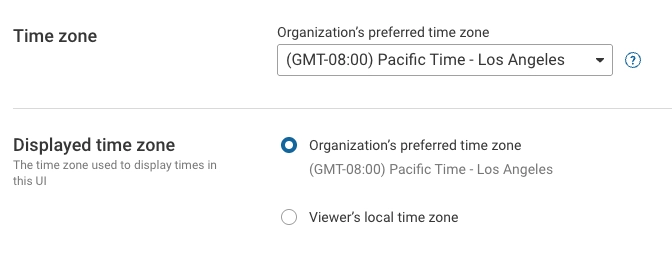
The Time zone setting is the time zone used for Collector scheduling and to format times in emails and reports sent from the server.
The Displayed time zone is the time zone used to display times in this user interface.
Credential copying

These settings control whether the credentials associated with network sources are also copied when copying sources between networks.
Enable Copy credentials between networks to allow Org Admins and Network Admins to automatically include credentials when copying sources between networks.
Enable Enable credential copying for Network Operators to allow Network Operators to automatically copy credentials too.
For more information on copying sources between networks, please visit the Workspace networks page.
Workspace networks

A Workspace network is a copy of your network that contains only selected devices and objects.
Enable auto-propagation of user roles: When this is enabled, user roles will auto-propagate from parent network to workspace network.
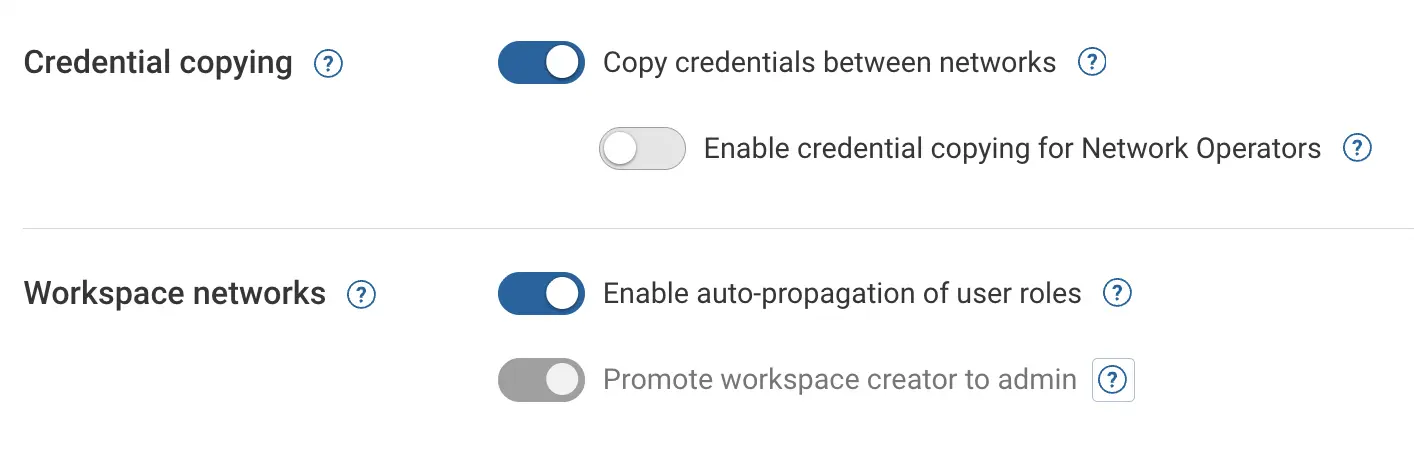
Promote workspace creator to admin: Disabled by default. This setting controls the role a Network Operator receives when creating a workspace network. It is configurable only when both toggles under Credential copying are enabled.
- When disabled, a Network Operator in the parent network is elevated to Workspace Operator in the workspace they create. Workspace Operator grants more privileges than a Network Operator but fewer than a Network Admin.
- When enabled, a Network Operator in the parent network is elevated to Network Admin in the workspace they create. Network Admin grants more privileges than a Workspace Operator.
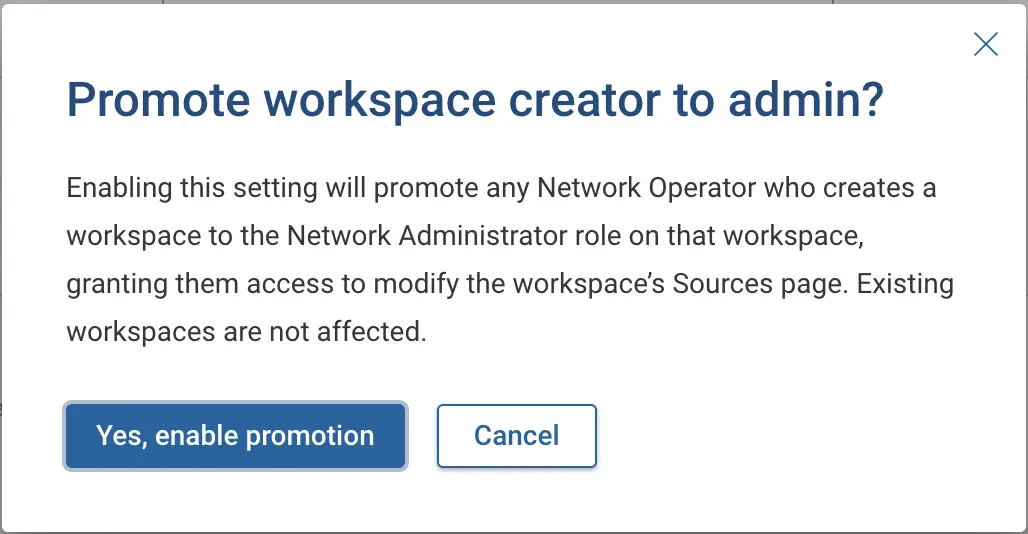
When enabled a confirmation dialog explains the elevated privileges the Network Operator receives. Click on Yes, enable promotion to confirm and apply the changes, only if your organization allows this.
This setting depends on the toggle settings under Credential copying:
- When both Credential copying toggles are enabled, this toggle is configurable and behaves as described above.
- If either of the toggles under Credential copying is disabled, this toggle is forced ON and greyed out (it cannot be turned OFF). As credentials cannot be copied for Network Operators, the Network Operator creating a workspace must enter the credentials manually. This requires elevated privileges, so the Network Operator is always elevated to Network Admin, regardless of this setting.
- If or when toggles under Credential copying are re-enabled, this toggle setting persists and the Network Operator will continue to have the elevated privileges of a Network Admin unless the toggle is manually turned OFF.
This setting does not change the role of Org Admins or Network Admins. When they create a workspace, they always receive Network Admin privileges. This setting also does not apply to existing workspaces.
For the full role-assignment logic, see Workspace Network RBAC.
For more information on Workspace networks, please visit the Workspace networks page.
Topology auto-layout

This setting applies to all locations. When enabled, a complete auto-layout will be applied to a location after any new devices are added to it. All user-defined layout edits for the location will be lost when this happens.
Performance data

- Show performance data: When enabled, performance data gathered via SNMP is displayed in the interface.
- Max retention period: The number of days SNMP data is stored in Forward. By default, it is set to 7 days and can be configured between 3 and 30 days.
For more information, see the Performance Data page.
Traffic filters

By default, traffic filters exclude types of traffic from path search results that usually don’t occur in most networks, and are rarely useful for analysis.
It’s not recommended to include these traffic types in general, but it might be useful to turn on specific types in certain scenarios.
-
Include misconfigured gateway traffic: turn this on to include traffic originating from hosts with a misconfigured gateway. This kind of traffic is rare if end hosts are correctly configured.
-
Include traffic to a network or broadcast address, or to an invalid unicast address like any-IP (0.0.0.0/8) or loopback (127.0.0.0/8): turn this on to include traffic addressed to the first or last IP address of a subnet. For example, 10.1.1.0 or 10.1.1.255 on a 10.1.1.0/24 subnet. This type of traffic is usually dropped at the target network and is rarely interesting for analysis. Additionally, anything in 0.0.0.0/8 and 127.0.0.0/8 are invalid destination addresses. IETF has reserved these blocks; 0.0.0.0/8 for internal bootstrapping, DHCP and system level configuration; 127.0.0.0/8 for loopback functionality.
-
Include L2 traffic consumed by the network: turn this on to include Layer 2 traffic with destination MAC address belonging to a Layer 2 interface on one of the network devices. Such traffic doesn’t normally exist in a network and is rarely interesting for analysis.
-
Include malformed or unhandled traffic: turn this on to include traffic that ingress interfaces at the edge of the network reject, such as:
- IPv6 traffic arriving at an IPv4-only interface
- Traffic arriving at a Layer 3 interface with incorrect destination MAC address
- VLAN-tagged traffic arriving at an access interface
- IPv4 traffic with IP version field set to 5
- Non-IP traffic
-
Include glean traffic: turn this on to include traffic that gets dropped in an egress LAN segment when some other edge ports exist in the LAN segment.
Traffic defaults
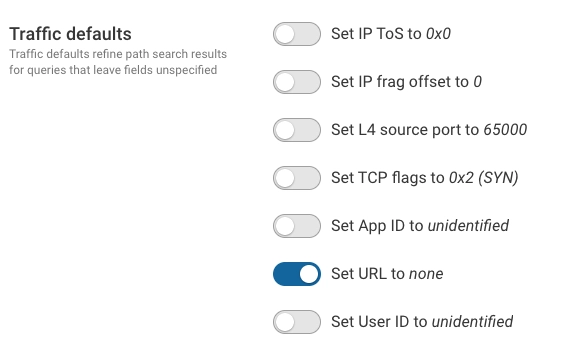
Traffic defaults refine path search results for queries that leave fields unspecified:
- Set IP ToS to 0x0
- Set IP frag offset to 0
- Set L4 source port to 65000
- Set TCP flags to 0x2 (SYN)
- Set App ID to unidentified
- Set URL to none
- Set User ID to unidentified
Before modifying these default values, learn more about their functionality in the Path Analysis documentation.
Advanced reachability analysis
Advanced reachability analysis is the computation that powers internet exposure analysis and advanced path search queries—such as ungrounded queries that have no from clause. It is the most expensive part of Snapshot processing. To shorten the time before a new Snapshot is usable, Forward runs it on demand, separately from the main processing pipeline.

A Snapshot becomes available for most workflows as soon as processing completes. Grounded path searches—those with a specific from anchor—and every other feature that does not depend on advanced reachability work immediately, even while advanced reachability is still computing. Opening a feature that needs advanced reachability does not start the computation on its own—the feature prompts to run it, and the computation begins only after the user confirms by selecting Run advanced reachability analysis (see Features that require advanced reachability).
When advanced reachability runs is controlled by the Proactively run advanced reachability analysis toggle:
| Setting | When advanced reachability runs |
|---|---|
| Off (default) | Skipped during Snapshot processing; runs only when a user explicitly triggers it. |
| On | Runs automatically in the background after the Snapshot is processed. |
Leave this off unless your team relies on the dependent features on every Snapshot. Advanced reachability is the most expensive computation in the system, and running it proactively adds that work to every Snapshot, which lengthens the Snapshot processing time. When it is off, the computation runs only for the Snapshots where a user triggers it.
Running advanced reachability can take 30 minutes or longer, depending on network size.
Features that require advanced reachability
The following features need advanced reachability for the selected Snapshot. When it has not been computed, the feature offers a Run advanced reachability analysis action in place of the data that depends on it:
- Internet exposure: the internet-traffic information on the Vulnerability Analysis page (the Receives traffic from internet counts and column), and the Internet exposure point on the Exposure Analysis page. Other exposure points on that page do not need advanced reachability.
- Ungrounded path searches—queries with no from clause (or a from location of anywhere). See Running Path Analysis.
- Intent Verification checks that have an ungrounded path search query. Until advanced reachability is computed, these checks report an unevaluated status.
Grounded path searches and Blast Radius—whose source is always a specific location—do not need advanced reachability.
The Snapshot selector marks Snapshots that have advanced reachability computed with a filled check icon.
On self-hosted deployments, Org Admins change this setting themselves. On SaaS, Forward controls it—contact Forward support to change it for your organization.
Data backfilling

The data backfill setting allows you to define the maximum age of historical data used to fill in gaps caused by collection failures. You can set this value between 0 and 5 days. Setting the value to 0 turns off backfilling entirely, meaning no historical data will be used if the current data collection fails. If you set the value to any number between 1 and 5, the system will look back that many days to find valid data to use.
Using this setting ensures that critical applications like NQE and inventory management continue to operate effectively even when there are temporary data collection issues. The system can maintain accurate and comprehensive data coverage by leveraging recent historical data.
A purple icon will indicate devices using backfilled data, and the status "Backfilled" will be included with a description of the collection failure.
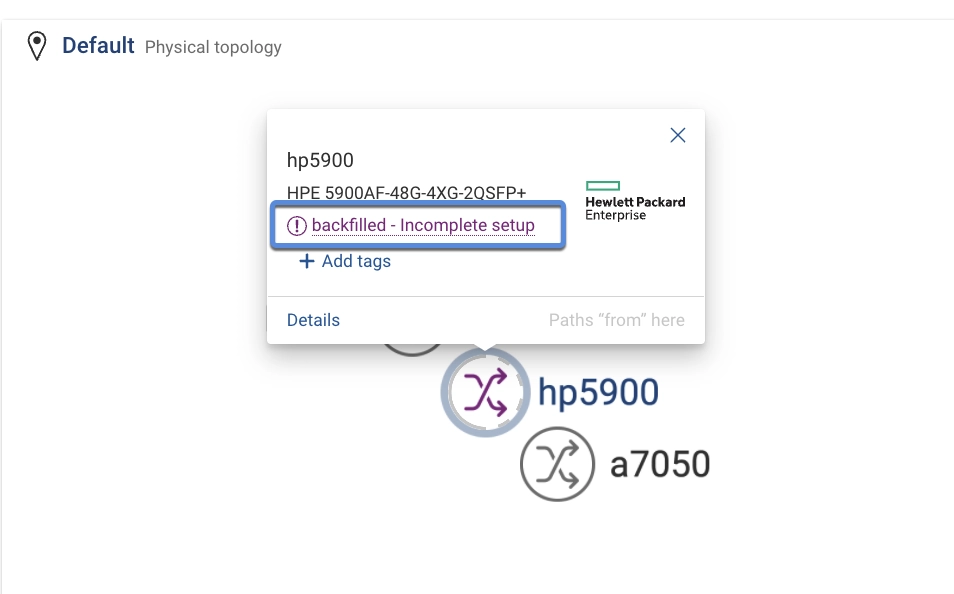
Clicking the purple device icon displays a description of the device and why it is using backfilled data. Selecting the "Backfilled" text provides additional details, including why the device is using backfilled data, and a timestamp of when the device was backfilled. A download a log of the device's previous successful collection is available by clicking Download Backfilled Collection Log.
Backfilled devices act as traffic sinks and accept all traffic. Therefore, path search is not valid for these devices.
This information is also available from the device card:
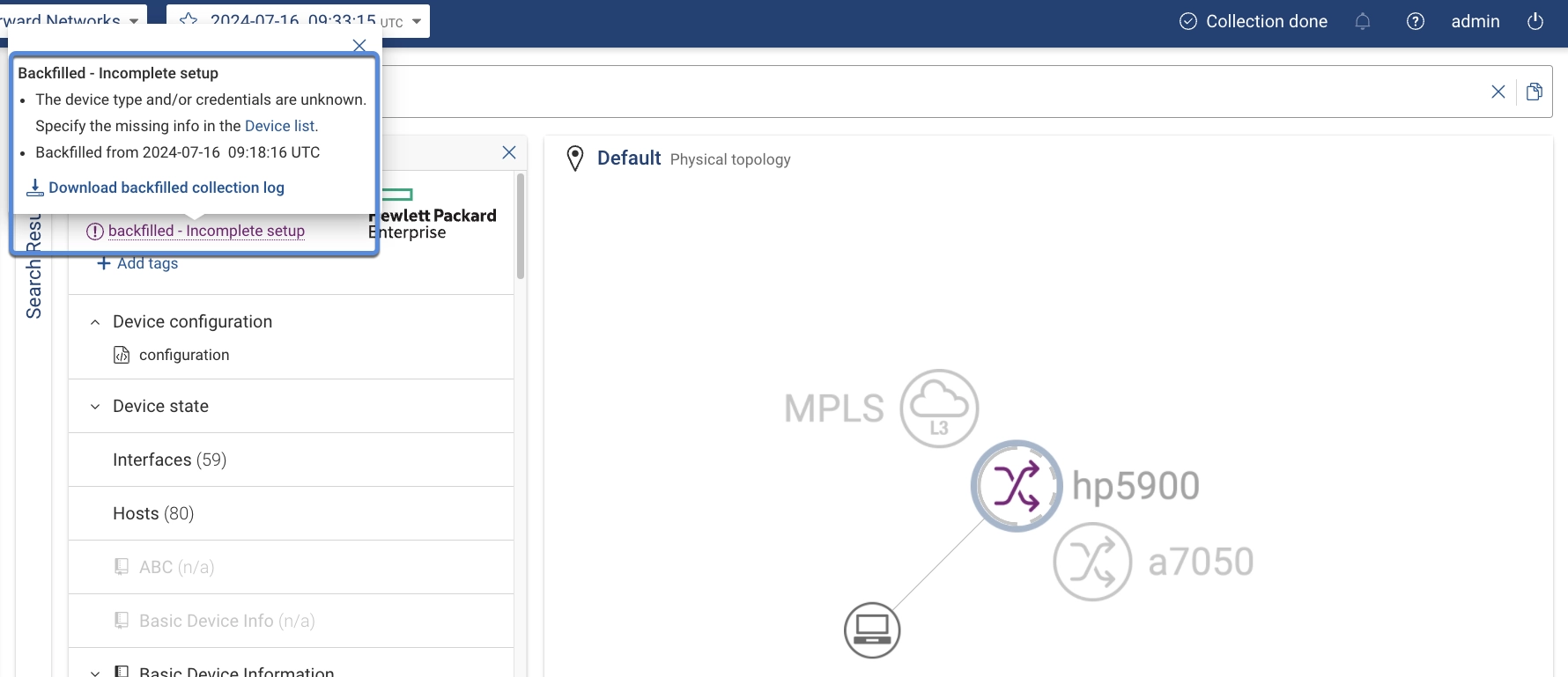
It is also viewable from the Sources page under the column labeled "Latest Snapshot Status":
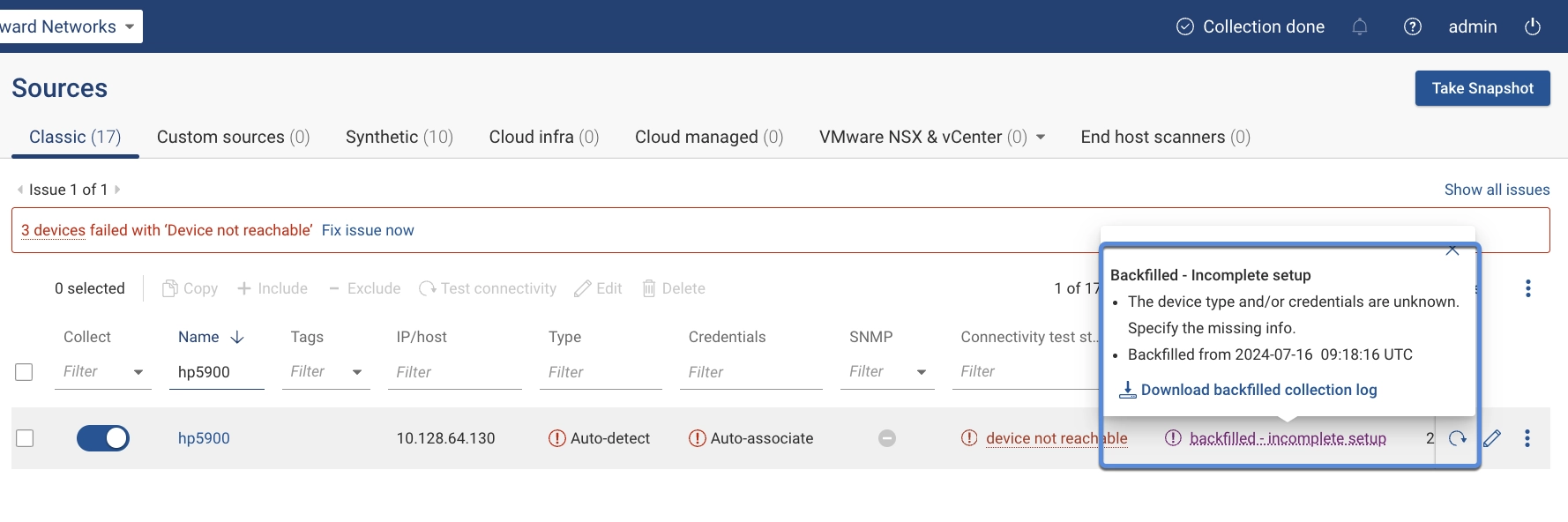
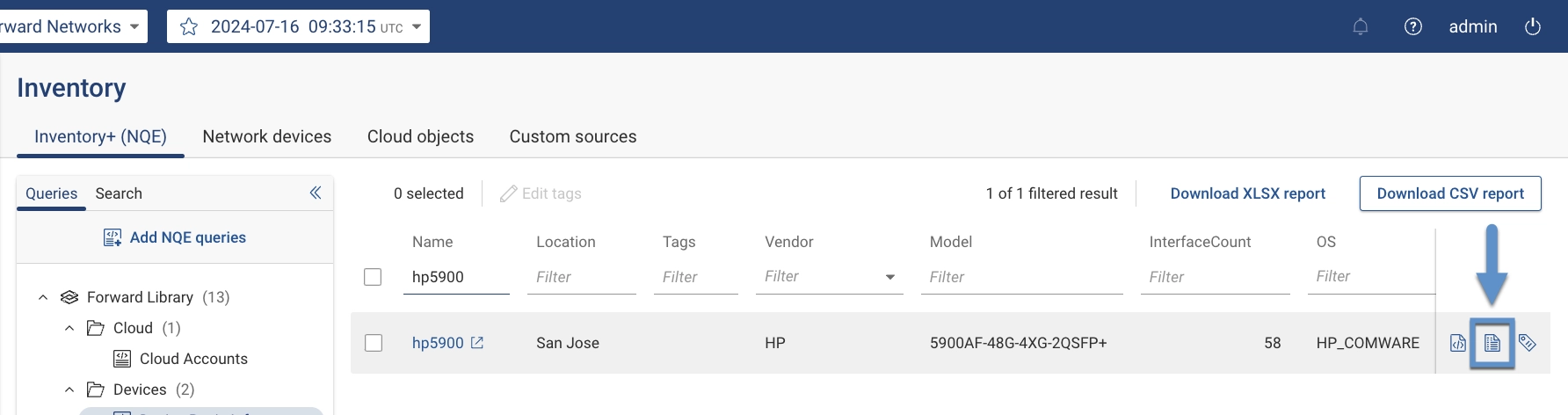
To download and view the failed collection log of a backfilled device, navigate to the Inventory page and click the Download Collection Log icon next to the corresponding device. Alternatively, the log is viewable from the Sources page via the three-dot kebab menu located next to each device.
NQE History

NQE history data age: For NQE queries where the history is enabled, this parameter specifies the number of days from the latest Snapshot for which a stale entry is kept in the results. The default is 7 days and the max number of days is 30.
Custom CLI profile commands
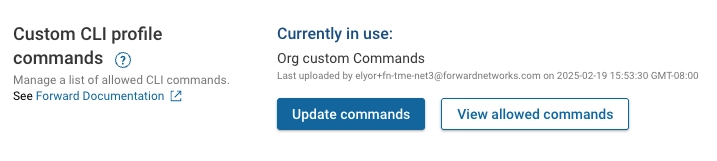
By default, the system includes a predefined list of allowed CLI commands that can be used in Custom CLI profiles. The Org Admin can request additions or modifications to this list from Forward, as described in the Forward Documentation.
Once Forward provides the Org-specific list, it can be uploaded here using Update commands. Click View allowed commands to see the commands currently permitted for this Org.
API Access
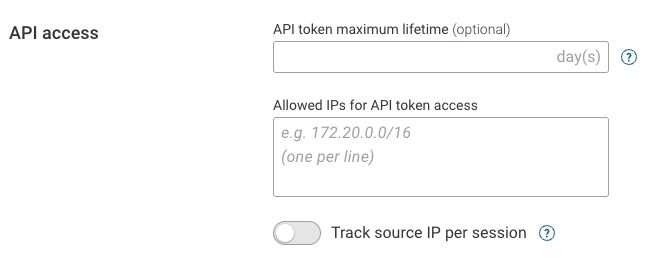
Use the Trusted origins pattern setting to allow web applications on other domains or subdomains to access the
Forward REST API via Cross-Origin Resource Sharing (CORS).
An origin is a URL scheme, host, and optional port.
You can use * as a wildcard, as in https://*.example.com, *.example.com:8443 or *
- API requests from a matching origin still must authenticate.
- CORS access is not allowed on Forward SaaS.
The API token maximum lifetime setting allows Org Admins to define how long user-created API tokens remain valid. Enter the number of days after which tokens should expire. If the field is left empty, tokens will never expire.
This setting applies to all new and existing, non-expired tokens in the organization. Updating this field automatically recalculates the expiration times for all applicable tokens. Expired tokens cannot be reactivated.
Only Org Admins can configure this setting, which provides an additional layer of security by ensuring tokens are automatically invalidated after a defined period.
IP-based restrictions for API token access are now configured under IP Access Restrictions.
For details on viewing and managing API tokens, see
API Token Management.
Trusted certificates

This setting allows you to include additional certificates in the certificate chain used when the collector interacts with cloud systems or controllers. The same certificates can also be managed from Platform → Collectors → Organization collection settings → Trusted certificates.
Use this option if your proxies or firewalls decrypt traffic for inspection and then re-encrypt it using their own keys.
Click Add trusted certificate to add one or more certificates, then click Apply all changes.
Applying all changes will restart the collector after any in-progress jobs are complete.