Software Central
Software Central page is only available for self-hosted (on-premises) Forward Enterprise deployments. It is not visible on Forward Enterprise SaaS instances.
Although the Forward Enterprise software runs locally, several features are enriched by periodically connecting to the Forward Networks at https://fwd.app. This page provides controls for managing connectivity, downloading CVE (Common Vulnerabilities and Exposures) database updates, and uploading telemetry data.
Connection settings
This section allows you to verify and test connectivity between your self-hosted Forward Enterprise instance and Forward Networks at https://fwd.app. A successful connection is required before any data exchange such as CVE database downloads or telemetry uploads can take place.
If your environment requires a proxy to reach external services, you can configure one here:
- Enable proxy: Toggle on if a proxy is needed to connect to https://fwd.app.
- URL: The proxy URL (e.g.,
https://192.168.10.10:443). - Verify certificate: Disable this option if the proxy uses a self-signed certificate (shown only for HTTPS proxies).
- Enable authentication: Toggle on if the proxy requires credentials, then provide a Username and Password.
- URL: The proxy URL (e.g.,
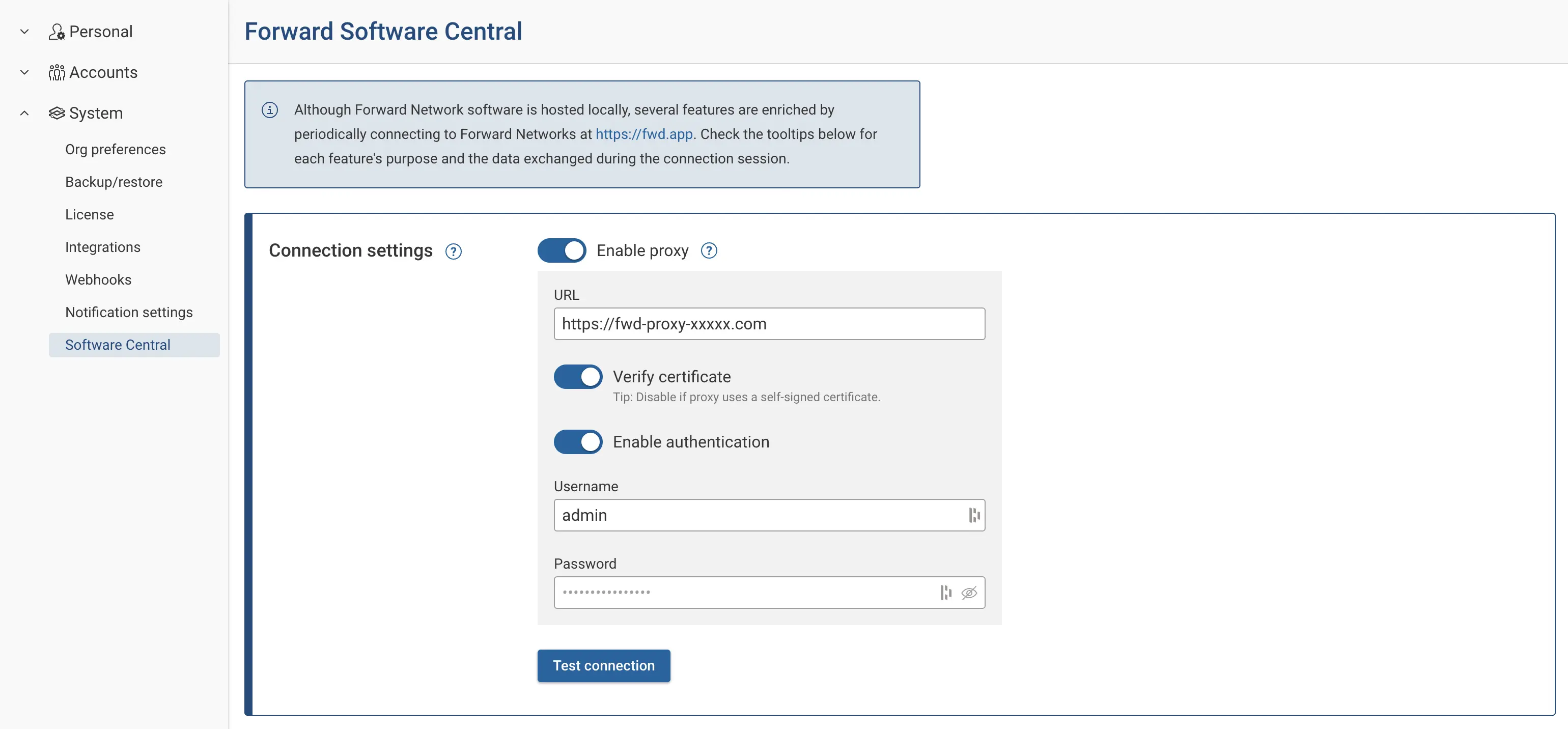
Click Test connection to verify that your instance can successfully reach and authenticate with https://fwd.app. The test will report one of the following outcomes:
- Connectivity verified: The connection and authentication succeeded.
- Connection failed: https://fwd.app cannot be reached. Verify that firewalls or proxy misconfiguration are not blocking the connection. All data exchange with https://fwd.app is disabled until connectivity is successfully verified.
- Authentication failed: The connection was established but authentication did not succeed. All data exchange with https://fwd.app is disabled until connectivity is successfully verified.
CVE Database
The CVE database section allows you to download and keep the Common Vulnerabilities and Exposures (CVE) database up to date. CVE database is used for vulnerability analysis and updated daily on Forward SaaS. For self-hosted deployments, the CVE database is updated with each Forward Enterprise release, and you can also update it by configuring the settings under this section.
For more details on how the CVE database is used and updated, see Vulnerability Analysis.
Telemetry
For self-hosted deployments, Forward Networks can collect and upload telemetry data to https://fwd.app to help ensure system stability and support product improvements.
The collected data includes deployment information, node details like node type, CPU cores, interface speed; pod status, storage information like disk type, mount point and disk usage; license usage data, feature usage statistics, product statistics, and engagement metrics. The data is bundled as a ZIP archive containing multiple CSV files, with each CSV representing a different data category.
All Personally Identifiable Information (PII) is excluded from the telemetry bundle. Node hostnames are hashed before inclusion in telemetry data.
Test the Connection
Before uploading telemetry, verify that your deployment can reach Forward Software Central. For more details on ensuring connectivity, see Connection settings section above.
If the connection is successful, "connectivity verified" message is displayed.
Uploading Telemetry
You can upload telemetry manually or enable automatic daily uploads.
Manual Upload
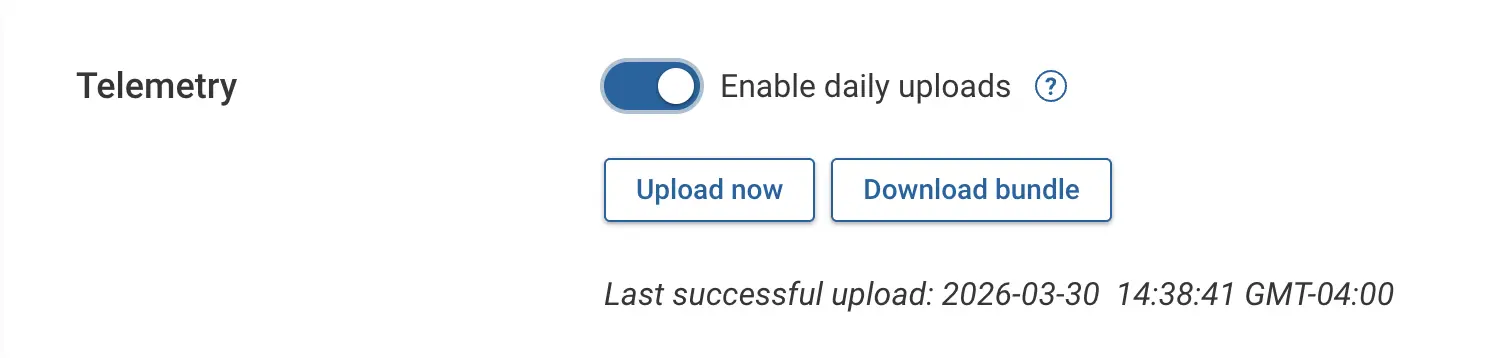
- Click Upload now to collect and send the telemetry bundle.
- If you have not yet tested the connection, clicking Upload now will automatically test the connection first. If the test succeeds, the upload will proceed. If the connection fails, the upload will fail until a successful connection is established. A failure message with the reason will be displayed.
- On success, a confirmation message is displayed with the timestamp.
Automatic Scheduled Upload
Use the Enable daily uploads toggle in the Telemetry section to enable or disable automatic daily uploads:
- On — The system automatically collects and uploads telemetry once every 24 hours.
- Off — Automatic uploads are disabled. You can still upload manually at any time.
Downloading the Telemetry Bundle
You can download a copy of the telemetry bundle to review the collected data.
- Click Download bundle to download the telemetry bundle.
- The bundle is downloaded as a ZIP file containing one CSV per data category.