Sources
The Sources page is the central place to manage all inputs that Forward uses to collect configuration, state, and vulnerability data from your environment.
Sources page layout
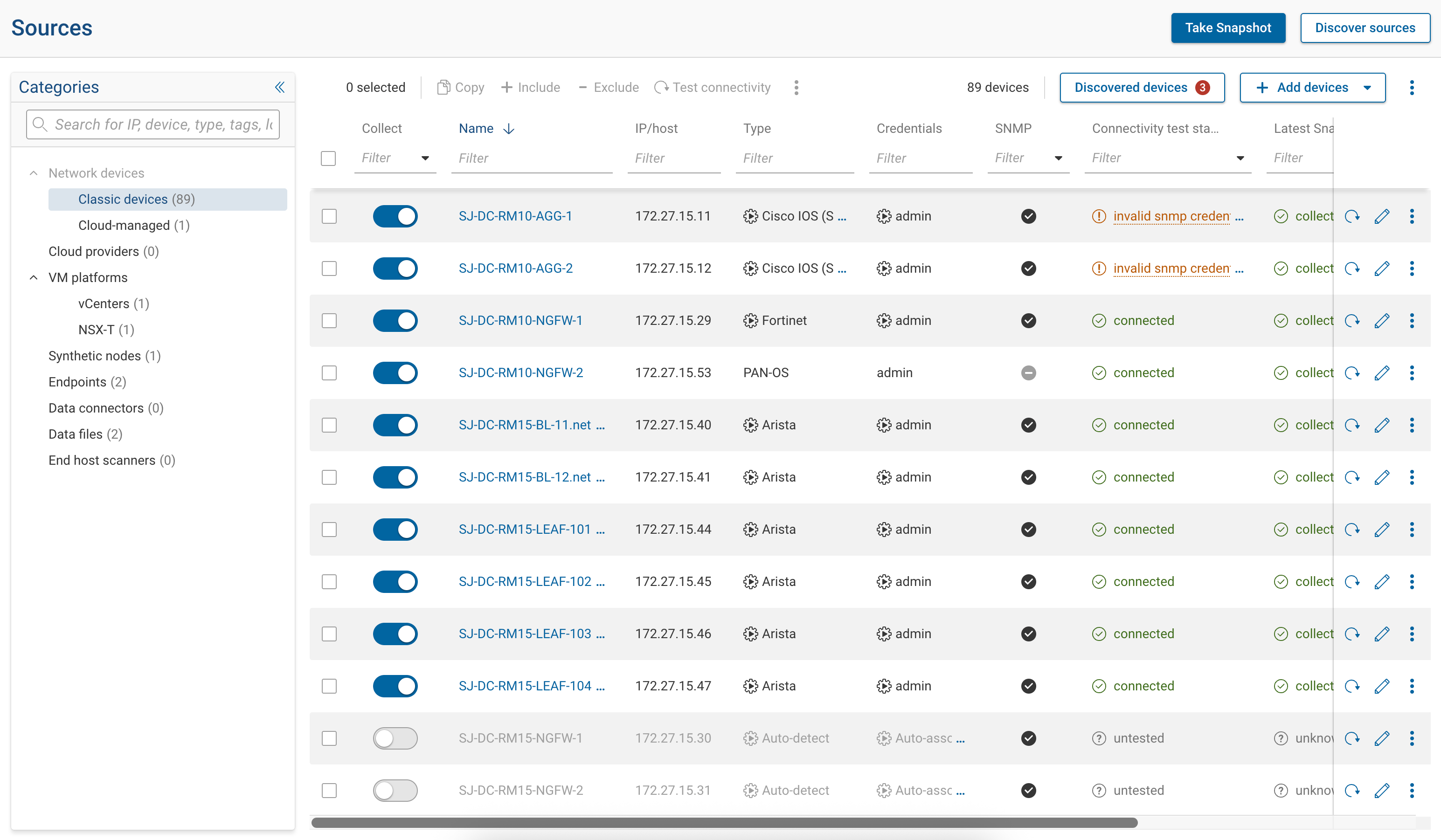
The Sources page is organized into categories shown in a panel on the left. Each category represents a specific type of source. Selecting a category updates the main table to show sources belonging to that category.
Only one category is displayed in the table at a time.
Source categories
The table below lists every source category, what it covers, and where to find setup instructions.
| Category | Description | Setup guide |
|---|---|---|
| Classic devices | Routers, switches, firewalls, and other traditional network devices accessed directly by Forward via SSH or SNMP. | Adding Devices |
| Cloud-managed | Devices managed through cloud controllers such as Cisco Meraki Dashboard and Arista VeloCloud Orchestrator. | Cloud-Managed Device Collection |
| Cloud providers | Public cloud infrastructure — AWS, Azure, GCP, Alkira, and IBM Cloud. | Cloud Infrastructure Setup |
| VM platforms | Virtual infrastructure platforms — VMware vCenter and NSX-T. | VMware Setup |
| Synthetic nodes | User-defined logical constructs (Internet nodes, Intranet nodes, L2/L3 VPNs, WAN circuits, encryptors) used as traffic origination or termination points in analysis. | Synthetic Nodes |
| Endpoints | End hosts and custom devices collected via CLI, SNMP, or HTTP using reusable endpoint profiles. | Endpoints |
| Data connectors | External integrations that supply data to Forward via HTTP(S) GET requests. | Data Connectors |
| Data files | Uploaded files used as data inputs, accessible through NQE. | Data Files |
| End host scanners | Vulnerability scanner integrations (Rapid7 InsightVM, Tenable Security Center) that feed into Exposure Analysis. | Rapid7 InsightVM · Tenable SC |
Finding sources
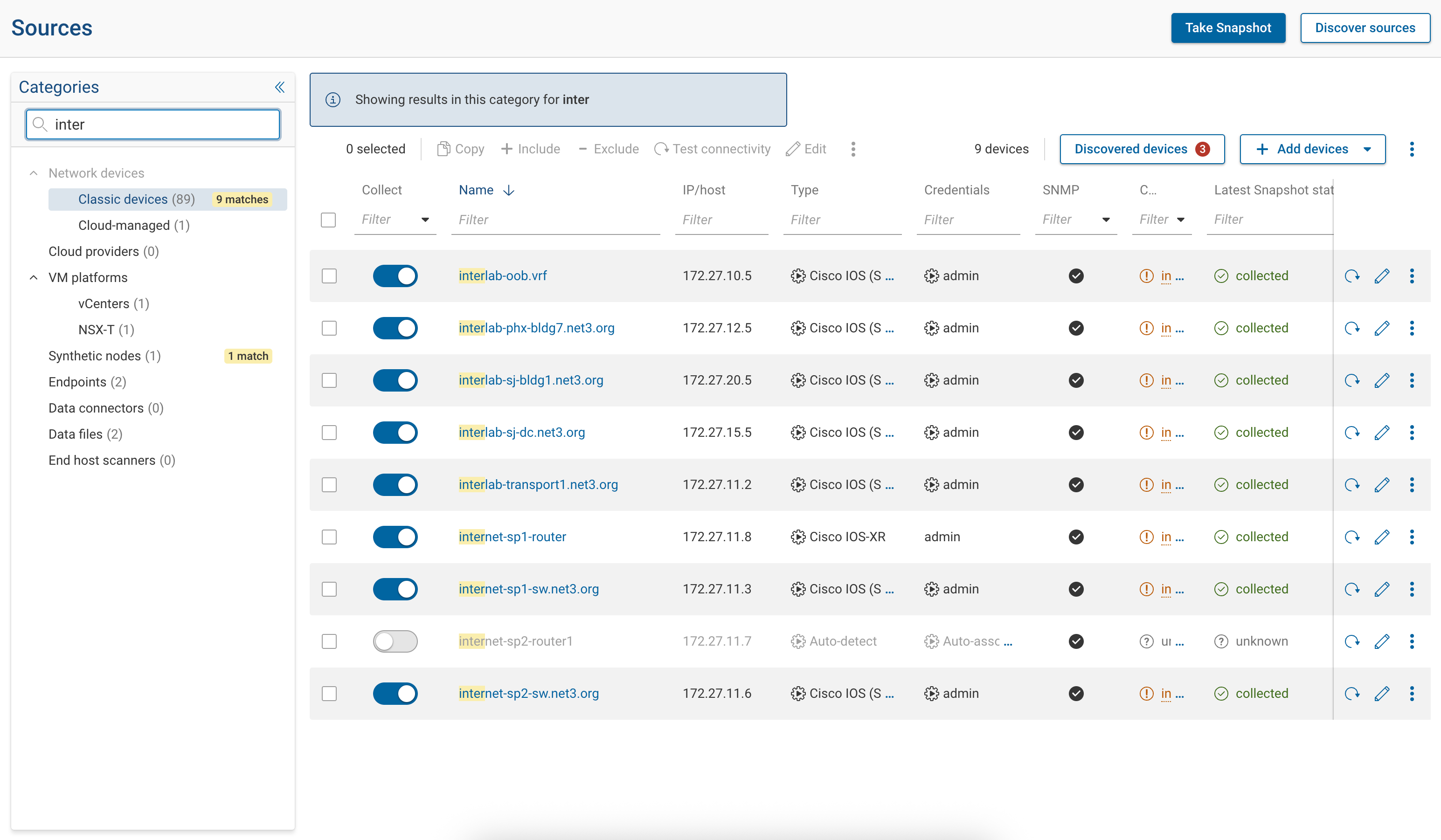
The search field filters sources across all categories.
When a search term matches sources in multiple categories:
- Matching results for the currently selected category are shown in the table
- Other categories display a match count next to their name
- Selecting a different category shows the matching results for that category
Search matches:
- Source or device name
- Vendor
- Location
Managing sources
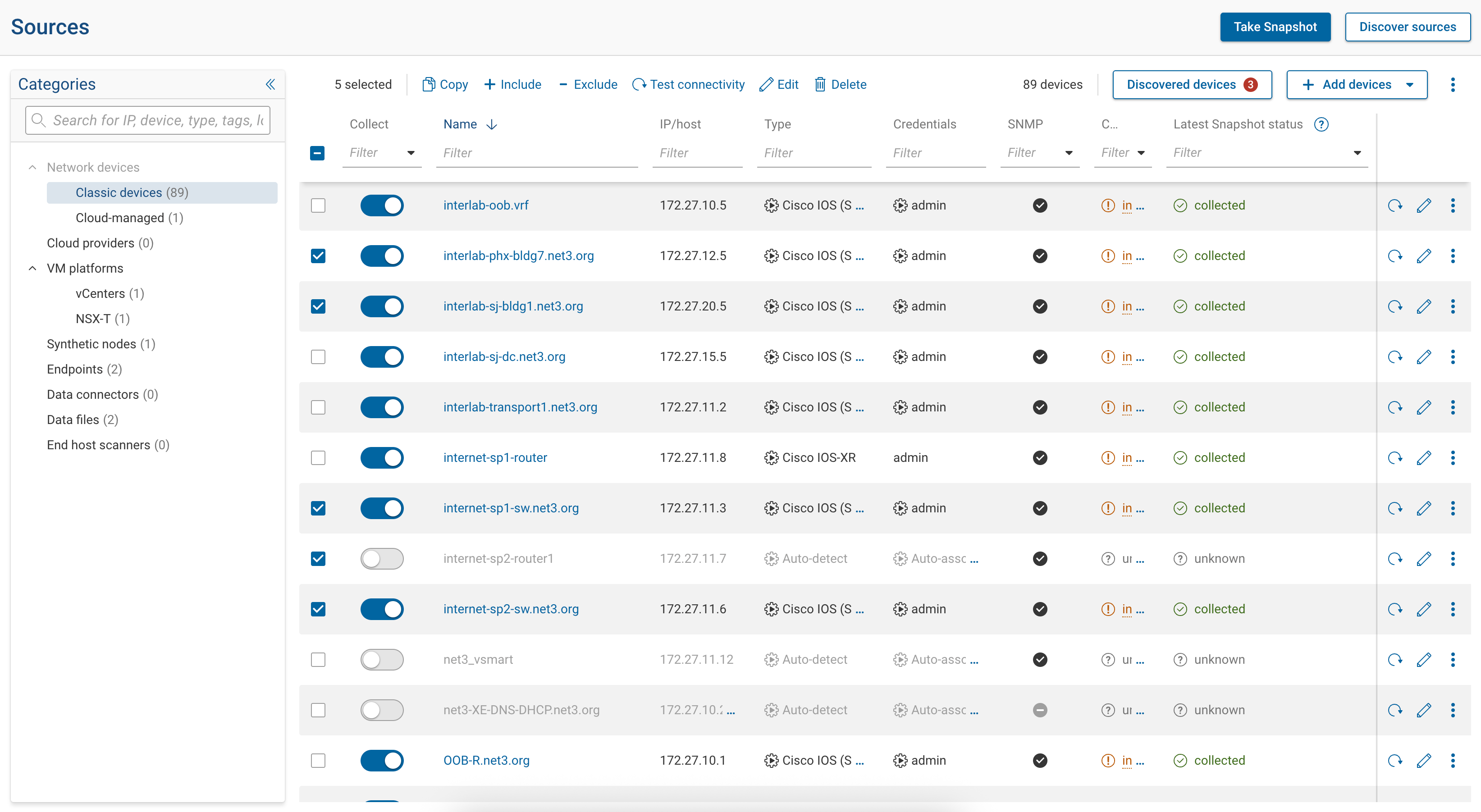
Within a category, common actions can be performed on one or more sources:
- Enable or disable collection using the collect toggle
- Edit source settings
- Test connectivity (for supported source types)
- Include or exclude sources from collection
- Delete sources (when applicable)
Actions apply only to the selected sources in the active category.
Source status indicators
The table displays status information for each source, which may include:
- Connectivity or authentication status
- Collection status
- Last successful snapshot
- Last tested time
Status fields and indicators vary by source category.
Related topics
- Guided Network Setup — step-by-step wizard for first-time network creation
- Forward Collector — install and manage the collector that communicates with your devices
- Device Credentials — configure login credentials used during collection
- Connectivity Test — validate device reachability before collecting
- Locations — organize sources by physical or logical location