VMware ESXi
General Information
The Forward Collector can collect from both standard and distributed virtual switches in vSphere environments. Follow the steps below to setup VMware collection.
Create a vCenter account for collection
-
Log in as administrator via a web browser
-
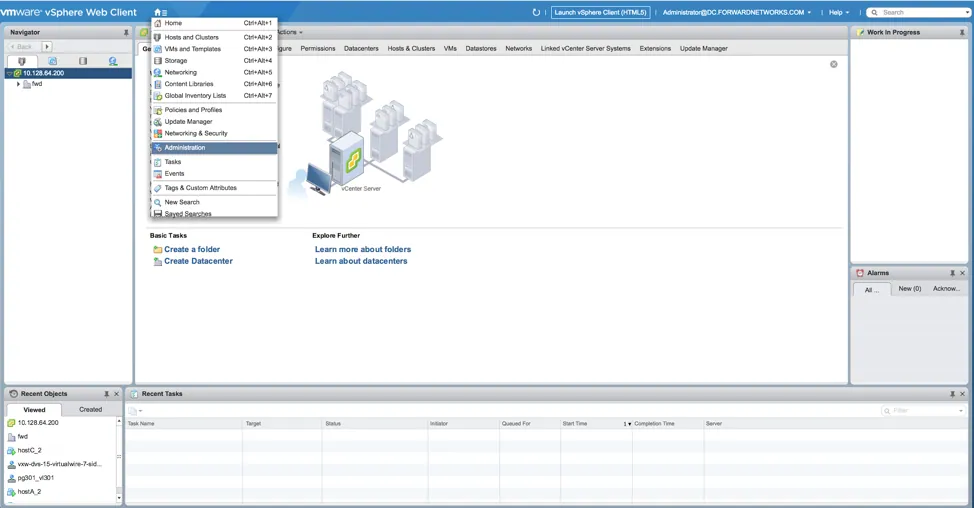
From home page, select vcenter object, click on “Menu” and select “Administration”
-
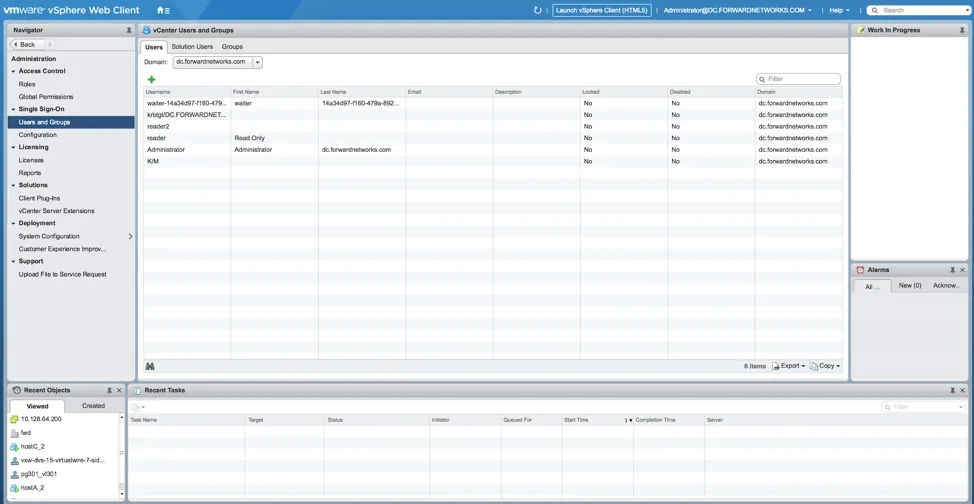
In the “Administration” page, click on “Users and Groups” under “Single Sign-on” and select the domain, in this example “dc.forwardnetworks.com”
-
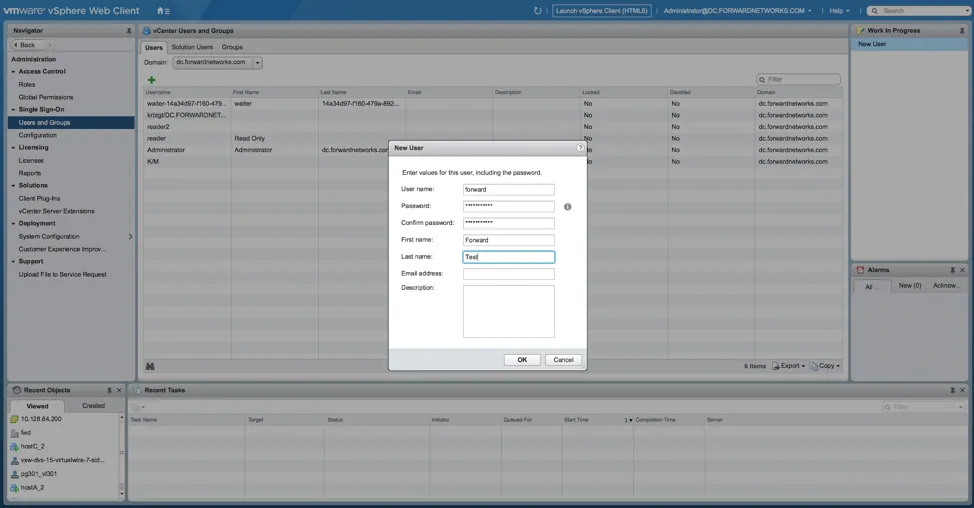
Click on the green "+” sign to add a new user, and populate the new user information
-
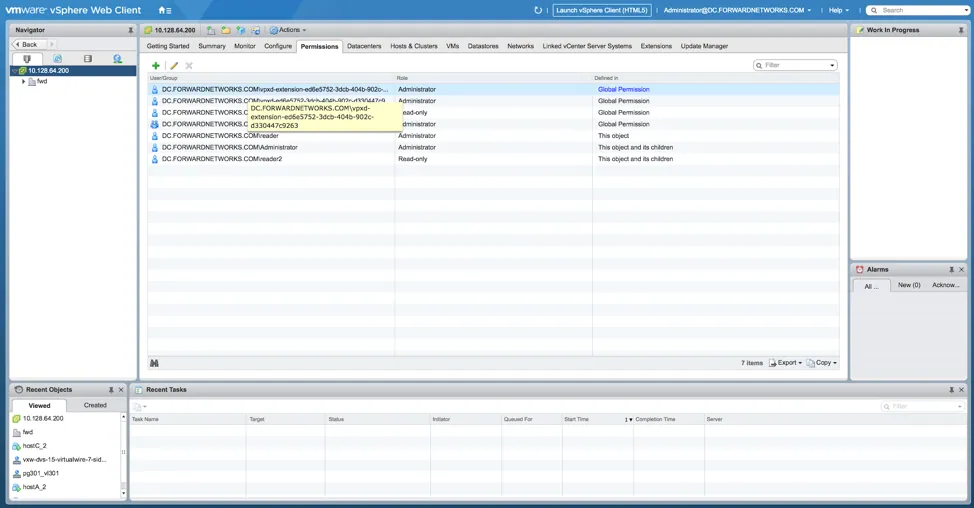
Go back to the home page, select vCenter object, and click on the “Permission” tab
-
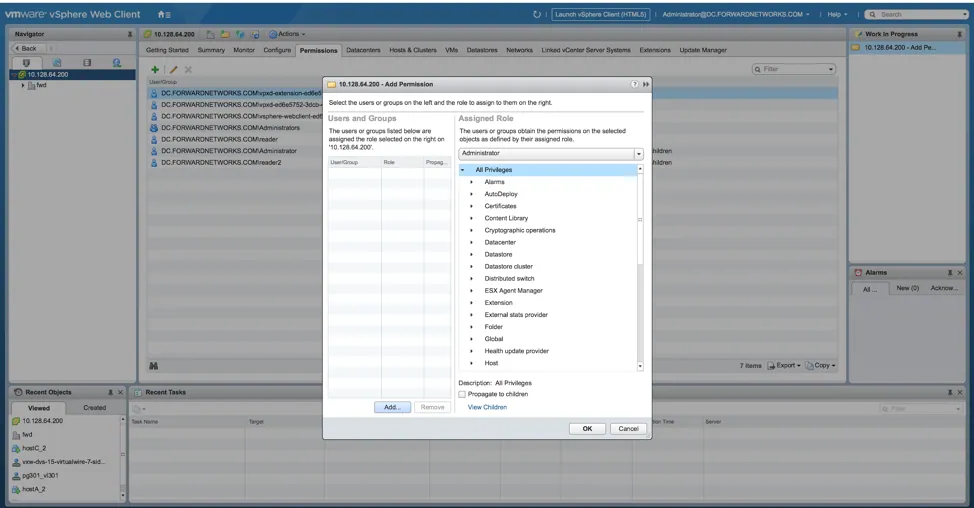
Click on the green “+” sign to pop-up the “Add Permission” page, then click “Add” under the “Users and Groups” column.
-
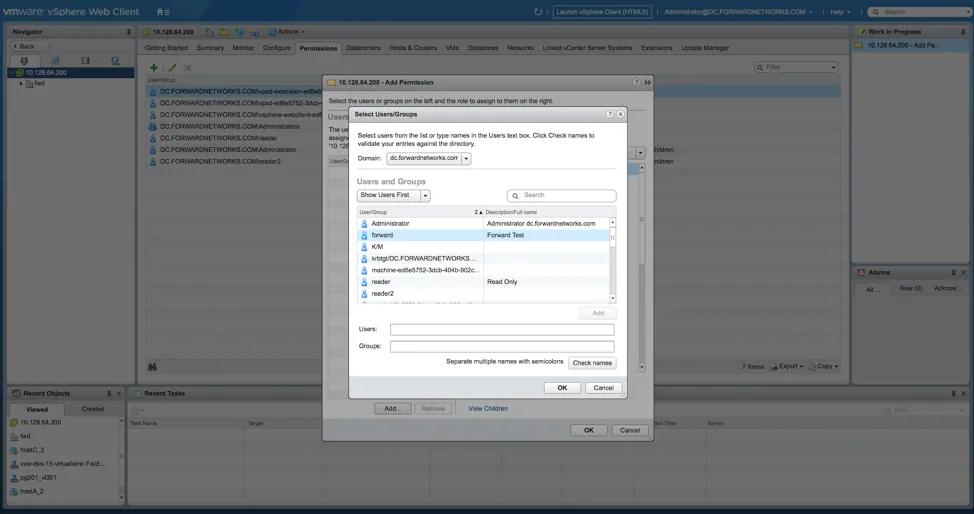
Select the newly created account. In the example, it is “forward” in domain “dc.forwardnetworks.com”. Click “OK”
-
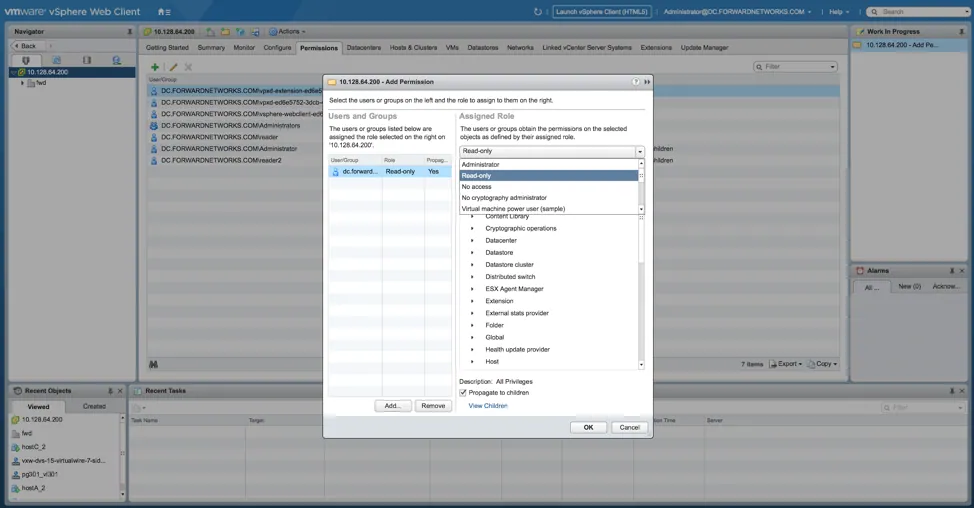
Back at the the “Add Permission” page, select “Read-only” under the “Assigned Role” column. Check “Propagate to children”, and then click “OK”.
-
Sanity test the new account by logging into vCenter using the new account
Add the vCenter and ESXi switches to Forward
-
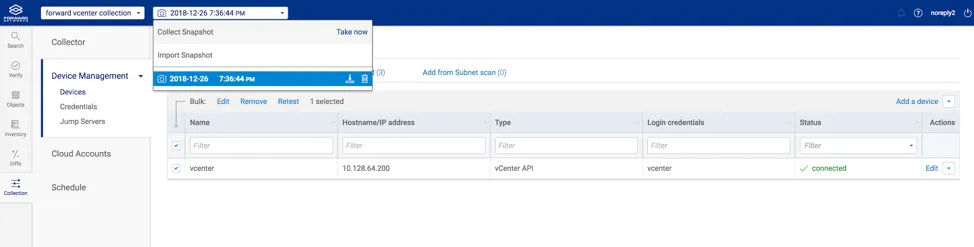
From forward web interface, click on “Collection”, “Device Management” then “Devices”

-
Click on “Add a device”, populate with the vCenter’s IP address, set device type to vCenter API, and add a credential using the new read-only account (in the example, “forward@dc.forwardnetworks.com”)

-
Click on “Add” after setting all fields for vCenter

-
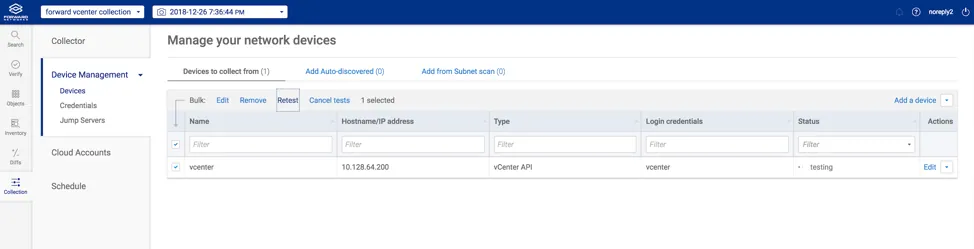
Sanity test the new vCenter device from collector, by checking the box next to it, and click on “Retest”. If all is working, “Status” will become “connected”
-
Click on the snapshot bar, and select “Take now” to take a new snapshot with vCenter.