SD-WAN Setup
Forward models an SD-WAN fabric as a single setup that groups a controller with the managed devices — the SD-WAN edge routers and appliances — it collects. The SD-WAN setups tab under Network Sources is where you add a fabric, run connectivity tests, and view collection state. One setup wizard covers all supported SD-WAN vendors; you pick the vendor as the first step.
Supported vendors
The wizard supports these vendors. The controller is collected over its API or CLI; the managed edge devices are collected over SSH.
| Vendor | Controller | Controller credentials | Edge devices |
|---|---|---|---|
| Cisco SD-WAN | Cisco SD-WAN vSmart (SSH) | CLI | vEdge (SSH); cEdge collected as IOS-XE |
| HP Silverpeak | Silver Peak Unity Orchestrator (HTTPS) | HTTP | Unity EdgeConnect (SSH) |
| Juniper 128T | 128T Conductor (SSH) | CLI | 128T Router (SSH) |
| Palo Alto Prisma | Prisma SD-WAN Portal, Unified API (HTTPS) | HTTP | Prisma SD-WAN / ION (SSH) |
| Versa SD-WAN | Versa Director (HTTPS) | HTTP | Versa FlexVNF (SSH), Versa Switch (SSH) |
The controller determines which credential type the wizard asks for: vSmart and 128T Conductor authenticate over SSH and take a CLI credential; the Silver Peak, Prisma, and Versa controllers authenticate over their API and take an HTTP login credential. Managed devices are always collected over SSH.
For the platform models and OS versions Forward collects for each vendor, see Supported Devices.
Prerequisites
- A Forward Collector that can reach the controller (over HTTPS for API controllers, or SSH for CLI controllers) and the managed devices over SSH.
- A credential for the controller — an HTTP login or a CLI login, depending on the vendor (see the table above), configured under Network Sources → Devices → Credentials.
Add an SD-WAN setup
Open Network Sources → SD-WAN setups → Add SD-WAN setup. The wizard Add SD-WAN setup has five steps.
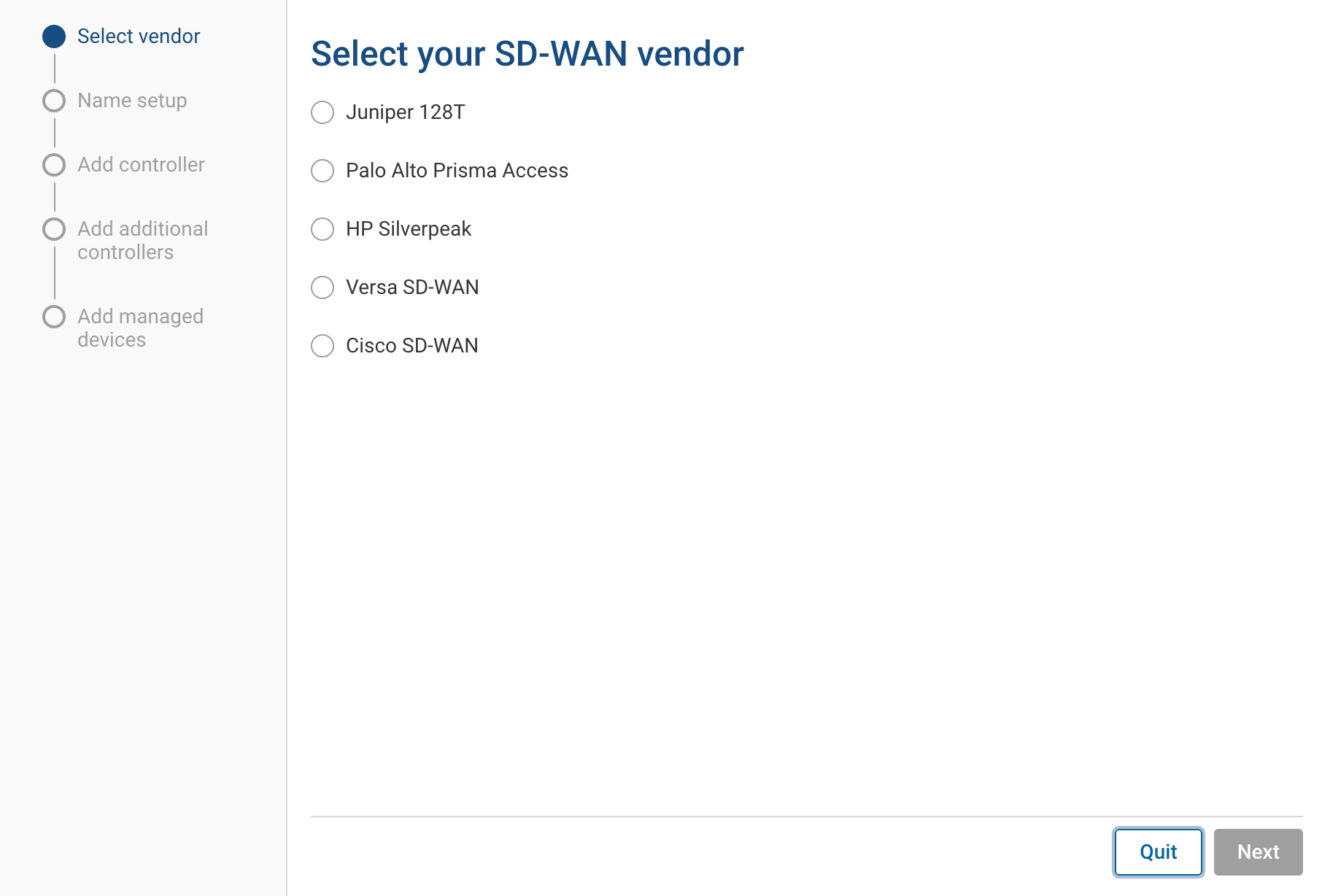
1. Select your SD-WAN vendor
Choose the vendor for this setup. The choice determines the controller types offered on the Add controller step and the managed device types the setup can collect.
2. Name your SD-WAN setup
Enter a Setup name. The name identifies the setup throughout the UI and can contain only letters, numbers,
underscores, dashes, and dots. The name cannot be . or .. on its own.
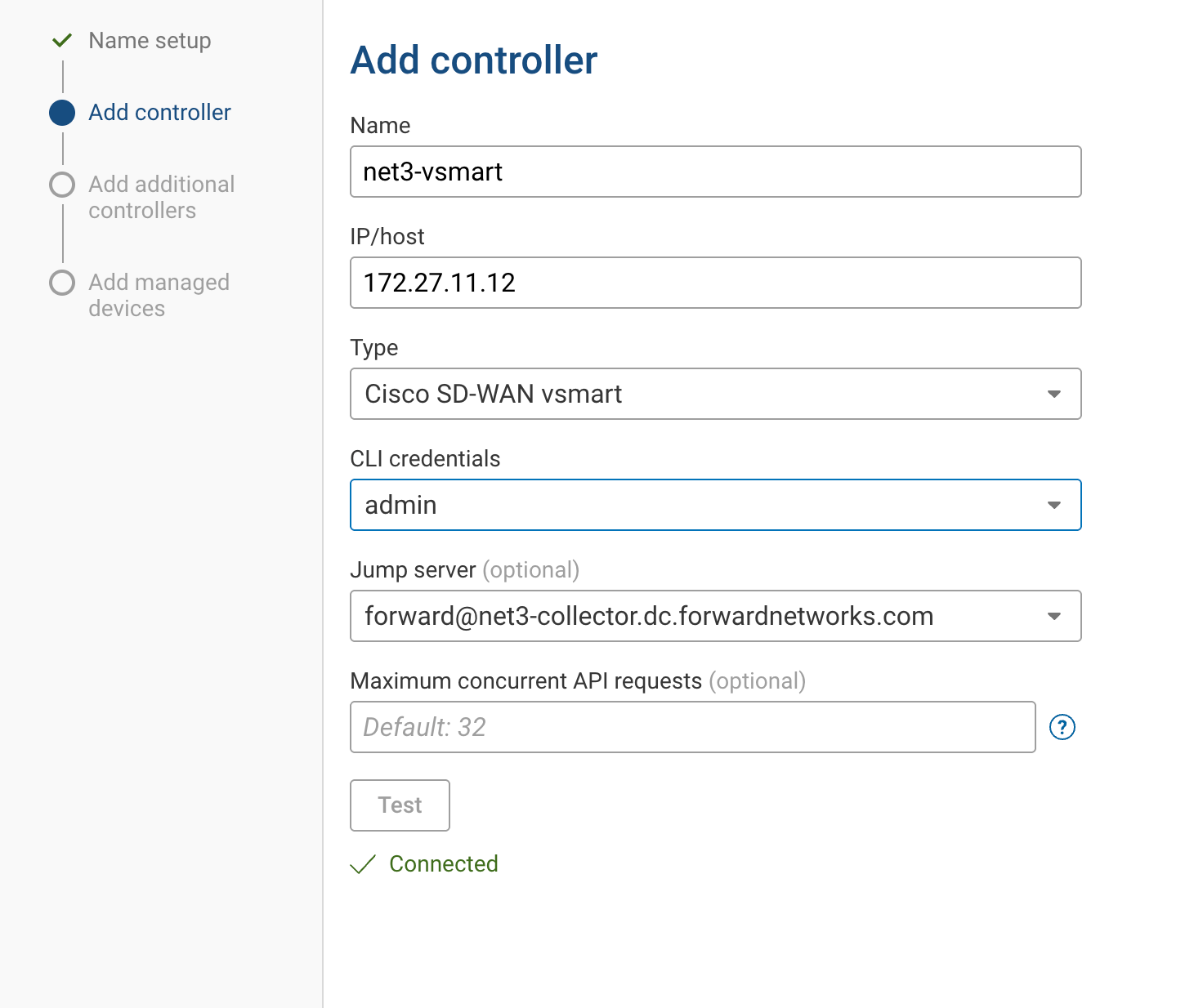
3. Add controller
Configure the controller for the fabric:
| Field | Notes |
|---|---|
| Name | Display name for the controller. |
| IP/host | Reachable IP address or hostname. |
| Type | Controller connection type. The list is filtered to the vendor you selected. |
| HTTP credentials / CLI credentials | The login credential the collector uses for the controller. Which one appears depends on the type. |
| Jump server | Optional intermediate host for the connection. |
| Maximum concurrent API requests | Optional, for API-based controllers. Defaults to 32, up to 1024, and bounded by the collector's global connection concurrency. |
Click Test. The connection must succeed before the wizard advances. The connectivity test queries the controller for its high-availability peers and the managed devices it collects, which feed the next two steps.
4. Select additional controllers to be added (optional)
Forward lists the HA peers it discovered through the primary controller. Select the peers you want in the setup. Forward collects from every selected controller on each snapshot, so if one is unreachable the others still return data.
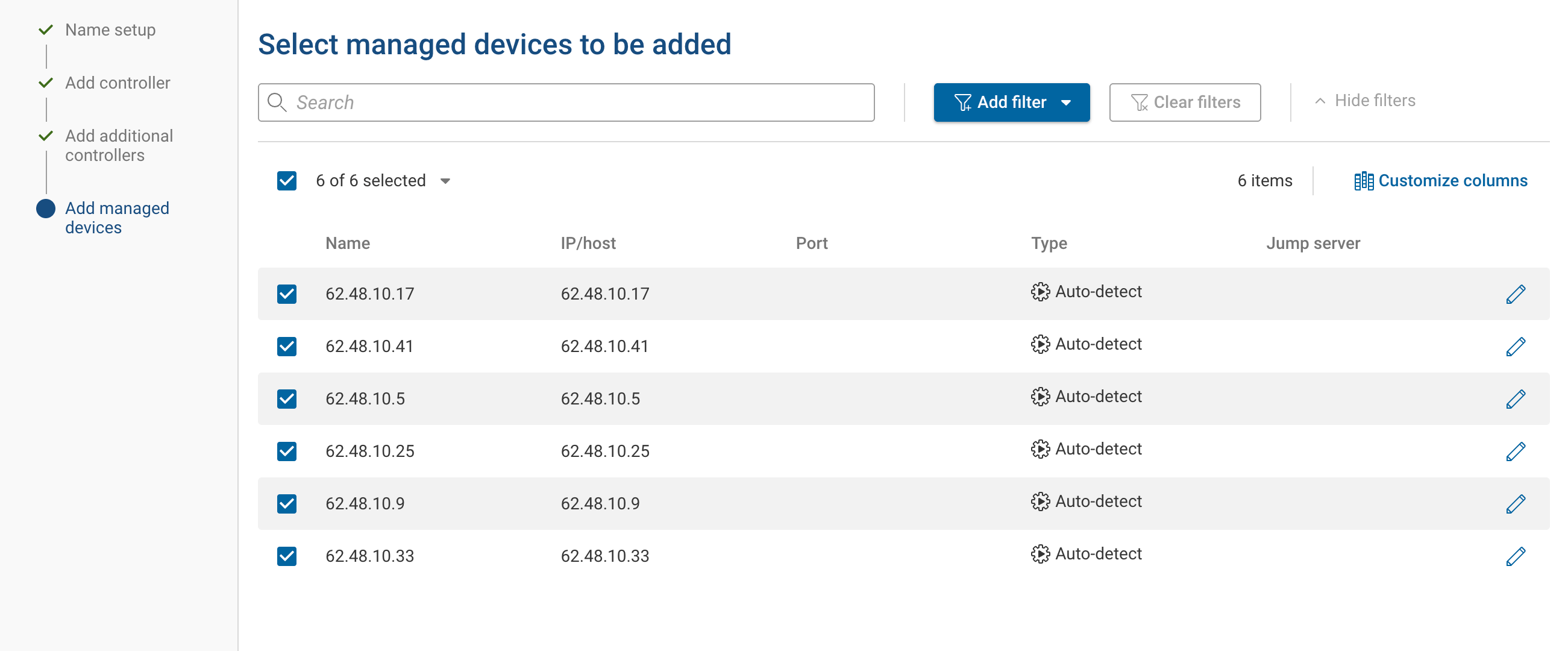
5. Select managed devices to be added
Pick the managed devices the setup should collect. Finish with one of:
- Add & test connection — saves the setup and starts a connectivity test for every selected device.
- Add without testing connection — saves the setup and skips the per-device test.
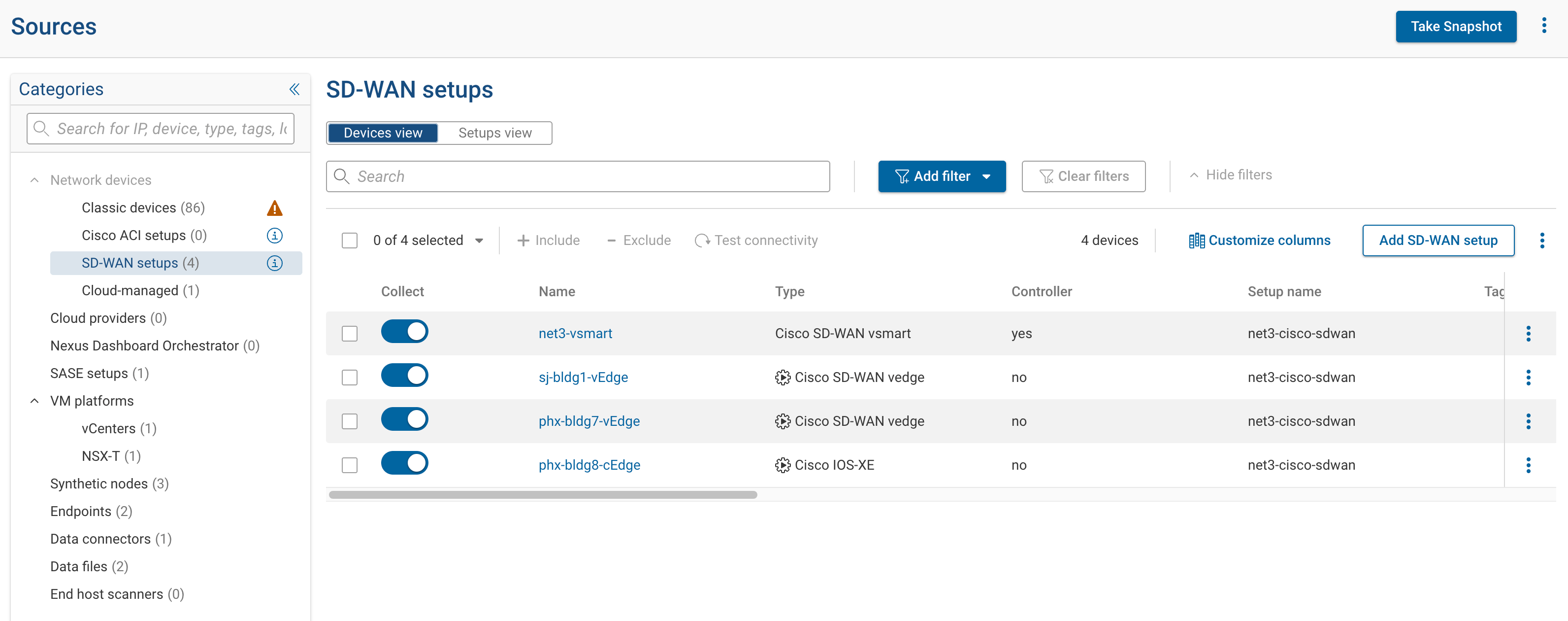
SD-WAN setups tab
The tab lists every controller and managed device that belongs to a setup. Useful columns include Setup name, IP/host, Type, Credentials, Connectivity test status, Latest snapshot status, and Last tested. The Collect toggle in the first column controls whether a device is included in the next snapshot.
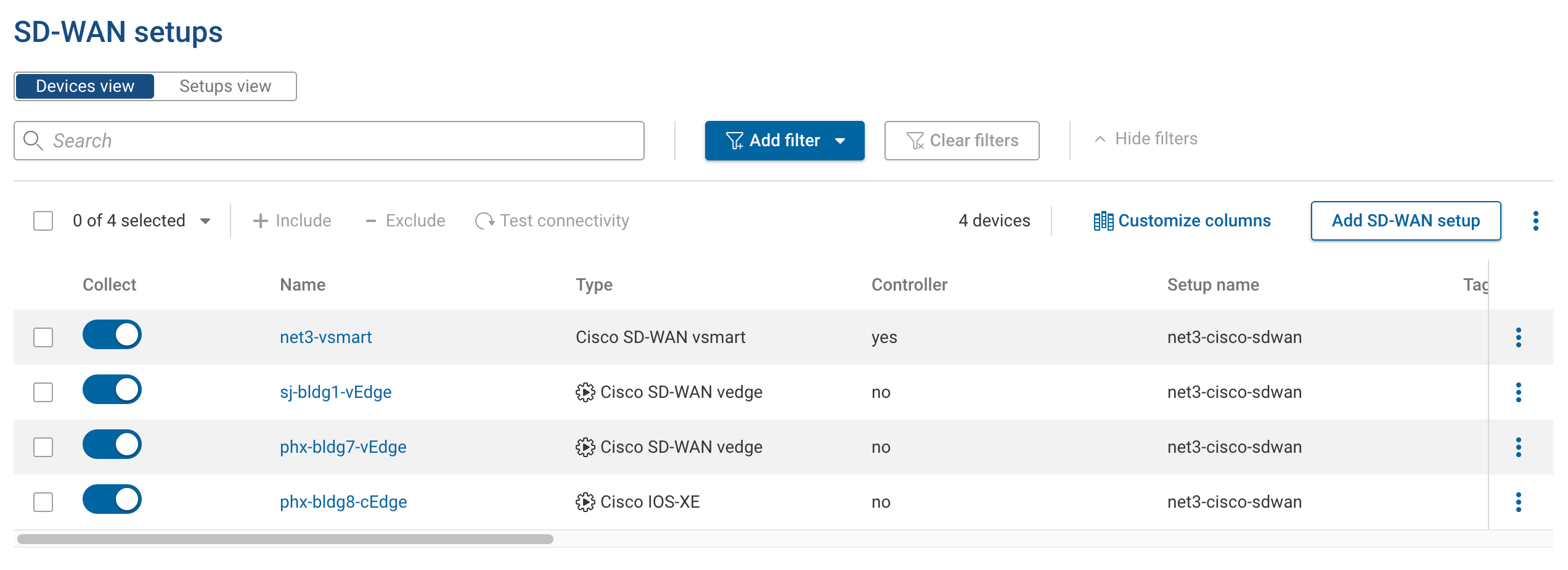
Each row has a More actions menu — the ⋯ button at the end of the row — with Test connectivity, Edit, Manage setup, and Delete. Select one or more rows to Include, Exclude, Test connectivity, or Delete in bulk, or export the table to CSV.
Update a setup after creation
Fabrics change. To add a new HA controller peer, drop a decommissioned device, or rename the setup, open the More actions menu (the ⋯ button) on any row that belongs to the setup and choose Manage setup. The drawer that opens edits the whole setup; it doesn't matter which row you opened it from.
Use the include/exclude toggles in the drawer to temporarily stop collecting a device without removing it. For a single device, the Collect column on the table works as a quick toggle.
Migrate from the Classic tab
If you already collect an SD-WAN fabric through individual entries on the Classic tab, use the migration flow to convert those entries into an SD-WAN setup. An SD-WAN setup is independent of the Classic tab: the controller and managed devices are stored as part of the setup, and the platform tests, refreshes, and snapshots them as one unit.
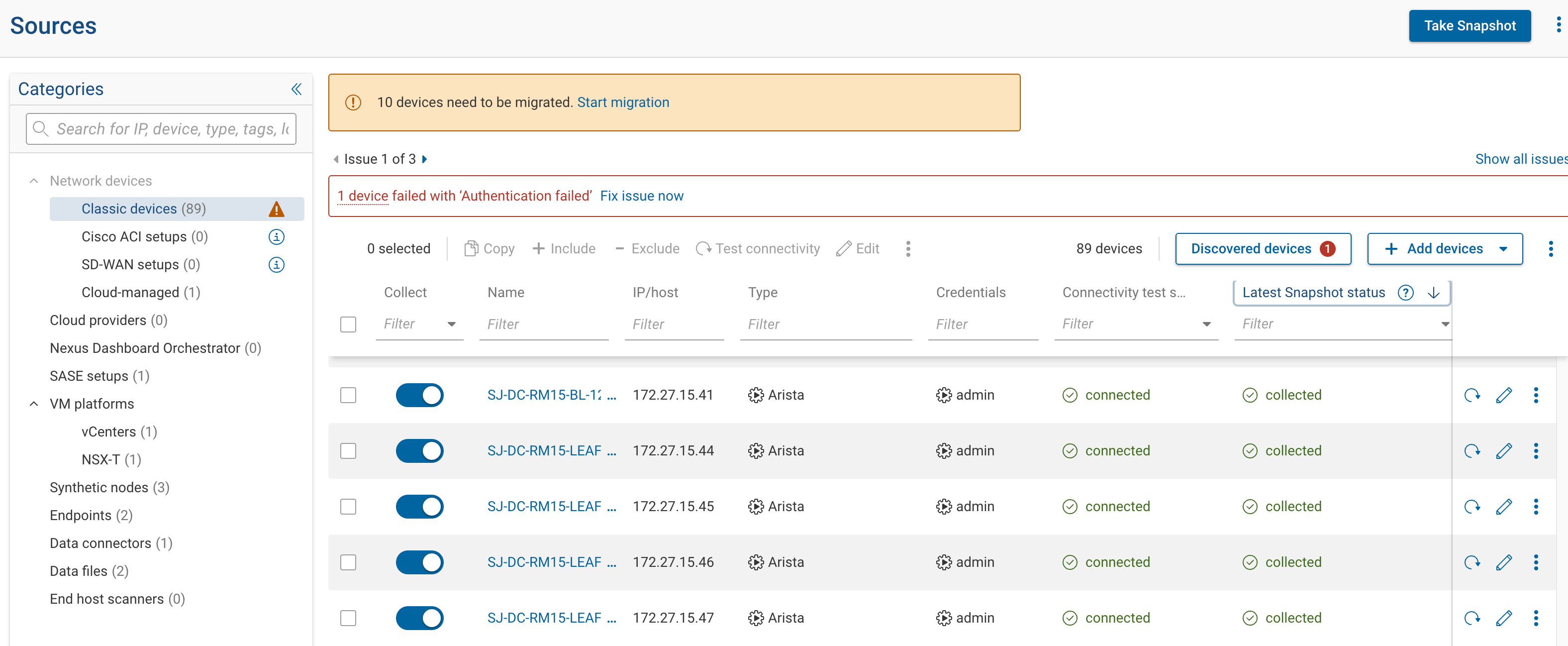
When the Classic tab has devices that can be migrated, it shows a banner with a Start migration link. The migration wizard handles both Cisco ACI and SD-WAN candidates:
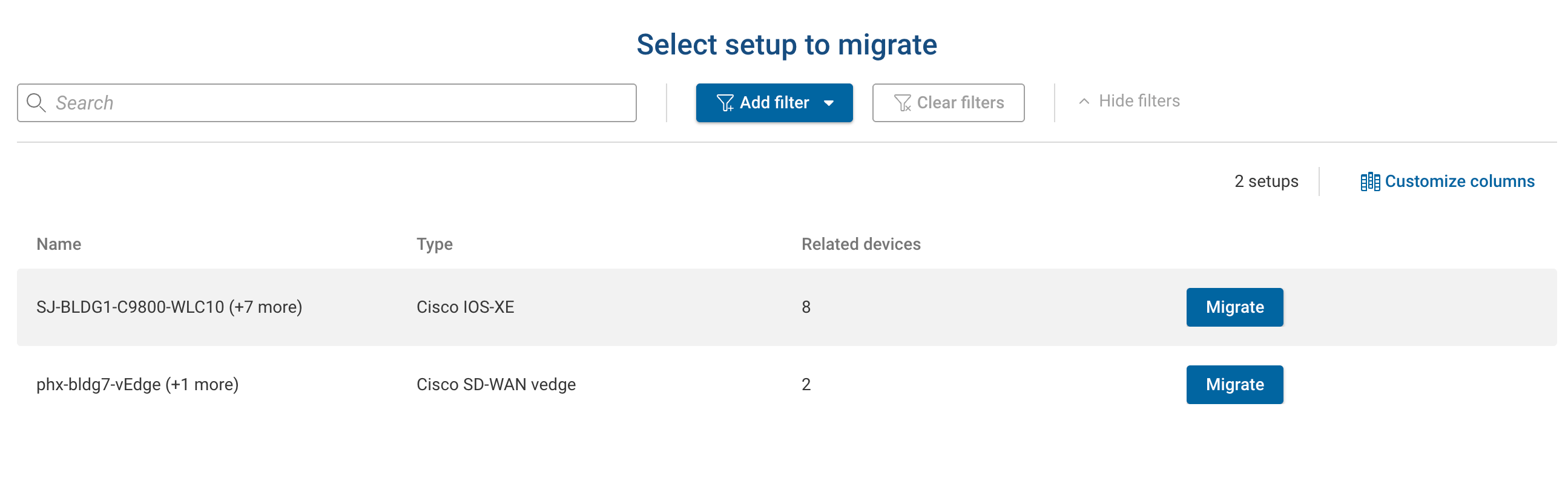
- Select setup to migrate. The table shows each candidate controller with its Type and the count of Related devices that will move with it. Click Migrate on the row you want. Forward infers the SD-WAN vendor from the controller type, so migration skips the vendor-selection step.
- Name your SD-WAN setup, then step through Add controller, Select additional controllers, and Select managed devices as when adding a setup. The controller fields are prefilled from the classic device.
When the wizard finishes, the SD-WAN setups tab opens filtered to the new setup name. The migrated devices no longer appear on the Classic tab, and the next snapshot collects the fabric through the setup.
Migration is a one-way operation. To roll back, delete the setup and re-add the devices on the Classic tab.
Troubleshooting
Which credential does the controller need?
It depends on the vendor. The Cisco SD-WAN (vSmart) and 128T (Conductor) controllers authenticate over SSH and take a CLI credential. The Silver Peak, Prisma, and Versa controllers authenticate over their API and take an HTTP login credential. The Add controller step shows the correct credential field once you select the controller type. Managed devices are always collected over SSH, so they use CLI credentials.
The controller connects, but its managed devices aren't discovered or have no data
The controller's own connectivity test can pass while the managed devices behind it fail. Confirm that the collector can reach each managed device over SSH, and that the managed devices have CLI credentials. On the SD-WAN setups tab, use Test connectivity on the managed device rows to see per-device results, and check the Connectivity test status column against the connectivity test error reference.
Collection fails after the connectivity test passed
Connectivity confirms the collector can log in; collection then runs the vendor's command set, which can fail separately. Check the device's status against the collection error reference. If it doesn't resolve the failure, contact Forward support.
The migration banner flags devices I don't expect, or migrated devices stopped collecting
The Classic-tab migration flow proposes matches it identifies from the classic inventory. Before finishing, confirm that the controller list and the managed device list on the Select managed devices step cover exactly the devices you expect. If migrated devices show as not collected afterward, open the More actions menu (the ⋯ button) on any row in the setup, choose Manage setup, and verify the controller and all its managed devices are included, then re-run the connectivity test.
Naming rules for setups and devices
Setup, controller, and device names can contain only letters, numbers, underscores, dashes, and dots, and cannot be .
or .. on their own.
Supported features
See the Feature Support Status page for the SD-WAN features Forward Enterprise supports.