Cisco ACI Setup
Forward models a Cisco ACI fabric as a single setup that groups one or more APIC controllers, the leaf and spine devices they manage, and an optional Nexus Dashboard Orchestrator (NDO). The Cisco ACI setups tab under Network Sources is where you add a fabric, run connectivity tests, and view collection state.
Prerequisites
- A Forward Collector that can reach each APIC over HTTPS.
- An HTTP login credential for the APIC (configured under Network Sources → Devices → Credentials).
- Optional: an NDO host, added on the Nexus Dashboard Orchestrator tab.
Add a Cisco ACI setup
Open Network Sources → Cisco ACI setups → Add setup. The wizard Add Cisco ACI setup has four steps.
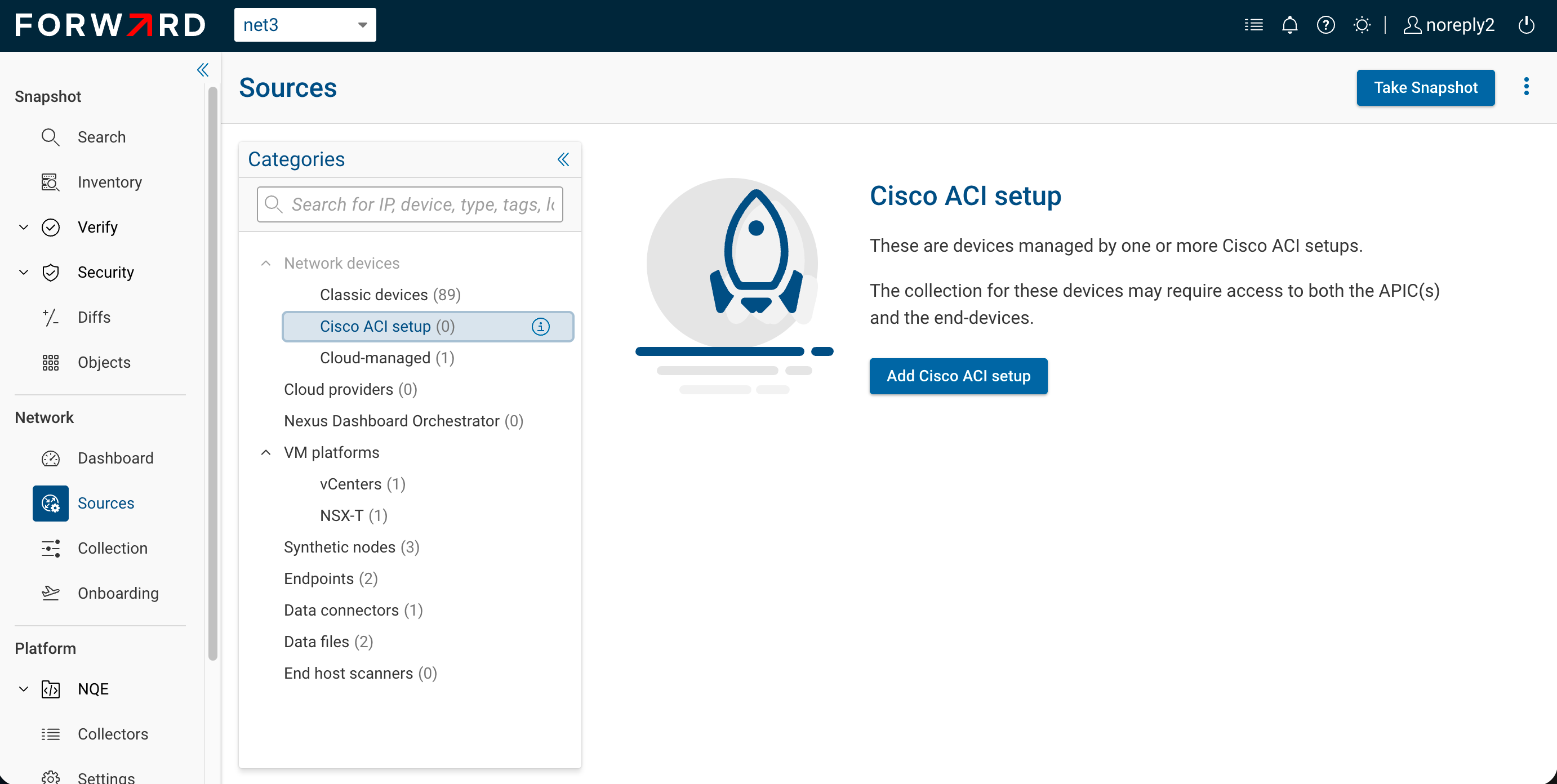
1. Name your Cisco ACI setup
Enter a Setup name. The name identifies the setup throughout the UI and can contain only letters, numbers, underscores, dashes, and dots.
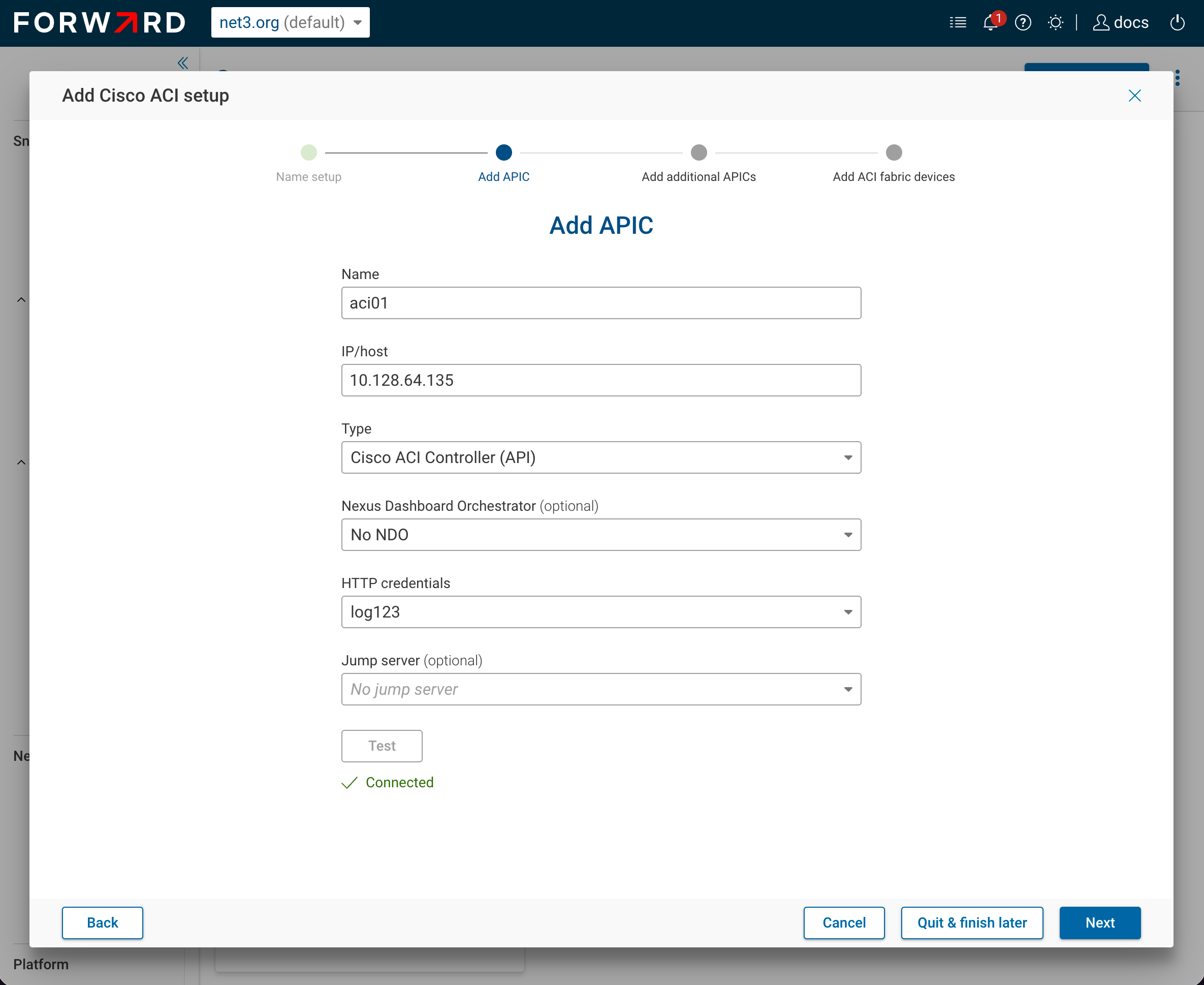
2. Add APIC
Configure the primary APIC controller for the fabric:
| Field | Notes |
|---|---|
| Name | Display name for the APIC. |
| IP/host | Reachable IP address or hostname. |
| Type | Pre-set to Cisco APIC. |
| Nexus Dashboard Orchestrator | Optional. Pick an NDO host already added on the NDO tab, or use Add Nexus Dashboard Orchestrator to create one inline. |
| HTTP credentials | The login credential the collector uses for the APIC. |
| Jump server | Optional intermediate host for the connection. |
| Maximum concurrent API requests | Optional. Defaults to 32; capped at 1024 and limited by collector concurrency. |
Click Test. The connection must succeed before the wizard advances. The connectivity test queries the APIC for the list of HA peers and managed leaf/spine devices, which feed the next two steps.
3. Select additional APICs to be added (optional)
Forward lists the HA peers it discovered through the primary APIC. Select the peers you want the collector to fall back to. Additional APICs do not consume licenses.
4. Select ACI fabric devices to be added
Pick the leaf and spine devices the setup should collect. Finish with one of:
- Add & test connection — saves the setup and starts a connectivity test for every selected device.
- Add without testing connection — saves the setup and skips the per-device test.
Cisco ACI setups tab
The tab lists every controller and managed device that belongs to a setup. Useful columns include Setup name, NDO, IP/host, Credentials, Connectivity test status, Latest snapshot status, and Last tested. The Collect toggle in the first column controls whether a device is included in the next snapshot.
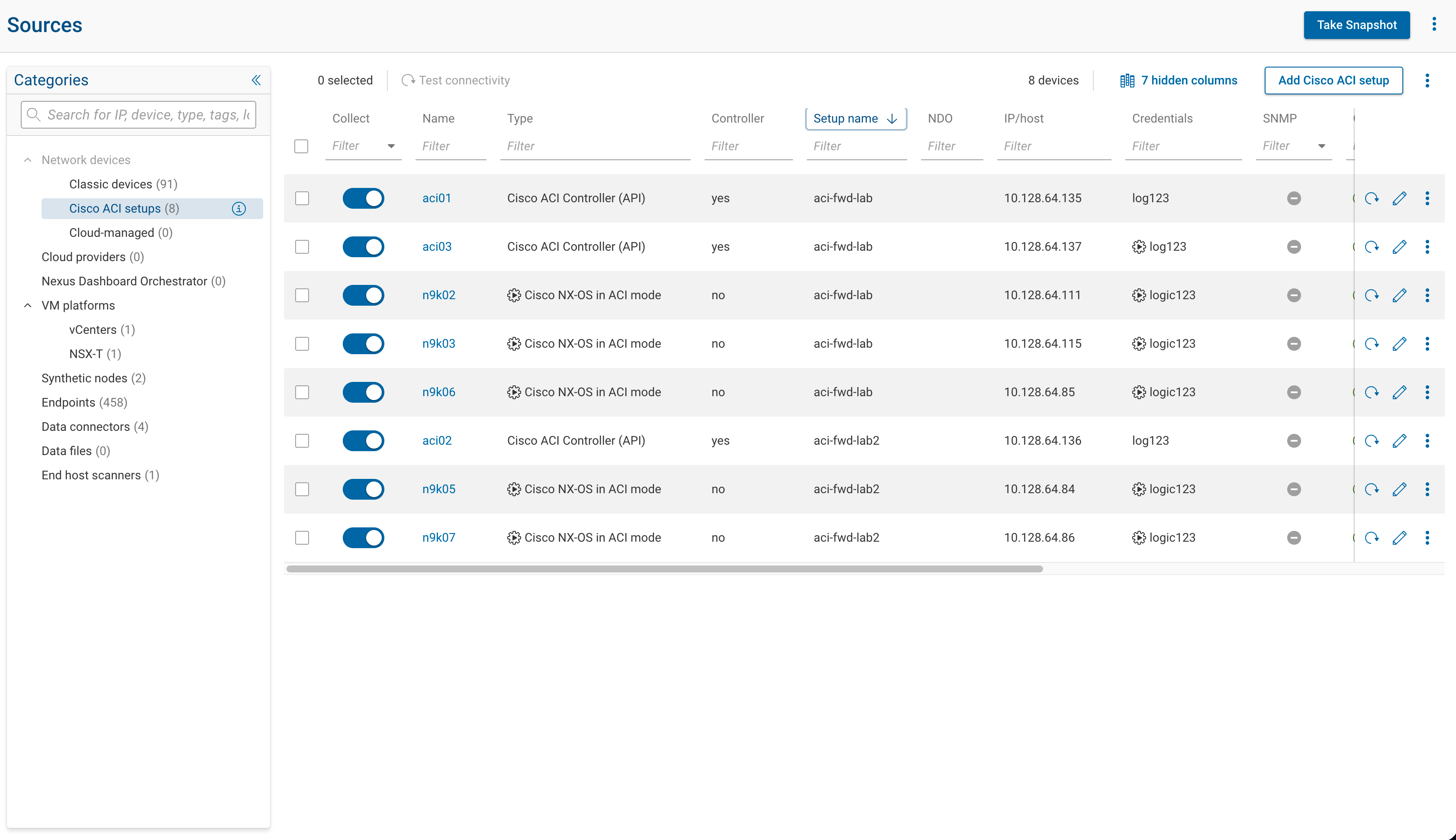
Each row has two inline icon buttons — Test connectivity (reload) and Edit (pencil) — and a 3-dot menu with View collection log, View connectivity test log, Delete, and Manage setup.
Update a setup after creation
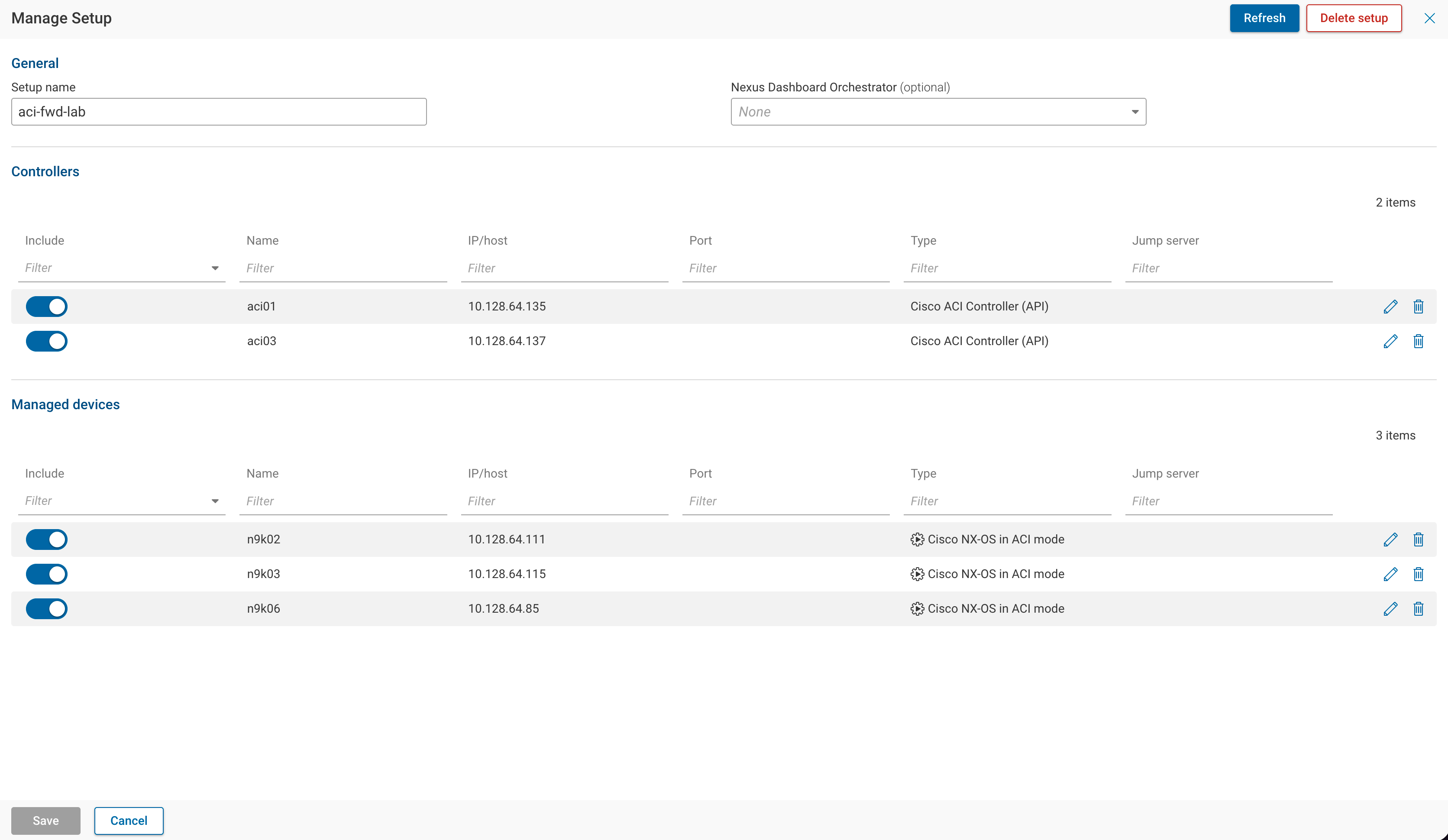
Fabrics change. To add a new HA APIC peer, drop a decommissioned leaf, associate an NDO that was added after the setup already existed, or rename the setup, open Manage setup from the 3-dot menu on any row in the setup. The drawer that opens edits the whole setup; it doesn't matter which row you triggered it from.
Use the include/exclude toggles in the drawer to temporarily stop collecting a device without removing it. For a single device, the Collect column on the table works as a quick toggle.
Nexus Dashboard Orchestrator
NDO instances are created and tested on the Nexus Dashboard Orchestrator tab. Once added, an NDO becomes selectable from any APIC in a Cisco ACI setup. Forward uses the NDO to model multi-site fabric relationships.
To associate an existing setup with an NDO, open Manage setup from the row action menu.
Migrate from the Classic tab
Before Cisco ACI setups existed, the only way to model an ACI fabric was to add the APIC controllers and every leaf and spine as individual entries on the Classic tab — each device was its own classic-device record. A Cisco ACI setup is independent of the Classic tab: the controllers and managed devices are stored as part of the setup, not as classic devices, and the platform tests, refreshes, and snapshots them as one unit.
If you have an existing fabric collected through the legacy method, use the migration flow to convert those classic entries into a Cisco ACI setup. Subsequent snapshots collect the fabric through the new setup, and the migrated devices pick up the operations described above.
Migration is a one-way operation. When you finish the wizard, Forward deletes the matched classic device entries and creates the new setup in a single transaction. To roll back, delete the setup and re-add the devices on the Classic tab.
How matching works
Forward looks at the classic device inventory for entries identified as APIC controllers and the leaf/spine devices they relate to, and groups them into selectable rows. Each row represents a candidate setup with an APIC and its related fabric devices.
Walkthrough
-
Open Network Sources → Cisco ACI setups and click Migrate setups.
-
Select setup to migrate. The table shows each candidate APIC with its Type and the count of Related devices that will move with it. Click Migrate on the row you want.
-
Name your Cisco ACI setup. The setup name defaults to the APIC name; change it if you prefer.
-
Add APIC. The wizard prefills the Name, IP/host, Type, HTTP credentials, and Jump server from the classic device. Optionally pick an NDO, then click Test to confirm the connection still succeeds.
-
Select additional APICs to be added. Pick any HA peers Forward discovered through the primary APIC.
-
Select ACI fabric devices to be added. Forward lists the leaf and spine devices that match the classic inventory. Adjust the selection if needed, then choose Add & test connection or Add without testing connection.
When the wizard finishes, the Cisco ACI setups tab opens filtered to the new setup name. The migrated devices no longer appear on the Classic tab, and the next snapshot collects the fabric through the setup.
Verify before finishing
The wizard only proposes matches it can identify from the classic inventory. Before clicking the final action, confirm that the controller list and the fabric device list cover every device you expect. Anything missing can be added with Manage setup afterward.
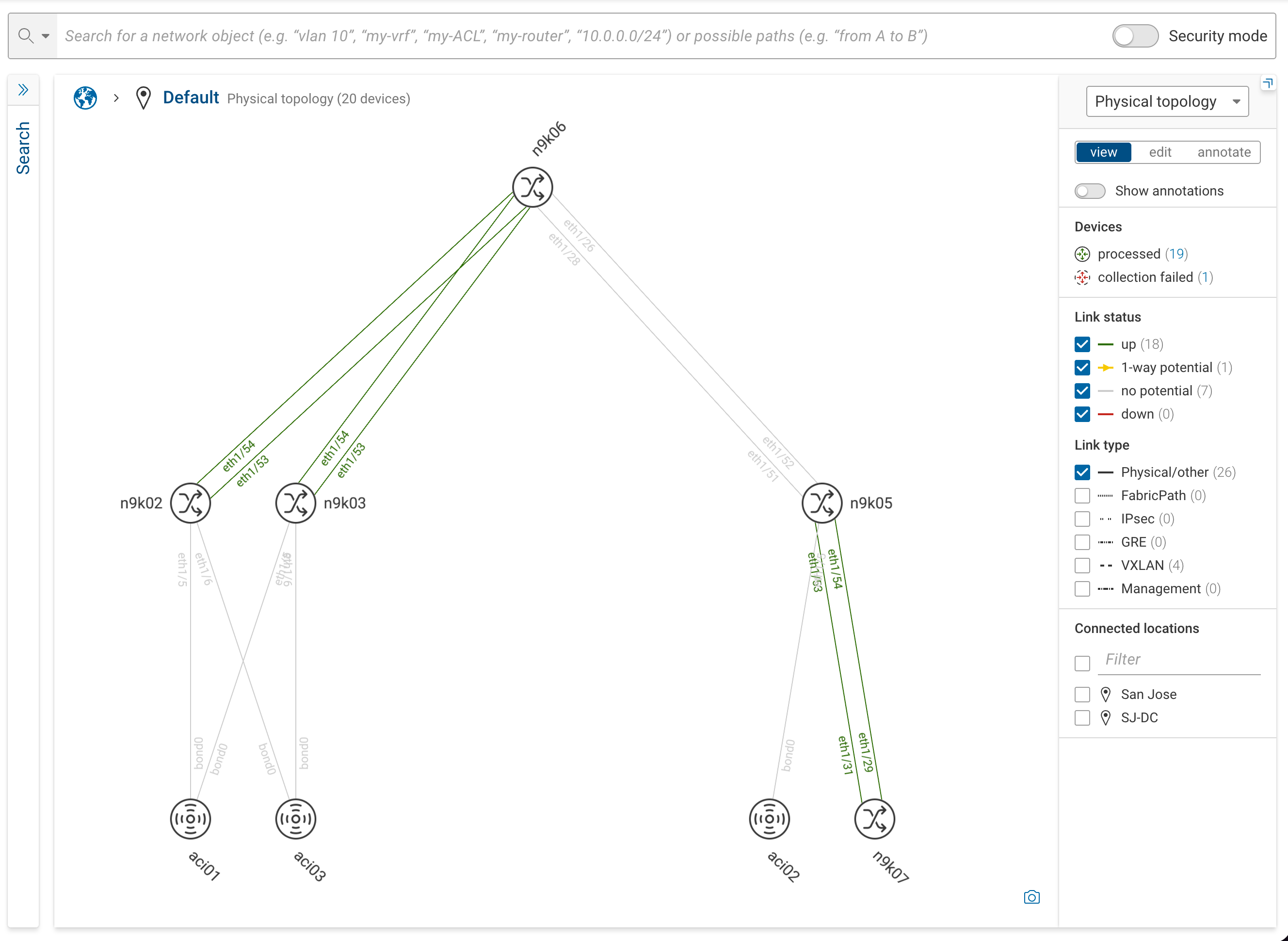
ACI fabric topology
A modeled ACI fabric appears in the topology with the APIC controllers, the spines, and the leaves they manage.
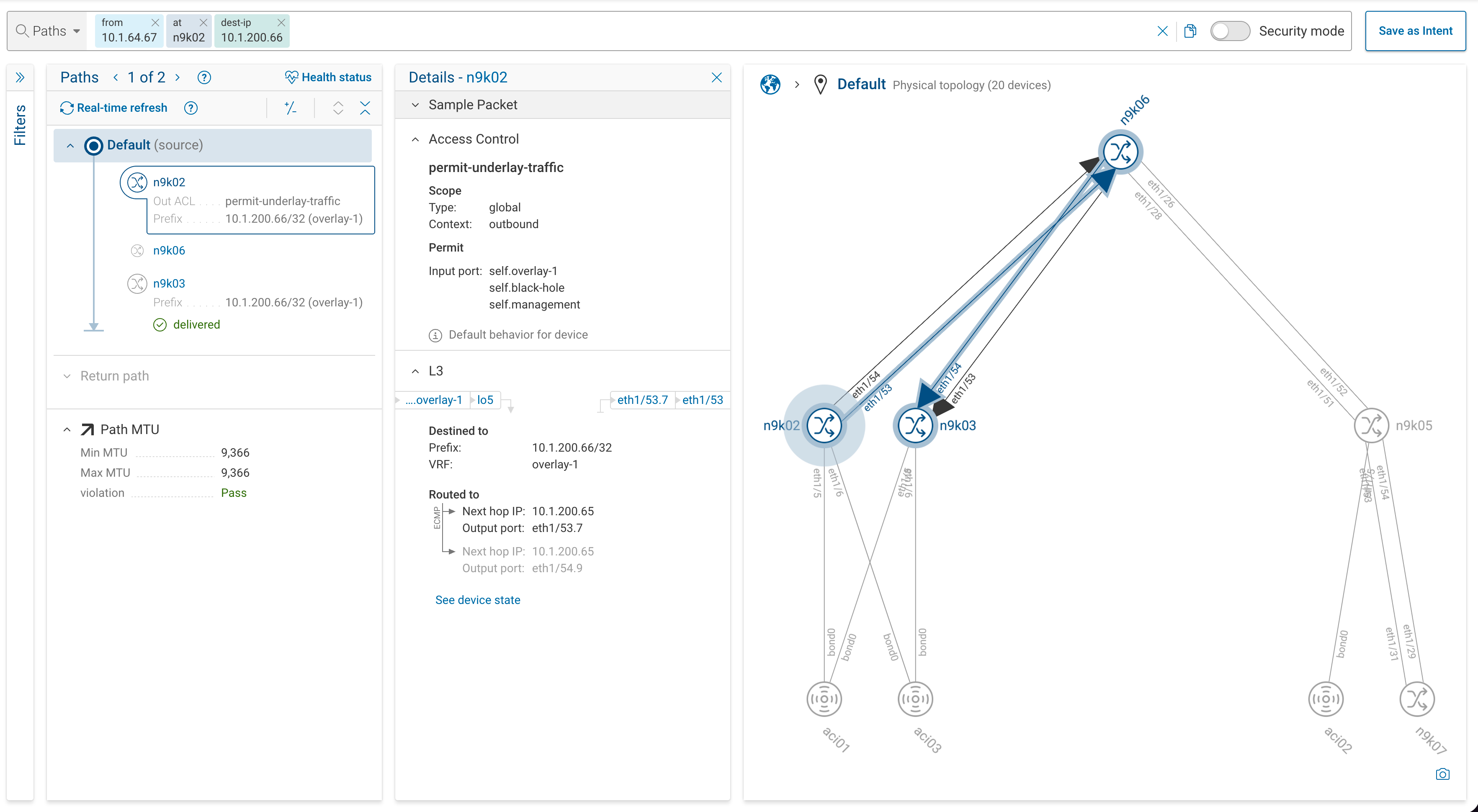
Forward correlates ACI overlay and underlay paths in path analysis. For details, see Overlay and Underlay Paths.
Supported features
See the Feature Matrix for the Cisco ACI features Forward Enterprise supports.