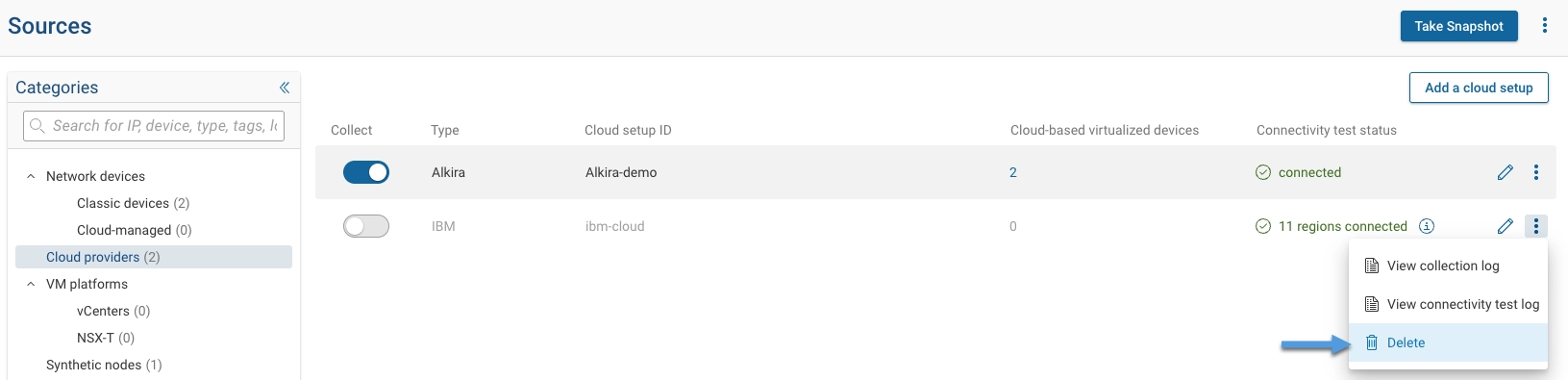
Single Account Collection
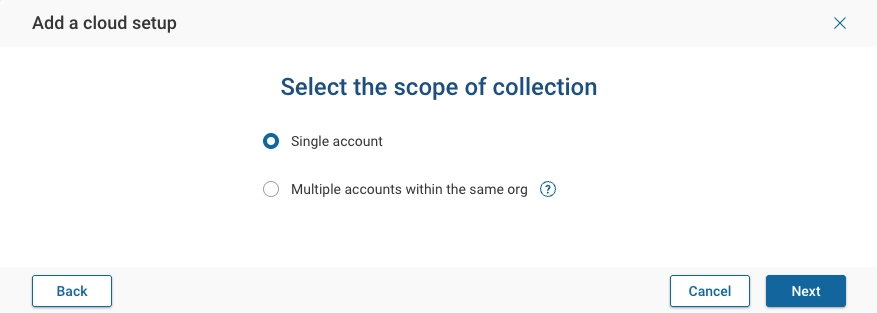
Configure Single Account Collection
Select the Single Account option, then click Next.
Create an IBM Cloud Service ID
In this step, the wizard will guide you through creating an IBM Cloud Service ID.
- Go to URL for Service ID: https://cloud.ibm.com/iam/serviceids
- Create a Service ID either under default group or a group of your choice. To do so:
- Click Create Service ID.
- Specify a name and description.
- Assign access permissions to the Service ID by selecting the following services:
- VPC Infrastructure Service
- Direct Link
- Transit Gateway
- All Account Management Services
Choose all resources with service access and platform access as reader/viewer for all of the services above
except Transit Gateway and Direct Link which require editor access.
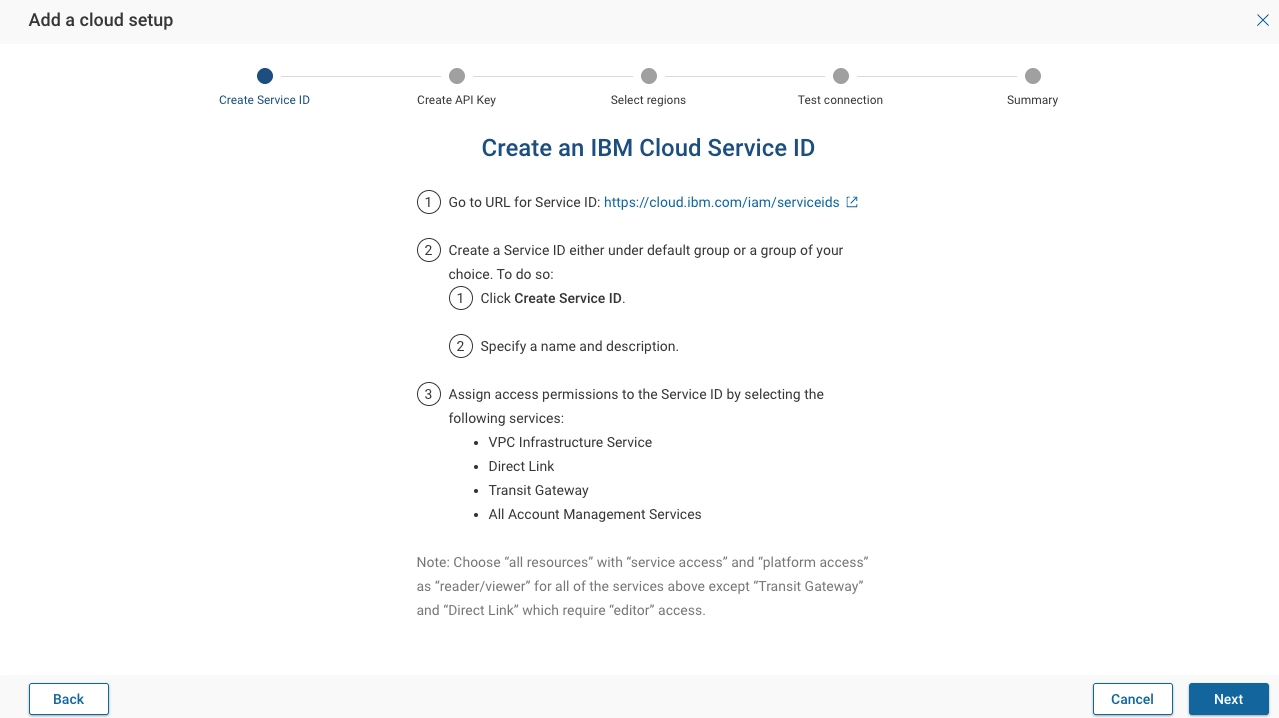
Click Next to continue.
Create API key for Service ID
Follow the instructions below to create an API key for the Service ID created above:
- Switch to the API keys tab under the Service ID you just created.
- Click Create and assign a name and description to it.
- Click Download to download the created key.
- Upload that key file.
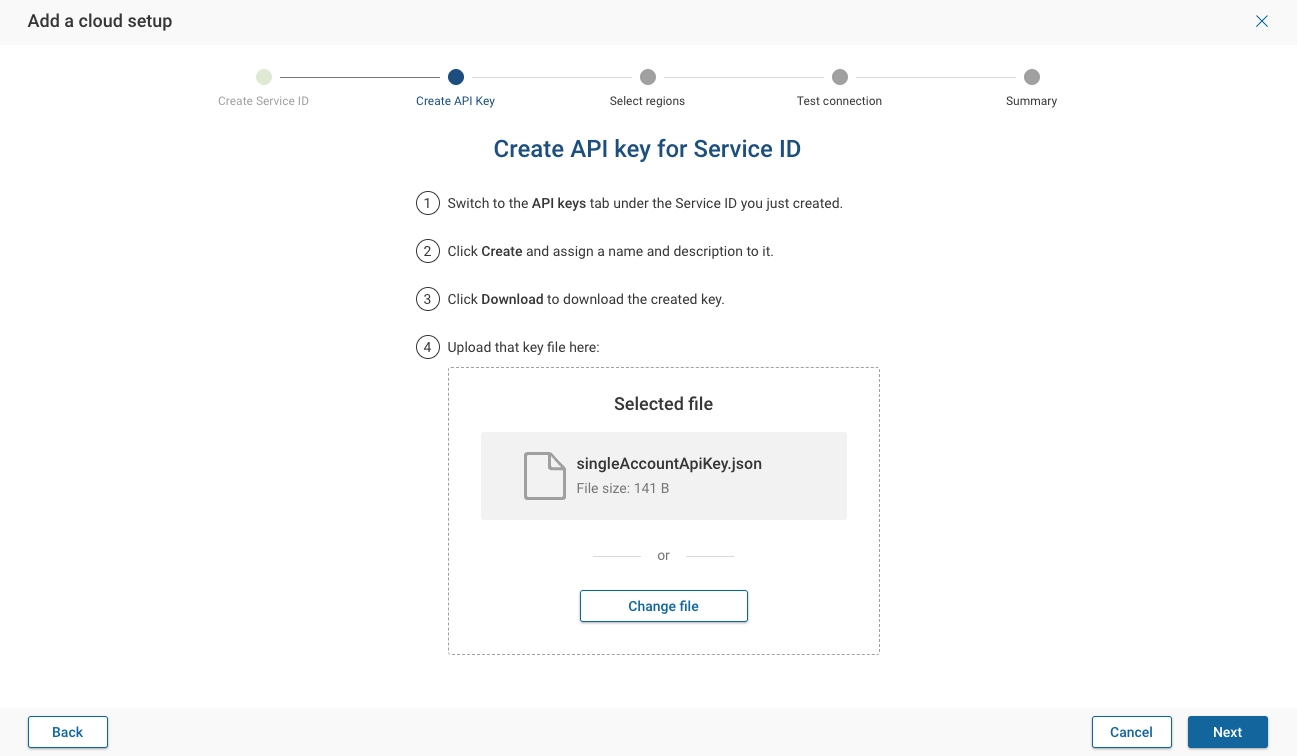
Click Next to continue.
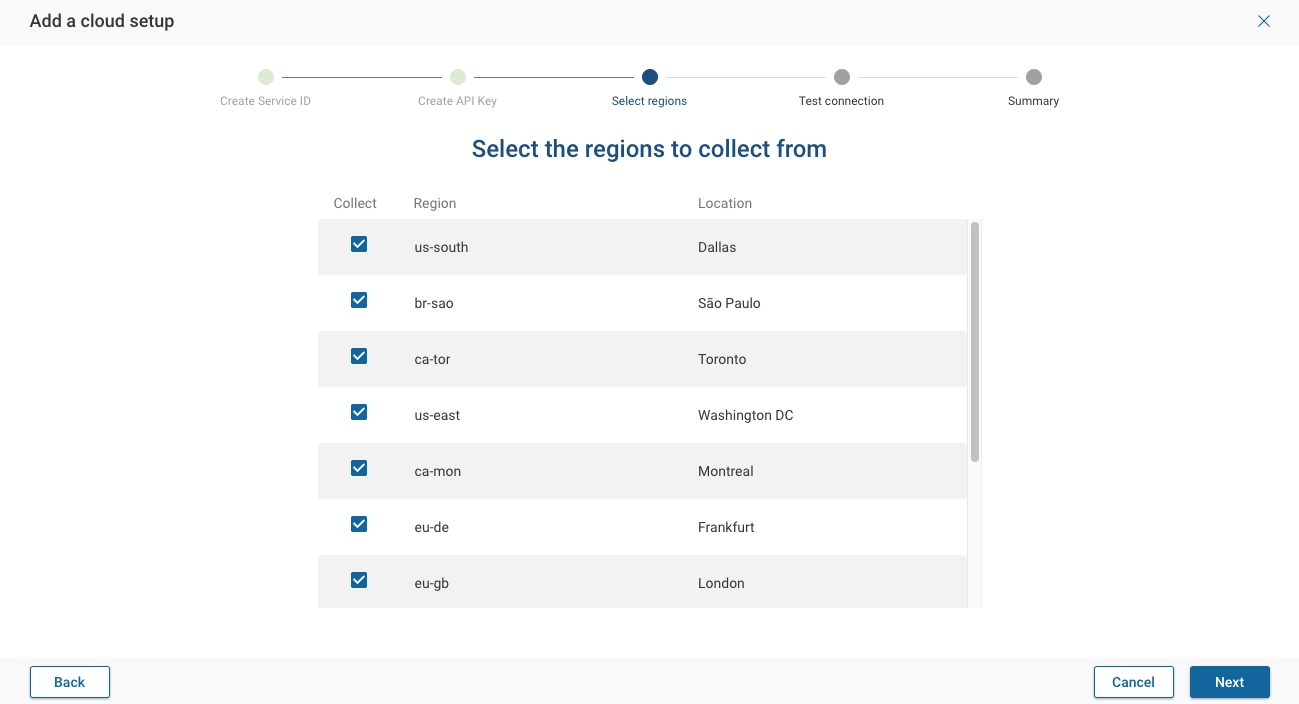
Select Regions
Select one or more region to collect from, then click Next.
Test Connection
Provide a unique Account name, and click on Test connection. Forward Enterprise will test the connection with the IBM cloud regions selected.
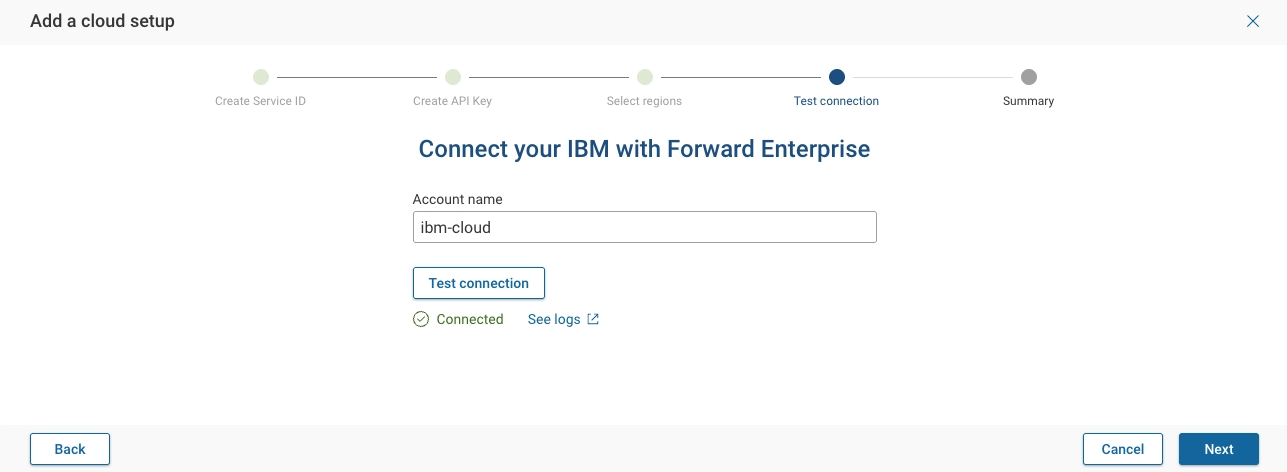
Clicking See logs, opens a new window with all the connection logs. Click Next to continue.
Summary
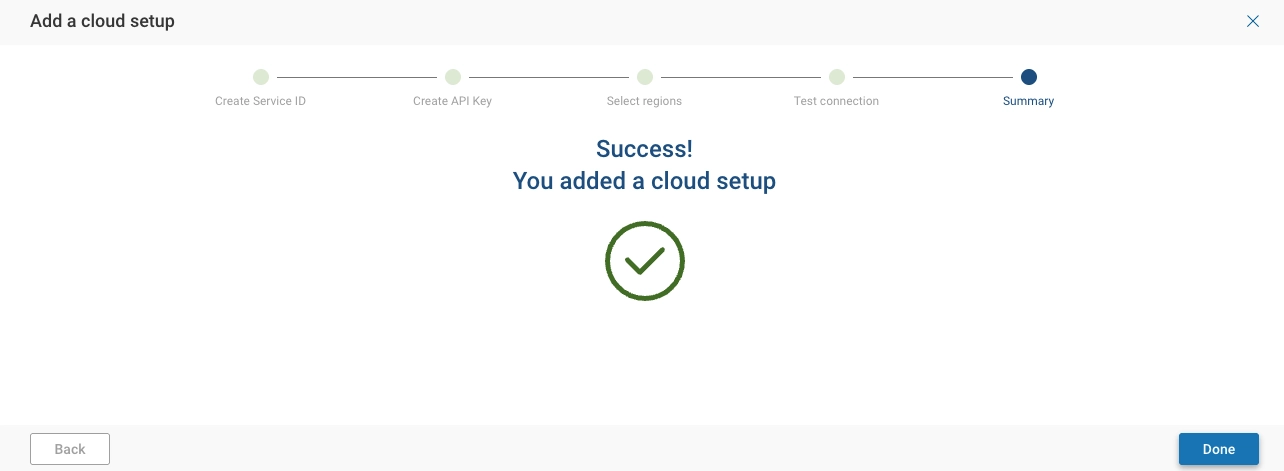
Click Done to complete the setup.
Managing Your IBM Cloud Setup
Setup Edit
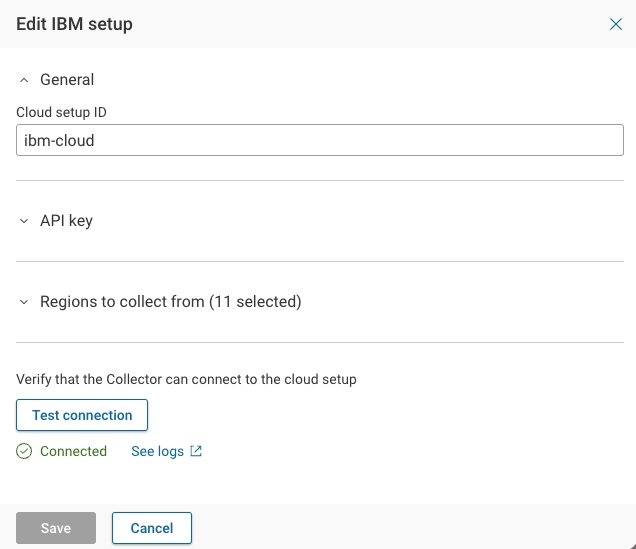
To update an existing IBM Cloud setup:
- Click the Edit icon.
- Expand the Regions to collect from section to update region selections.
- Click Test connection to revalidate the setup.
- Click Save to apply changes.
Exclude Setup from Collection
To exclude an IBM Cloud setup from active collection, toggle the switch on the left side of the setup.

Delete Setup
To permanently delete an IBM Cloud setup:
- Click the kebab (three-dot) icon.
- Select Delete.
- Confirm the deletion.