Zscaler Setup
Forward collects Zscaler Private Access (ZPA) through a single SASE setup that pairs your ZPA tenant with the App Connectors it manages. Forward queries the ZPA management API to discover the tenant's App Connectors, then collects each selected connector over SSH. The result is a model of the ZPA cloud tenant together with its App Connectors. The SASE setups section under Network Sources is where you add a setup, run connectivity tests, and view collection state.
This flow covers Zscaler Private Access (ZPA) — the ZPA cloud tenant and its App Connectors. It does not collect Zscaler Internet Access (ZIA) or Zscaler Digital Experience (ZDX).
Prerequisites
- A Forward Collector that can reach your ZPA management API and SCIM endpoint over HTTPS, and reach each App Connector over SSH.
- The SASE setups section must be available for the network. It appears when the Zscaler ZPA feature is enabled and the collector reports support for it. If you don't see the section, contact your administrator.
- A role that permits managing collection sources to add, edit, or delete setups (a role with view access can see them). For details on roles, see Role-Based Access Control (RBAC).
- From your ZPA tenant, gather the following before you start:
- ZPA management API base URL — for example
https://config.zpatwo.net. - ZPA API client credentials — a client ID and client secret for the ZPA API. You enter these as the username and password of an HTTP login credential in Forward.
- SCIM endpoint URL and bearer token — SCIM is the identity server (or servers) ZPA uses to identify users.
Forward reads it to associate users with the ZPA configuration. Provide the SCIM endpoint URL — for example
https://scim.zpatwo.net— and its API token, which you enter as an HTTP API key credential in Forward. A setup can include more than one SCIM endpoint. - SSH credentials for the App Connectors you intend to collect.
- ZPA management API base URL — for example
You can create the HTTP and SSH credentials ahead of time under Network Sources → Devices → Credentials, or add them inline while filling out the wizard.
Add a Zscaler setup
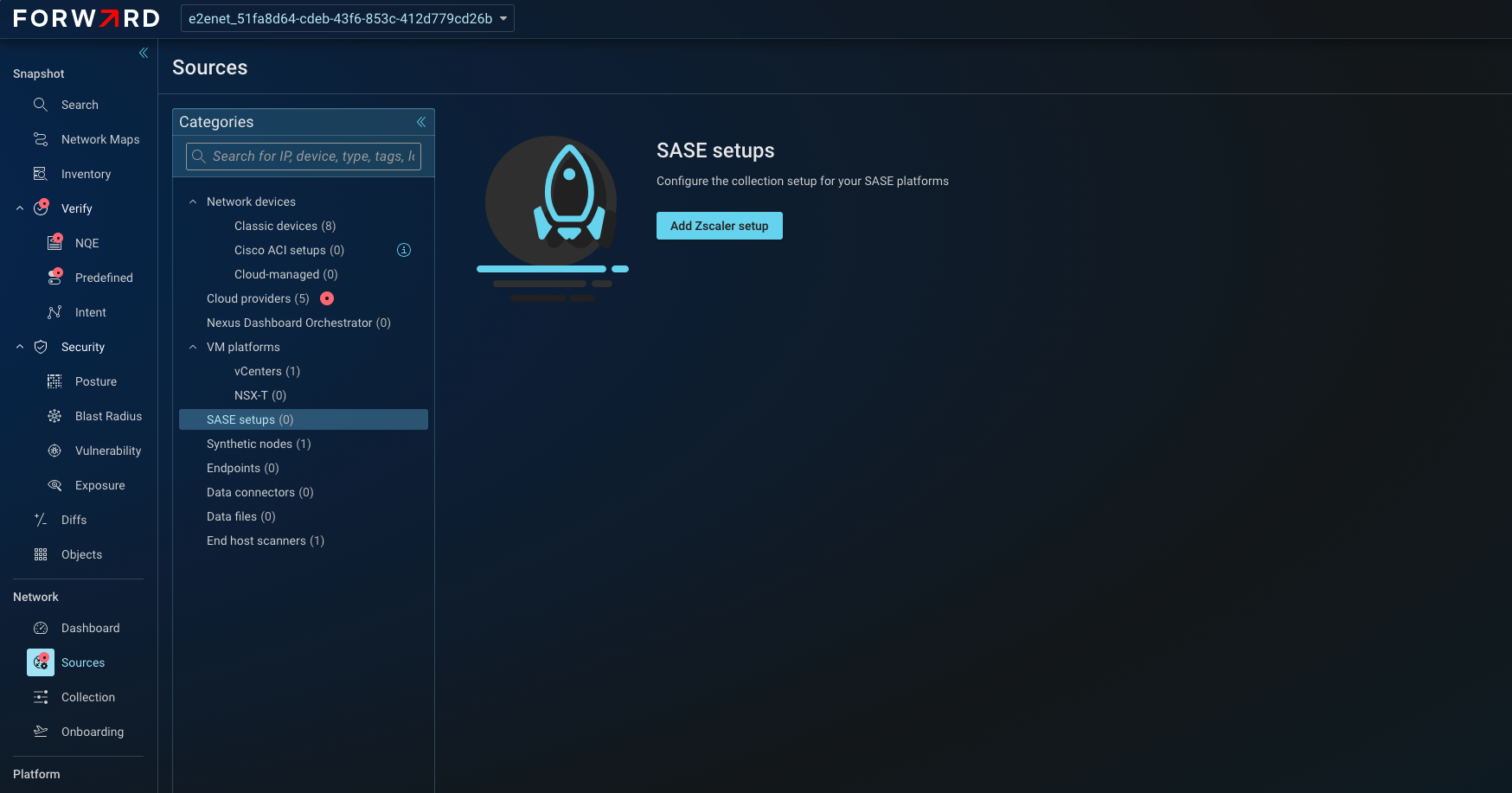
Open Network Sources → SASE setups and click Add Zscaler setup. (When setups already exist, the button on the list is labeled Add SASE setup; both open the same wizard.) The wizard has three steps: Name setup, Add credential, and Select app connectors.
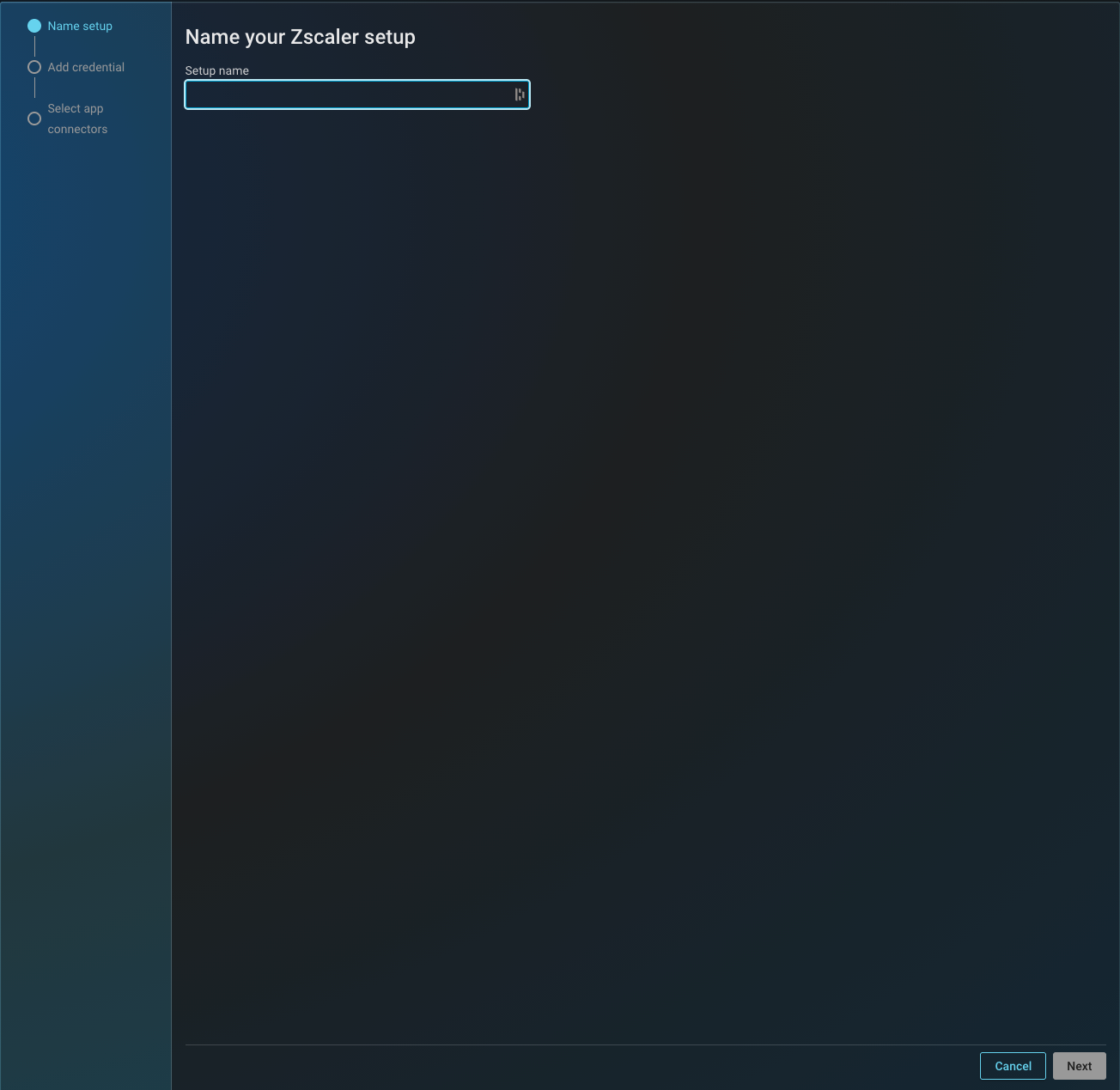
1. Name your Zscaler setup
Enter a Setup name. The name identifies the setup throughout the UI and must be unique among your existing setups. Click Next.
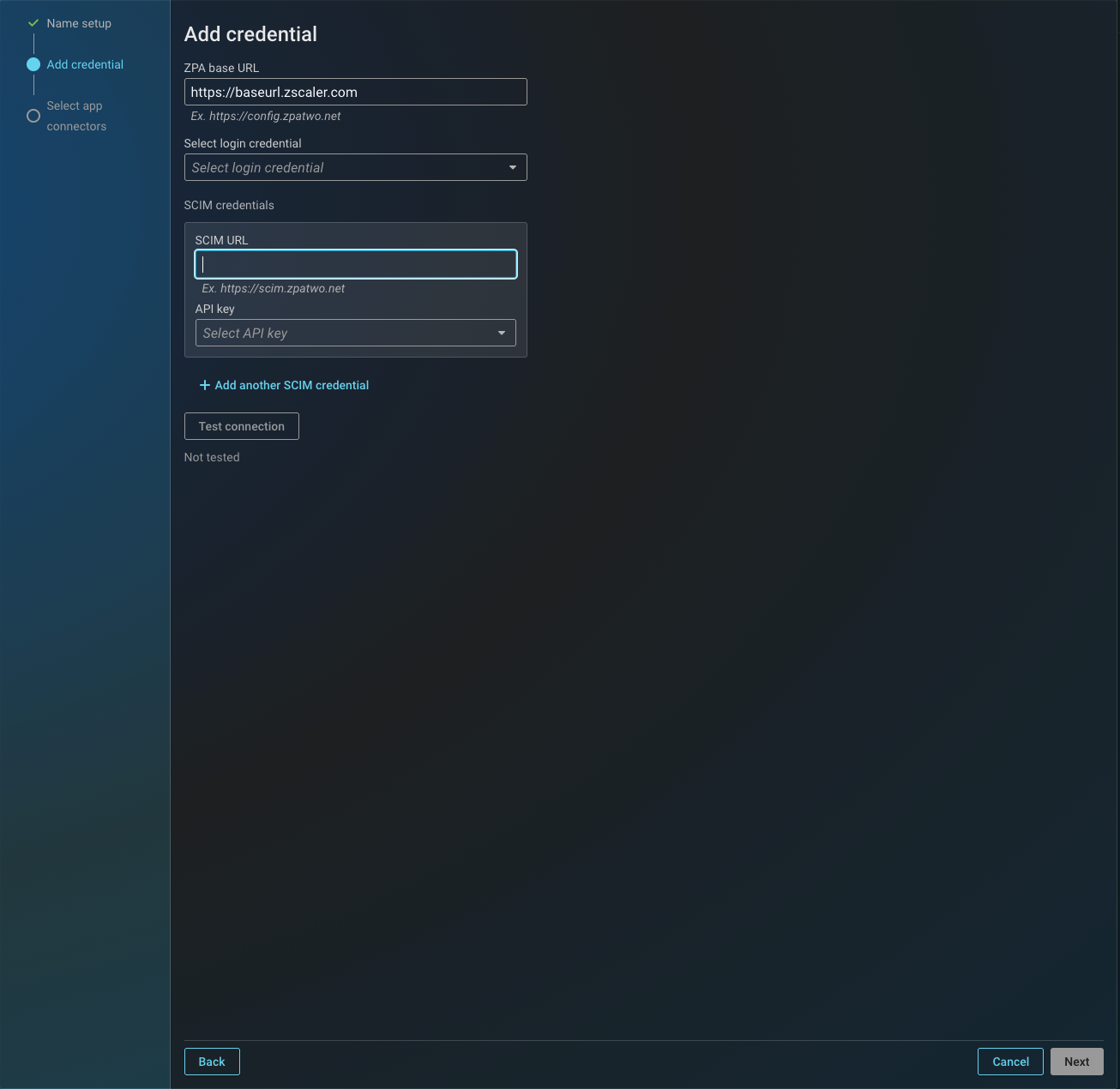
2. Add credential
Provide the credentials Forward uses to reach the ZPA tenant:
| Field | Notes |
|---|---|
| ZPA base URL | The ZPA management API base URL, for example https://config.zpatwo.net. |
| Select login credentials | The HTTP login credential for the ZPA API (client ID as the username, client secret as the password). Use Add new login credential to create one inline. |
| SCIM credentials | One or more SCIM endpoints. Each row pairs a SCIM URL (for example https://scim.zpatwo.net) with an API key credential that holds the SCIM bearer token. |
Use Add another SCIM credential to add more SCIM endpoints, or the remove icon to delete a row. To create an API key credential without leaving the wizard, use Add new API key credential.
Click Test connection. The connection must succeed before the wizard advances. A successful test queries the ZPA API and discovers the tenant's App Connectors, which populate the next step. Changing any credential field clears the test result, so re-run the test after editing.
While the test runs, you can follow its progress: use View all collector jobs while the test is queued, See tail logs while it is running, and See logs once it finishes to review the full output.
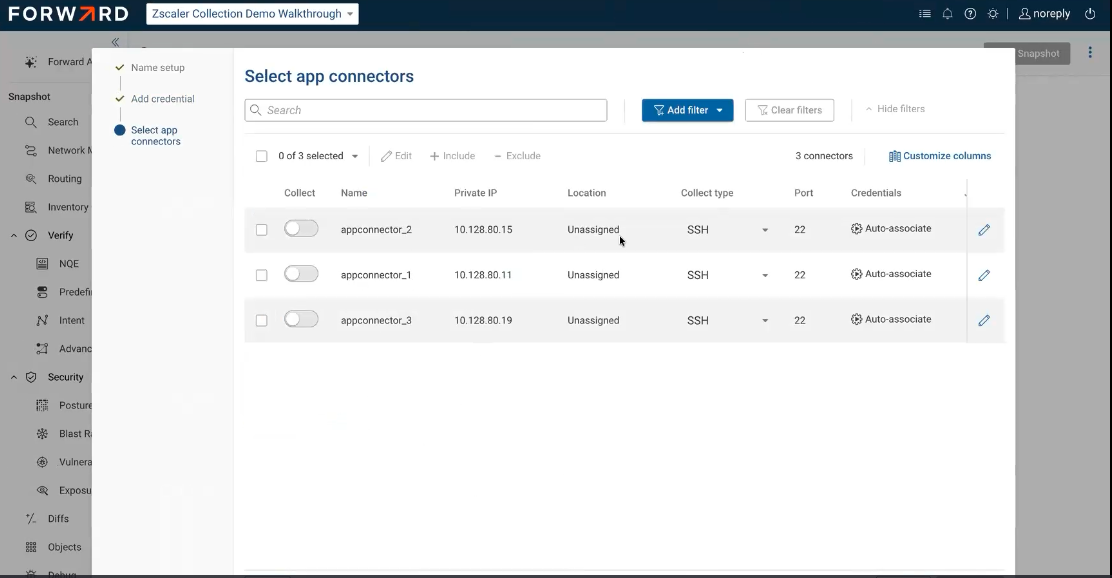
3. Select app connectors
Forward lists the App Connectors discovered during the connection test. For each connector you want to collect, turn on the Collect toggle and review its settings:
| Column | Notes |
|---|---|
| Collect | Whether the connector is included in collection. |
| Name | The connector's name, as reported by ZPA. |
| Private IP | The connector's private host address. |
| Location | Optional location assignment. Defaults to Unassigned. |
| Collect type | SSH to collect over SSH, or Manual to track the connector without active collection. |
| Port | SSH port. Defaults to 22. |
| Credentials | The CLI login credential used for SSH. Defaults to Auto-associate. |
| Jump server | Optional intermediate host for the SSH connection. |
Select at least one connector to continue. Use the bulk Edit, Include, and Exclude actions, or the per-row Edit connector action, to set credentials, port, location, or jump server for multiple connectors at once.
Click Add setup to save. Forward starts a connectivity test for each connector marked for SSH collection.
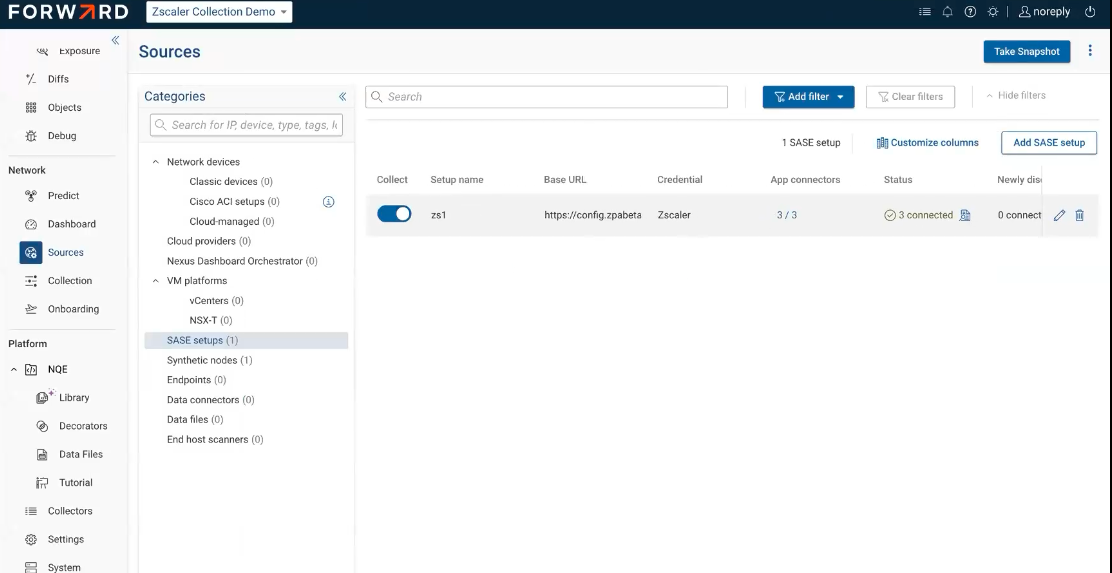
SASE setups section
The SASE setups section lists each setup with these columns:
- Collect — toggle the whole setup in or out of collection.
- Setup name and Base URL.
- Credential — the login credential used for the ZPA API.
- App connectors — the number of connectors collected out of the total. Click the count to open the App Connectors drawer.
- Status — a summary of connector connectivity (connected, failed, untested, testing).
- Newly discovered — connectors found by ZPA that aren't yet configured in the setup.
Each row offers Edit setup and Delete setup actions.
Manage app connectors
Click the App connectors count on a setup row to open the App Connectors drawer. From there you can Test connectivity on an individual connector, Refresh to re-query ZPA, and review each connector's connectivity status. Test connectivity does not apply to connectors set to the Manual collect type.
Edit a setup
Click Edit setup to change the setup. The drawer has a General section for the Setup name and a Credential section with the same ZPA base URL, login credential, and SCIM fields as the wizard. Only changed fields are saved.
As in the wizard, the connection must test successfully before you can save. If the connectivity test fails, the edit can't be saved until the credentials are corrected and the test passes.
Delete a setup
Click Delete setup, then confirm in the deletion dialog. This action can't be undone.
Supported features
See the Feature Matrix for the Zscaler features Forward Enterprise supports.