Locations
The location workflow supports creating a new location and assigning devices either statically (by explicitly selecting devices) or dynamically using a glob pattern applied to device names.
Create a Location
To create your first location, navigate to Sources, and select Manage Locations from the more options menu on
the upper right. 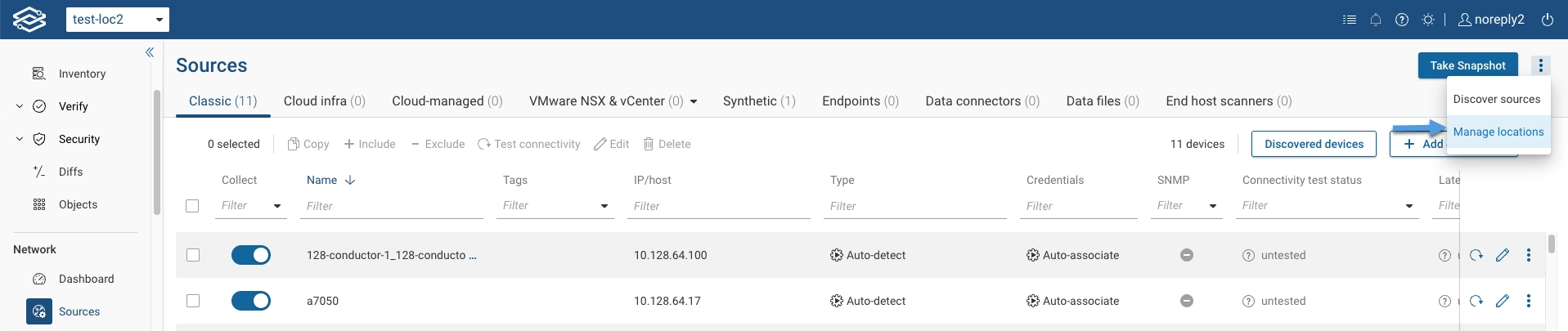
Click Add location. 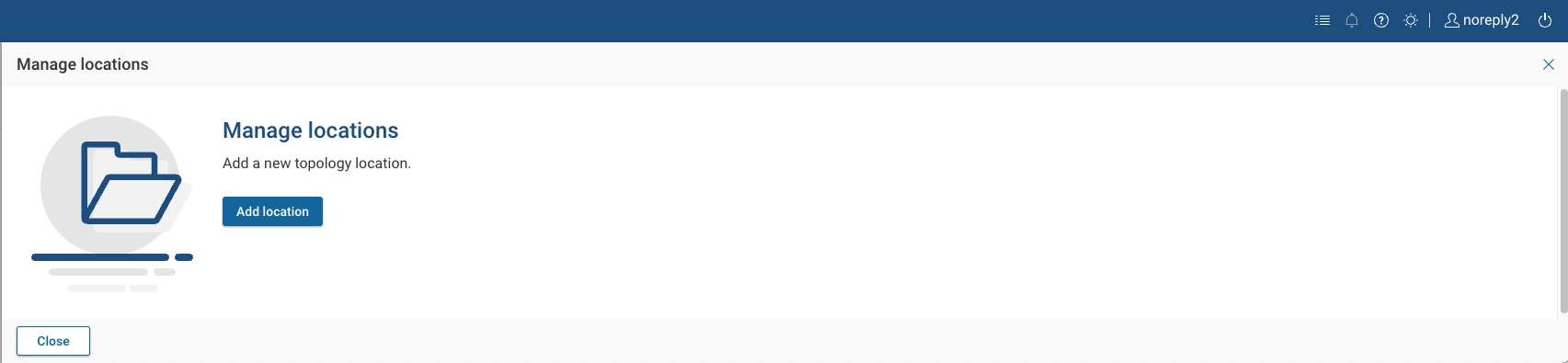
Provide the location details, then select Next.
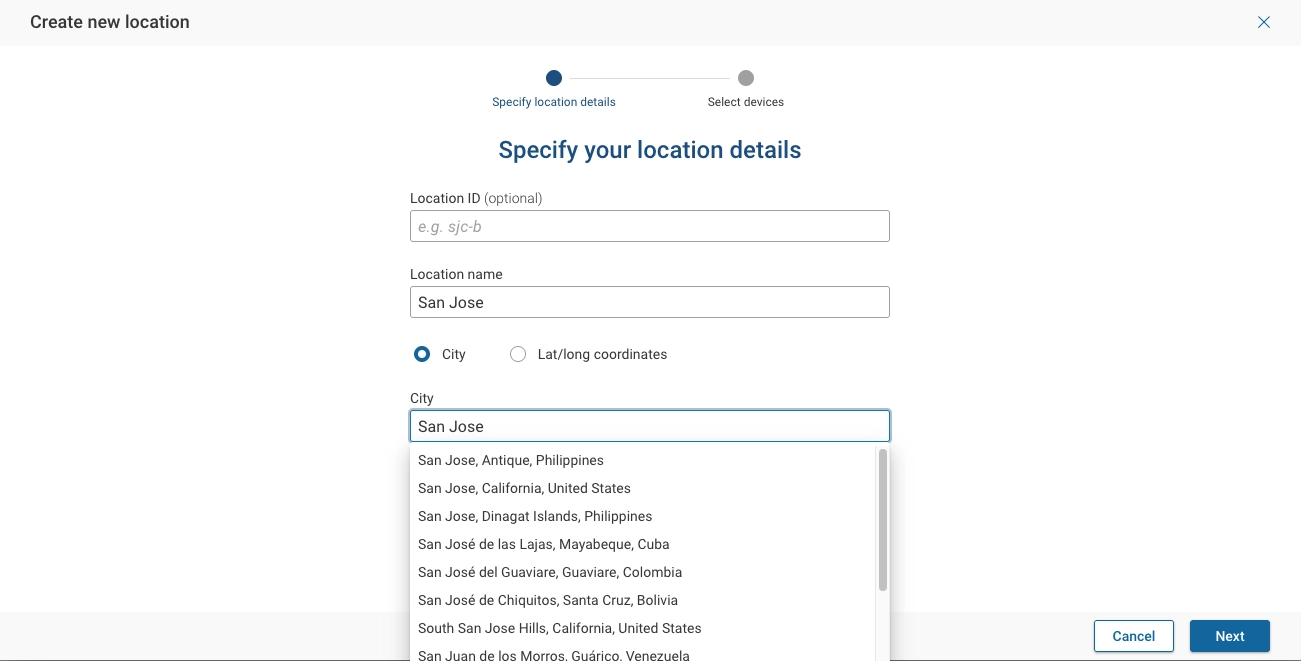
- Location ID (optional) - An identifier for the location. If not provided, the application will automatically generate one.
- Location name - A unique name for the location.
- Location - Defined by either a City name or Latitude/Longitude coordinates.
You can now assign devices to the location statically and dynamically.
Static Assignments
Select Static, then choose the devices to assign, either individually or in bulk, using Device, Tags, or Current location filters to help identify the appropriate devices. After selecting them, click Add devices.
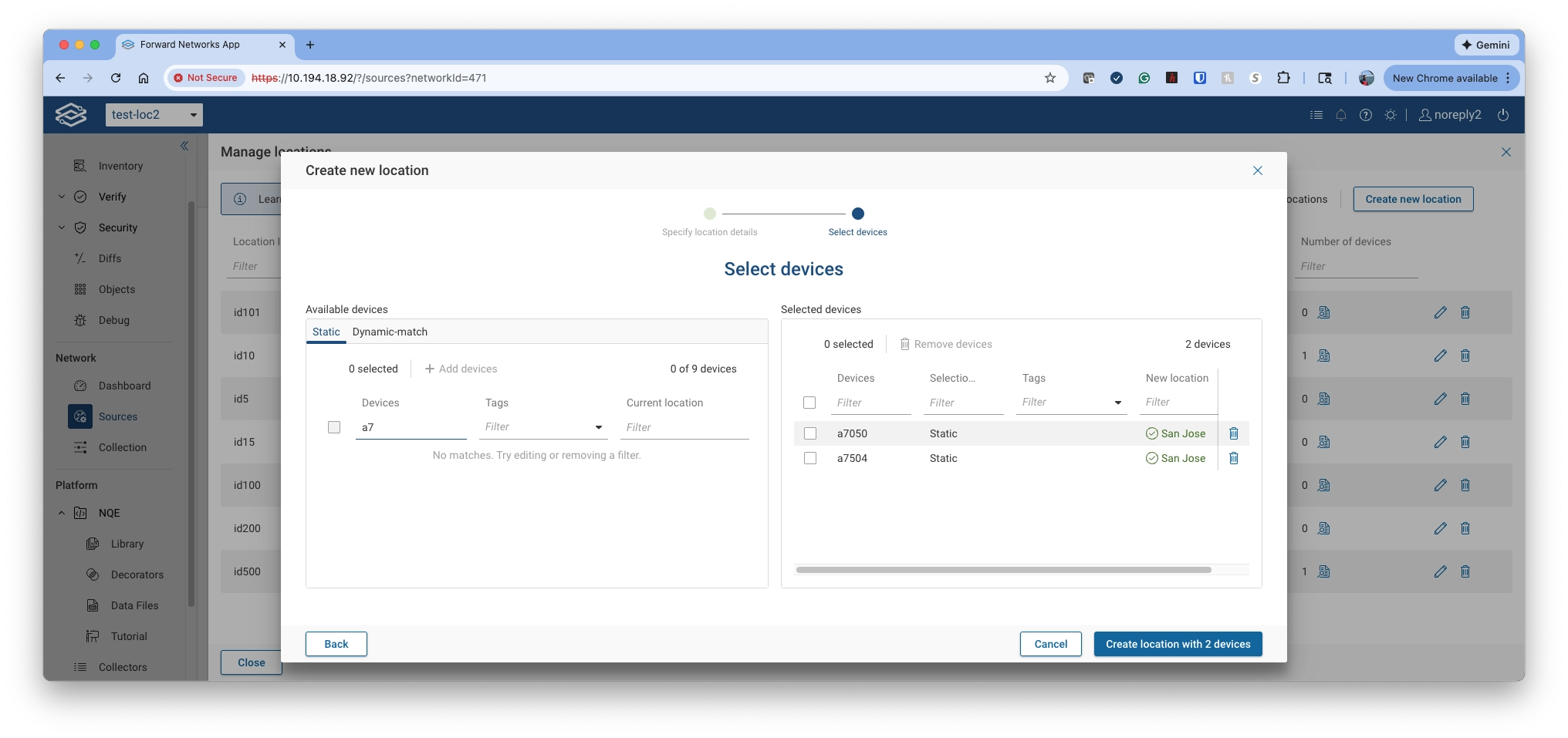
You can remove statically assigned devices using the delete icon in the Selected devices pane.
Dynamic assignments
Select Dynamic-match, enter one or more glob-style patterns in Device name patterns, and review the devices automatically matched in the Selected devices pane. Dynamically matched devices cannot be removed individually. To exclude devices, you must update or remove the pattern itself.
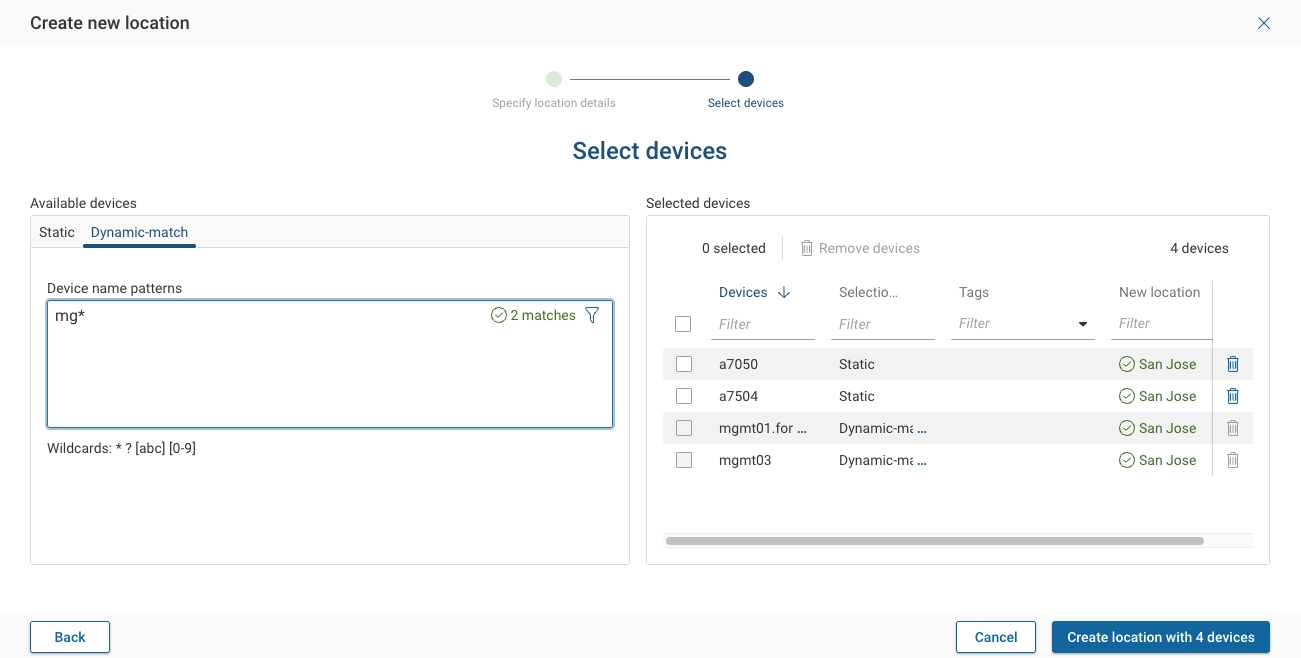
When finished with static assigment and dynamic selections, click Create location with x devices.
From the Manage locations page, you can view all the location details, including the Location ID, Glob patterns, Number of devices, and the options to Edit or Delete the location.

- Mix static and dynamic assignments in the same location:
- Static assignments always take precedence if a device would otherwise match a glob pattern for multiple locations.
- When a device name matches glob patterns from multiple locations, it is assigned to the location with the lowest Location ID (ascending alphanumeric order: 1 < 2 < ... < aaa < bbb < ...).
- When a dynamic pattern is removed or changed, the system prompts the user to decide what to do with affected
devices:
- Move to another (or default) location, or
- Keep in current location, which converts those devices from dynamic to static assignments.
- For locations that use dynamic matching, the Location ID cannot be edited after creation to preserve the integrity of the pattern–device mapping.
- When changing a location name in the UI, if the new name matches a dynamic-match pattern, a pop-up will appear asking whether you want to move the devices to the matching location or keep it in their current location.
- When saving a location after changing its name in the UI, if the new name matches a dynamic-match (glob) pattern and the change would cause some devices to move, a pop-up appears asking whether to move the devices to the matching location or keep them in their current location.
- Snapshot export/import:
- Snapshot export - only the atlas with static assignments and locations that use glob patterns is exported.
- Snapshot import - dynamic location assignments are re-computed.
- When creating a Workspace, locations defined with glob patterns are copied. Static device assignments are copied. Dynamic assignments are not copied, but are recomputed.
Edit or Delete a Location
To Edit or Delete a location, click on the icons on the right side of the location.
