Export Topology as Image
Overview
Forward Enterprise can export the currently rendered topology view as a high-resolution PNG image. Use this when you need to include an up-to-date topology diagram in network documentation, change-review packets, incident reports, or any artifact produced outside of the platform.
The image reproduced using export functionality includes all visible elements currently in the view, including devices, links, locations, and other adjustment you have made to the view. This is not a screenshot: the export renders the topology at the full resolution of the underlying diagram, not the resolution of your visible browser window portion.
How to Export
The export control appears at the bottom of every topology view.
- Open the topology view you want to export (Physical, L2, L3, BGP, OSPF, PTP, cloud, etc.).
- Adjust the topology view based on the content you want to capture. Apply filters, toggle link types, unbundle elements, add annotations, and select neighbor locations as needed.
- Click the Export to image button in the toolbar at the bottom of the topology view.
- The browser automatically adjusts zoom so that all device labels and node icons remain legible, renders the topology to an image, and downloads a PNG file to your local machine.
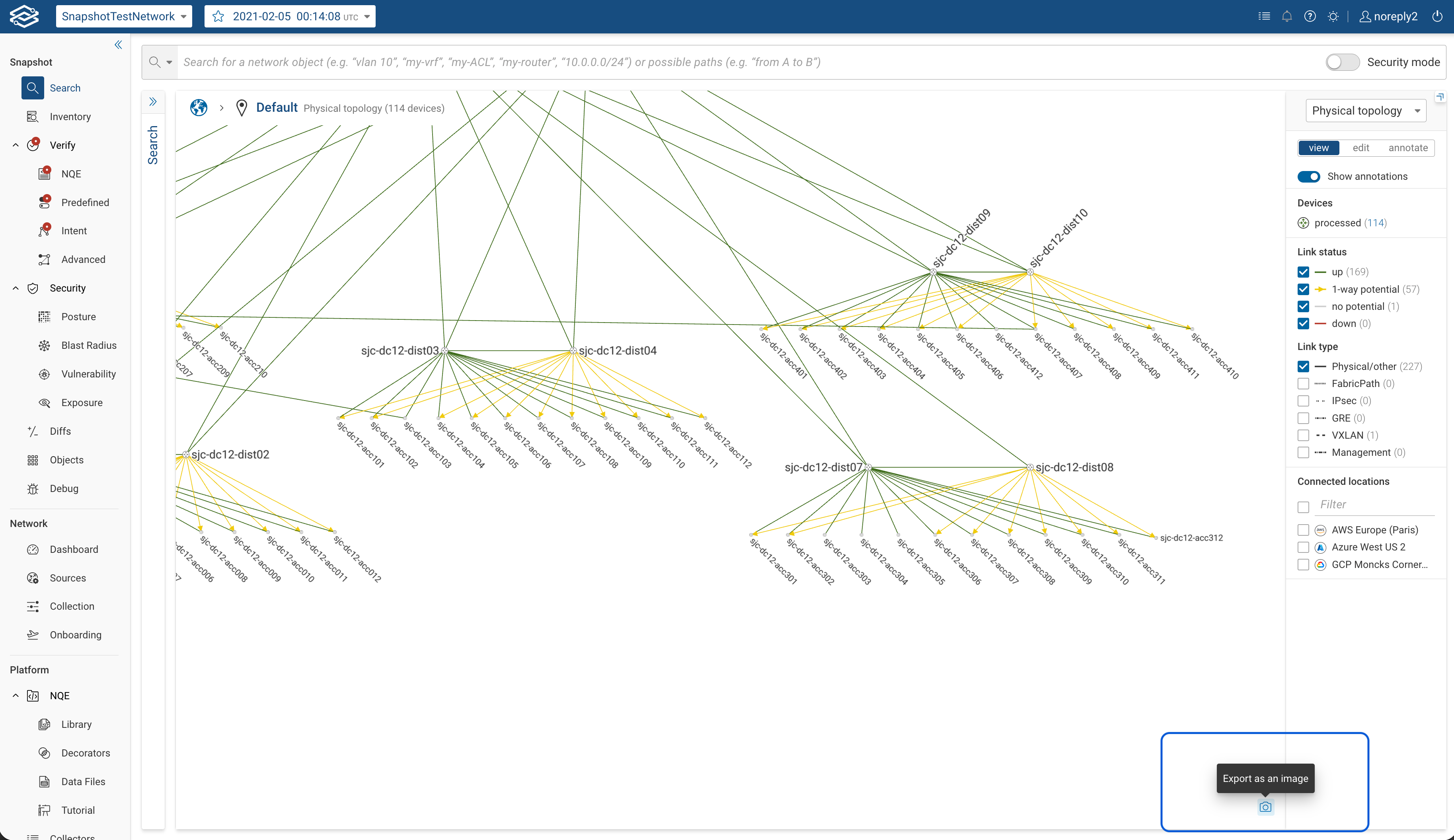
What the Image Contains
The export captures every visual element visible in the topology when you click the button. This includes:
- Device nodes and labels, sized so that labels remain readable.
- Links, including their current state (e.g., up/down, blocked, one-way), color coding, and any link filters you have applied (VXLAN, management, parallel-link bundling, etc.).
- Device tags that are displayed on nodes.
- Annotations include texts, shapes, and lines added using the Annotate tool.
- Unbundled elements such as access points or virtual contexts that you have expanded in the view.
- Neighbor locations and external links shown on the diagram.
- Topology-layer-specific overlays such as OSPF area halos, BGP AS grouping, or L2 STP states, depending on the active layer.
Anything that is hidden in the current view (for example, a link type that has been toggled off) is not included in the image.
Supported Topology Views
The export control is available from every topology view in the platform, including:
- Physical topology at the location level.
- L2, L3, BGP, and OSPF topology layers.
- PTP topology.
- Cloud topology for cloud locations.
For details on switching between layers, see Topology Layers.
Where the File is Saved
The export runs entirely in the browser on the client side. The resulting PNG is saved to the download location configured in your browser, on the machine where the browser is running.
If you access Forward Enterprise through a remote environment such as VDI, Virtual Desktop, RDP, or VNC, the image downloads to the remote machine running the browser, not to your local workstation. Transfer the file from the remote environment if you need it locally.
Browser Support
The export feature relies only on capabilities already used to render the topology in the browser. It works in every browser supported for viewing the topology; see Browser Requirements.
There is no server-side API for this export; it is a client-side operation invoked from the topology view.