Link Management
By default, the Forward Collector uses CDP or LLDP neighbor information to discover network connections and build the network topology. When CDP or LLDP is absent or misconfigured, the Forward Collector uses heuristics to infer links by examining MAC address and other information.
There are cases where the heuristics may not be able to accurately infer every link in the network, so the layout tools provide the ability to manually define links as well as to infer links based on interface description.
Links can be manually imported and exported as well.
Manage Links
The Manage Links view consolidates all links into a single table. From this table, you can:
- View collected, inferred, and user-added links.
- Add or remove links.
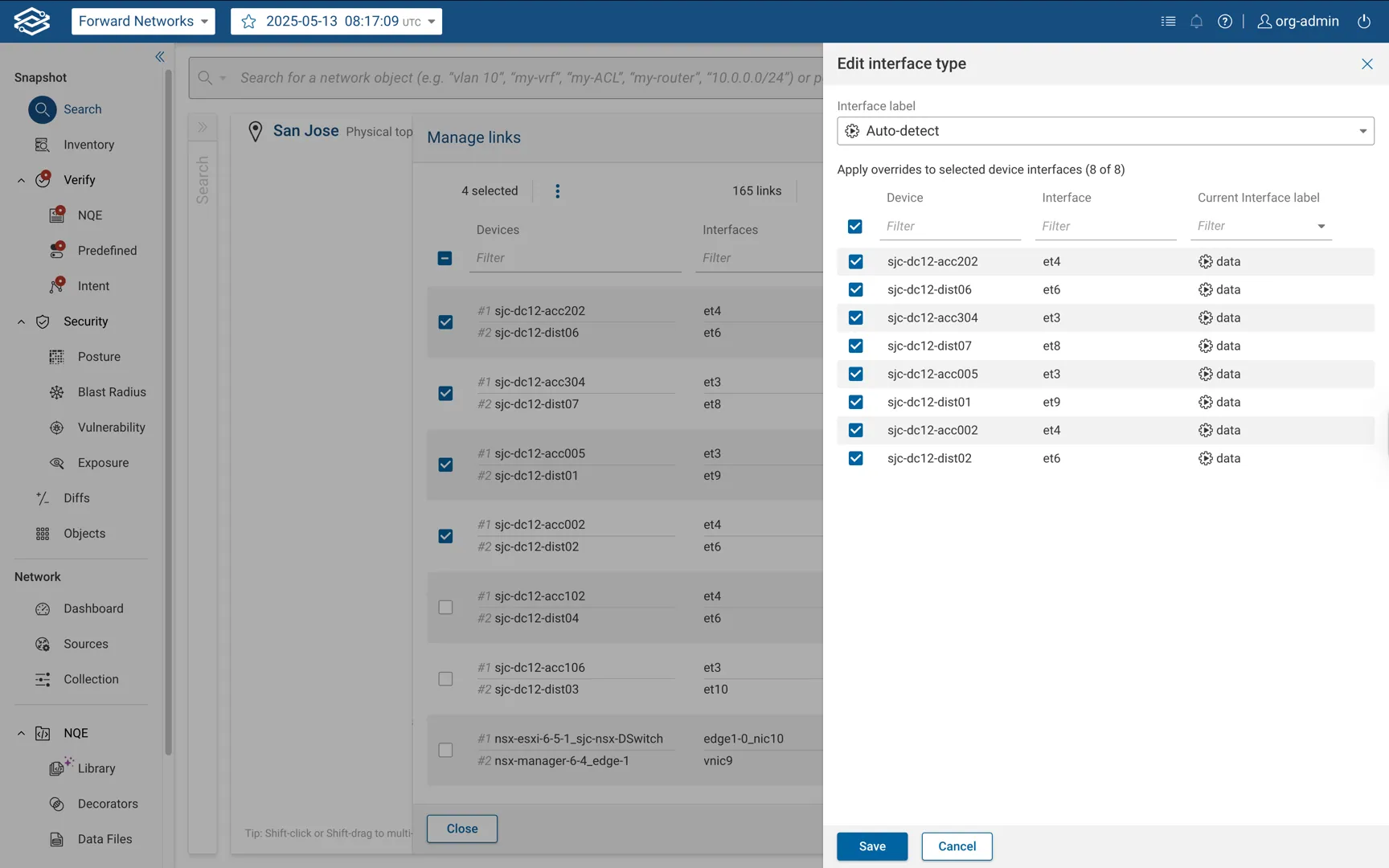
- Edit interface types.
To access Manage Links:
- With a location selected in Search, select Physical Topology from the dropdown.
- Click Edit on the Topology Toolbar.
- Select Manage Links.
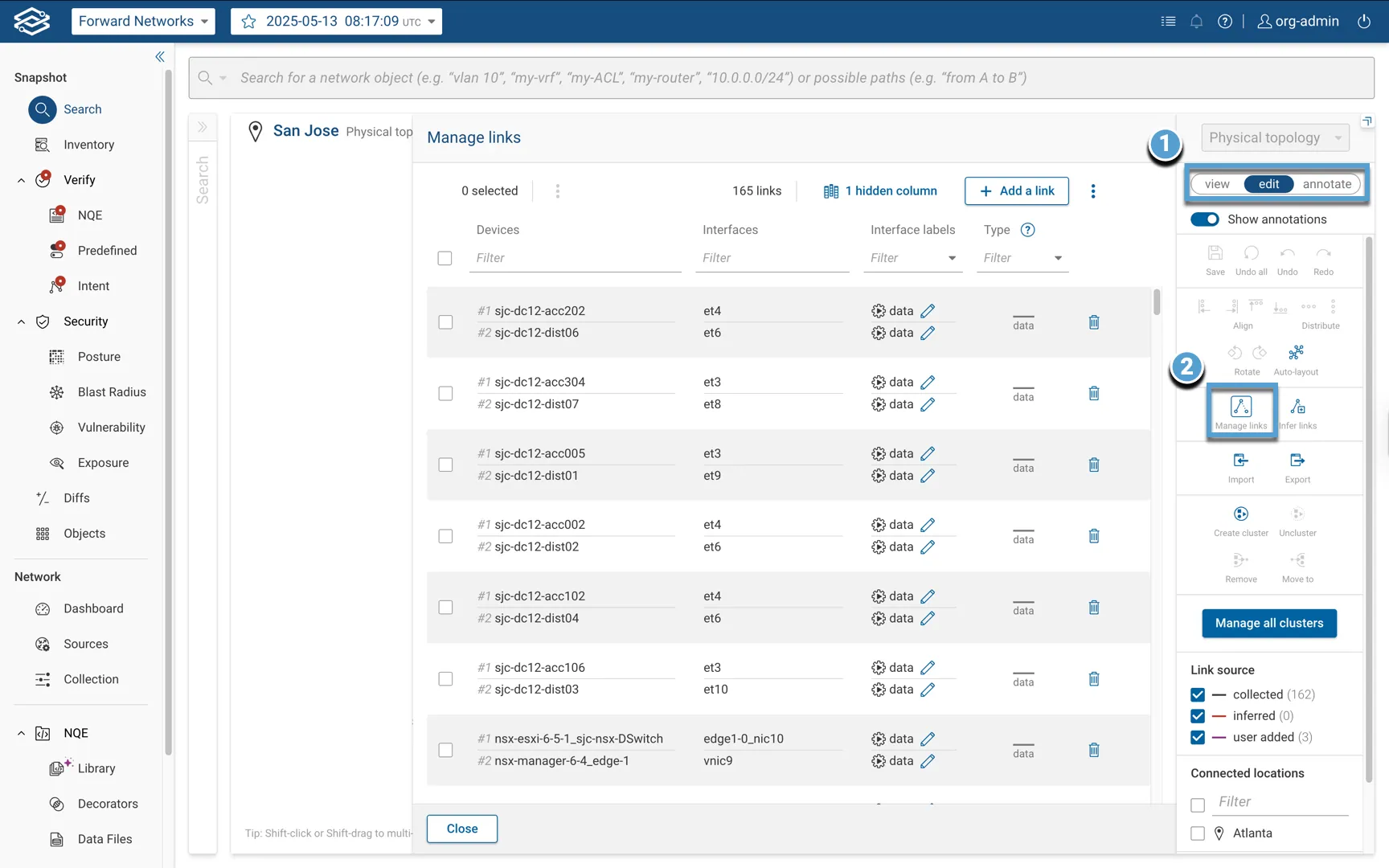
Adding Links
To add a link:
- Enter Edit mode and select Manage Links.
- Select Add a Link at the top of the table.
- Select the source and destination device interfaces.
- Select the device interface label: Auto-detect (default), Management, Data.
- Click Add Link to confirm.
- Repeat for additional links, then click Save to stage all topology edits.
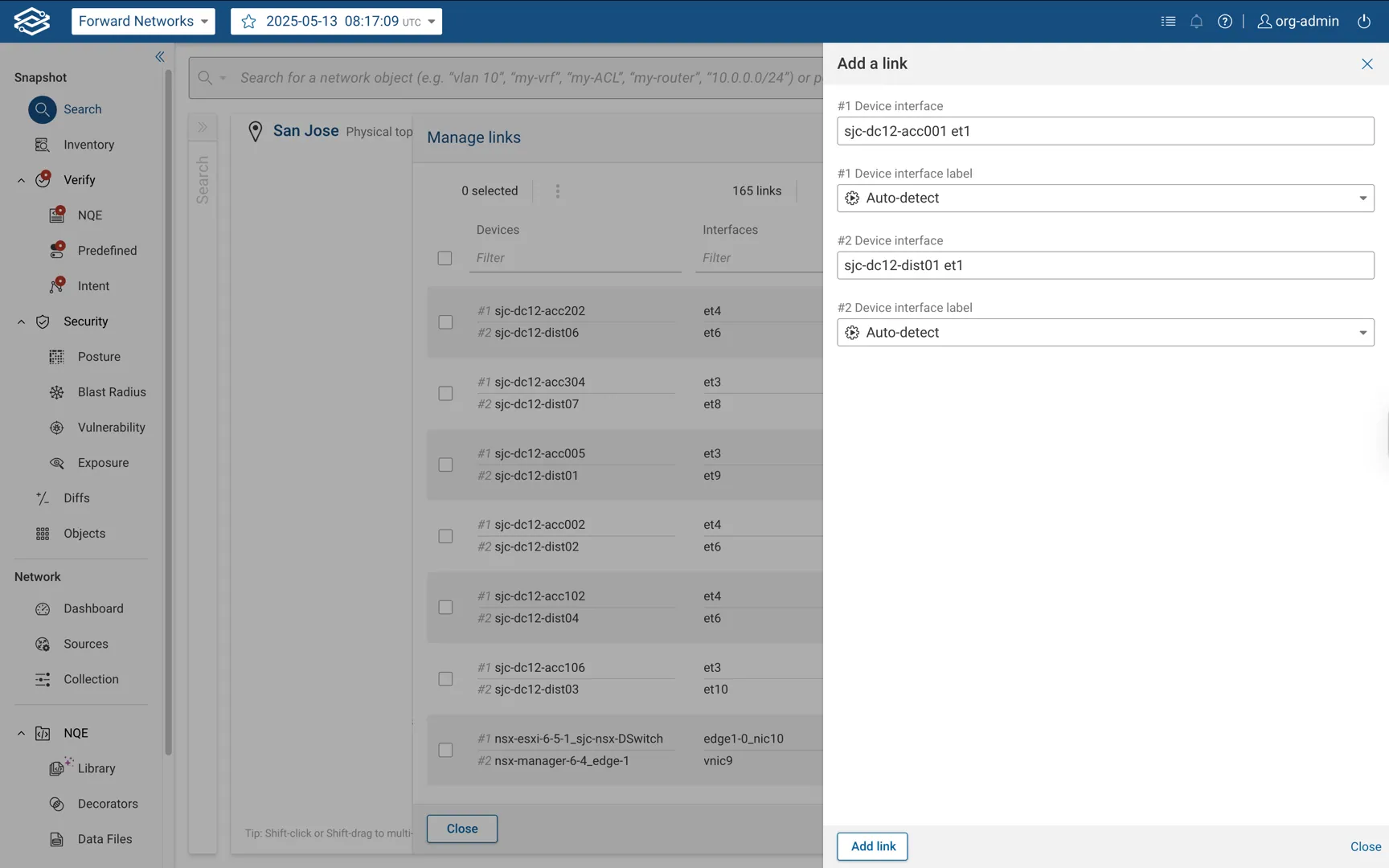
When you save, Forward stages your changes instead of reprocessing the snapshot immediately. See Staging link overrides.
For manually adding Port Channels/LAGs, it's best practice to add the underlying interfaces to the topology, and the Forward Collector will discover the Port Channel / LAG configuration on top. If that's not feasible, it's also possible to add just the Port Channel / LAG, however the underlying link information will not be known.
Removing Links
To remove a link:
- Enter Edit mode and select Manage Links.
- Select the delete icon at the end of the link's row.
- Repeat for additional links, then click Save to stage all topology edits.
When a link is deleted, a Restore icon appears in its place. Click this to restore the link.
Management Interface Override
Within the Manage Links table, you can override the type assigned to an interface.
To edit an interface label:
- Click the Edit icon in the Interface Labels column of a link’s row.
- Choose one of the following:
- Auto-detect: Uses the platform’s default classification.
- Data: Classifies the interface as a data interface.
- Management: Classifies the interface as a management interface.
- Click Save to apply changes.
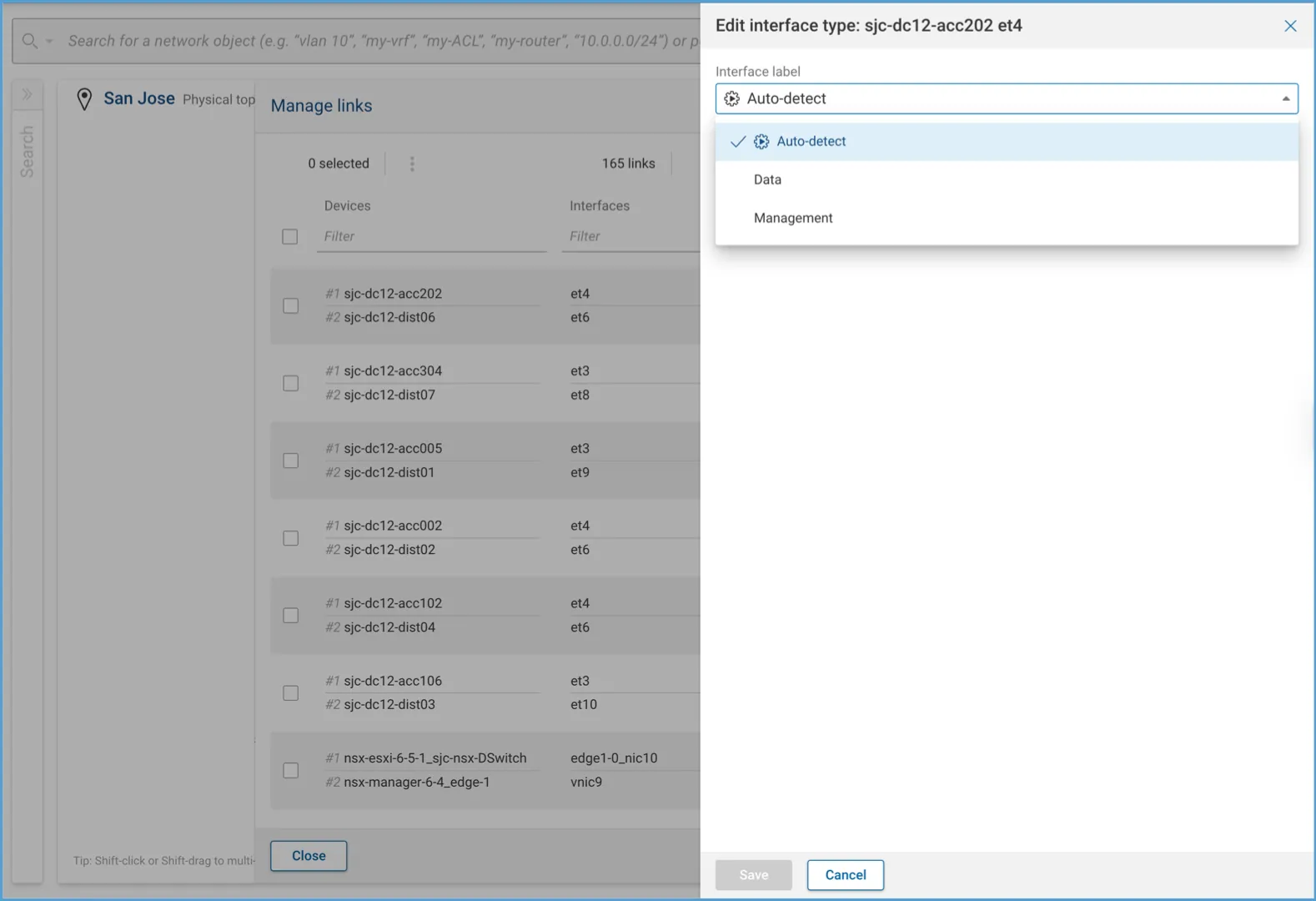
Overriding interface types ensures management links are accurately represented in the topology and can be filtered correctly when toggling link types.
Bulk Actions
In the Manage Links table, you can perform actions on multiple links at once.
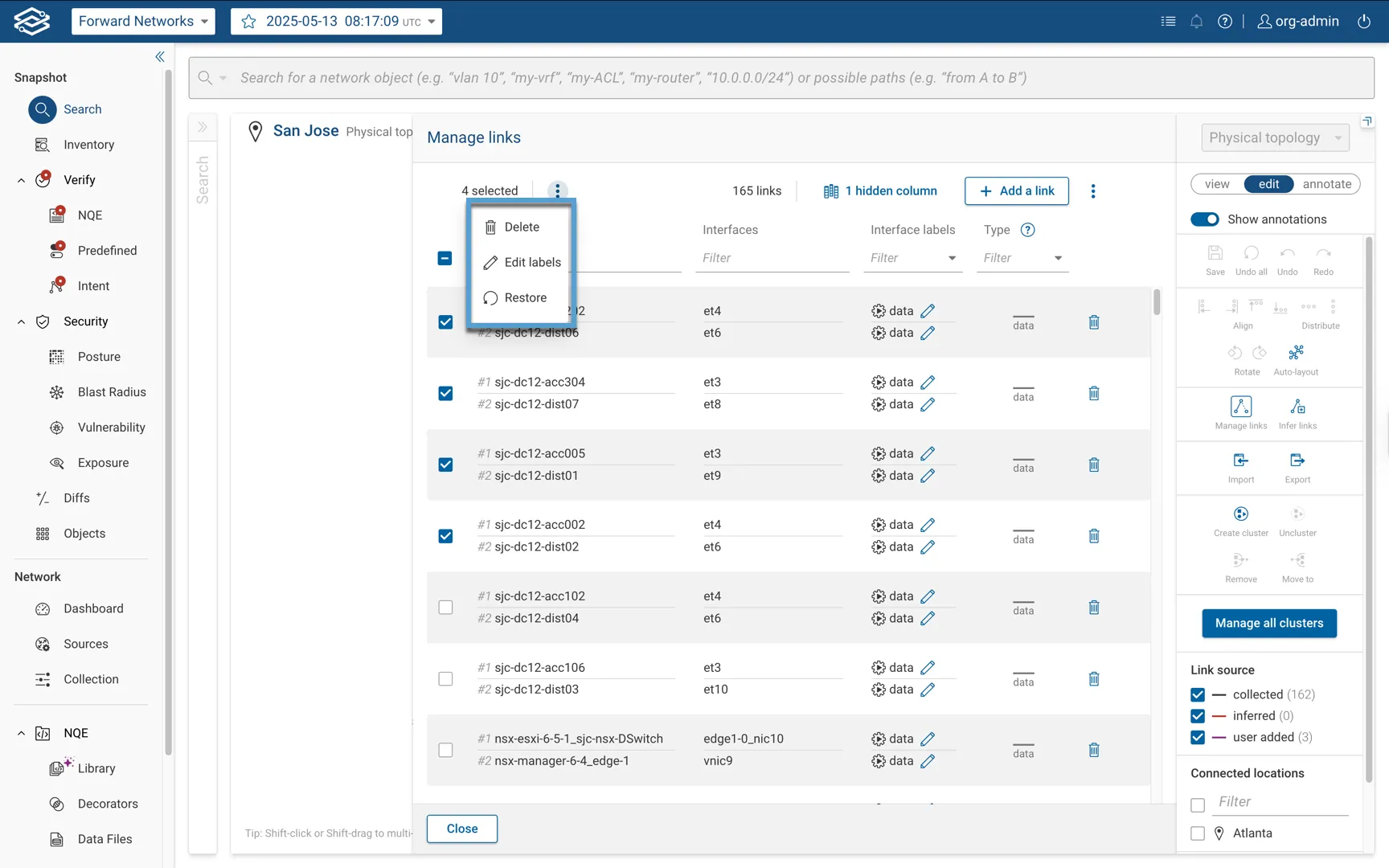
Available actions include:
- Delete: Remove multiple links.
- Interface Override Edit: Apply interface type overrides (Auto-detect, Data, or Management) to multiple interfaces at the same time.
- Restore: Restore multiple previously deleted links.
Infer links based on interface description
This option is very useful in case of silent devices, typically occurring in device HA configurations.
The default result of having silent devices is that those devices appear on topology view as isolated devices with no
links.
These kind of links can be inferred by leveraging a user-configurable interface description notation based on a Regex parsing logic.
Patterns used to identify and infer these link can be added by clicking on the Infer links icon in the topology edit mode,
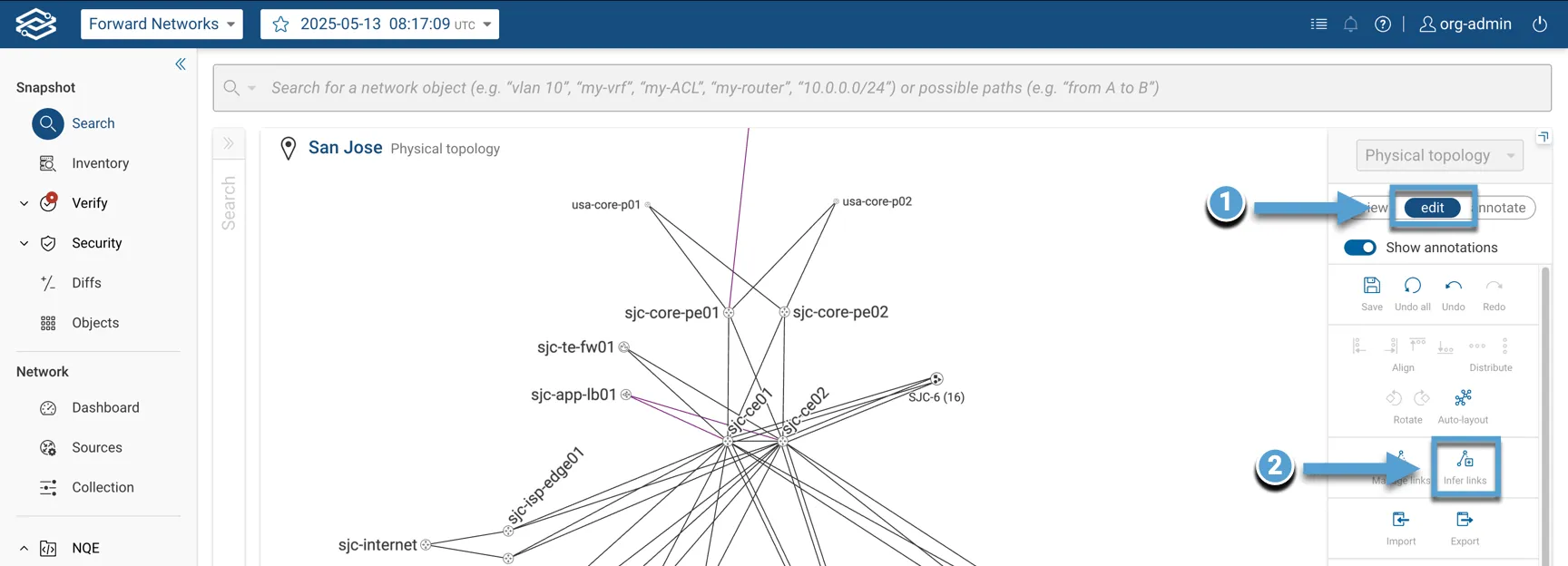
providing the pattern in the Interface description pattern dialog, optionally adding more patterns, and finally clicking on Save.
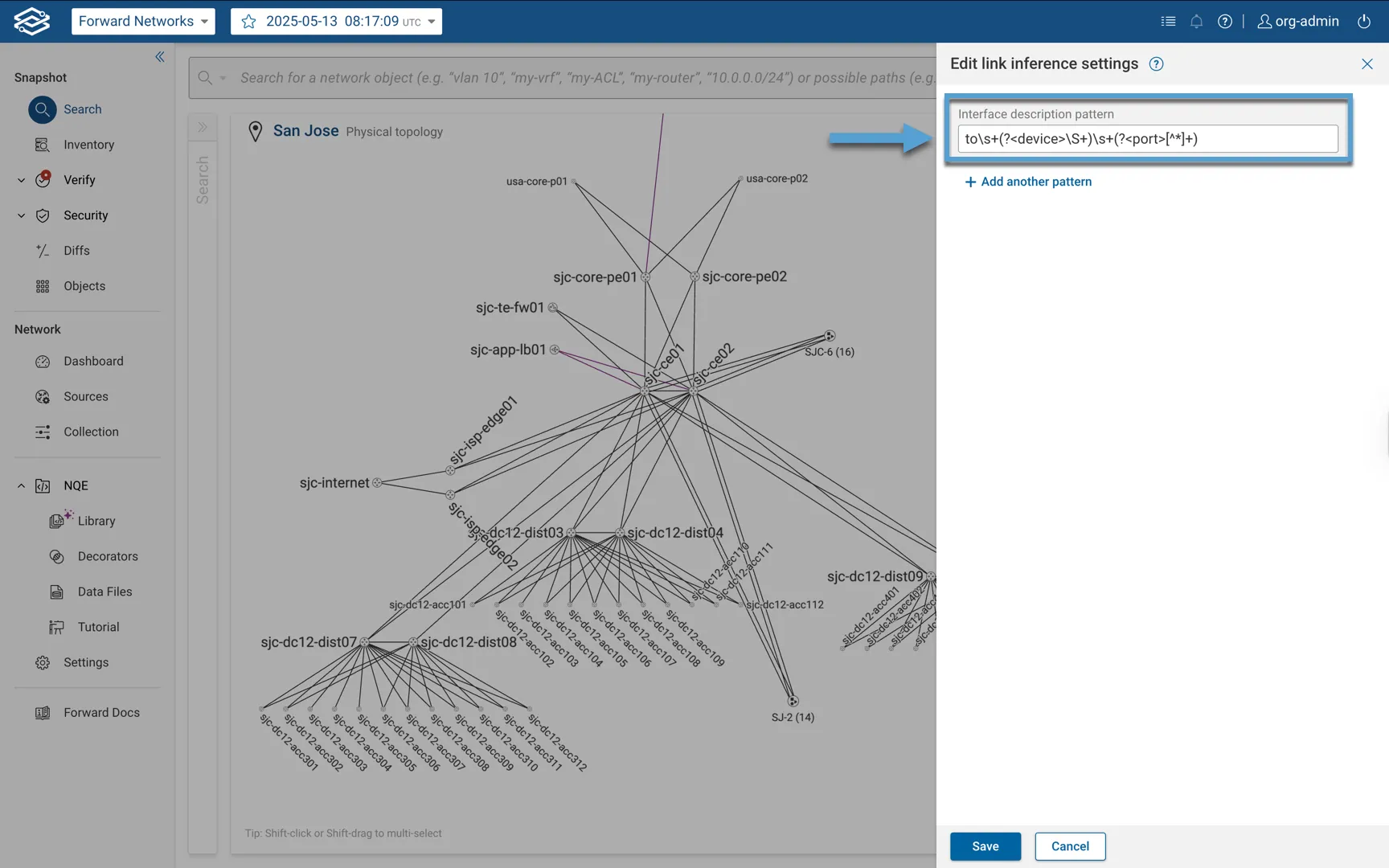
Each pattern must be a valid regular expression with exactly two capture groups; one for the device and one for the port.
To add clarity, the groups can be named device and port.
An interface description pattern is reported below:
to\s+(?<device>\S+)\s+(?<port>[^"]+)
The following screenshot shows an example of a link inferred using the interface description pattern above:
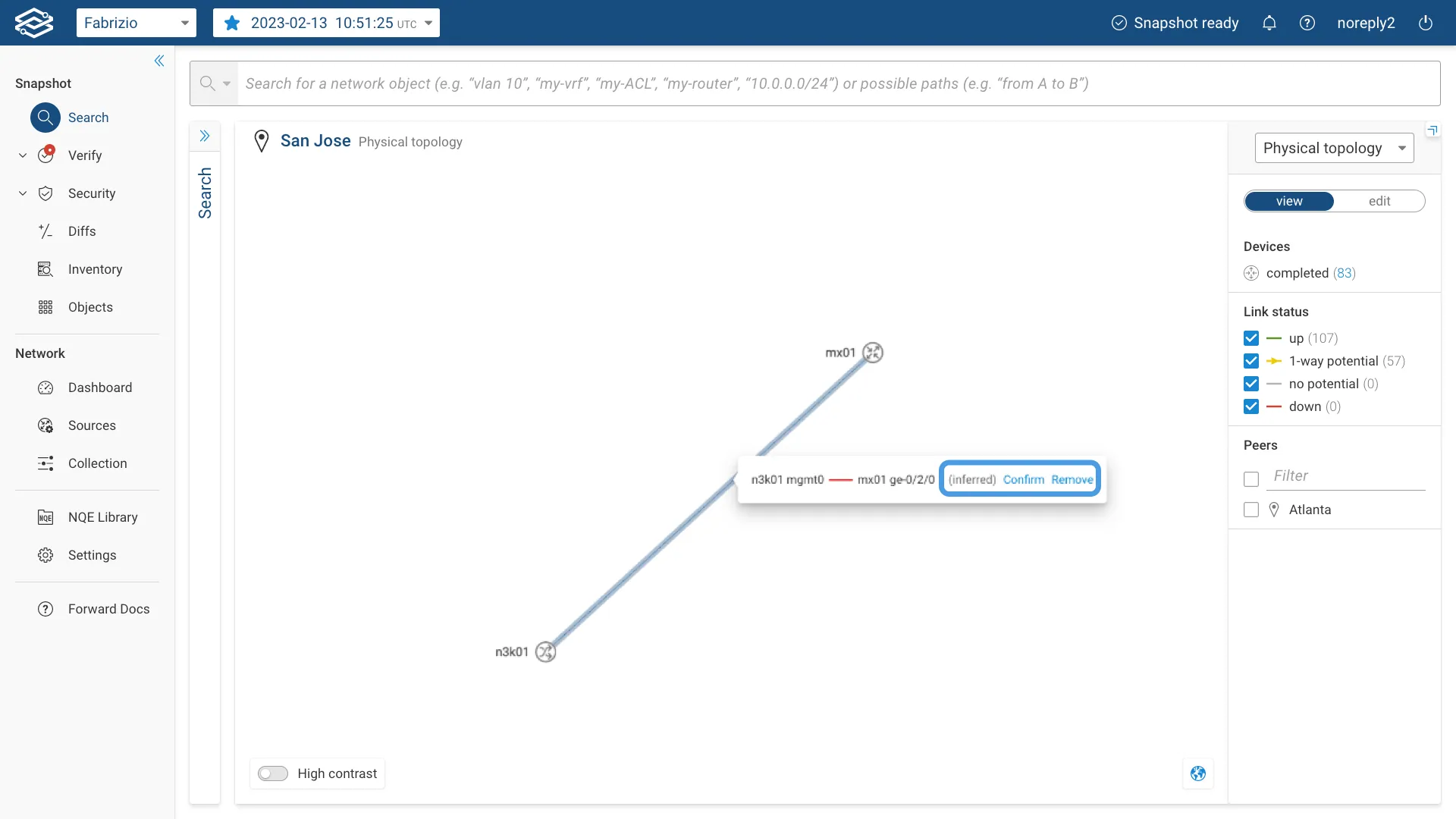
Clicking on an inferred link in edit mode allows to Confirm or to Remove the link.
Manual Link Import / Export Example
Manually added links can be imported and exported using the Network Topology REST API.
The curl command below can be used to get the list of manually created links for a given snapshot (e.g. snapshot 74) in Forward SaaS (https://fwd.app):
curl -u [username:password] https://fwd.app/api/snapshots/74/topology/overrides -H "accept: application/json" > link_overrides.json
The link_overrides.json file might look like this:
{
    "absent": [],
    "present": [
        {
            "port1": "txrdncu01fwrm03z po11",
            "port2": "txrdncu01fwrm03 po11"
        },
        {
            "port1": "txrdncu01fwrm03z po12",
            "port2": "txrdncu01fwrm04 po12"
        }
    ]
}
The following curl command can be used to completely replace the list of manually created links for the same snapshot:
curl -u [username:password] -X PUT https://fwd.app/api/snapshots/74/topology/overrides -H 'Content-Type: application/json' -d @link_overrides.json
Staging link overrides
When you add or remove links and click Save, Forward stages your changes. Staged changes are held in a staging area. They are not applied to the current snapshot, so the snapshot is not reprocessed automatically.
This lets you edit links across many locations one after another. You save your work in each location and don't have to wait for the snapshot to reprocess each time. Staged overrides are applied automatically on the next snapshot collection.
A short message confirms each save. Because the change is not applied to the current snapshot, you do not see the new or removed link in the topology until it is applied.
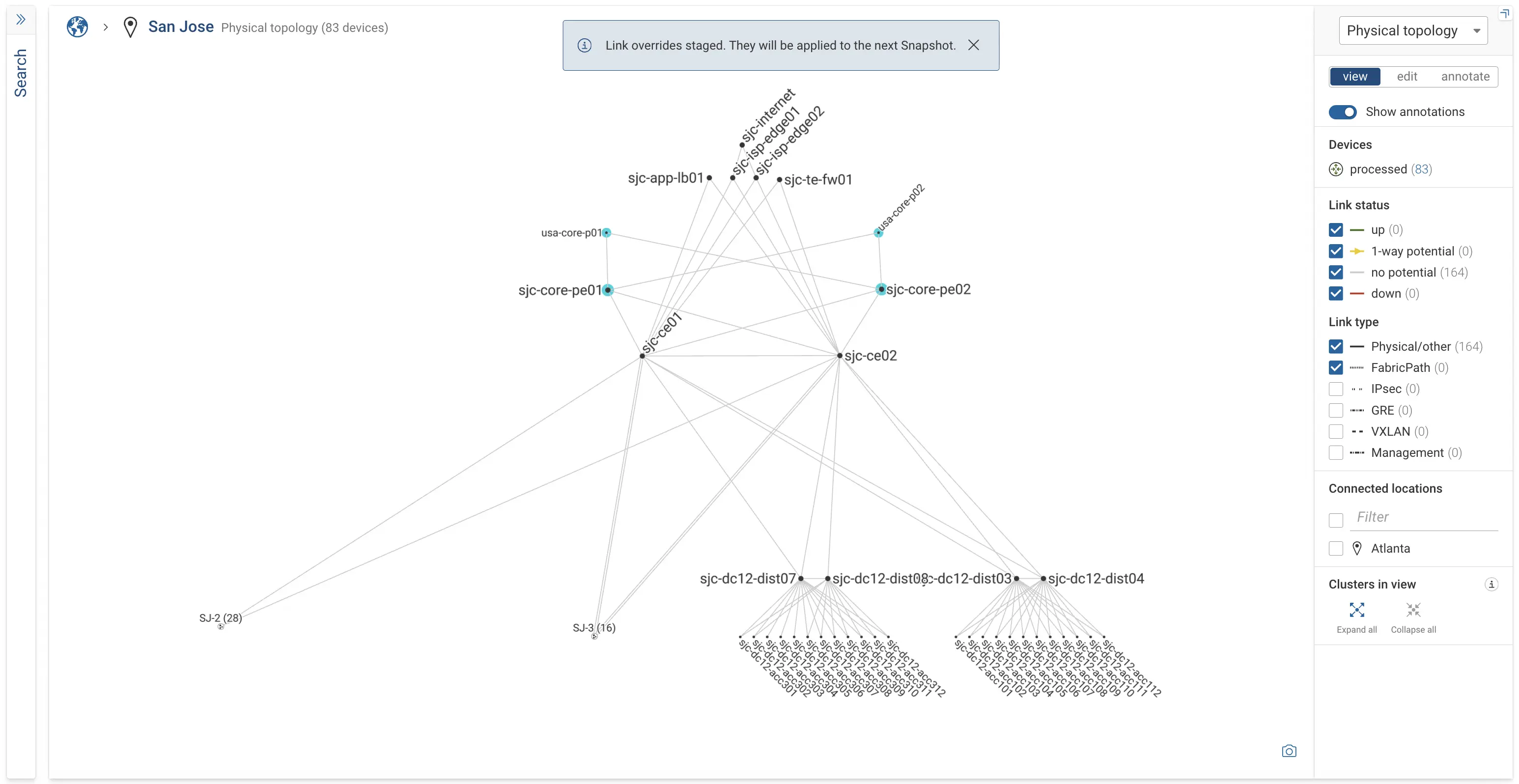
Override states
In edit mode, each override is shown in one of three states, distinguished by a different color:
- Applied — already part of the current snapshot's topology.
- Staged — saved to the staging area, to be applied on the next snapshot collection.
- Unsaved — added or removed in your current session, not yet saved.
Deleted link overrides are hidden by default, so the edit view matches the topology view. You can choose to show them.
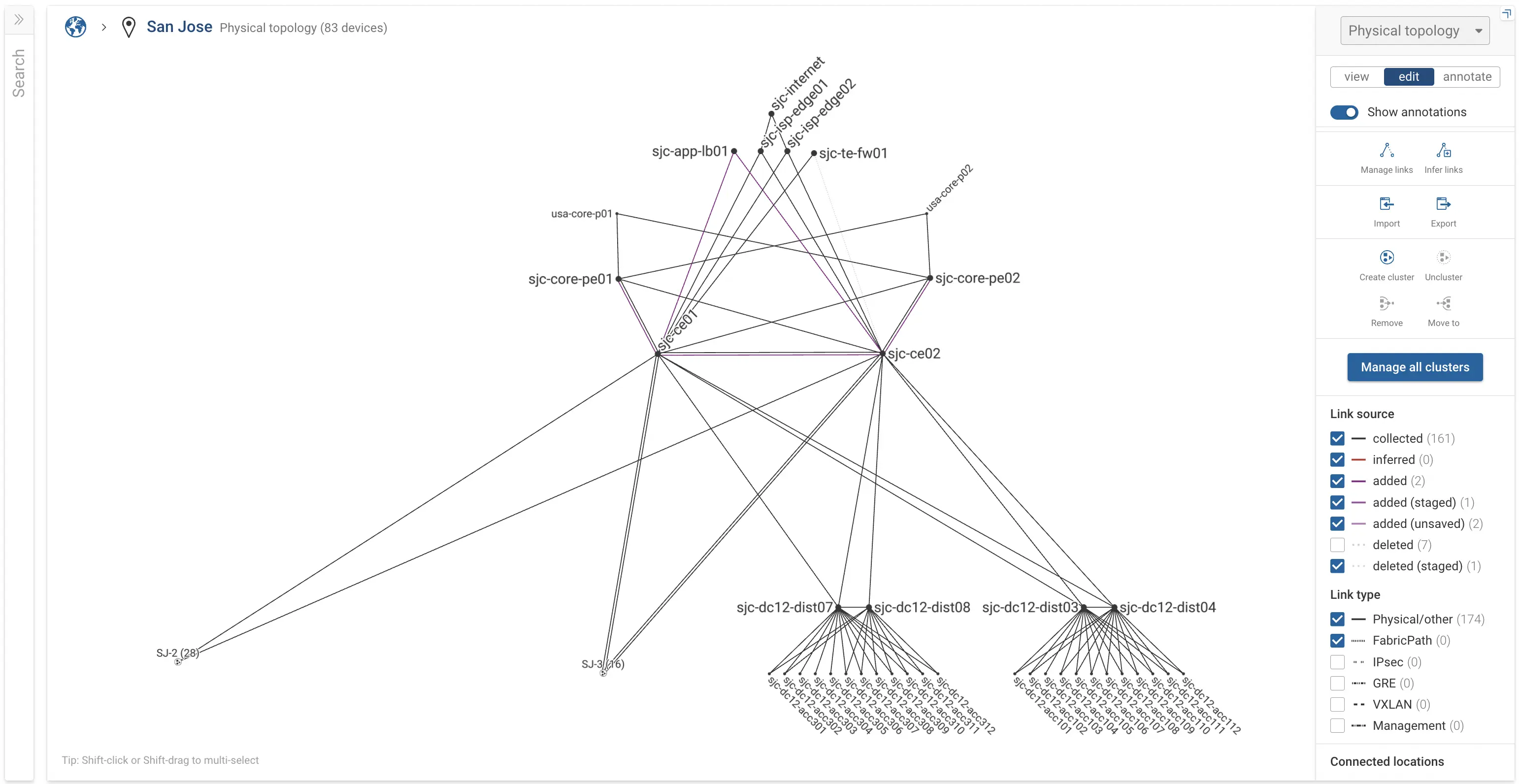
The Manage Links table shows the same states in its source column. You can edit the staged and applied overrides from the table and from the topology. To edit one from the table, use the Delete icon to remove an added link, or the Restore icon to bring back a deleted one, then click Save.
Apply staged overrides to the current snapshot
Staged overrides are picked up on the next snapshot collection. To apply them to the current snapshot instead, backdate them:
- Open the Snapshot Debug Panel by holding Alt (Option on Mac) and clicking on the Snapshot Selector dropdown.
- Select Backdate link overrides to Snapshot.
This applies the staged overrides to the selected snapshot and reprocesses it, along with any staged synthetic device changes, in a single action.
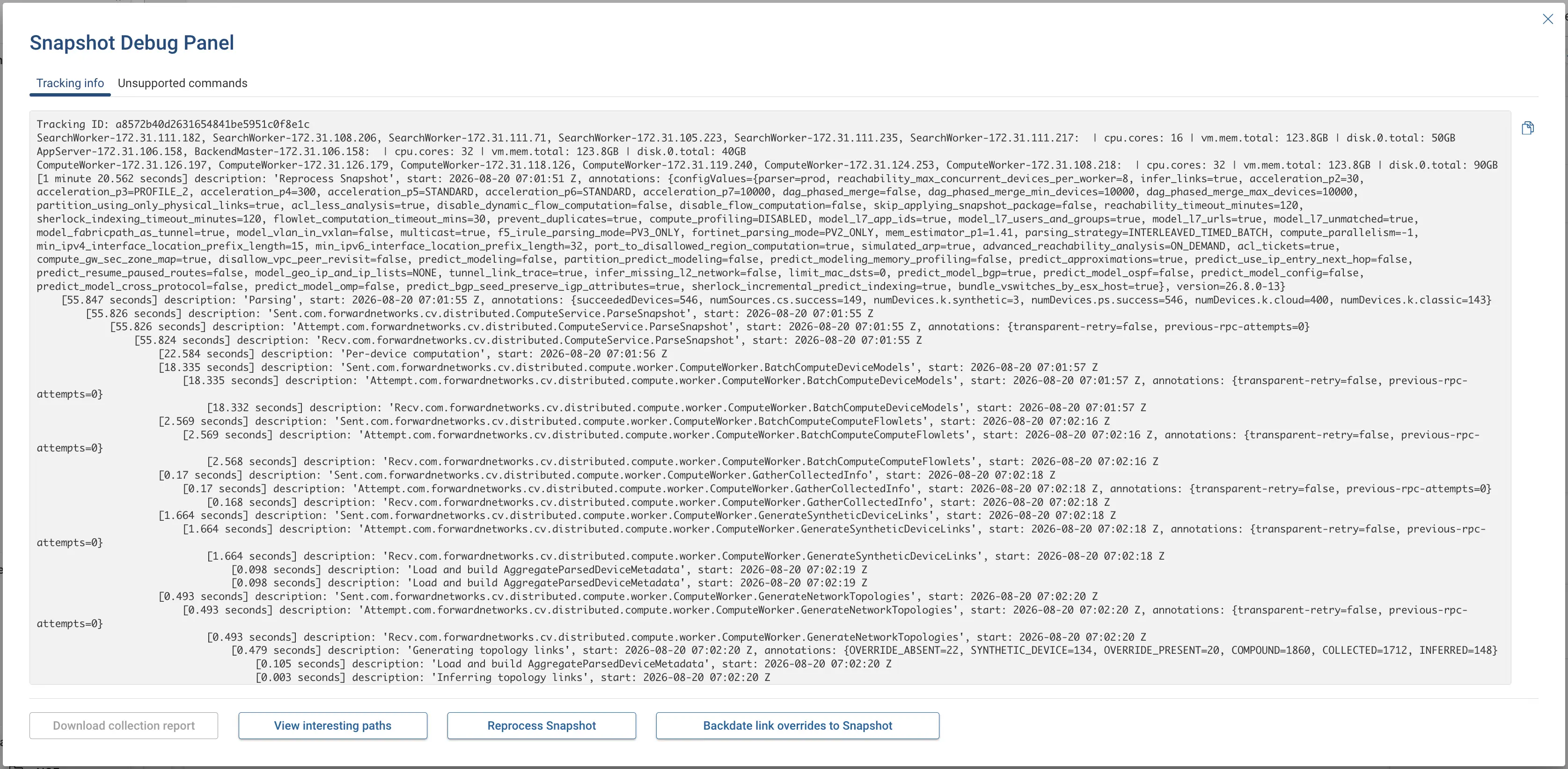
The Reprocess Snapshot option in the Snapshot Debug Panel does not pick up staged overrides. Use the Backdate link overrides to Snapshot option to apply them to the current snapshot.
Permissions
Backdating edits the topology links and reprocesses the snapshot, so it requires permission to do both. The Network Operator, Workspace Operator, and Network Admin roles have both permissions.