Performance Alerting on Intent
Forward Enterprise can raise alerts when the performance of any device or interface along the path of an Existence Intent Verification crosses a configured utilization threshold or reports any errors or discards. This extends path-based intent checking beyond pass/fail connectivity to include the live health of the forwarding elements that make the path possible.
Alerts are evaluated in real time as SNMP performance data is ingested from the collector. Each user subscribes independently to the Intent Verification directories they care about and to the severity at which they want to be notified.
Prerequisites
Performance alerting on intent relies on components that must be in place before the feature can produce alerts:
- Performance data collection must be configured on the network. SNMP credentials are added on Collection > Credentials, per-device SNMP collection and per-metric medium and high thresholds for CPU, memory, and interface input/output utilization are configured on Sources > Classic, and the collection schedule is enabled on Collection > Schedule. The thresholds configured on Sources > Classic are the thresholds that this feature uses.
- Intent Health Verification must be enabled on each Existence Intent Verification for which alerts should be generated. This option appears as a checkbox in the Intent Verification wizard and in the edit drawer and is described below.
Scope
- Supported verification type: Existence only. Isolation, Reachability, NQE, and Predefined Verifications are not evaluated for performance health and do not produce performance alerts.
- Alert triggers: alerts fire when the collector reports any of the following for a device or interface on an
expected path of an Existence Intent Verification that has Intent Health Verification enabled:
- Device CPU utilization at or above its medium or high threshold.
- Device memory utilization at or above its medium or high threshold.
- Interface input or output utilization at or above its medium or high threshold.
- Any non-zero input or output errors on an interface (treated as high severity).
- Any non-zero input or output discards on an interface (treated as high severity).
- Per-user, per-check: subscriptions and notification state are tracked per user and per Intent Verification. Two users subscribed at different severities receive independent notifications.
- Delivery channels: performance alerts are delivered in-app and by email, through the Verifications notification subscription. Outbound webhooks do not carry performance alerts.
Enabling Intent Health Verification on a check
Intent Health Verification attaches performance health monitoring to an existing Existence Intent Verification. Only checks with this option enabled contribute to the performance alerting pipeline.
- Create or edit an Existence Intent Verification.
- Ensure the Active toggle is on. Enable Intent Health Verification is disabled while Active is off, and is cleared automatically if Active is turned off after the health option was selected.
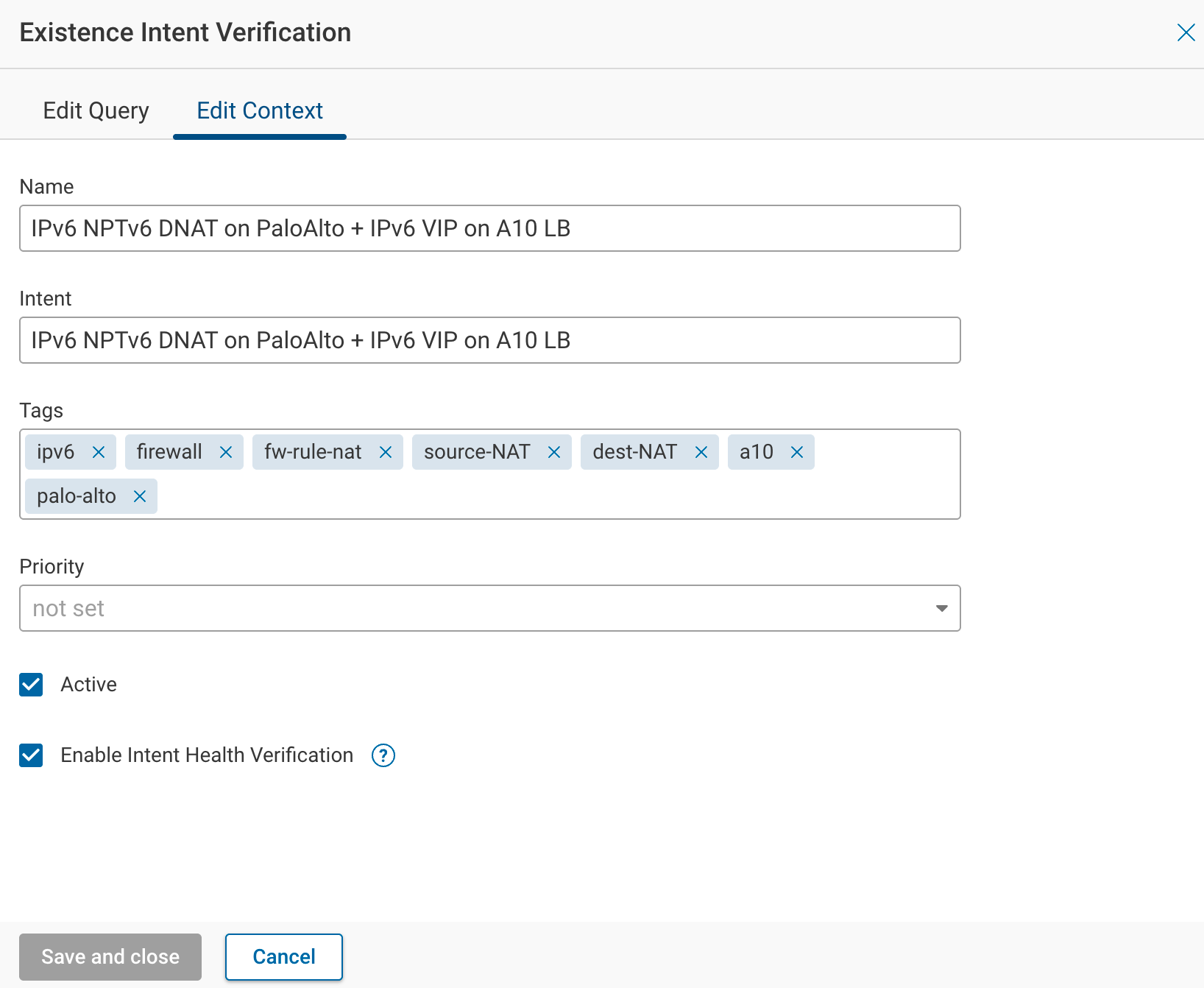
- Select Enable Intent Health Verification.
The Enable Intent Health Verification checkbox is not shown on the Intent Verifications list or on the check's detail view. It lives inside the check's edit drawer:
- Go to Verify > Intent.
- In the list, hover over the row for the Existence Intent Verification you want to modify and click the pencil (Edit) icon at the end of the row.
- In the edit drawer that opens, switch from the Edit Query tab to the Edit Context tab.
- Scroll to the bottom of the tab. Enable Intent Health Verification is the last checkbox, directly below the Active toggle. Select it, then save.
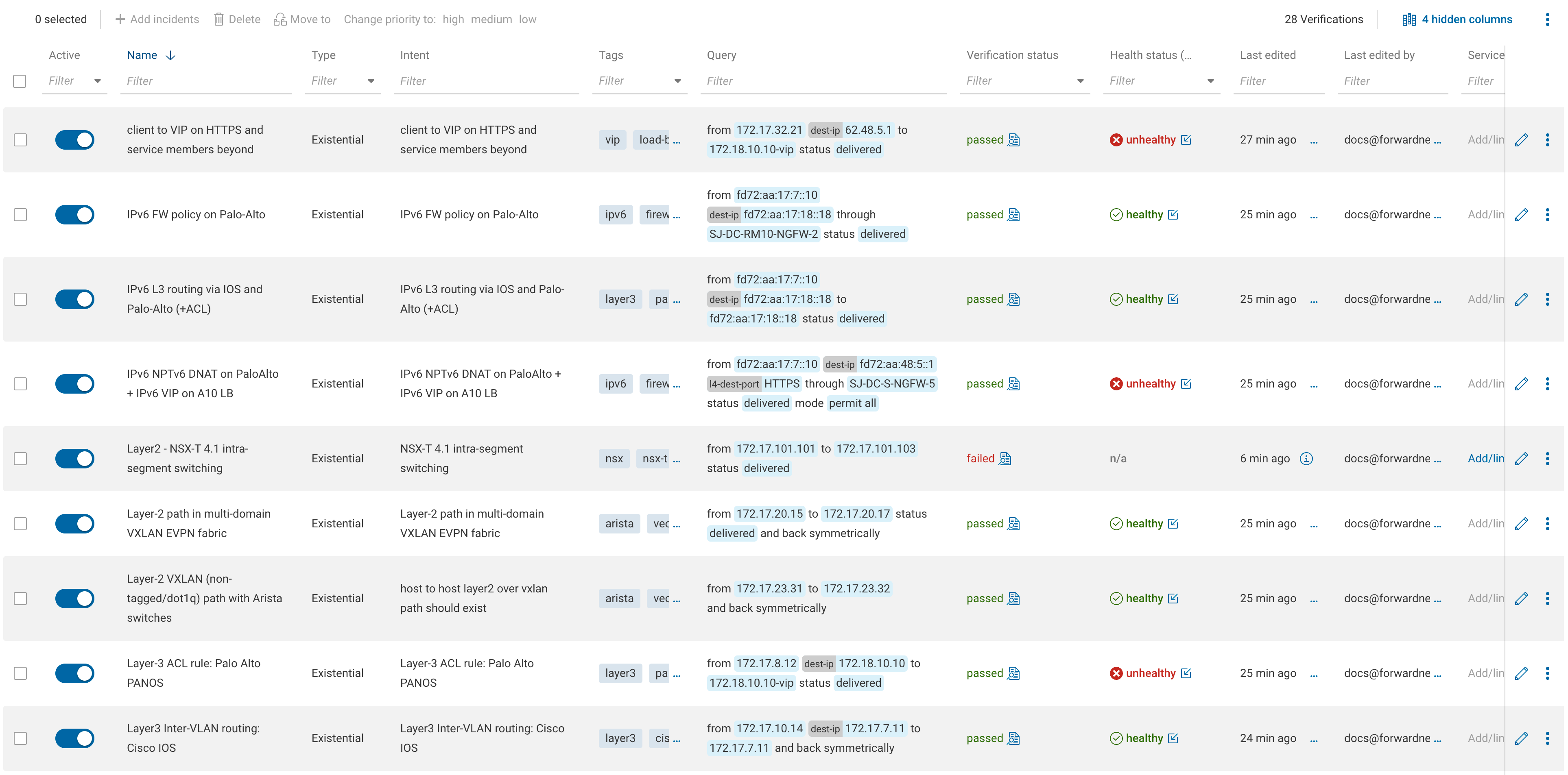
When enabled, the Intent Verification page displays a Health status column alongside the existing verification status. The column reports one of the following values per check:
| Health status | Meaning |
|---|---|
| healthy | All devices and interfaces on the expected path are within their configured thresholds and reporting no errors or discards. |
| unhealthy (warning) | At least one device or interface on the expected path has reached its medium threshold. |
| unhealthy (error) | At least one device or interface on the expected path has reached its high threshold, or is reporting non-zero errors or discards. |
| disabled | The check is an active Existence Intent Verification, but Enable Intent Health Verification is off. |
| n/a | Health is not applicable to this check. See the note below. |
A Health status of n/a appears in all of the following cases:
- The Intent Verification is not an Existence type (Isolation and Reachability verifications do not have a health status).
- The Existence Intent Verification is not Active.
- The Existence Intent Verification's Verification status is failed. When the verification fails, Forward has no expected path to evaluate health against, so Health status is reported as n/a regardless of whether Intent Health Verification is enabled. Fix the underlying verification failure first; Health status is recomputed once a passing path is found.
The Enable Intent Health Verification option is hidden when the check type is not Existence.
Subscribing to performance alerts
Subscriptions are managed per user from Settings > Personal > Notifications, on the Verifications tab.
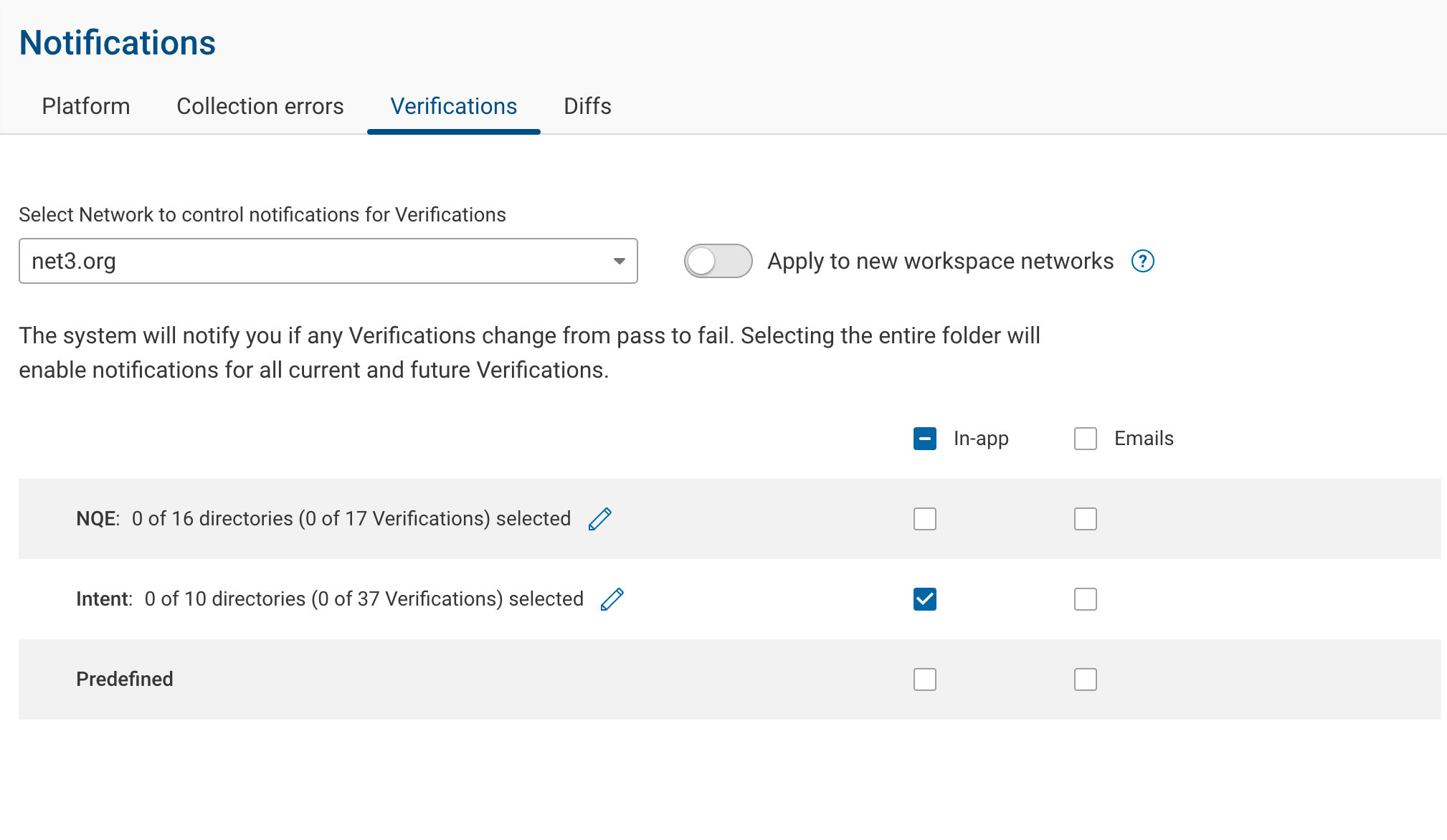
- Choose the target network from the network selector above the Intent Verifications section.
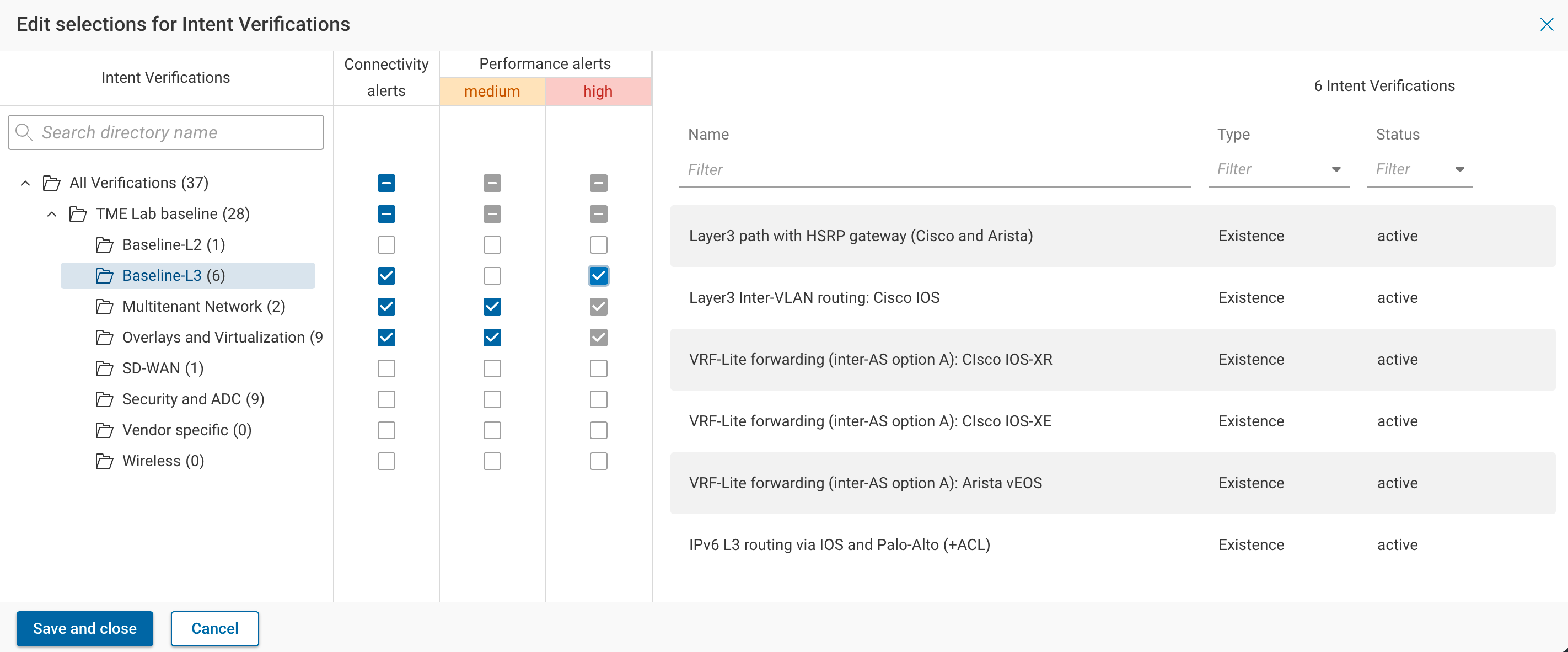
- Open the selection drawer for Intent Verifications. The drawer lists all Intent Verification directories in the network.
- For each directory, set one or more of the following columns:
- Connectivity alerts — notify when any Intent Verification in the directory changes from pass to fail. This is the standard Intent Verification notification behavior and is a prerequisite for subscribing to performance alerts on the same directory.
- Performance alerts — medium — notify when a device or interface along an expected path reaches the configured medium threshold.
- Performance alerts — high — notify when a device or interface along an expected path reaches the configured high threshold, or reports any errors or discards.
- Choose in-app and/or email delivery in the same Verifications tab where other Intent Verification notifications are configured.
Subscription rules
The drawer enforces the following constraints so that subscriptions remain consistent:
- Connectivity is required. The medium and high checkboxes for a directory are disabled until Connectivity alerts is selected for that same directory. Turning off Connectivity for a directory also clears any Performance subscriptions on that directory.
- Medium implies high. Selecting medium for a directory automatically selects high for the same directory. A user subscribed to medium receives alerts at both the medium and high severities; a user subscribed only to high receives alerts at the high severity only.
- Per-directory inheritance. Subscriptions are set on Intent Verification directories. They apply to every Existence check in the directory that has Enable Intent Health Verification on, including checks added or enabled later. Checks without Intent Health Verification enabled do not produce alerts regardless of subscriptions.
Alert delivery
Severities
Performance alerts are generated at two severities:
- Medium — a device CPU/memory or interface utilization value reached its medium threshold without reaching its high threshold.
- High — a device CPU/memory or interface utilization value reached its high threshold, or an interface reported any non-zero errors or discards.
Real-time evaluation
As performance data arrives from the collector for a network, it is evaluated asynchronously against the thresholds of the devices and interfaces that belong to each Existence check whose Intent Health Verification is on. Alerts are dispatched as soon as an unhealthy reading is detected for a subscribed directory; the system does not wait for a snapshot boundary or for the Intent Verification pass/fail result to be recomputed.
Escalation and cool-down
Delivery is shaped by a combined severity-and-time check that is applied per user and per check:
- First alert always delivers. The first alert for a given user and check is sent immediately, regardless of prior state.
- Severity escalation bypasses the cool-down. An alert whose severity is higher than the most recent alert for the same user and check is sent immediately, even if the previous alert was sent less than 24 hours ago. This is how a medium-then-high progression reaches the user without delay.
- 24-hour cool-down for same-or-lower severity. An alert whose severity is equal to or lower than the most recent alert for the same user and check is suppressed until 24 hours have elapsed since the last delivered alert for that check. The health state continues to be tracked during the cool-down window.
- Summarization across checks. A single evaluation that finds several unhealthy checks is delivered as one summarized notification per user, whose title reflects the total count (for example, "3 new Intent Verification Health alerts") and whose body groups high-severity entries before medium-severity entries.
Notification content
An in-app or email notification identifies the affected Intent Verifications and the severities that were reached. It does not list the specific devices and interfaces that crossed thresholds; those are exposed on the destination the notification links to:
- If exactly one check is involved, the notification links directly to that check's Health of paths view.
- If multiple checks are involved, the notification links to the Intent Verifications list; open each affected check to see its Health of paths view.
Delivery to in-app and email channels is governed by the same Verifications subscription settings as other Intent Verification notifications.
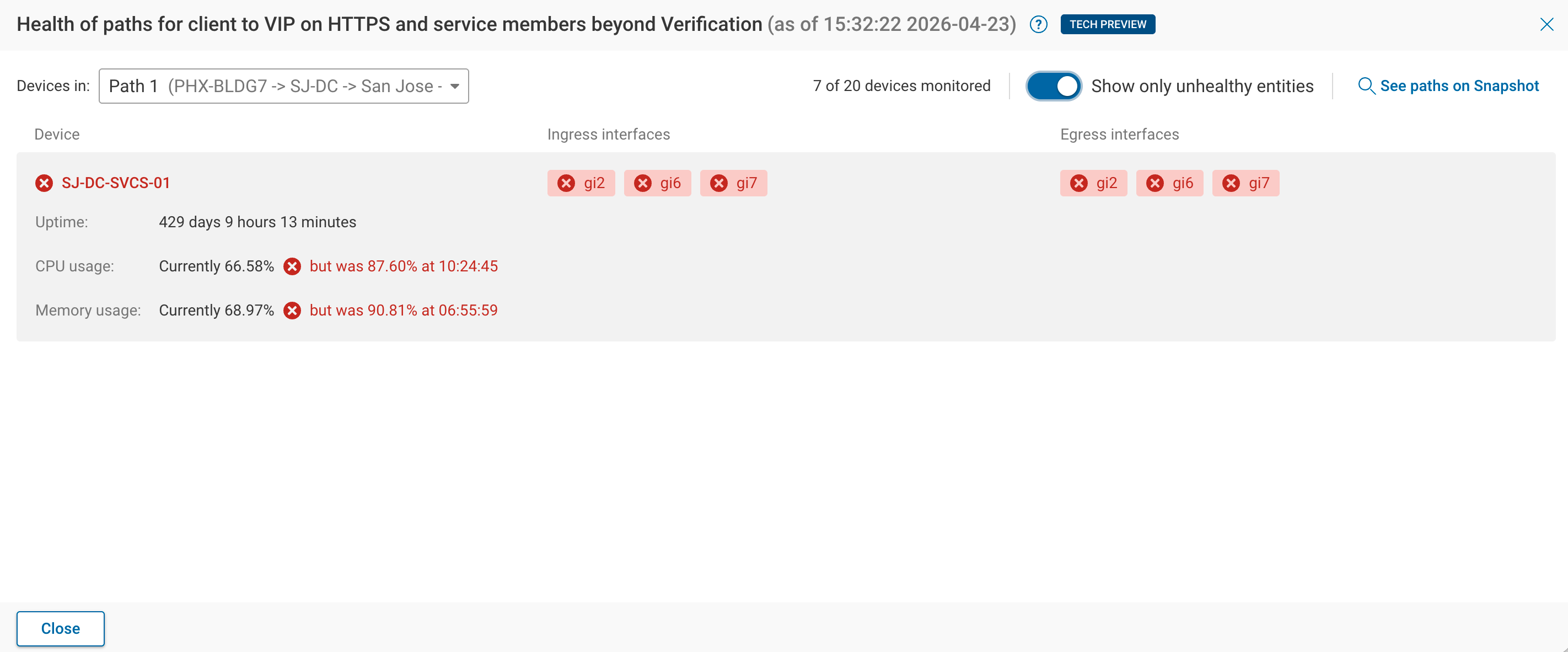
The Health of paths view is where the underlying cause of the alert is visible. For each path that contributes to the verification, the view lists the devices and interfaces involved, flags the unhealthy ones, and shows the per-metric readings that triggered the alert (for example, CPU and memory utilization values, and peak values within the selected interval).
Turning off performance alerts
To stop receiving performance alerts without affecting other notifications:
- In Settings > Personal > Notifications > Verifications, clear the medium and high columns for the relevant directories. Connectivity alerts remain in place.
- To stop generating health status and alerts for a specific Intent Verification entirely, edit the check and clear Enable Intent Health Verification. The checkbox is on the Edit Context tab of the check's edit drawer, opened from the pencil icon on the Intent Verifications list. See the tip in Enabling Intent Health Verification on a check for the full click path.
Clearing Connectivity alerts for a directory also clears its performance alert subscriptions, because performance alerts require the Connectivity subscription.