Guided Onboarding
Guided onboarding helps you become familiar with the platform faster. It presents your setup as a series of tasks and walks you through each one.
On first login to your organization, Forward Enterprise automatically creates your first network and names it My network. Look for My network in the network selector's drop-down menu to find it. A guided panel then leads you through the remaining steps. Guided onboarding is available to all new organizations.
Collector setup
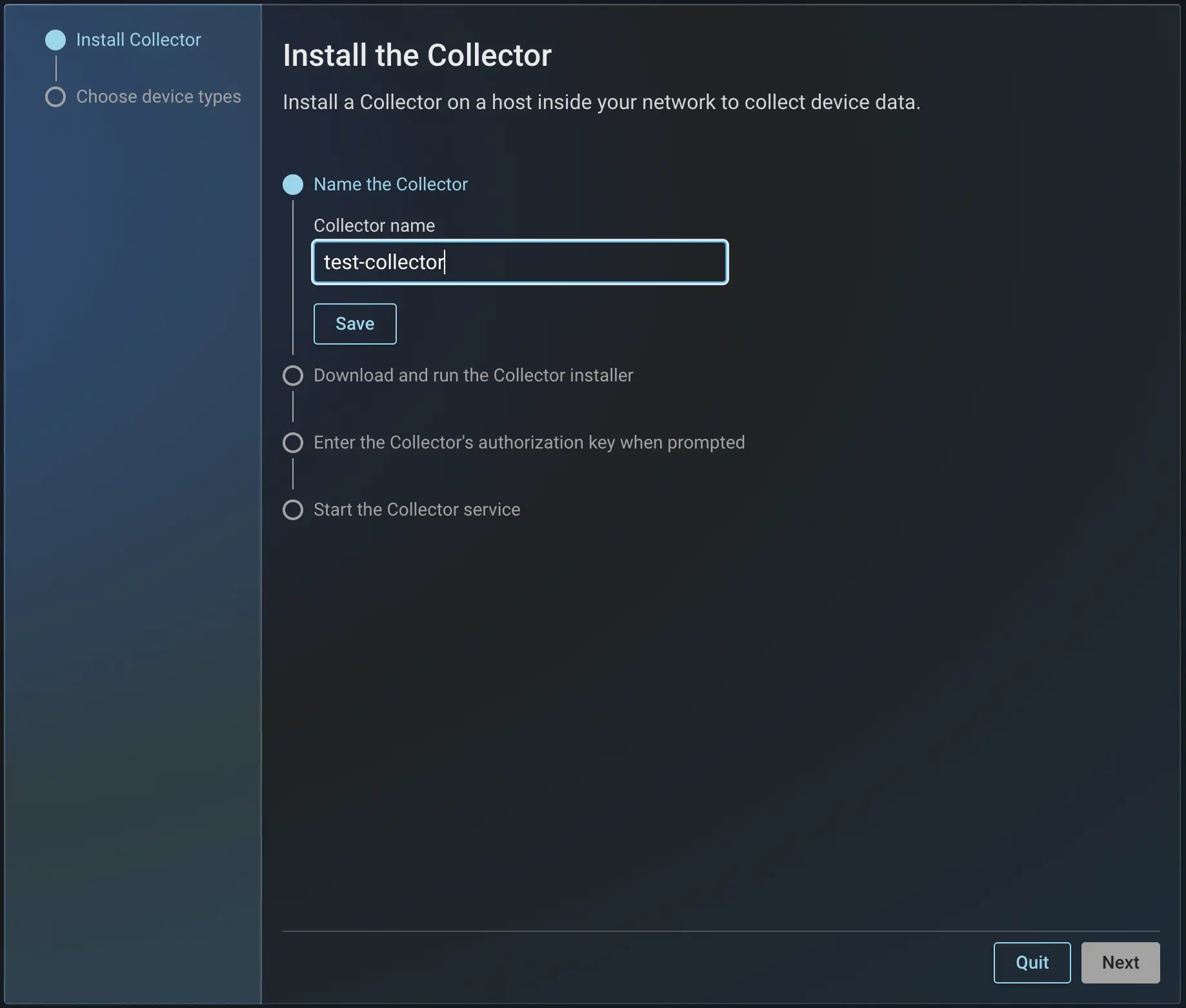
The first task guides you through installing a Forward Collector on your local machine. The panel waits until the collector comes online before continuing.
Follow the wizard, name the collector, download and run the collector installer and enter the authorization key when prompted. This should install the collector successfully.
To learn more about collectors, see Forward Collector.
Add sources
Next, select from a list of supported source types to collect from. Supported types include:
- Standalone network devices, including Cisco ACI fabric, Cisco Meraki, Arista VeloCloud and Juniper Mist
- SD-WAN platforms (Cisco, HP, Juniper, Palo Alto, Versa)
- VMware vCenter, VMware NSX-T
- Cloud infrastructure (AWS, Azure, GCP, IBM)
- Alkira CXP
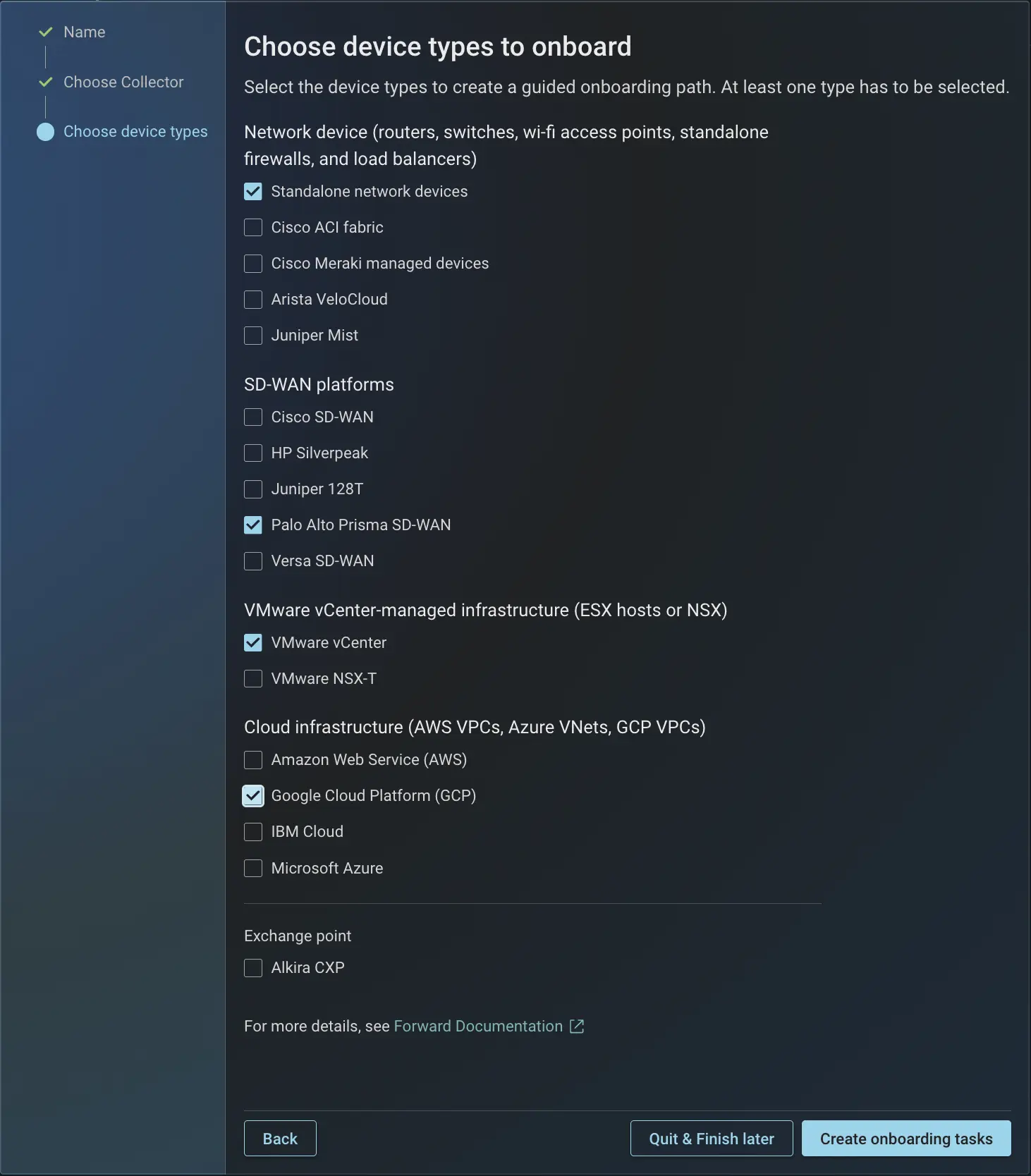
You can uncheck a source type by going back to the Edit device list window, even after you have started onboarding it. This lets you drop a source type you no longer need without finishing the onboarding process. Unchecking a source type only removes it from onboarding; it does not delete any sources you have already added. A source type whose onboarding is complete stays locked, so it cannot be unchecked from the Edit device list, and its added devices are not removed.
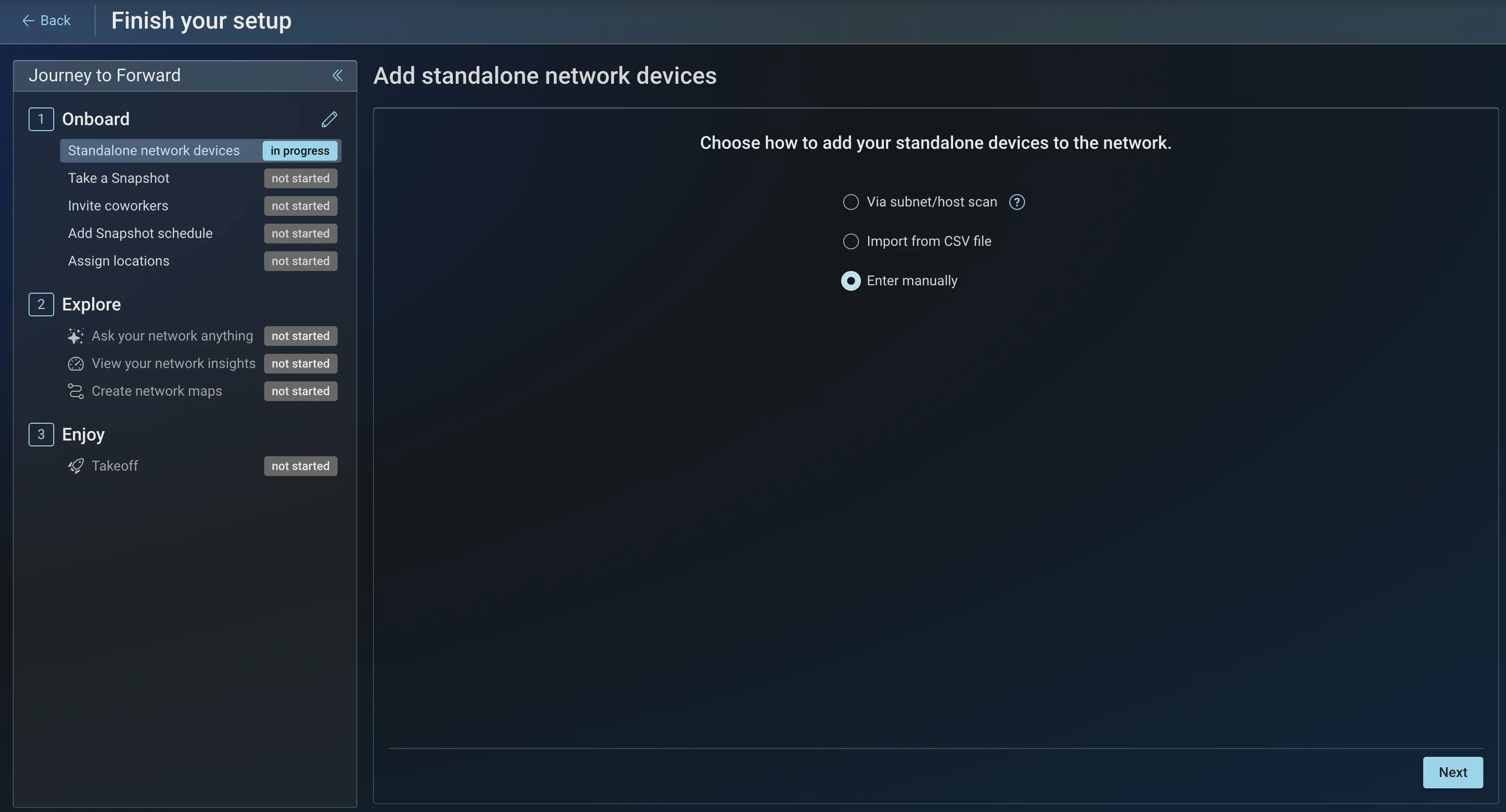
For standalone network devices, devices can be added in three ways:
- Subnet scan: scan a subnet to discover devices.
- CSV import: upload a CSV file with device details.
- Manual: add a device by entering its details manually.
Pick an option and enter the required device details. Learn more about Adding Devices at, Devices Setup.
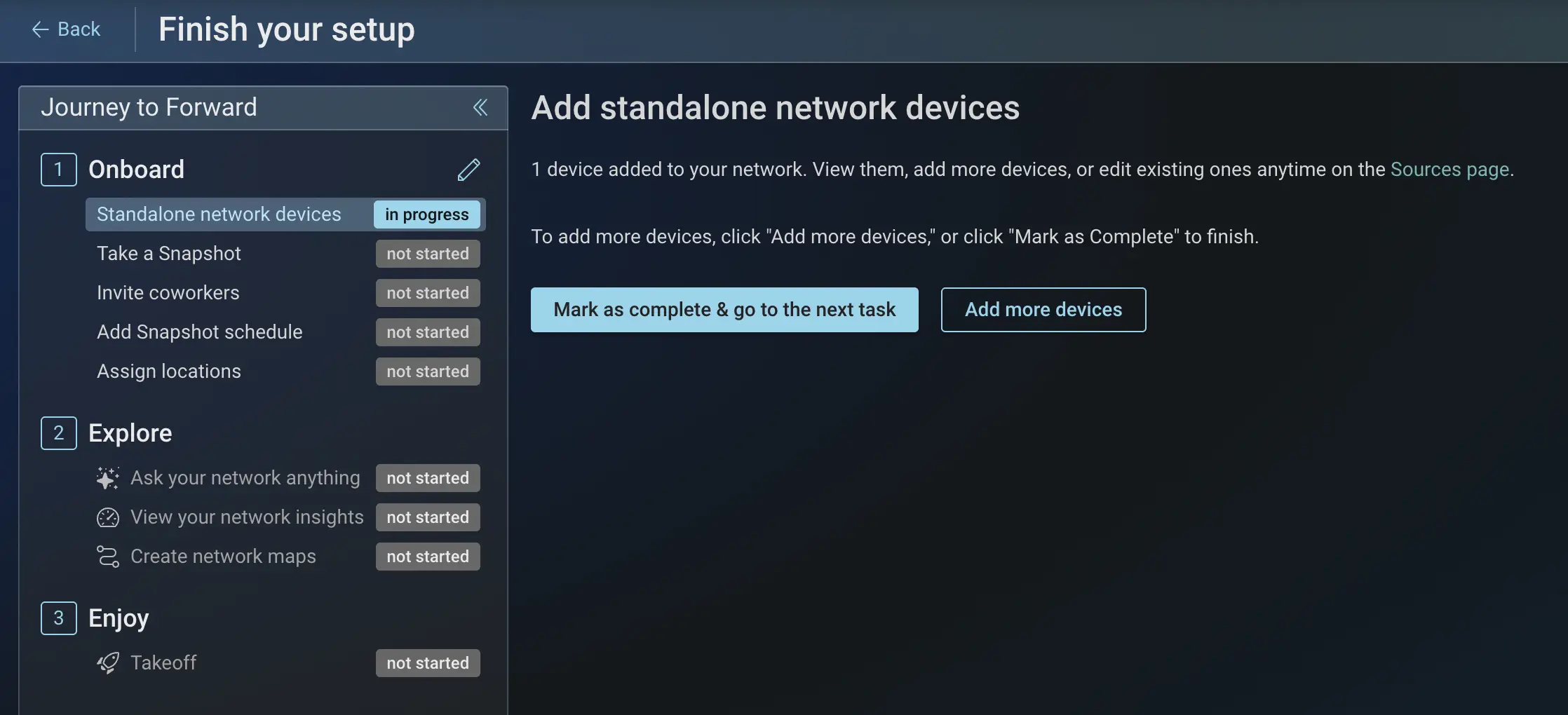
At the end of each flow, the panel confirms how many devices were added and gives you a link to the Sources page. You can then choose from Mark as complete or Add more devices.
Quit a source type
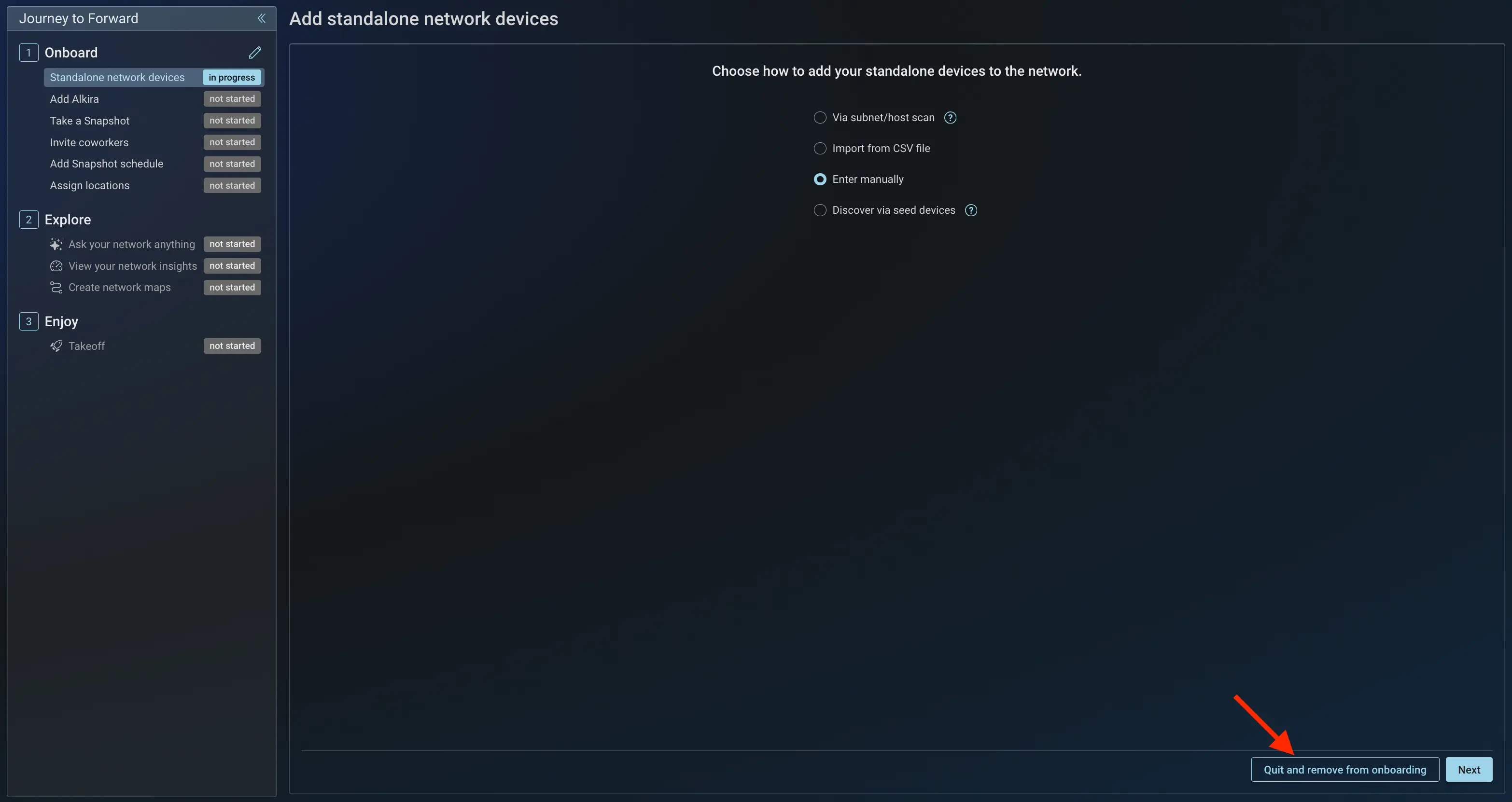
You do not have to finish onboarding every source type you start. Next to the wizard's Next button, one of two actions is available so you can skip a source type and continue onboarding the next source type:
- Quit and remove from onboarding: shown when you have not added any devices for the source type. Use it to remove a
source type that is in progress but that you do not want to finish.
- Quit and mark as complete: shown when you have already added devices for the source type. Use it to finish
onboarding this source type without adding more devices.
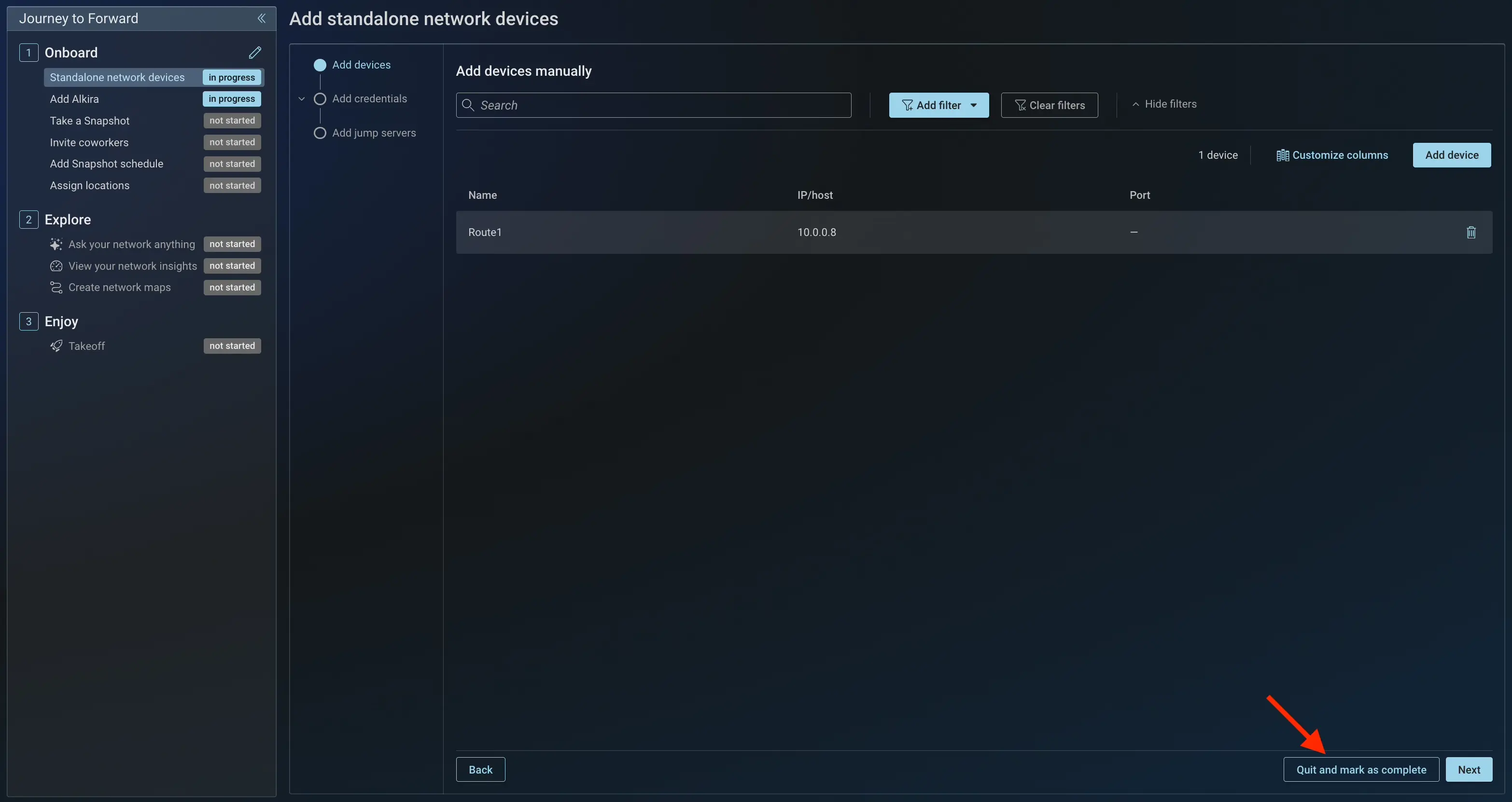
Neither action deletes sources you have already added. They only change the source type's status in onboarding.
To change your sources later, select Sources under Network from the main menu on the left.
For more on configuring sources, see Collector configuration.
Take a snapshot
Once the devices are added, take a snapshot to collect from all sources and build the network model. The panel shows snapshot progress as it runs.
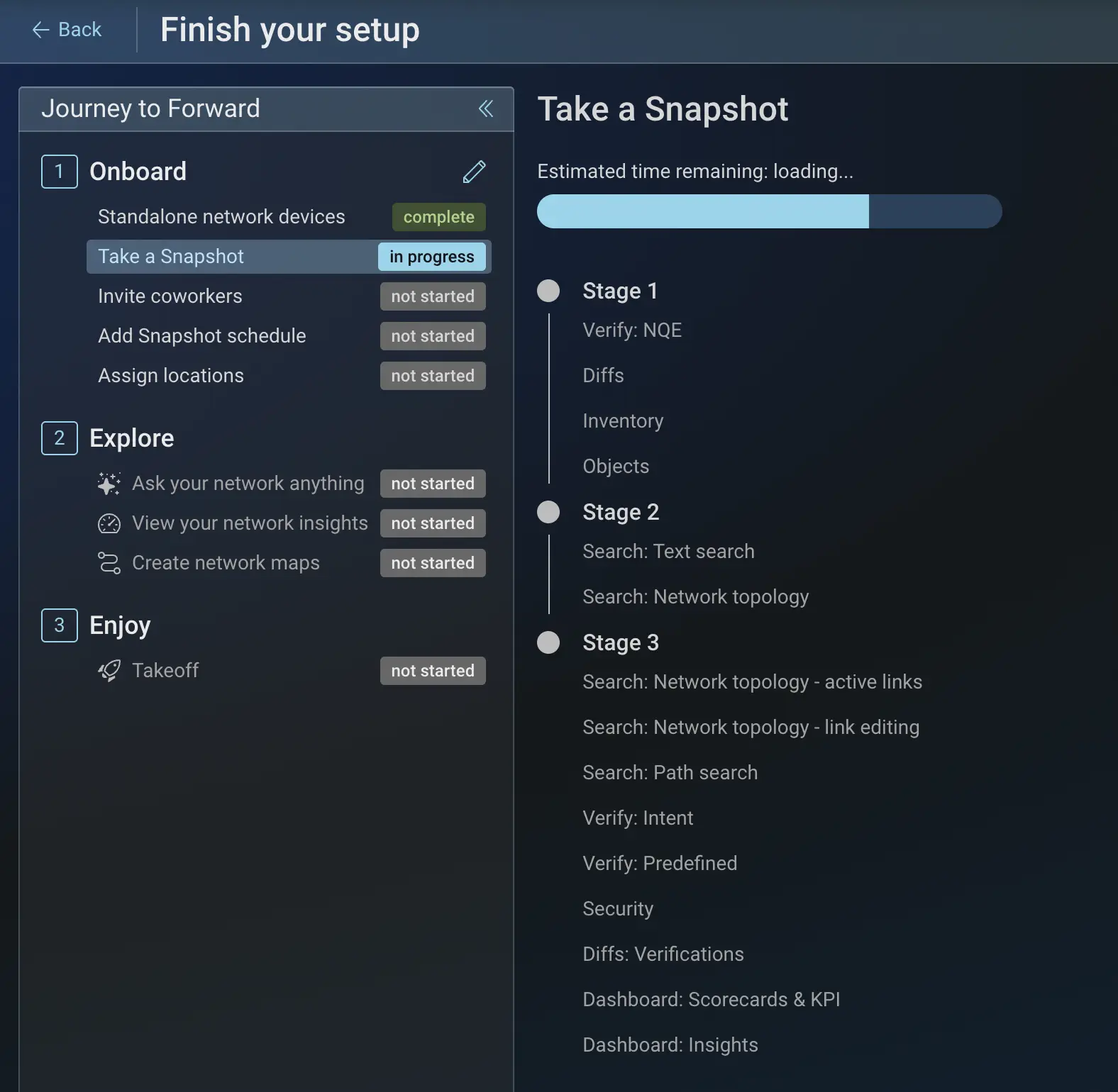
For more on taking a snapshot, see Network Collection
Complete all tasks under onboard
Onboarding tasks also includes common setup actions that are part of the platform:
- Invite coworkers: Add teammates to your organization so they can sign in and help with onboarding. See Accounts for details.
- Add a snapshot schedule: Set a schedule of how often Forward collects from your network, so your model stays up to date automatically. See Collection Settings for details.
- Assign locations: Group your devices by site or location, so the topology reflects how your network is laid out. See Locations for details.
At any time you can return to the onboarding setup by selecting Setup: in progress at the top of the page.
All tasks under Onboard section should be finished and Marked as complete for the tasks/features under Explore section to become available.
Explore the platform
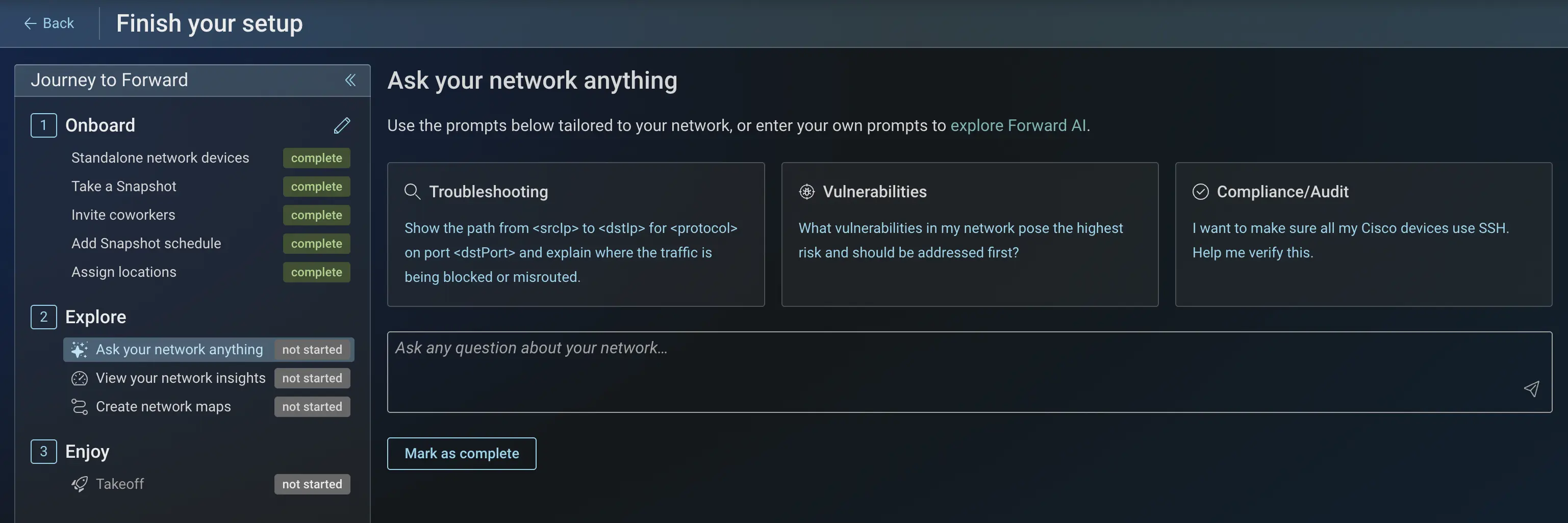
After you finish the first set of tasks, a second set of Explore tasks appears. These introduce key features in a guided way. Each task includes a button that takes you to the feature, so you do not have to find it yourself.
-
Forward AI: Ask a question in plain language, such as one about CVEs, and you are taken straight to the matching page. This is the fastest way to explore the platform, since you can ask about paths, security posture, or vulnerabilities without learning any query syntax. See Forward AI.
-
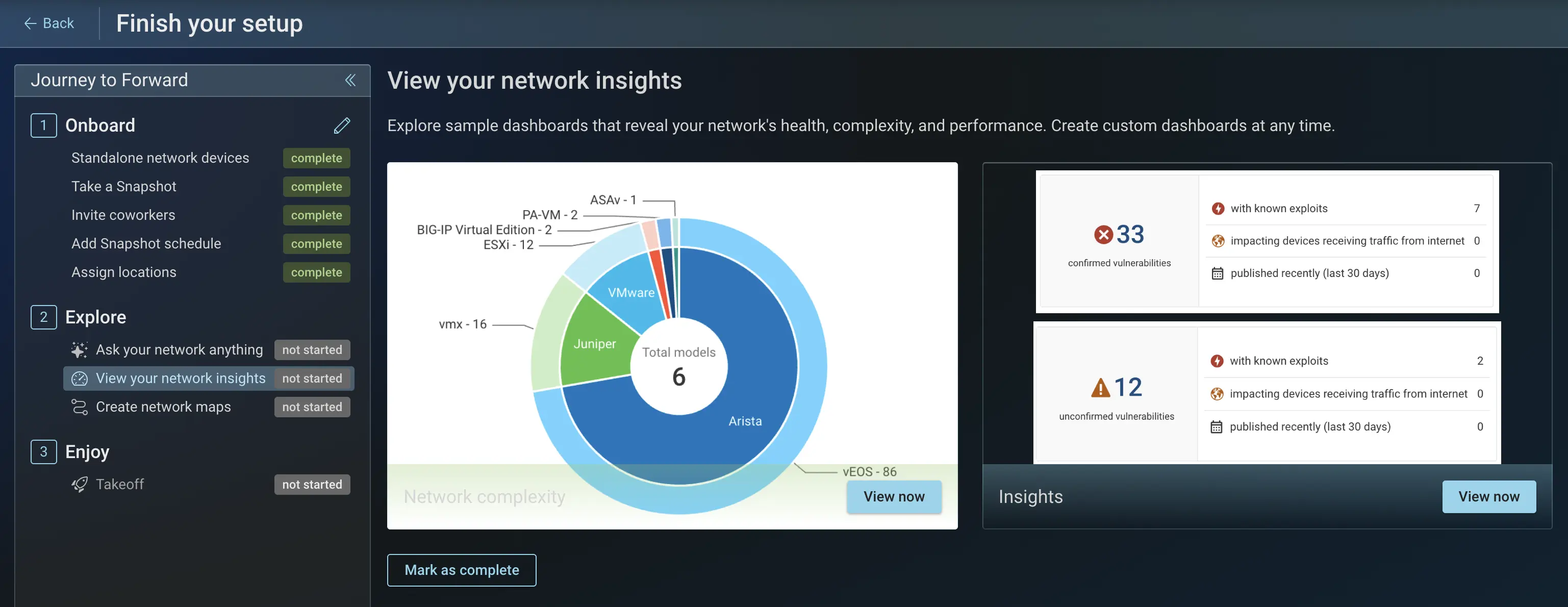
Network Insights: Review the operational health and security posture of your network at a glance, including scorecards and KPIs derived from your snapshot. See Insights Dashboard.
-
Network Maps: Explore custom, shareable topology views of your network. Use them to lay out devices, add annotations, and build clear diagrams for your team. Click View now to add a network map. See Network Maps.
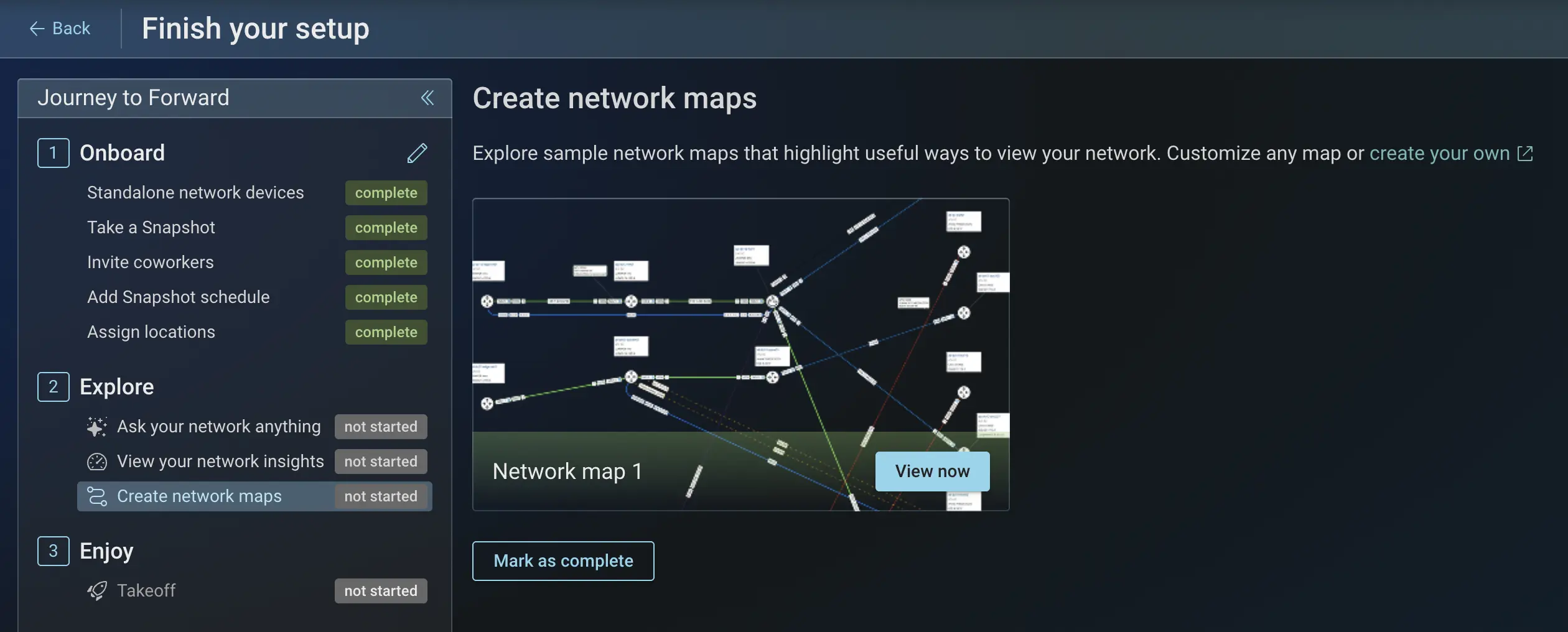
When you finish a task, click Mark as Complete. After completing all tasks under the Onboard and Explore sections, click Mark onboarding as complete.
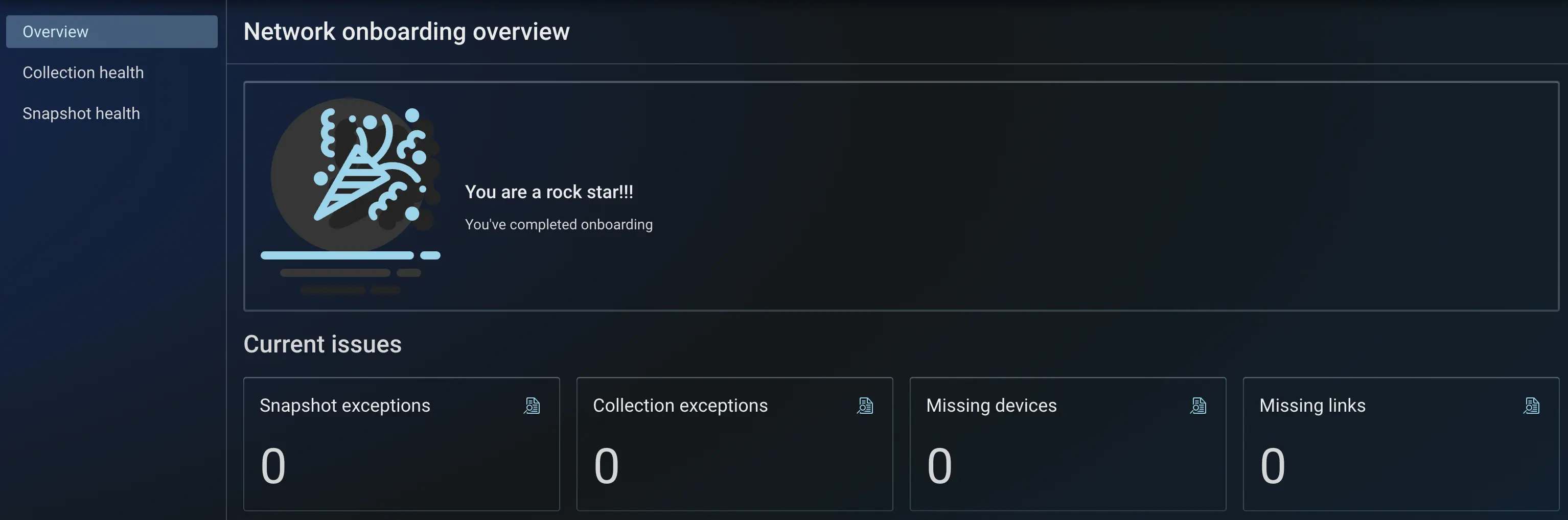
When you complete all tasks, you are taken to the Health Overview page and shown a confirmation message. The
Setup: in progress option then disappears, since onboarding only needs to be done once.
- Onboarding remembers your progress. If you close the browser and return, you resume at the step you left.
- Onboarding is shared across all org admins. You can invite a coworker, and they can complete the remaining steps.