Guided Network Setup
Forward Enterprise provides an easy-to-use, guided setup for the provisioning of the network. The same guided onboarding wizard that sets up your first network is also used to add every subsequent network.
The guided setup starts automatically when no existing networks are present. If a network has previously been configured, you can restart the guided setup to add more networks by selecting Add network from the network selector's drop-down menu.
You can see the location of the Add network button in the example below:
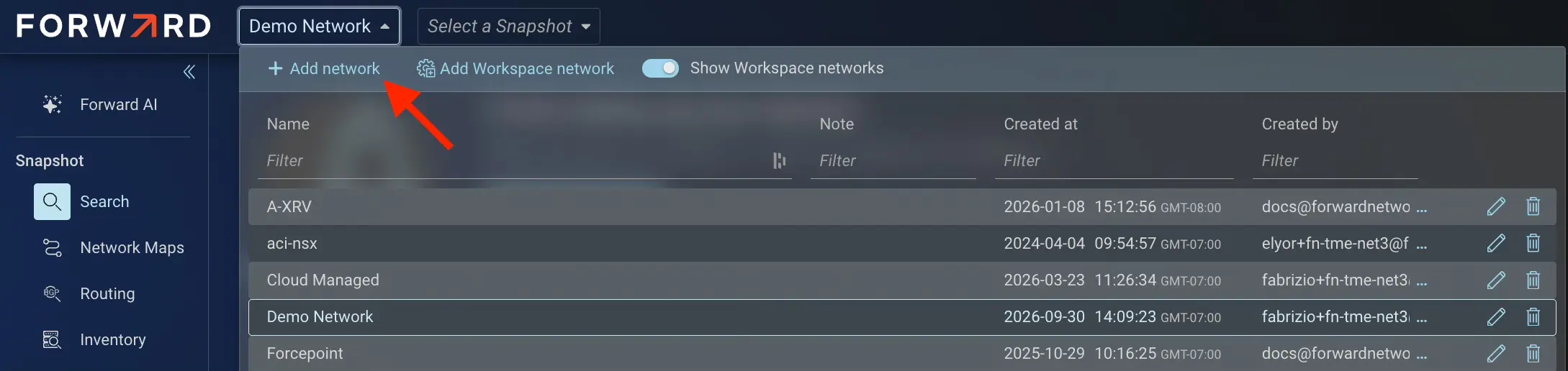
Clicking Add network opens the Set up your network wizard. Start by giving your network a unique name, installing or choosing a collector and selecting the device types to onboard. You can leave this wizard by clicking Quit & Finish later and resume the setup later at your convenience. After selecting the device types to onboard, select Create onboarding tasks. This opens the guided onboarding wizard to set up the rest of your network.
Step 1: Enter a network name
The first step to creating a new network is naming it.
Pick something unique, and easily identifiable, for your network name.

Step 2: Install or choose a collector
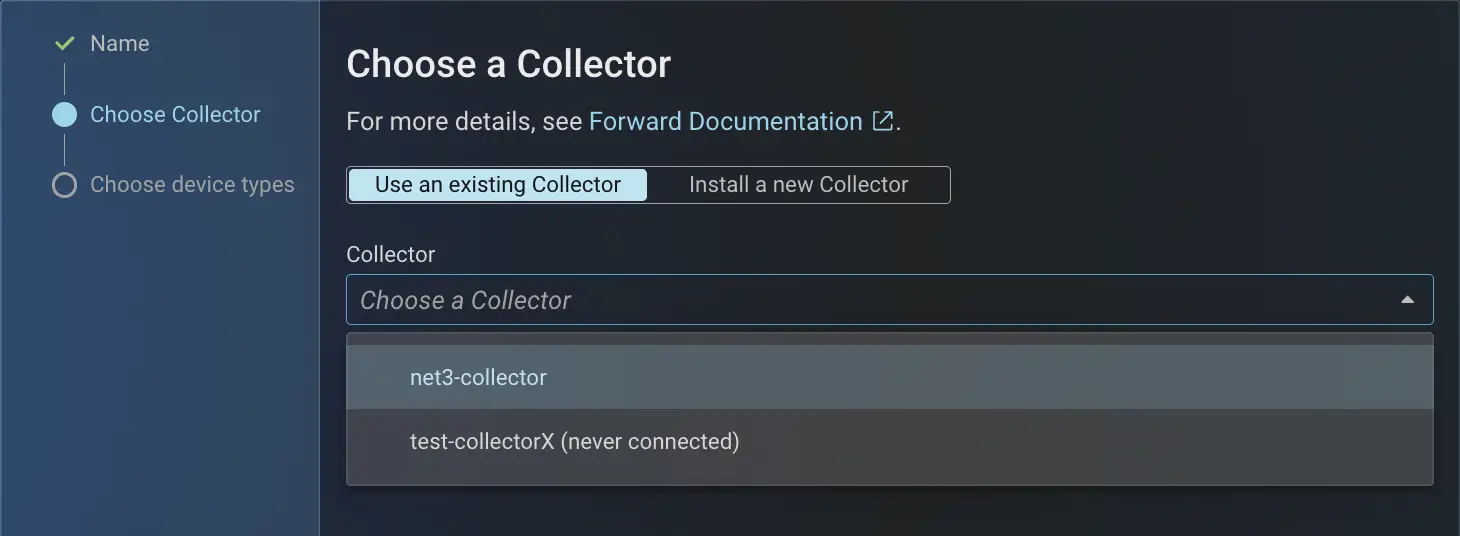
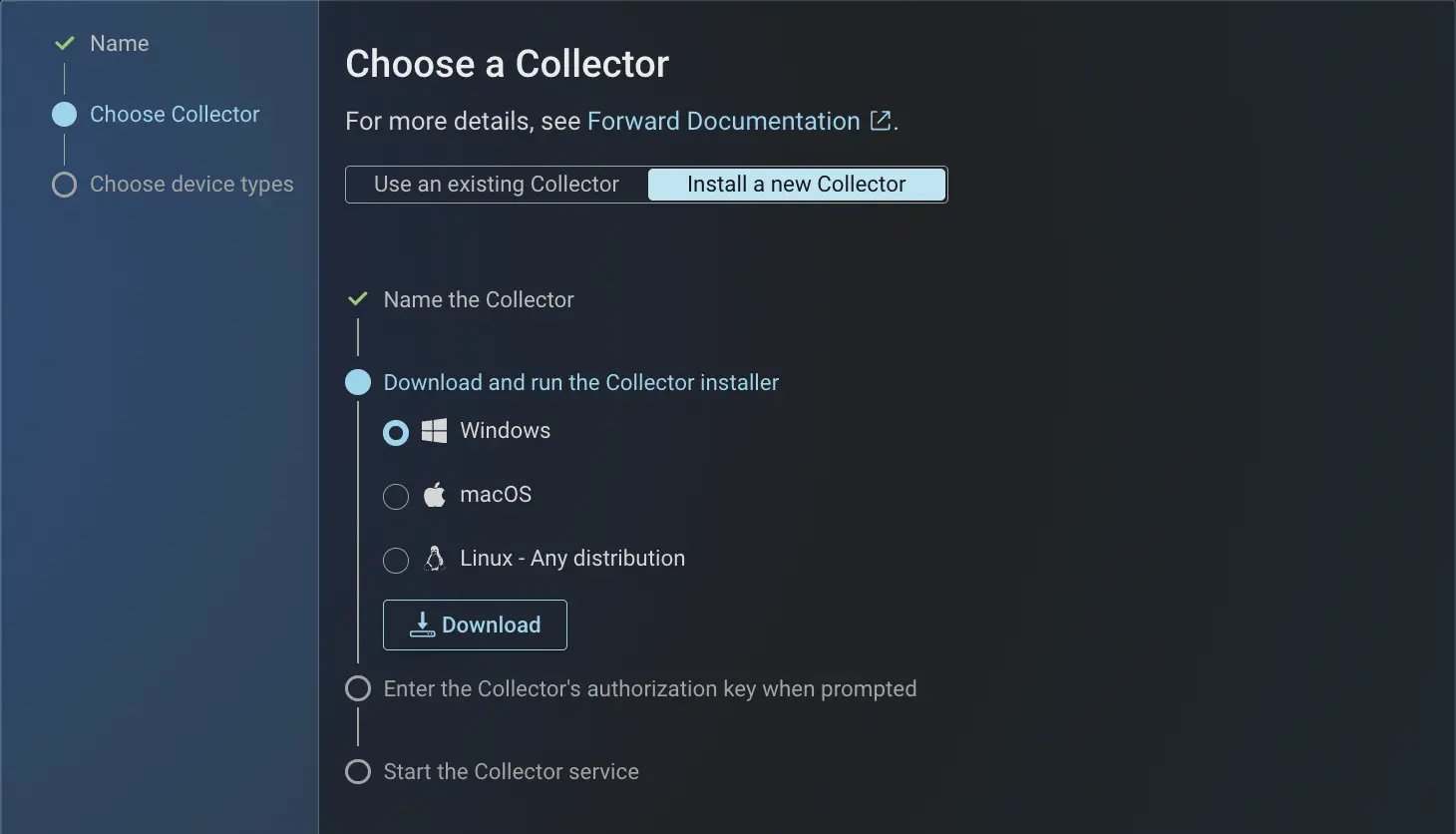
Install a new Forward Collector or choose an existing one. On bundled on-prem deployments, this step is skipped.
If a Forward Collector has already been installed within your environment, you can select it from the drop-down menu, as shown in the example below:
If you need to install a new collector, pick the one that best fits your environment and follow the on-screen instructions to install it.
For more on collectors, see Forward Collector.
Step 3: Choose device types
Select the source types to collect from by checking each item in the provided list:
- Standalone network devices, including Cisco ACI fabric, Cisco Meraki, Arista VeloCloud and Juniper Mist
- SD-WAN platforms (Cisco, HP, Juniper, Palo Alto, Versa)
- VMware vCenter, VMware NSX-T
- Cloud infrastructure (AWS, Azure, GCP, IBM)
- Alkira CXP
This is the same list presented during the first network setup using the guided onboarding wizard.
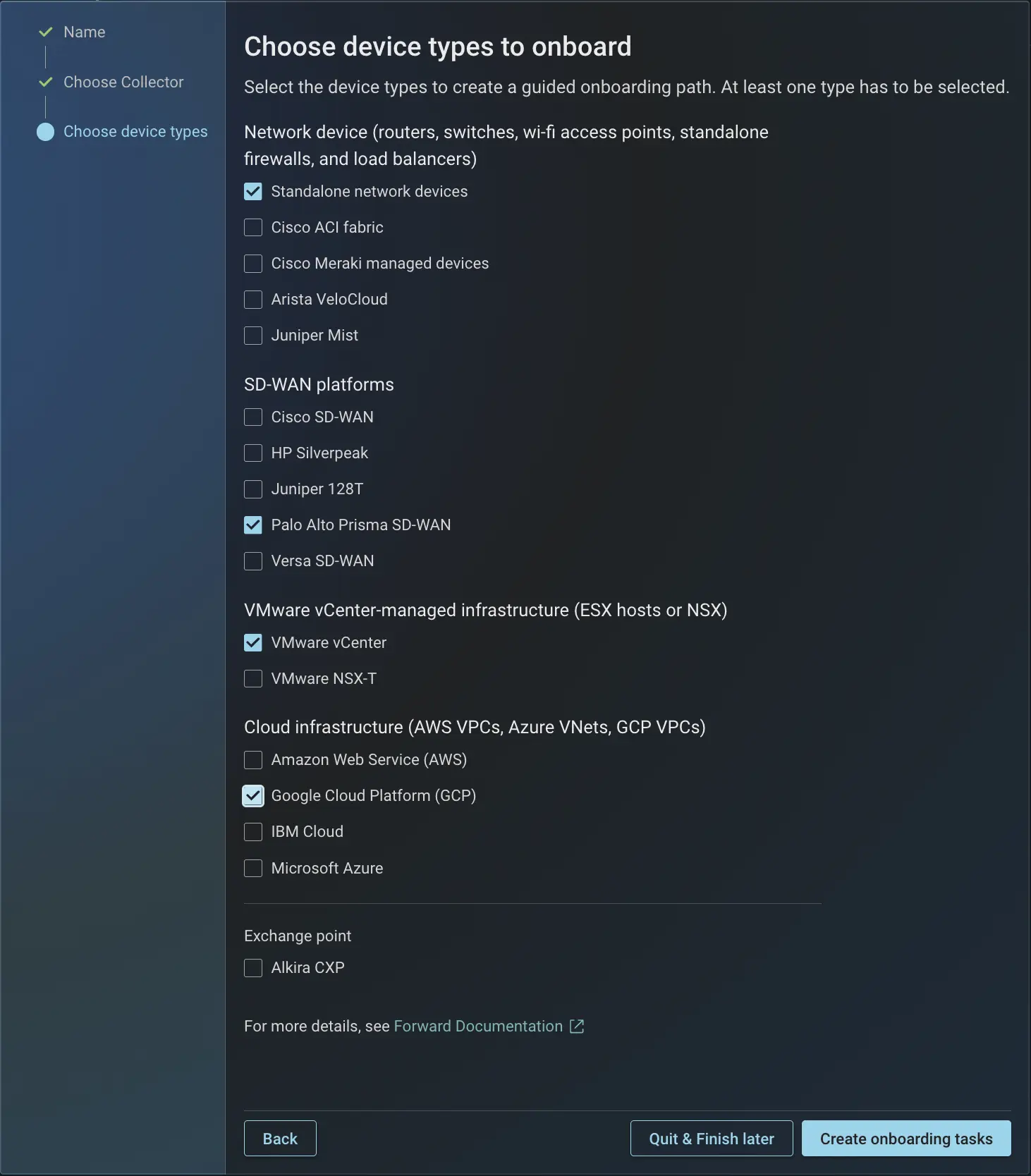
When you finish this step, the wizard opens guided onboarding for the new network, already populated with the source types you chose. Guided onboarding walks you through adding sources, taking a snapshot, and the remaining setup tasks. For the full walkthrough, see Guided Onboarding.
The sections below cover configuring specific source types during onboarding.
Network Device
For Standalone network devices, there are several options available to choose from, as seen in the example below:
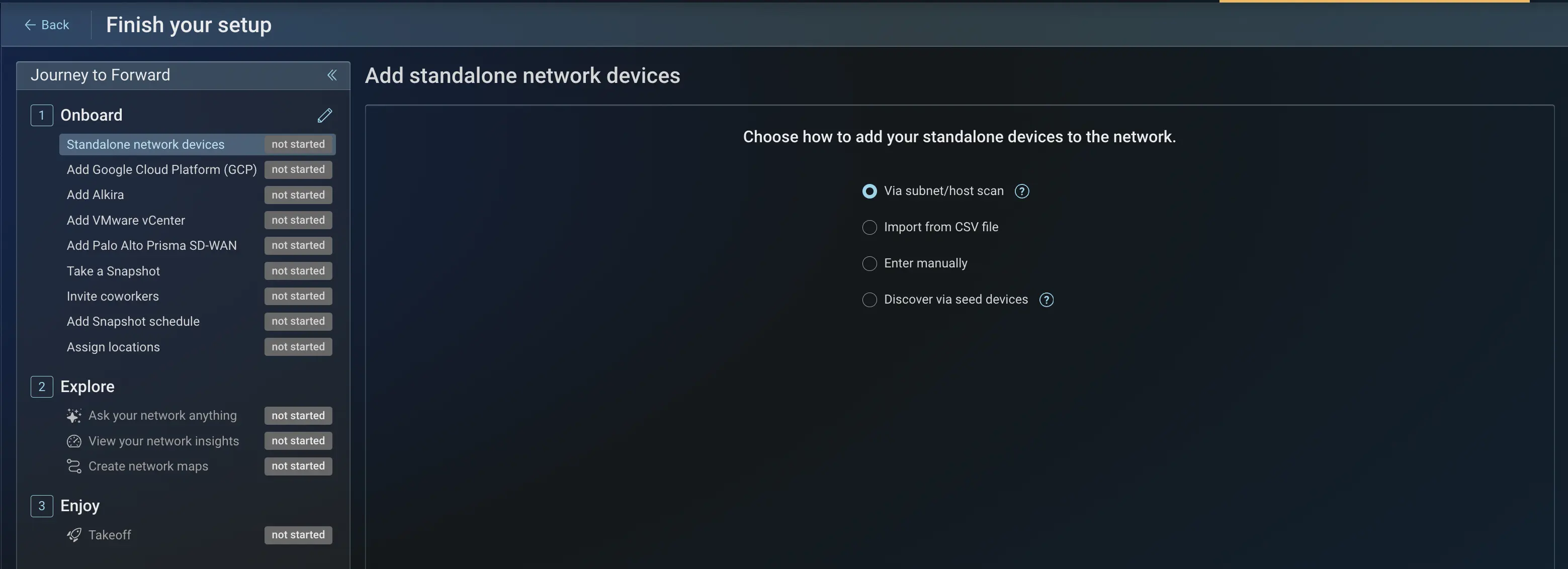
Forward offers significant flexibility to accommodate the needs of many on-premises network environments. You can add devices in four ways:
- Via subnet/host scan: scan one or more subnets or hosts to discover devices.
- Import from CSV file: upload a CSV file with device details.
- Enter manually: add a device by manually entering its details.
- Discover via seed devices: start from a set of known devices and discover their neighbors. Available for networks added after the first network.
The sections below cover seed discovery, stopping and restarting discovery, and reviewing discovered devices.
Discover via seed devices
Discover via seed devices is available as a source-discovery method alongside subnet scan, CSV import, and manual entry, when both of the following conditions are met:
- You are adding a network after the first one is already present.
- Enable device discovery via login is turned on for your organization (it is on by default). For on-premises deployments, it is listed under Experimental features in Settings > System > Org preferences. For more information about this setting, see Org Preferences.
Seed discovery uses a set of seed devices as a starting point and discovers their neighboring devices.
Select Discover via seed devices, then on the Add seed devices step enter the starting devices and set the scope of discovery:
- Seed devices: the starting hostnames or IP addresses, one per line.
- Allowed subnets (Optional): limit discovery to neighbors within these subnets.
- Exclude subnets/hosts (Optional): skip these subnets or hosts.
- Allow recursive neighbor discovery: when on, keep discovering outward from each newly found device; when off, stop at the seeds' direct neighbors.
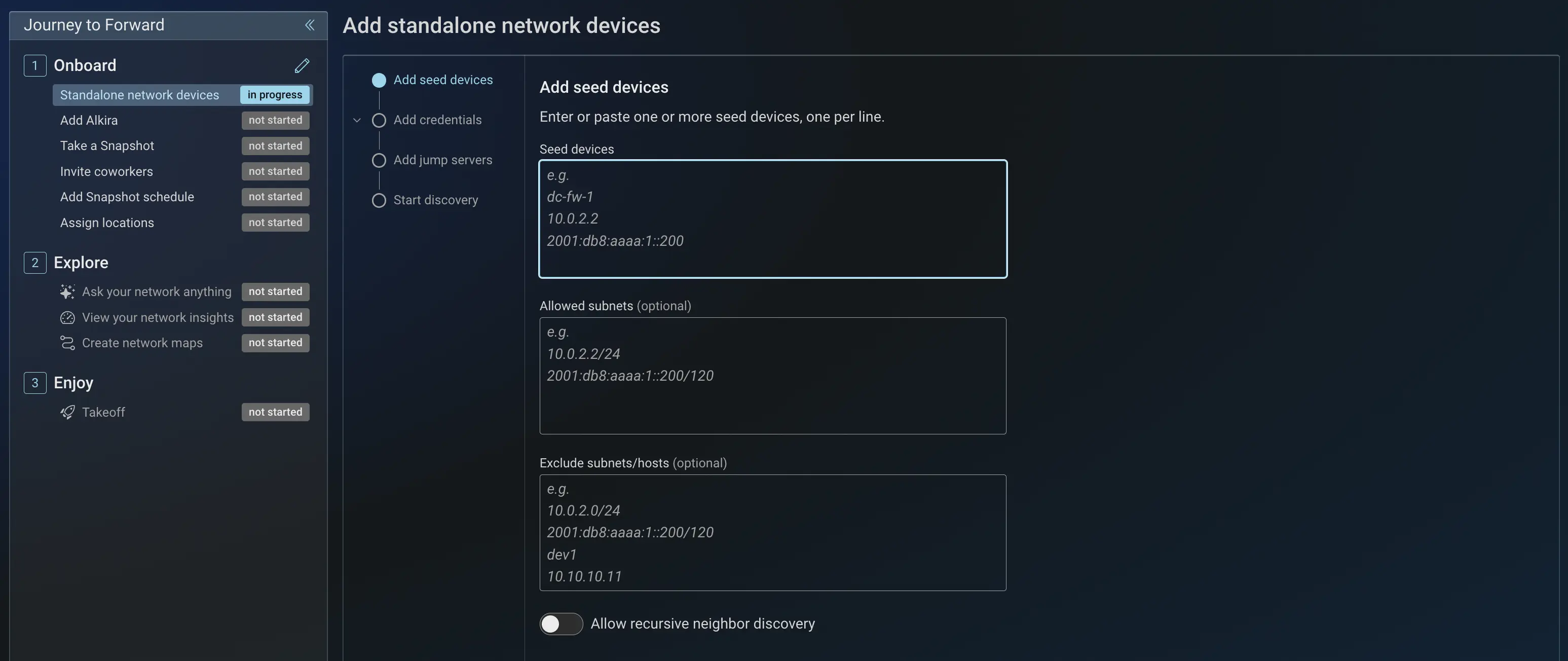
Add credentials and select Start discovery to discover the network devices to be added.
Stop and restart discovery
You can stop a running scan or discovery and restart it later. This applies to both subnet scan and seed discovery.
- While discovery runs, select Stop scan (subnet scan) or Stop discovery (seed discovery) to stop it.
- After it stops, select Start scan or Start discovery to run it again. All devices found across the runs remain available to add.
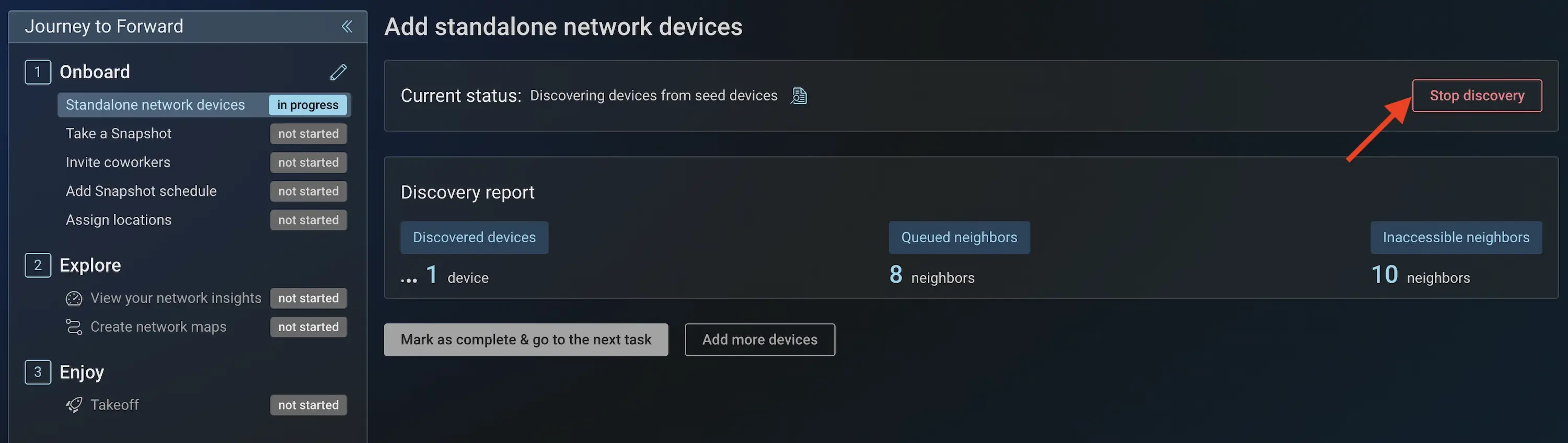
Review discovered devices
After discovery finishes, a review table lists the devices that were found. This table is shown for both subnet scan and seed discovery. Select the devices you want, then click Add selected to add them to Sources.
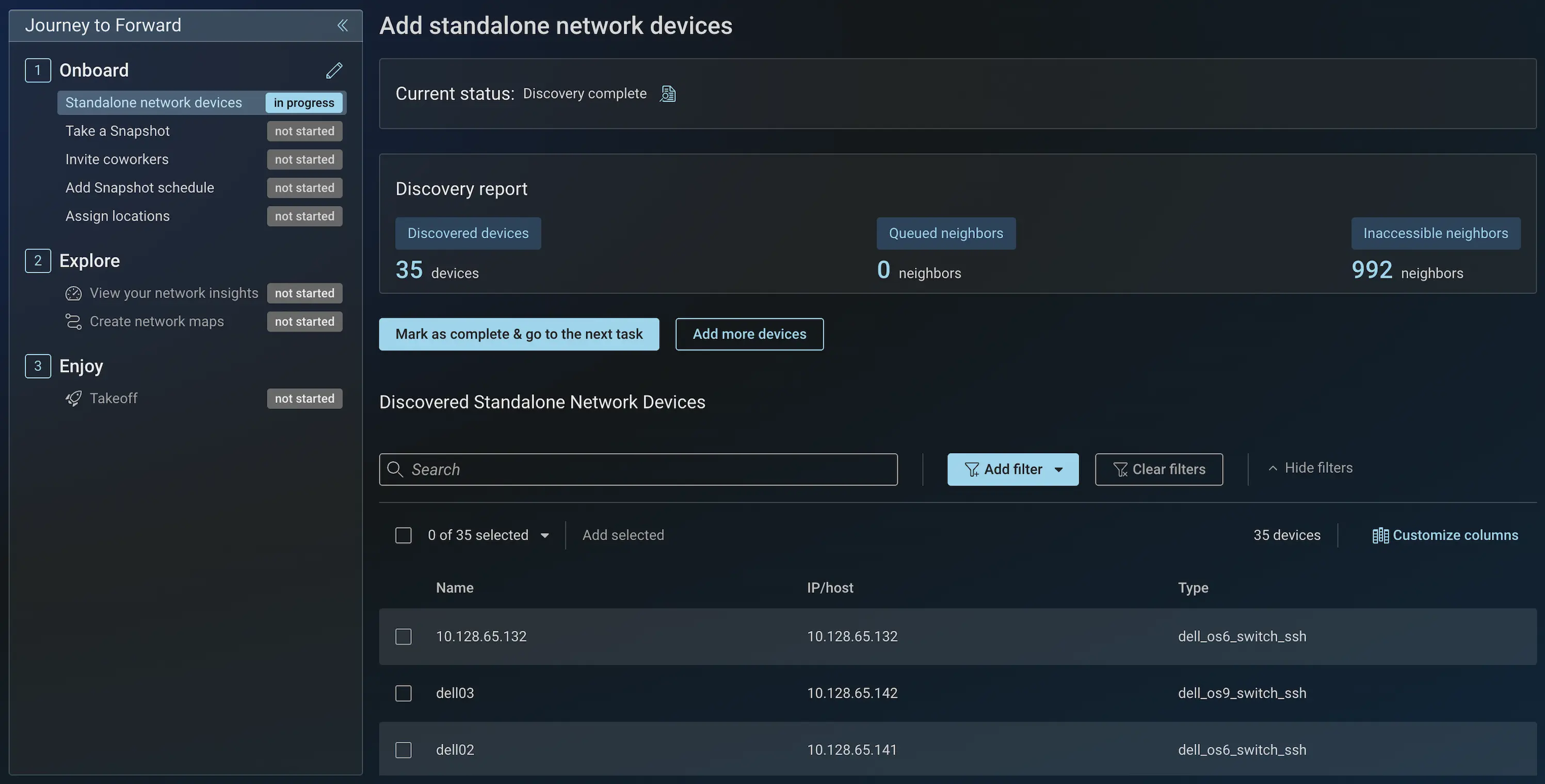
More information on the types of options for devices is available within the Collector configuration section of the documentation guide.
SD-WAN Platforms
For each SD-WAN platform you selected, follow the on-screen instructions to name the setup, add its controller and add the devices managed by that platform.
For more information on configuring an SD-WAN fabric, visit the SD-WAN Setup section of the documentation guide.
VMware vCenter-managed infrastructure
For VMware vCenter-managed environments fill out the requested fields and follow the custom instructions in the guided wizard to complete this step.
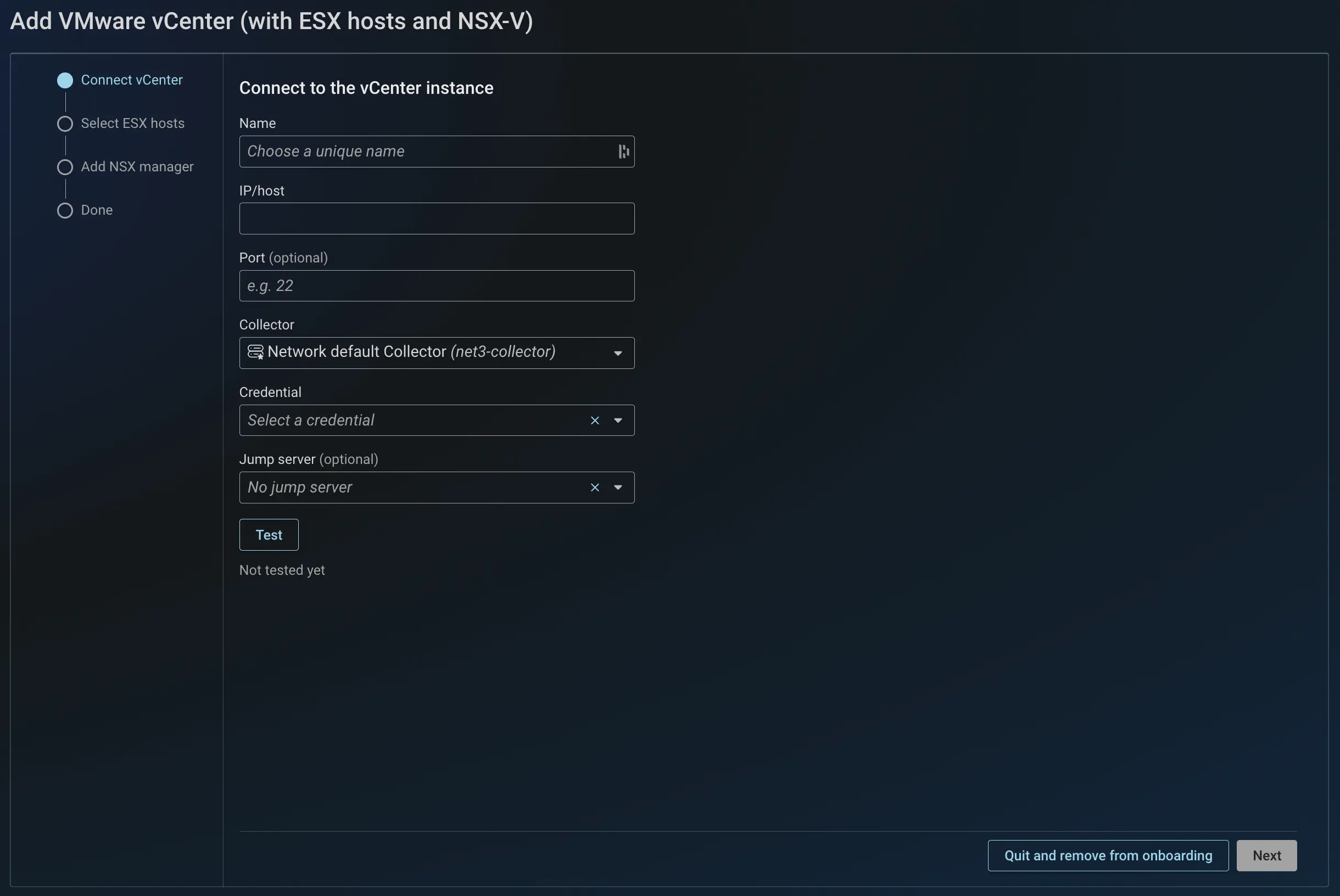
For more information on configuring virtual environments, visit the VM Platforms Setup section of the documentation guide.
Cloud Infrastructure
For Cloud Infrastructure, each cloud setup wizard is unique. Follow the guided steps in the setup wizard to configure the selected platform (AWS, Azure, GCP, or IBM).
For more information on configuring a specific cloud platform, visit the Cloud Infrastructure Setup section of the documentation guide.
Exchange Point
For an exchange point such as Alkira, follow the on-screen instructions in its setup wizard.
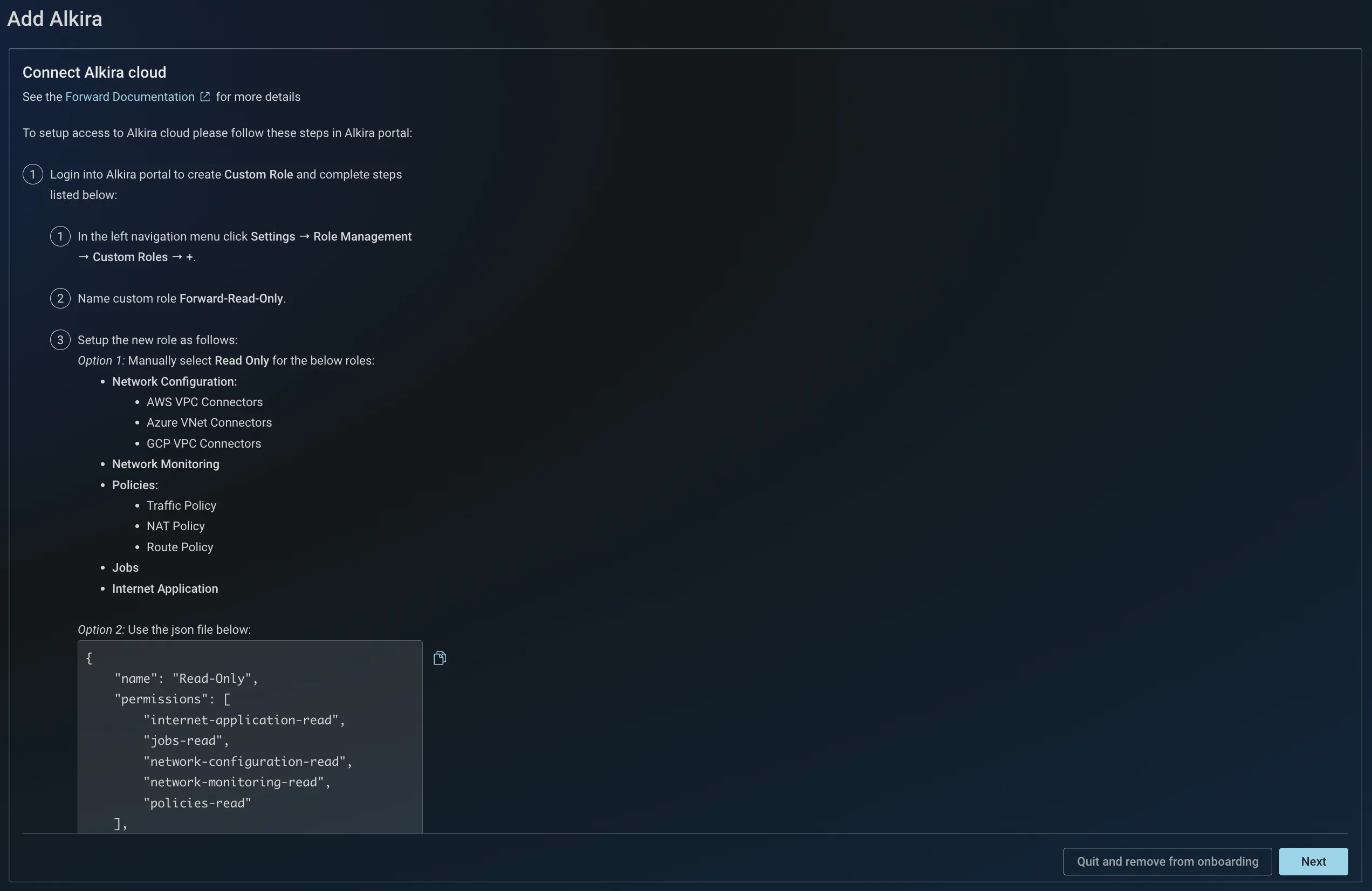
For more information on configuring Alkira, visit the Alkira section of the documentation guide.
Summary
In this guide, we created a new network, selected which collectors to use, and selected the environments to collect from. Additional information on device configuration can be found in the Device Setup section of the documentation guide.
Next
Proceed to Network Collections to learn how to create your first network collection.