Data Disk Expansion
Update disk size in Azure portal:
-
Login to Azure Portal
-
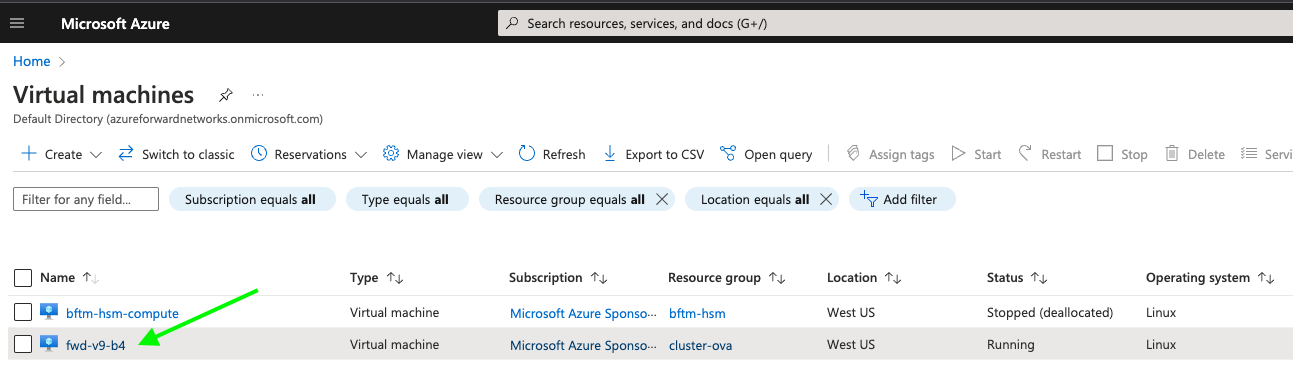
Click on the VM that requires the disk size to be increased.
-
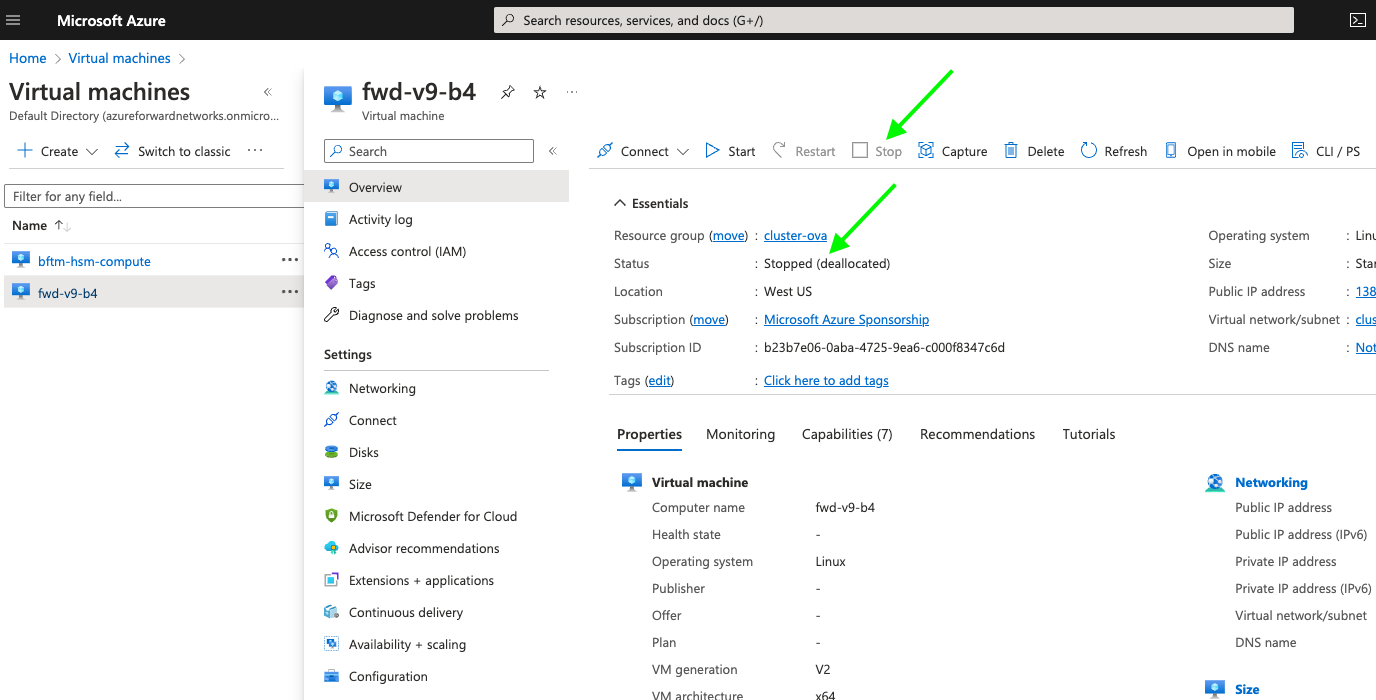
Stop the VM by clicking on stop and wait for the VM to be in stopped state.
-
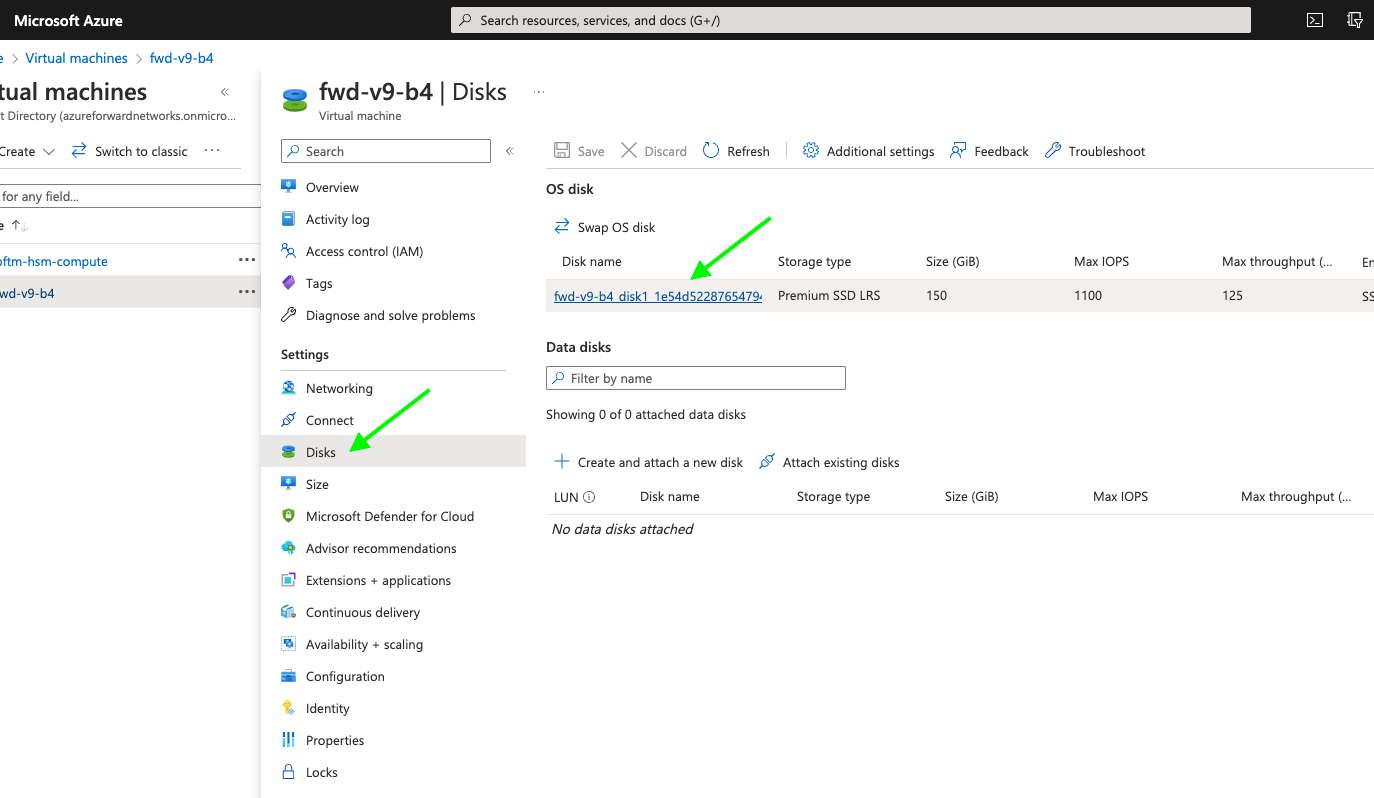
Click on Disks and Select the disk name associated with the VM.
-
In the disk overview page, click on the size + performance and update the Custom disk size(GiB) value and click save in the botton of the page.
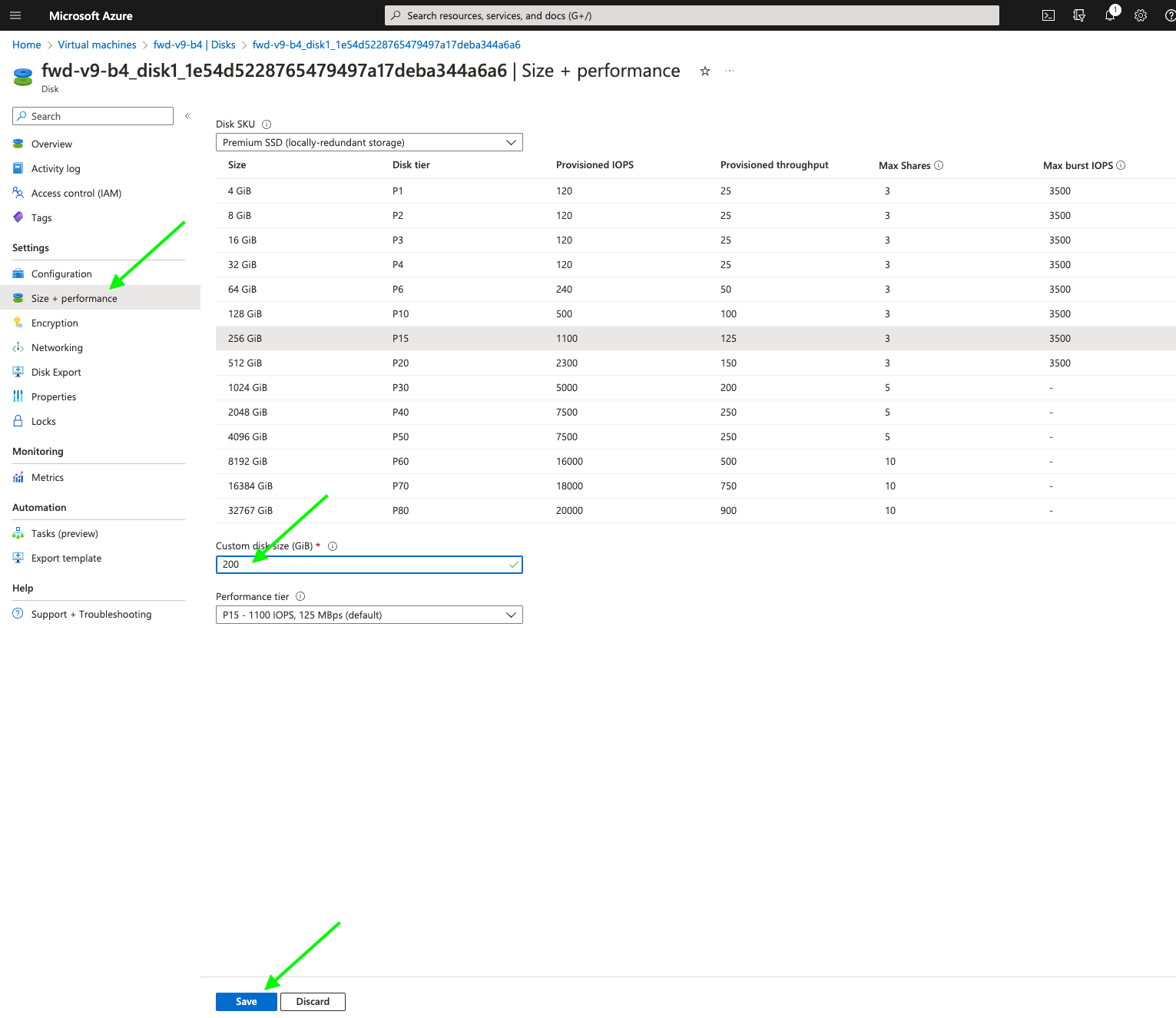
-
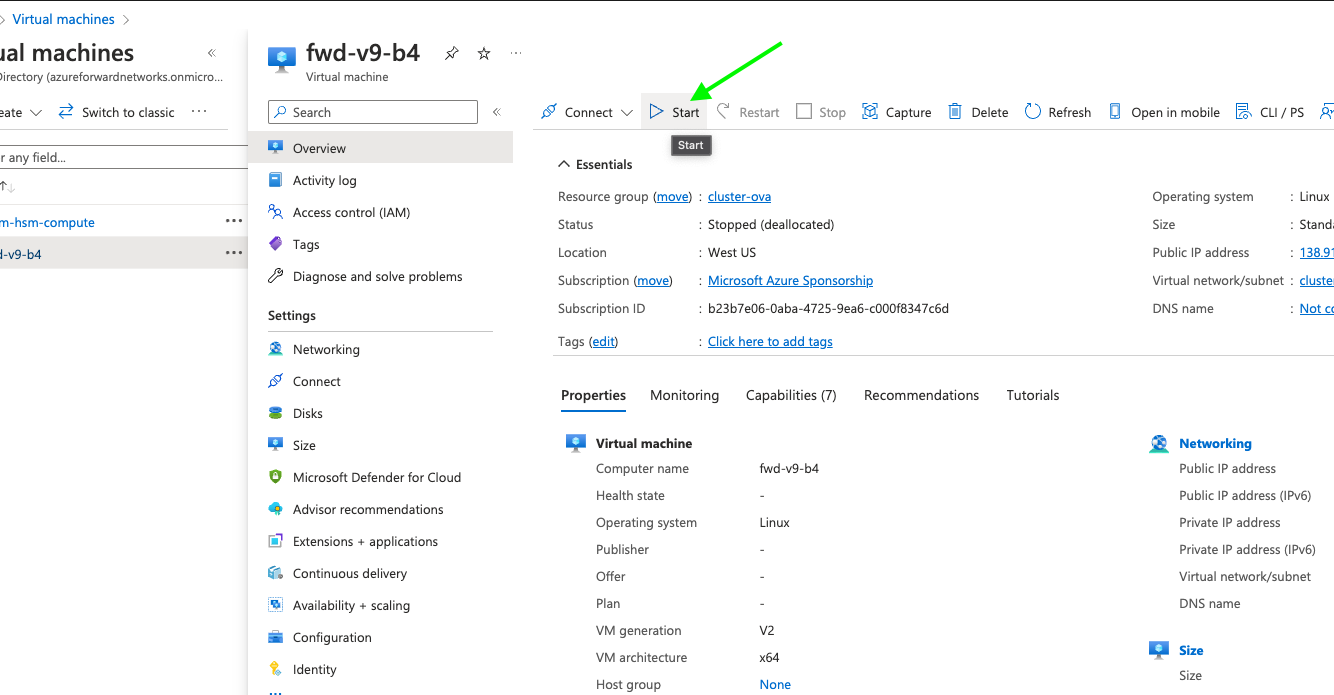
Once the disk is increased navigate back to the VM and start it by clicking the start button
Expand the disk on a cluster node
To expand the available space on the disk after the underlying VM disk has been increased:
- SSH into the node.
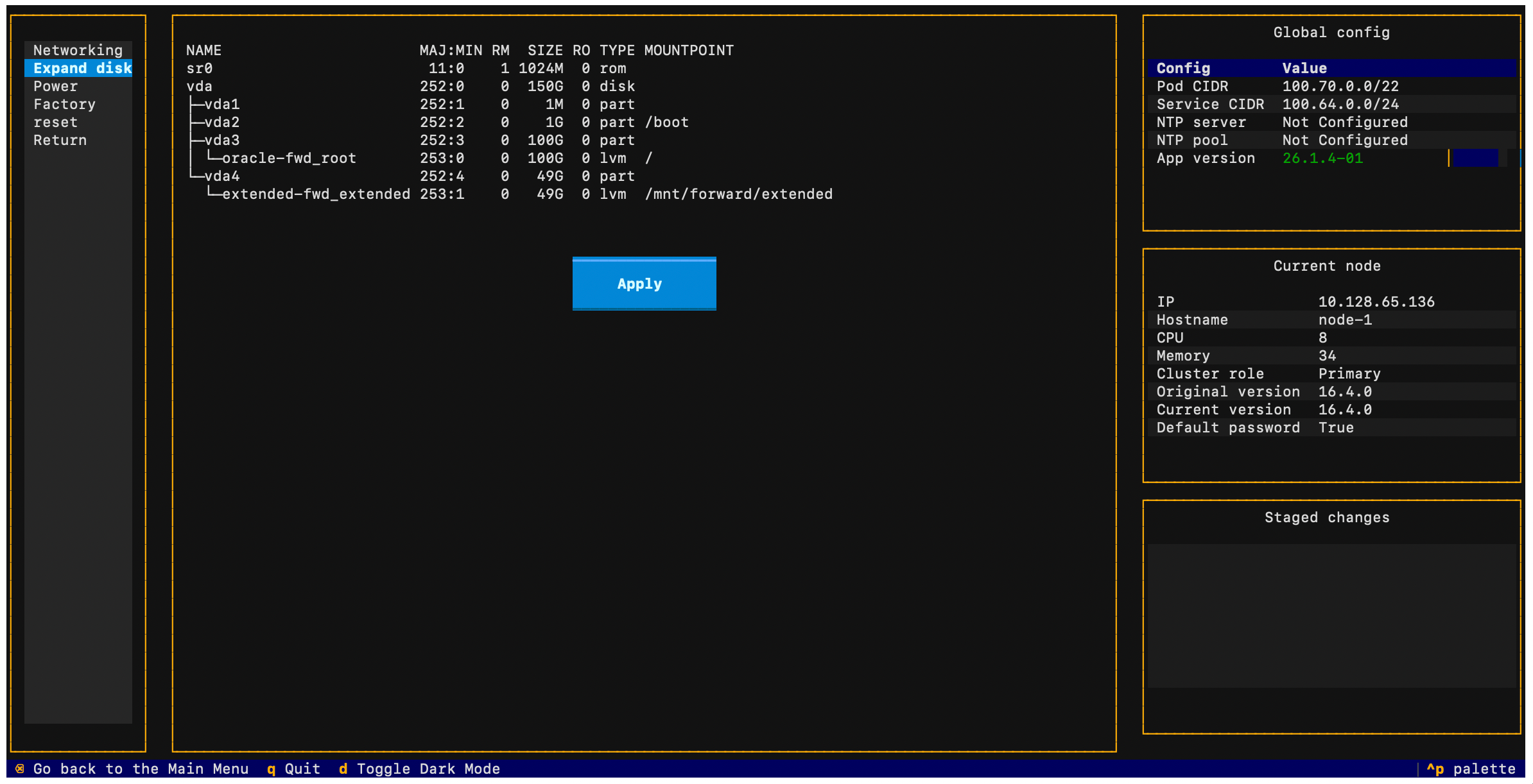
- Select Node > Expand disk from the TUI.
- The TUI will display the current disk layout and allow you to extend the partition to use the newly available space.