Bastion Host Configuration for Cluster Authorization
This guide describes configuring a bastion host and applying firewall rules to secure SSH access to Forward Cluster version 15 or later.
Prerequisites
- A dedicated Linux-based virtual machine to serve as the bastion host (this guide uses Oracle Linux v9).
- The bastion host should be configured with your organization’s preferred authentication method (e.g., LDAP, TACACS).
- Ensure the bastion host and all cluster nodes are configured to use the same NTP server for consistent time synchronization.
Step 1: Configure Cluster Nodes with Restricted Firewall Rules
Each node should use nftables to restrict inbound traffic to only the necessary ports and allow access only from the
bastion host and other cluster nodes.
This configuration has to be added for every single node in the cluster
Restricted access after firewall configuration
Once advanced firewall rules are applied, this VM will only accept connections from the explicitly whitelisted IP addresses. Any node not in the list will be blocked and unable to reach this system.
It is strongly recommended that a support engineer from Forward Networks is present when configuring bastion access to avoid mistakes that can impact the deployment and incur data loss.
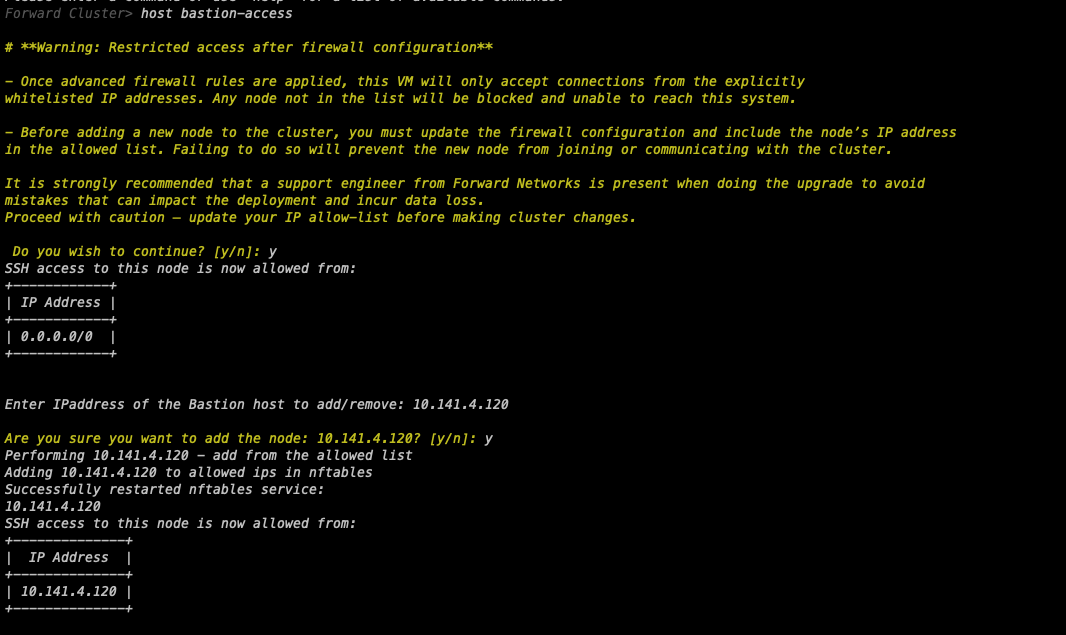
To configure bastion access for a cluster node, execute the following steps:
-
SSH into the cluster node
-
Launch the
fwd-clusterutility and execute the below command:Forward Cluster> host bastion-access -
Review the warning message and confirm by entering yes (
y) to continue -
The utility will display the current SSH access configuration showing all allowed IP addresses
-
When prompted, enter the IP address you want to add or remove (e.g., bastion host IP)
-
Confirm the action by entering yes (
y) -
The utility will automatically update the nftables configuration and restart the service
-
Verify the updated list of allowed IP addresses
SSH Authentication to Cluster Nodes
Option 1: Password-Based Authentication
By default, cluster nodes allow password-based SSH login.
Username: forward
Password: changeme
It is recommended that the forward user change the default password after logging in. Use your actual password when
configuring the bastion-host-based management flow. Using this option, a user would have to provide credentials when
logging into the nodes of the Forward Cluster from the Bastion host.
Option 2: Key-Based Authentication
The Forward Cluster supports key-based authentication, allowing users to log in using a secure key pair instead of a password. This guide uses an ED25519 key as an example.
1. Generate an SSH Key on the Bastion Host
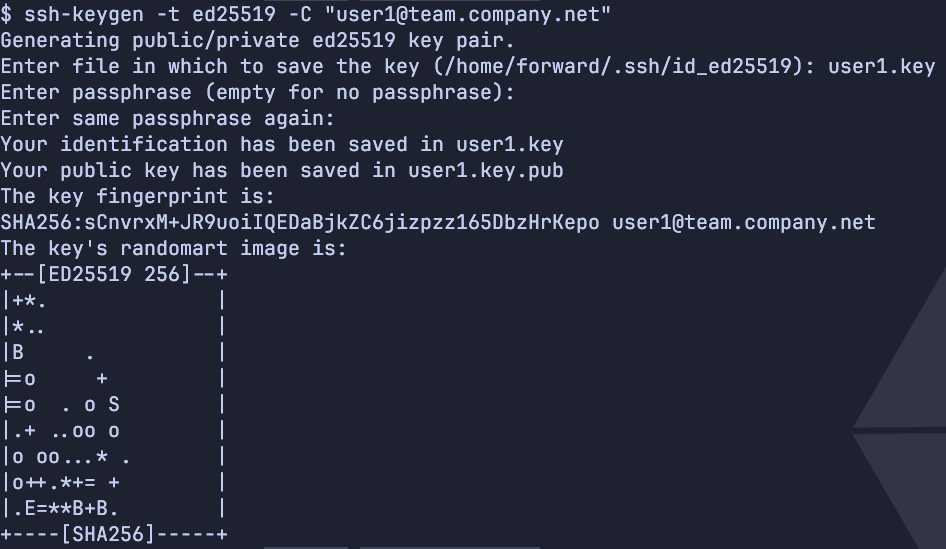
Log in to the bastion host and run the following command to generate a new key pair:
ssh-keygen -t ed25519 -C "user1@team.company.net"
When prompted, specify a custom file name (e.g., user1.key) or press Enter to use the default. This creates a
public/private key pair named user1.key and user1.key.pub. For an extra layer of security, you may want to use a
passphrase to protect your private keys on the bastion host.
2. Copy the Key to Each Cluster Node
Install the public key on each node using:
ssh-copy-id -i user1.key forward@<node-ip>
Repeat this command for each node in the cluster.
3. Connect Using the SSH Key
With the key installed, use the following command to log in.
ssh forward@<node-ip>
Revoke a Key
Remove the corresponding entry from the ~/.ssh/authorized_keys to revoke access. Each entry appears as a single line
that ends with the comment specified when creating the key (-C flag).
For example:
ssh-ed25519 AAAAC3NzaC1lZDI1NTE5AAAAIF2kV... user1@team.company.net
Do not remove the inter-cluster-key, as it is required for internal cluster operations.
Optional: Limit Concurrent SSH Sessions
For additional security, you can restrict the number of concurrent SSH sessions per user by editing MaxSessions in
/etc/ssh/sshd_config.
For example, MaxSessions 1 limits each user to a single active SSH session.