Bastion Host Configuration for Cluster Authorization
This guide describes configuring a bastion host and applying firewall rules to secure SSH access to the Forward Cluster.
Bastion host access can also be configured during installation via the TUI at Security > Bastion.
Prerequisites
- A dedicated Linux-based virtual machine to serve as the bastion host (this guide uses Oracle Linux v9).
- The bastion host should be configured with your organization's preferred authentication method (e.g., LDAP, TACACS).
- Ensure the bastion host and all cluster nodes are configured to use the same NTP server for consistent time synchronization.
Step 1: Configure Cluster Nodes with Restricted Firewall Rules
Each node should use nftables to restrict inbound traffic to only the necessary ports and allow access only from the
bastion host and other cluster nodes.
This configuration must be applied on every node in the cluster.
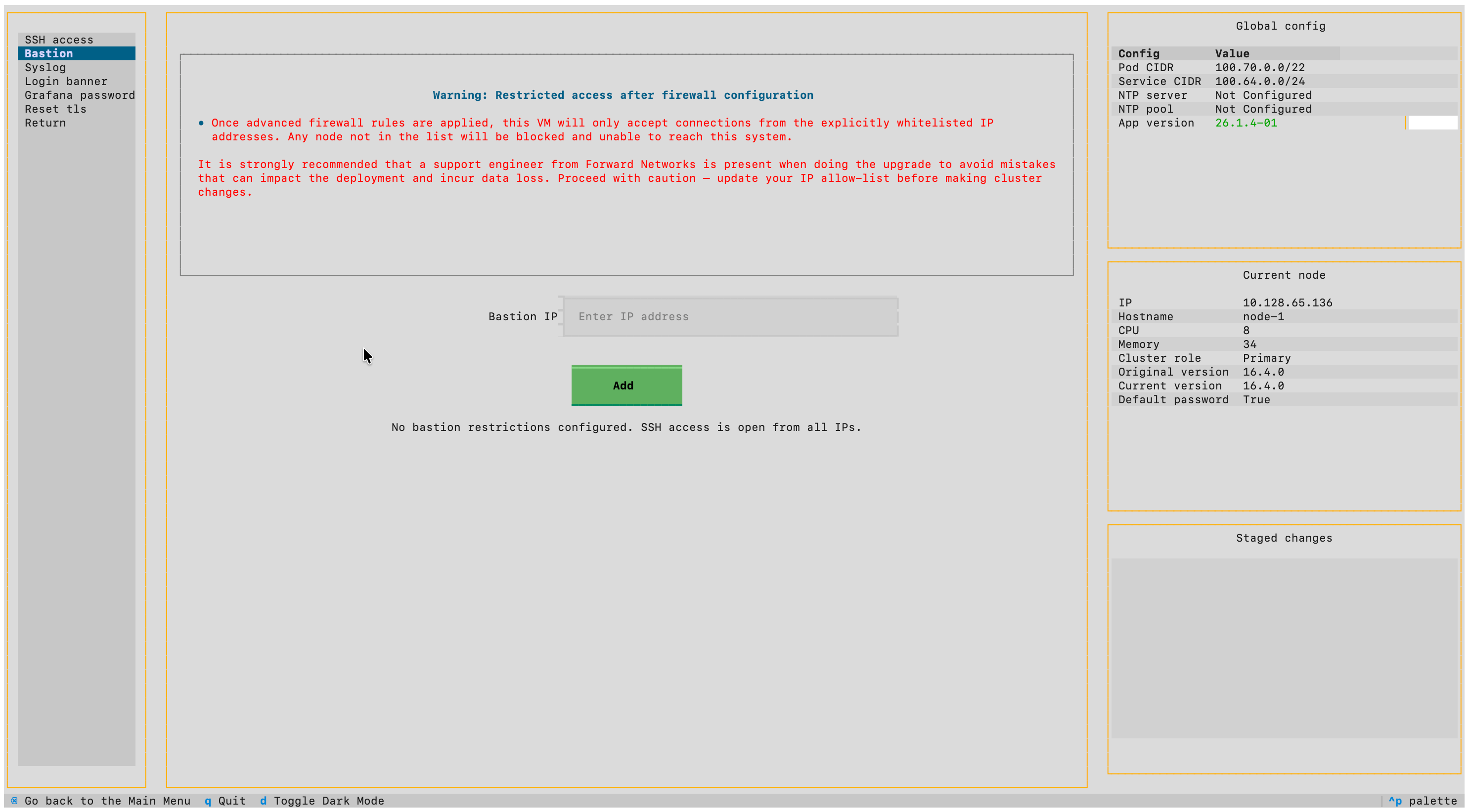
Restricted access after firewall configuration
Once advanced firewall rules are applied, this VM will only accept connections from the explicitly whitelisted IP addresses. Any node not in the list will be blocked and unable to reach this system.
It is strongly recommended that a support engineer from Forward Networks is present when configuring bastion access to avoid mistakes that can impact the deployment and incur data loss.
- SSH into the cluster node.
- Select Security > Bastion from the TUI.
- Add the IP address of the bastion host.
- Confirm the configuration.
SSH Authentication to Cluster Nodes
Option 1: Password-Based Authentication
By default, cluster nodes allow password-based SSH login.
Username: forward
Password: changeme
Change the default password before using the appliance in production. Passwords can be changed via the TUI at Security > SSH access.
Option 2: Key-Based Authentication
The Forward Cluster supports key-based authentication, allowing users to log in using a secure key pair instead of a password.
Only RSA and ECDSA key types are supported due to FIPS compliance requirements. ED25519 keys are not supported.
1. Generate an SSH Key on the Bastion Host
Log in to the bastion host and generate a new key pair:
ssh-keygen -t ecdsa -C "user1@team.company.net"
When prompted, specify a custom file name (e.g., user1.key) or press Enter to use the default. For additional
security, use a passphrase to protect your private keys on the bastion host.
2. Copy the Key to Each Cluster Node
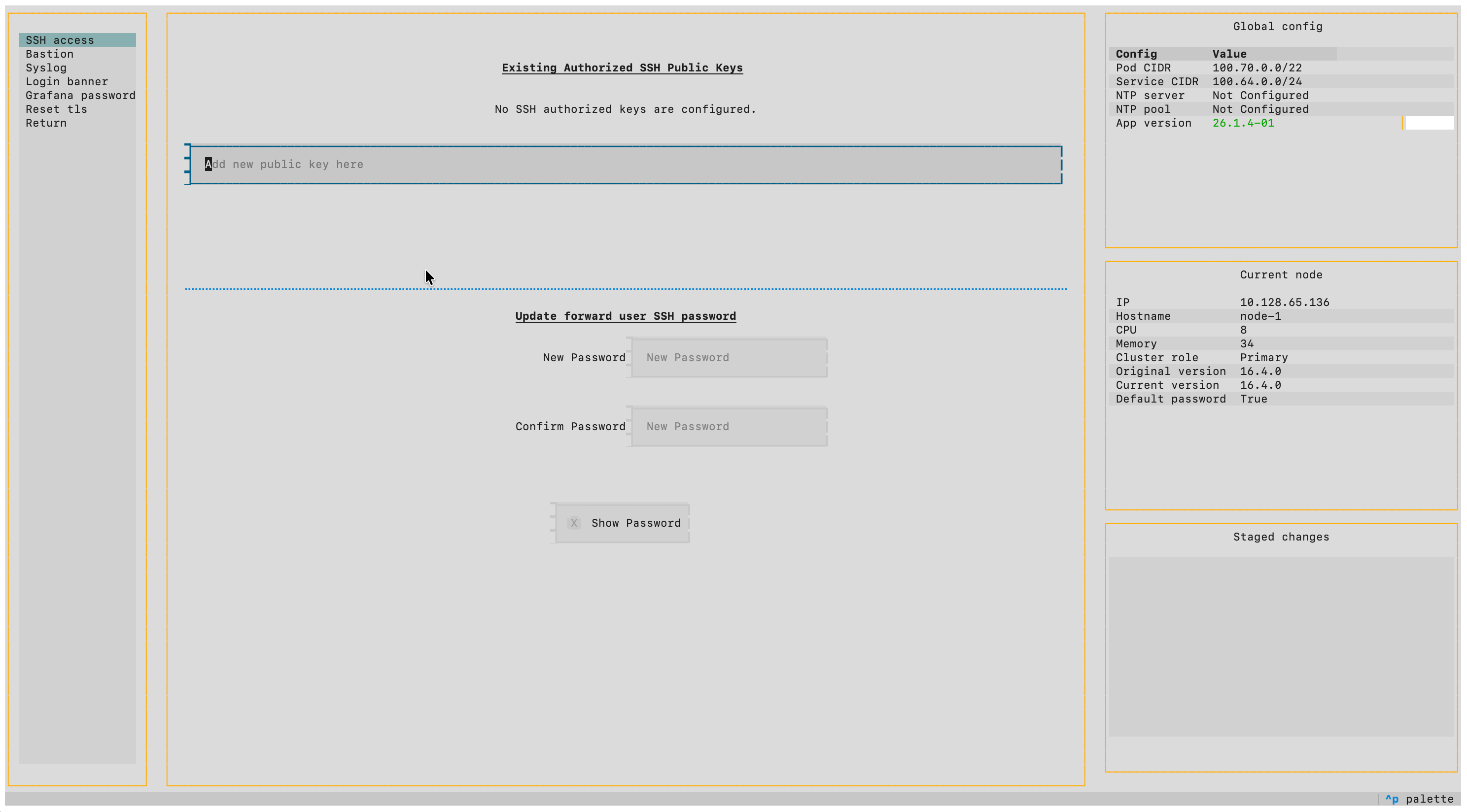
Add public keys via the TUI:
- SSH into each cluster node.
- Select Security > SSH access from the TUI.
- Add the public key content.
Repeat for each node in the cluster.
3. Connect Using the SSH Key
With the key installed, log in using:
ssh forward@<node-ip>
Revoke a Key
Keys can be removed via the TUI at Security > SSH access: select the key and click Remove.
Do not remove the inter-cluster-key, as it is required for internal cluster operations.
Optional: Limit Concurrent SSH Sessions
For additional security, you can restrict the number of concurrent SSH sessions per user on the bastion host by
editing MaxSessions in /etc/ssh/sshd_config on the bastion.
For example, MaxSessions 1 limits each user to a single active SSH session.