Renew Cluster Orchestrator Certificates
The cluster orchestrator issues internal certificates with a fixed validity period. The TUI tracks their expiration and renews them in place. Application TLS is managed separately — see the TLS sections in the install guide if you need to rotate the user-facing certificate.
When to renew
When orchestrator certificates approach or pass their expiration, the TUI displays a banner at the top of every screen:
| Certificate state | Banner text |
|---|---|
| Expiring soon | Cluster orchestrator certificates are expiring soon — Consider triggering 'Renew Certs' from Cluster tab |
| Expired | Cluster orchestrator certificates have expired — Please trigger 'Renew Certs' from Cluster tab |
| Unknown | Unable to verify cluster orchestrator certificates — contact your Forward Networks support engineer |
Renew before the expiration deadline to avoid orchestrator (control-plane) failures.
Renew certificates
Renewing the certificates restarts the application. Minor service disruptions may occur during the renewal process. Plan a maintenance window before proceeding.
- SSH into a primary node.
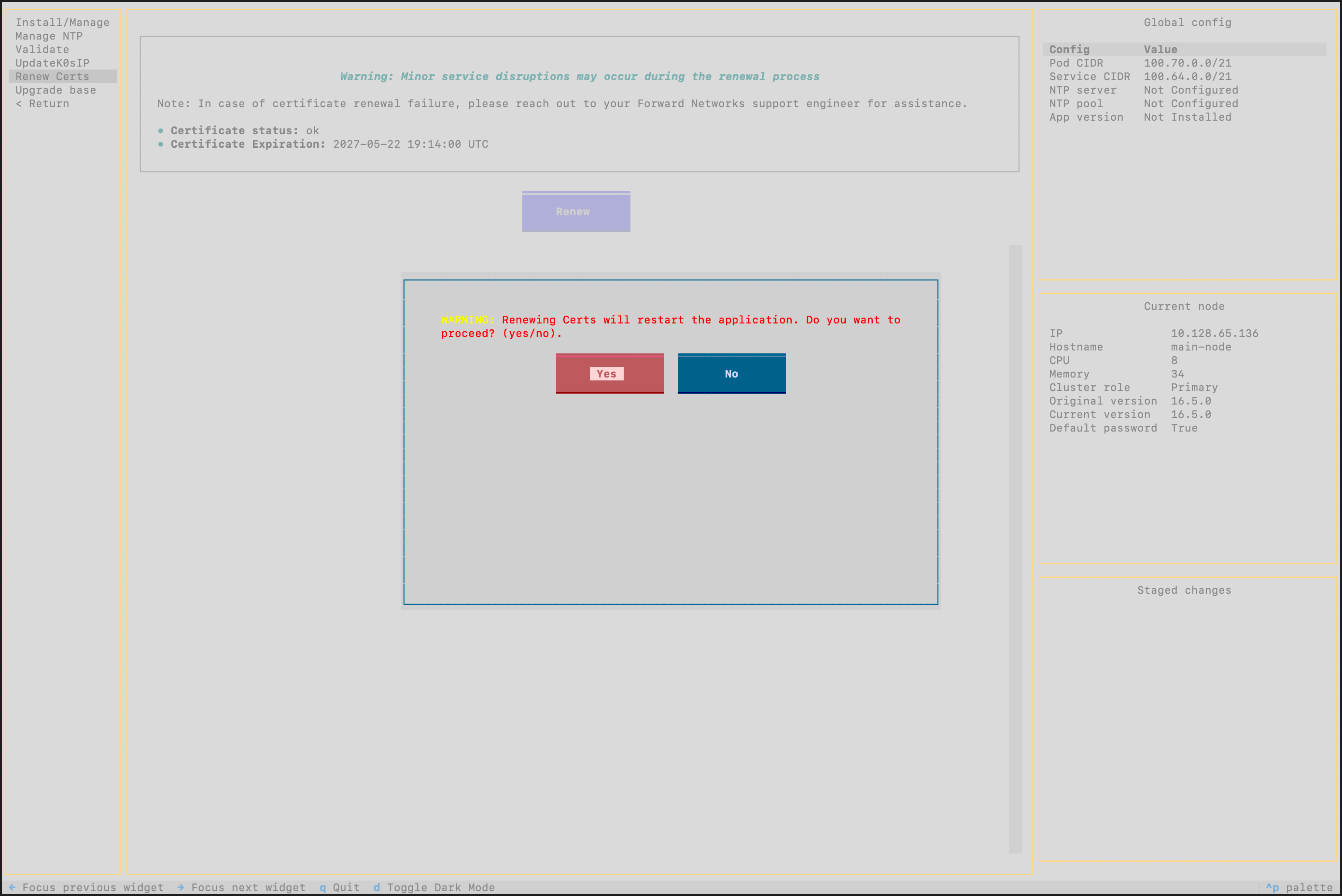
- Select Cluster > Renew Certs from the TUI. The view shows the current Certificate status and Certificate Expiration (UTC).
- Click Renew and confirm the prompt:
Renewing Certs will restart the application. Do you want to proceed?
- The TUI rotates the affected certificates across all primary nodes, restarts the orchestrator, and streams progress into the log panel. On success, the banner clears.
- Verify cluster health from Troubleshooting > View nodes.
If renewal fails, contact your Forward Networks support engineer with the diagnostic bundle from Troubleshooting > Diagnostics.
The Renew Certs option appears in the Cluster menu only after the cluster orchestrator is installed.