Upgrade the Application
This section is only relevant to on-premises deployments. Forward SaaS is automatically upgraded whenever a new version is released.
It is highly recommended to take a database backup before upgrading the application.
Downgrades Require Forward Support
Restoring a backup to an earlier software version (downgrading) is not a supported self-service operation. Downgrades can lead to data incompatibility and system instability.
Before attempting any downgrade, contact Forward Networks Support for guidance.
Upgrade Forward Enterprise Application
-
Obtain the new application package from Forward Software Central:
- Go to the Deployments tab
- Click View upgrade steps for the corresponding deployment (add a new deployment if one is not already created)
- From the base version dropdown, select the version of the cluster you intend to upgrade
- Select the Forward Enterprise application version to download
-
Upload the package to the appliance:
- SSH into a primary node

- Select Forward Enterprise > Install/Upgrade from the TUI, then choose Upload
- Choose one of the three transfer methods:
- HTTPS (Browser) — opens a temporary upload service at
https://<node-ip>:30000where you can upload the package through your browser - SSH (SFTP) — opens a temporary SFTP service on port 30000 for transferring the package via SCP/SFTP:
scp -P 30000 forward-app-yy.mm.x-bb.package forward@<Primary_Node_IP>:~/
- Download from URL — paste the package URL (for example, a signed link from Forward Software Central) and let the TUI download the file directly to the node. The node must have outbound HTTPS access to the URL host.
- HTTPS (Browser) — opens a temporary upload service at
-
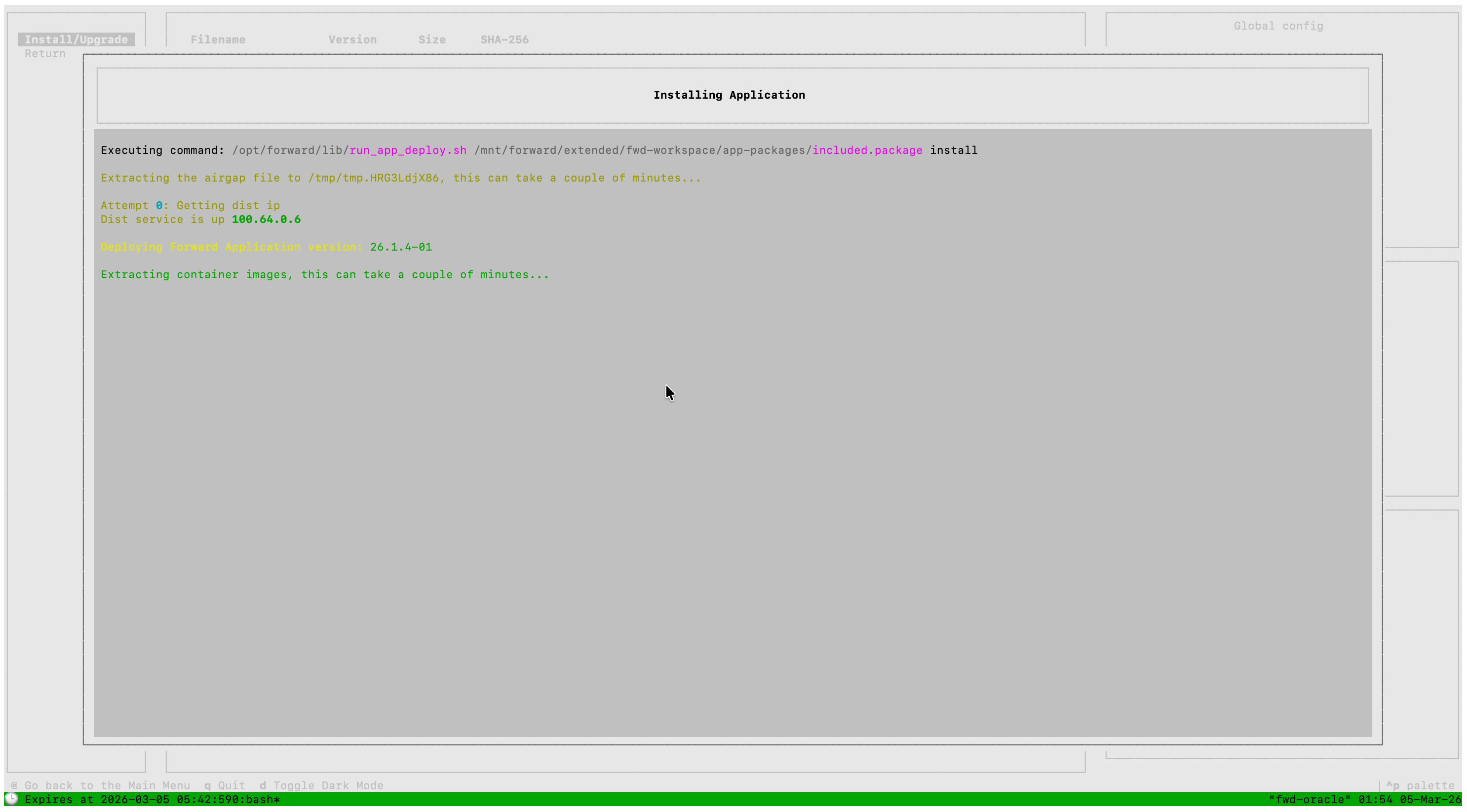
Install the package via the TUI:
- Select Forward Enterprise > Install/Upgrade from the TUI main menu
- Select the uploaded package to install
-
The TUI automatically retains only the two most recent application packages on each node. Older packages are removed after a successful upgrade, so manual cleanup is no longer required.