Data Disk Expansion
Increase disk size of a node in vCenter:
info
Below instructions and screenshots are taken on vSphere Client version 7.0.2.
-
Login to vCenter and search for the name of the VM that requires the disk to be increased.

-
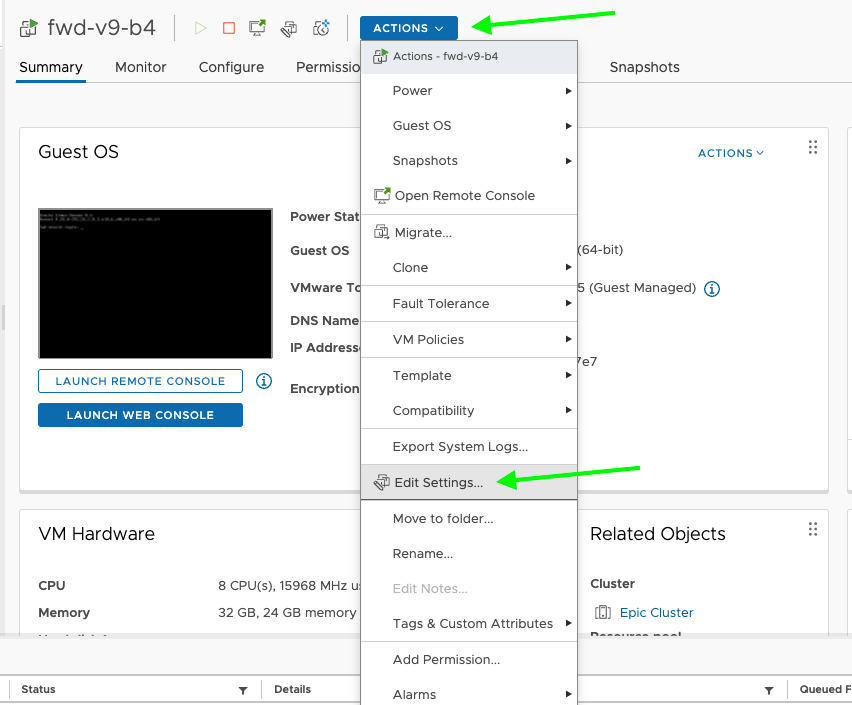
Click on Actions dropdown and select "Edit Settings"
-
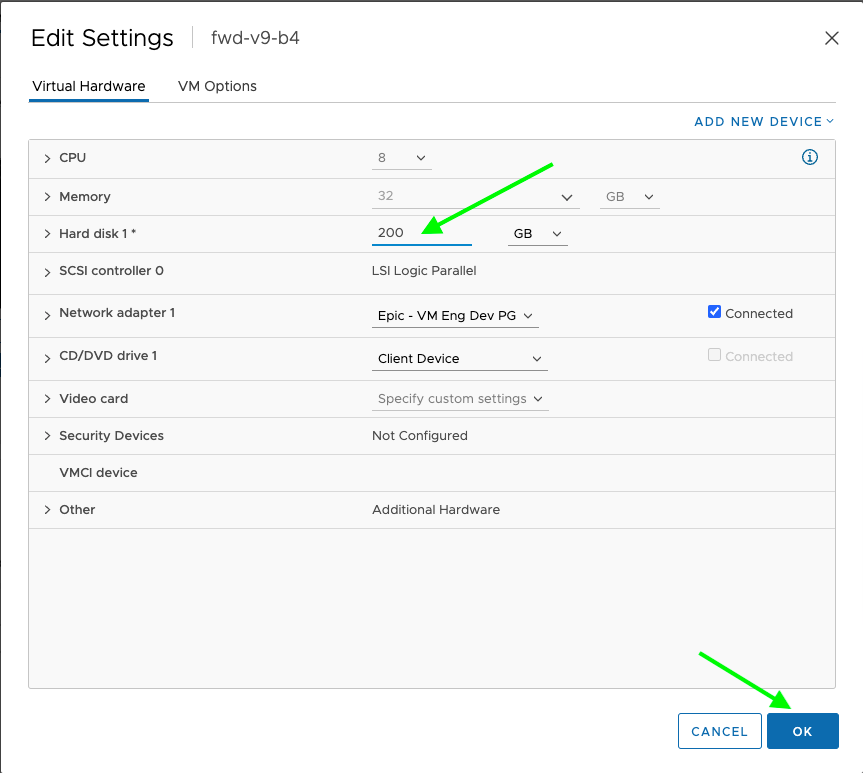
In the setting dialogue box update the disk size and Click Ok
-
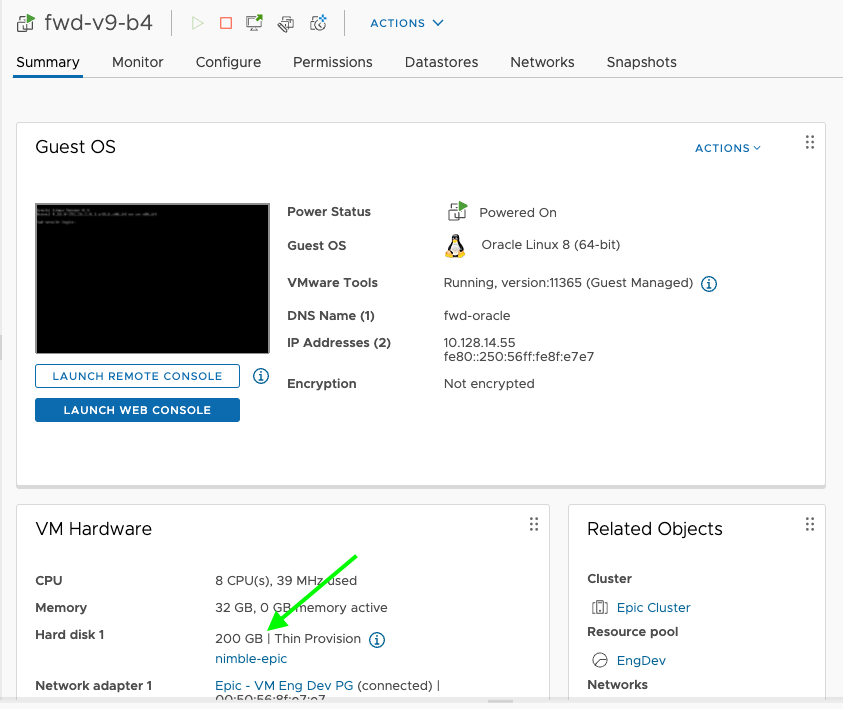
Refresh the page and confirm that the Hard disk value has been updated to the new value.
-
The disk size changes made in vCenter to a running VM will not make space visible to the running OS. Reboot the VM from vCenter (right-click the VM and select Power > Restart Guest OS) to apply the changes.
Expand the disk on a cluster node
To expand the available space on the disk after the underlying VM disk has been increased:
- SSH into the node.
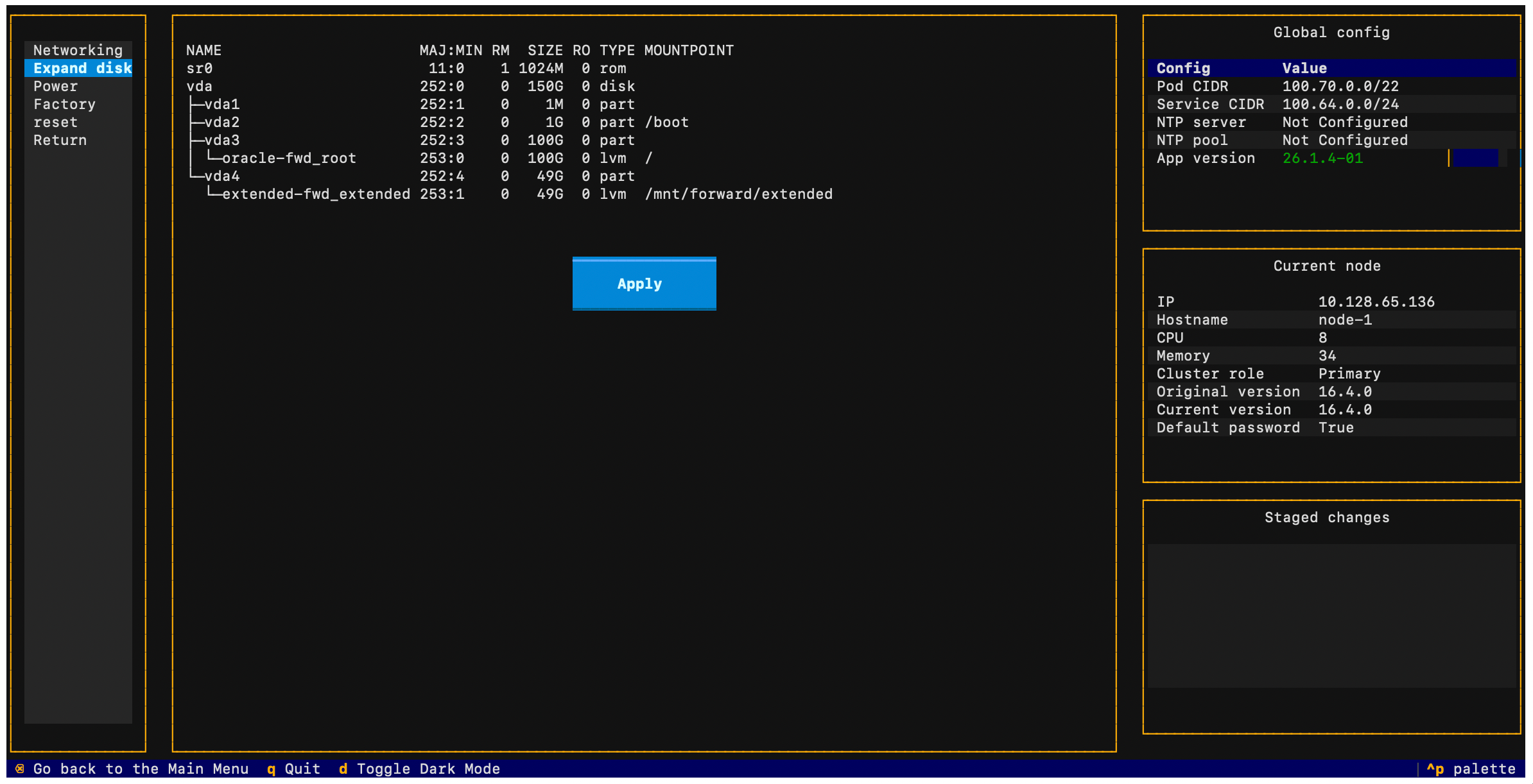
- Select Node > Expand disk from the TUI.
- The TUI will display the current disk layout and allow you to extend the partition to use the newly available space.