Troubleshooting
The Forward Cluster TUI provides built-in troubleshooting tools accessible from the Troubleshooting menu on any cluster node.
Viewing Cluster Status
View Nodes
Select Troubleshooting > View nodes to see the list of cluster nodes and their current status. From this view you can also perform node maintenance operations:
- Drain -- Safely evict all pods from a node before maintenance
- Cordon/Uncordon -- Mark a node as unschedulable (cordon) or return it to service (uncordon)
View nodes is only available after the cluster is installed.
View Pods
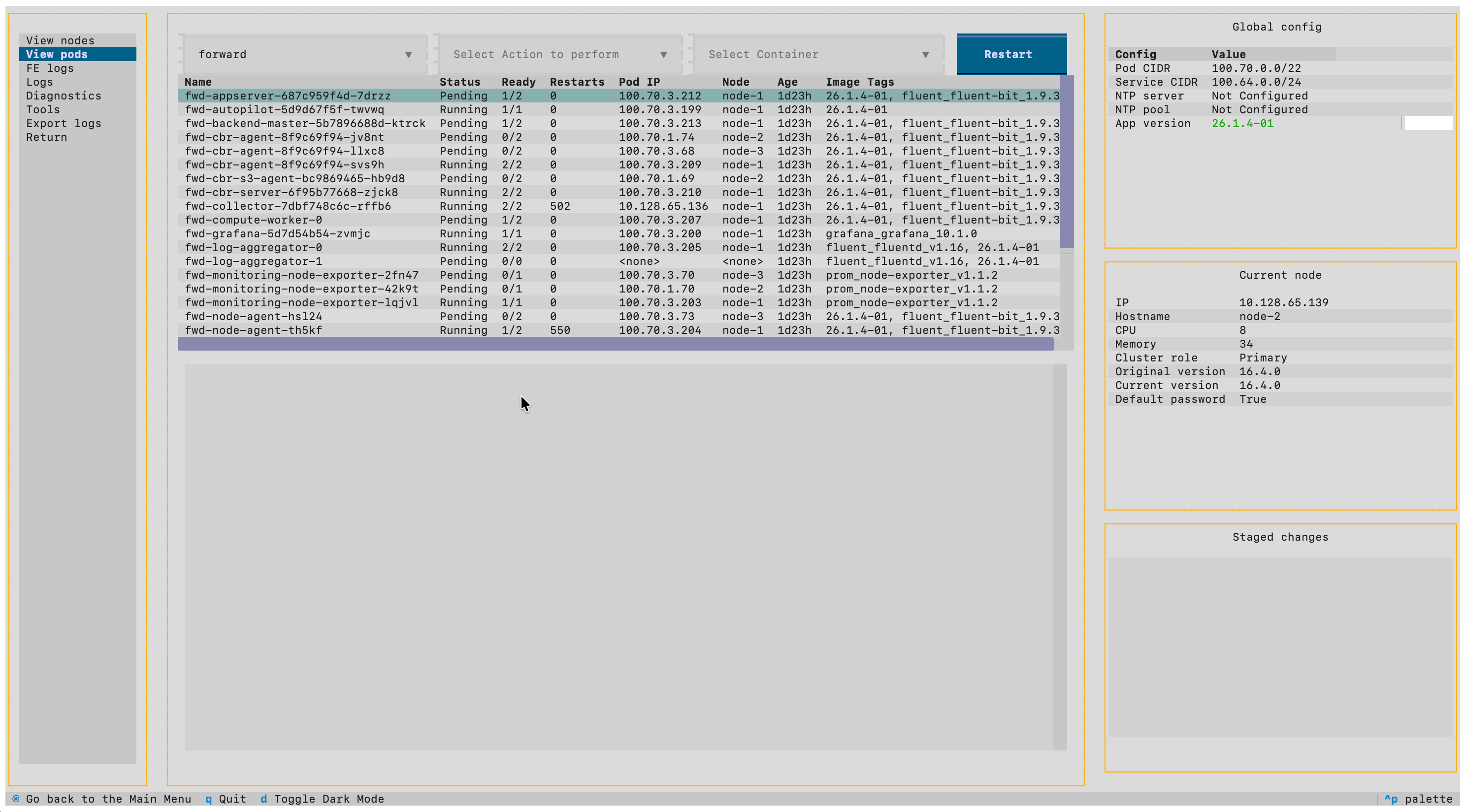
Select Troubleshooting > View pods to see the list of running pods, their current statuses, and which node they are running on. You can filter pods by namespace and perform the following actions on individual pods:
- Describe -- View detailed pod information
- Logs -- View pod logs
- Restart -- Restart the pod
View pods is only available after the cluster is installed.
Viewing and Exporting Logs
Application Logs
Select Troubleshooting > View FE logs to view Forward Enterprise application logs directly in the TUI.
View FE logs is only available after Forward Enterprise is installed.
Appliance Logs
Select Troubleshooting > View logs to view logs from various appliance components (cluster services, node-level services).
Export Logs
Select Troubleshooting > Export logs to export logs for sharing with Forward Networks support.
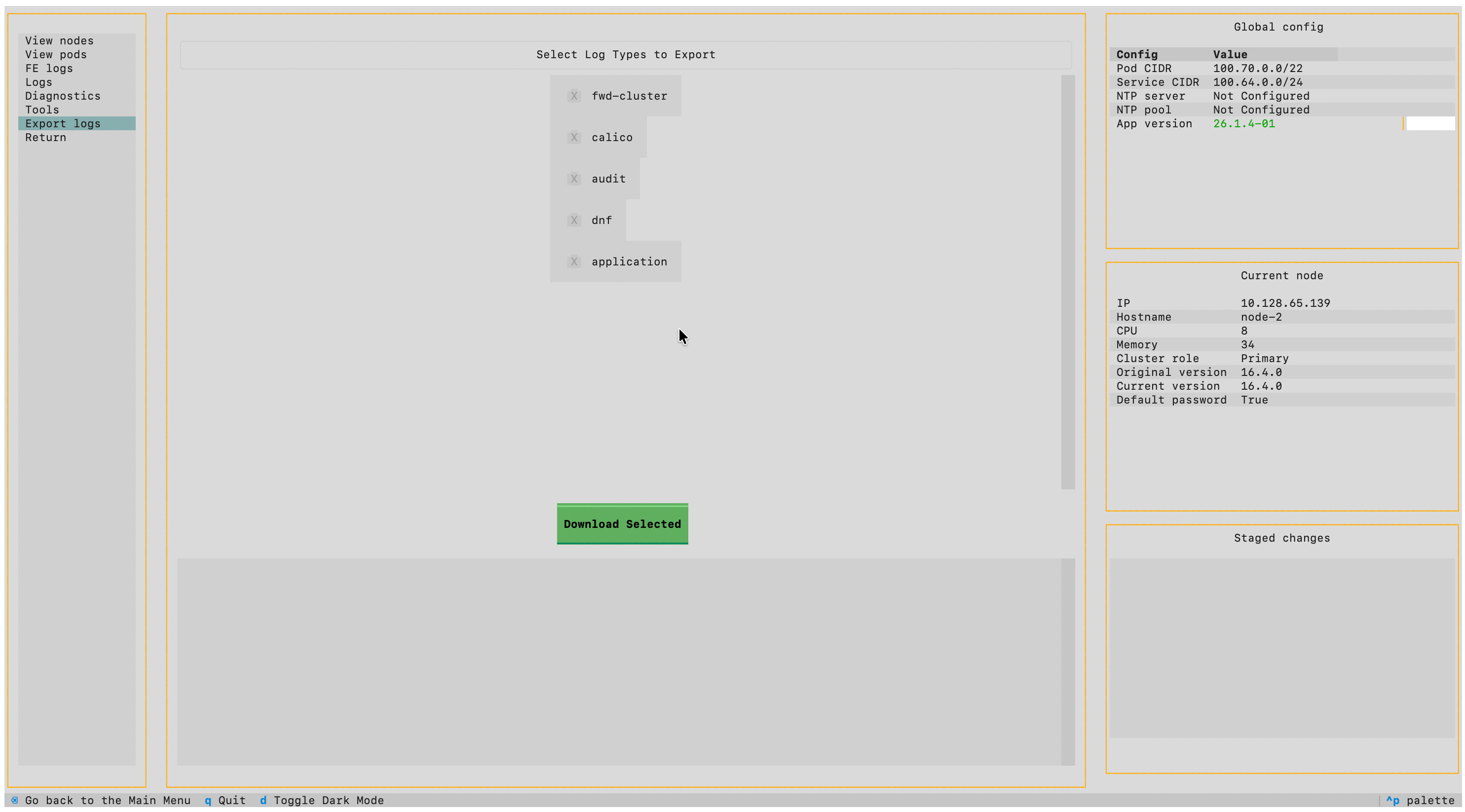
You can also export logs from the Forward Enterprise UI: click the ? icon in the top right corner, then select Export log files under the Support section.
Diagnostics
Select Troubleshooting > Diagnostics to generate a diagnostic bundle. The diagnostic tool runs a series of tests depending on the node type, number of nodes, and deployment configuration.
The generated bundle can be shared with Forward Networks engineers for analysis.
Run diagnostics on all cluster nodes to obtain complete node-level diagnostic information. Cluster-level diagnostics are automatically included when run from a primary node.
Connectivity Tools
Select Troubleshooting > Tools to access built-in connectivity tools:
- ping -- Test network reachability to a host
- traceroute -- Trace the network path to a host
- systemctl -- View the status of system services
- journalctl -- View system journal logs
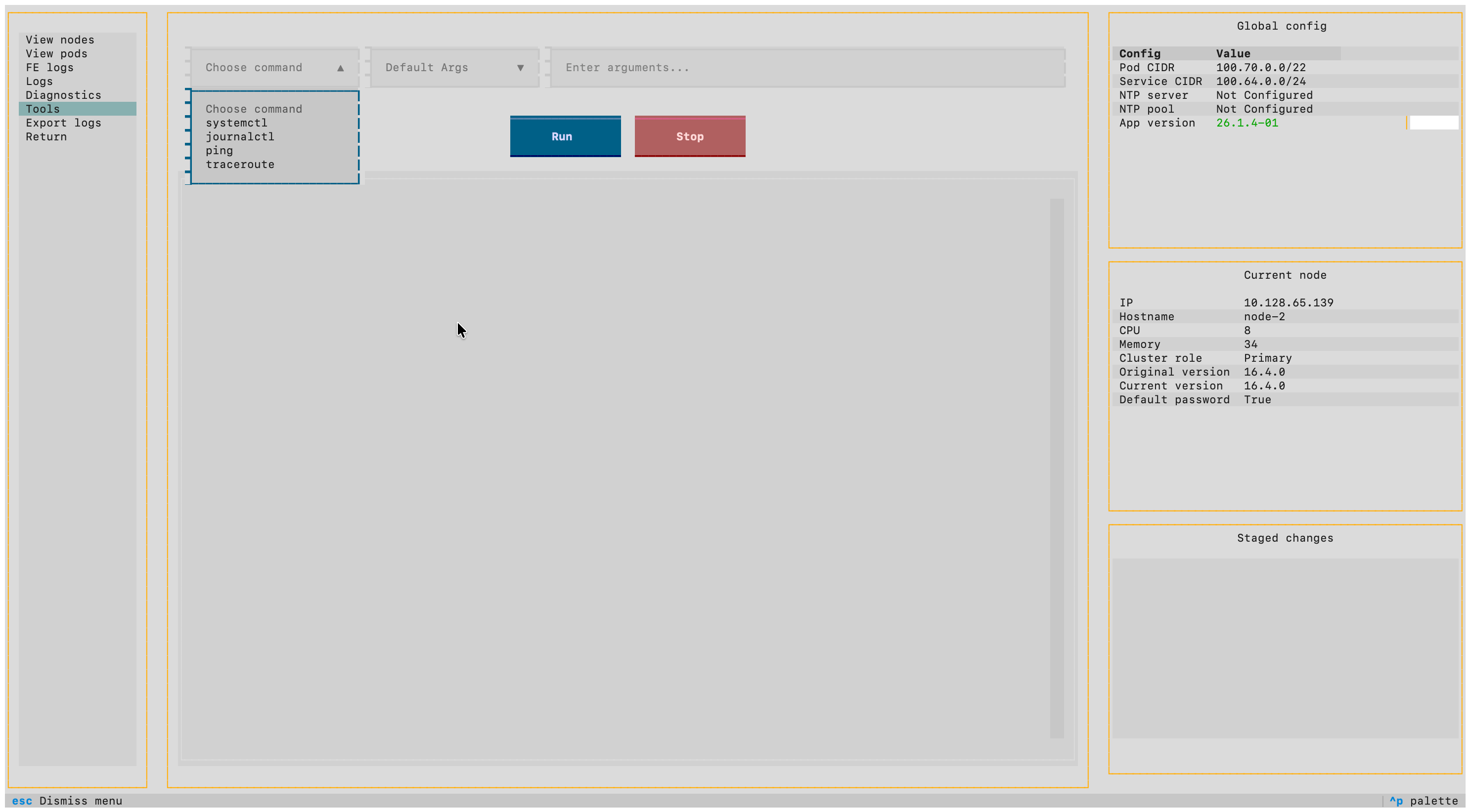
To use a tool, select it, specify arguments as you would on a Linux command line, and click Run. Output is displayed in a window within the TUI. Click Stop to terminate a running tool.
Ctrl+C or Ctrl+Z will terminate the SSH connection to the node, not the running tool. Use the Stop button instead.
Getting Support
When contacting Forward Networks support, have the following information ready:
- System information: Forward Cluster base version and Forward Enterprise application version
- Deployment platform: VMware, KVM, AWS, Azure, GCP, IBM Cloud, etc.
- Cluster details: Number of nodes, resources allocated to each node, cluster and node network configuration
- Diagnostic bundle: Generated via Troubleshooting > Diagnostics
- Problem description:
- What you were trying to accomplish
- Steps to reproduce the issue
- Error messages received
- When the problem started
- Recent changes (if any)